Access your Back Office at your fingertips.
Download the app now on Google Play Store.
Scan the QR code
You can also scan QR code with your phone to download the app.
How to view users’ transactions
Updated
On this page
When you run a lending business, transactions tell the full story. A disbursement never reaches a borrower. A repayment fails without notice. A wallet shows the wrong balance. These are problems lenders deal with every day. Resolving them quickly depends on how fast you can find and read transaction records.
Lendsqr gives every lender a dedicated Transactions page in the admin console. From here, you can see every payment event on your platform: total volume, successful collections, failed attempts, and reversals. You can drill into individual records, verify amounts, and confirm statuses without leaving the console.
This guide walks you through how to access the Transactions page, what you will find there, and the lending scenarios where this view becomes critical.
Why transaction visibility matters in lending operations
For a lender, every transaction touches either revenue or trust. A failed repayment affects your cash flow and the borrower’s loan status. A reversed disbursement means a borrower did not receive approved funds. A wallet funding issue can stop a customer from making payments entirely.
Transaction visibility supports the following four key areas of lending operations:
Repayment tracking confirms whether a borrower’s scheduled repayment was collected, or whether the attempt failed and needs a retry or follow-up.
Disbursement confirmation verifies that approved loan funds reached the borrower’s wallet or bank account. A failed or reversed disbursement needs immediate action.
Reconciliation helps your finance team match platform records to settlement statements. Clear transaction records make discrepancies easier to trace.
Customer support becomes faster when a borrower reports a payment issue. You can confirm the status of any payment within seconds and give the borrower a clear answer.
How to view user transactions on Lendsqr
Follow these steps to access and review user transactions from your admin console:
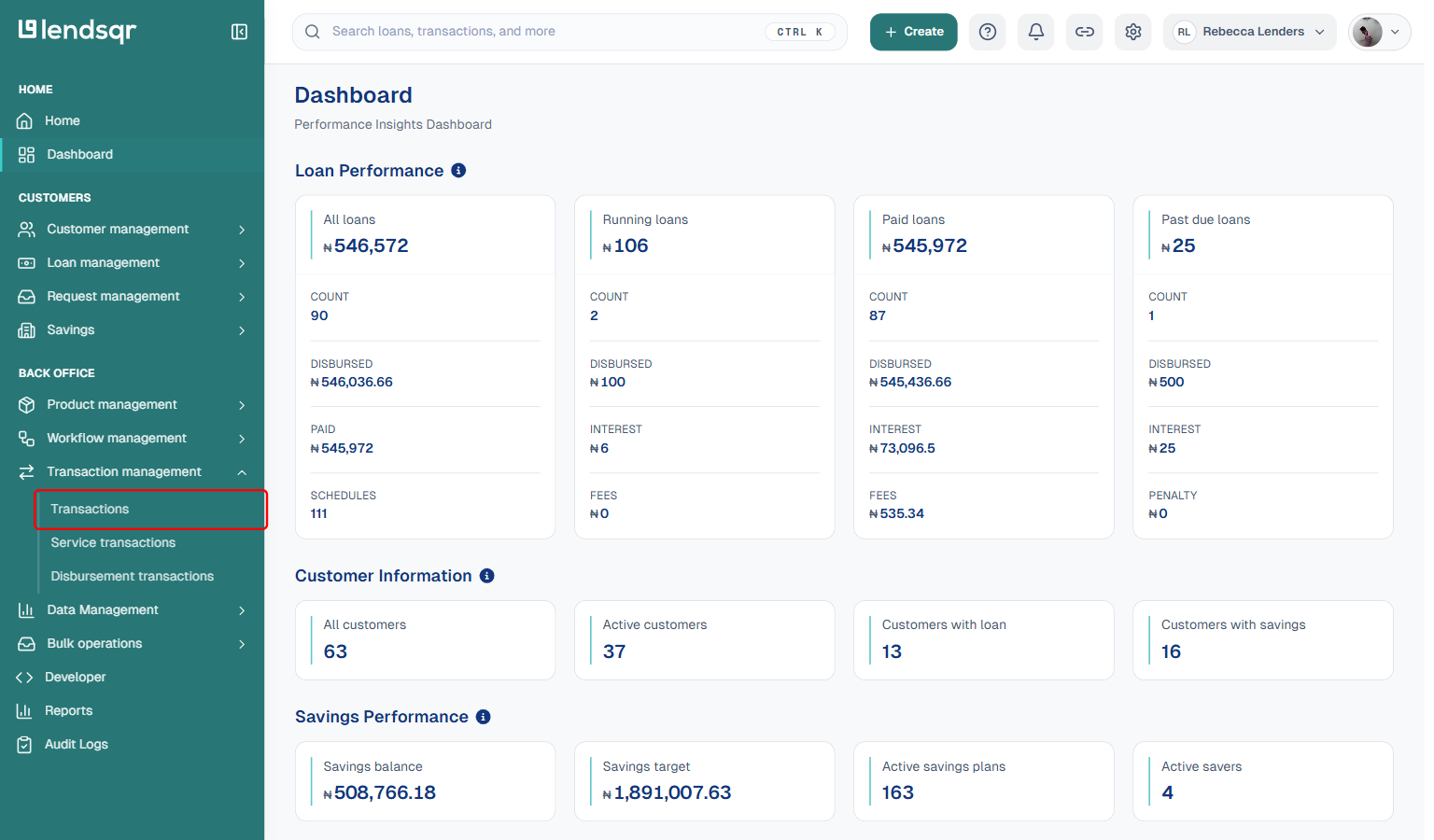
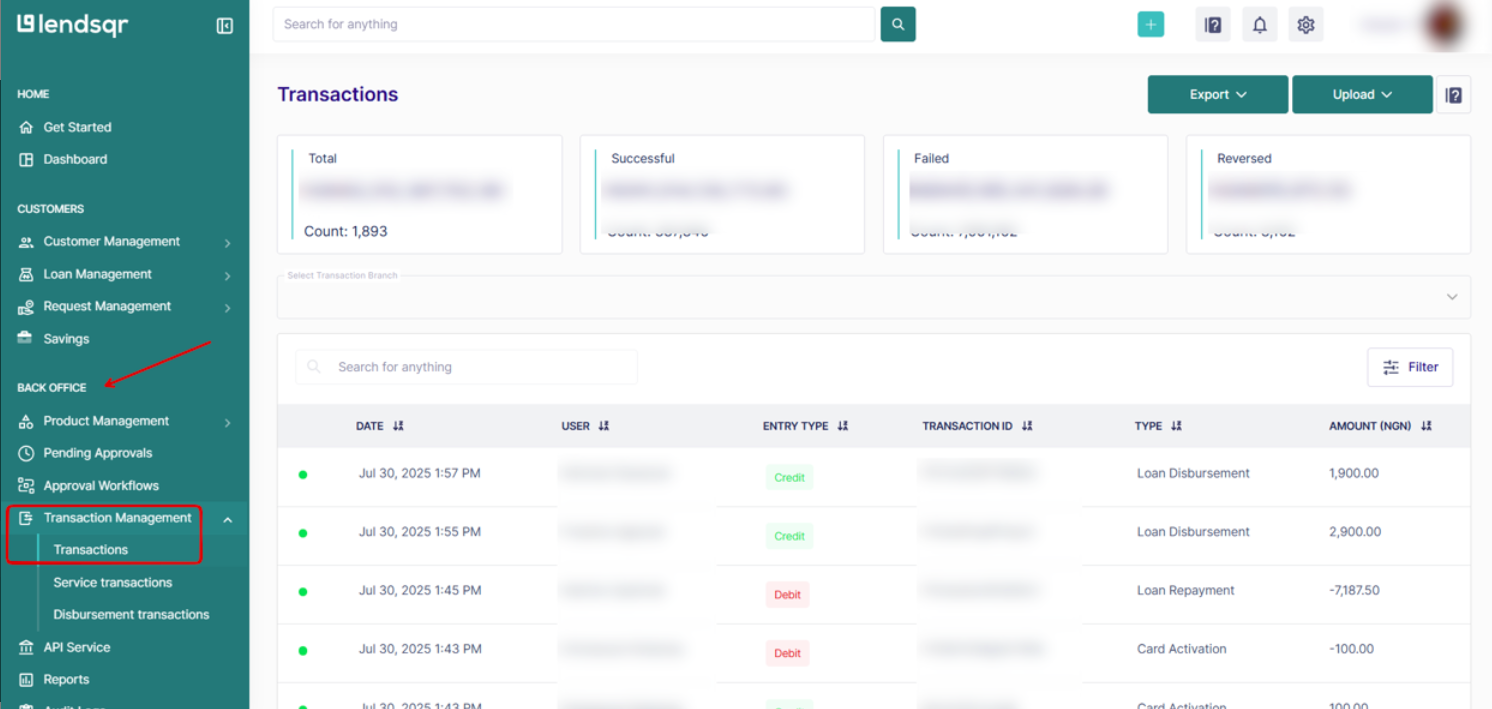
Log in to the Lendsqr admin console, locate the side navigation panel, and click the Transactions sub-tab under the Transactions Management in the side navigation panel.
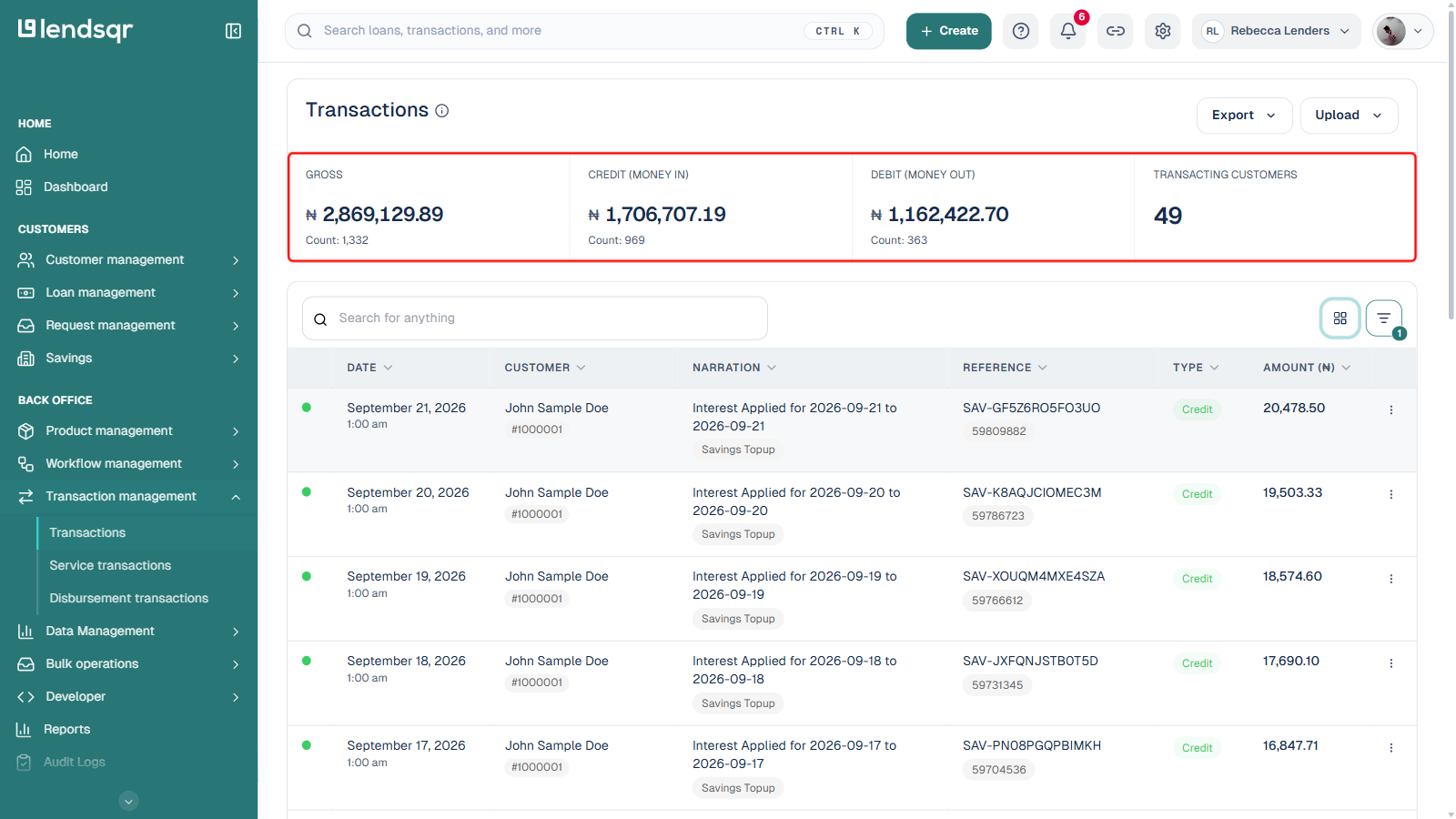
The Transactions page loads and shows four summary cards at the top: Gross (total transaction value and count), Credit (Money In), Debit (Money Out), and Transacting Customers (the number of unique customers with activity).
Scroll down to see the Recent Transactions table. This shows the latest activity across all users, including transaction type, amount, status, and timestamp.
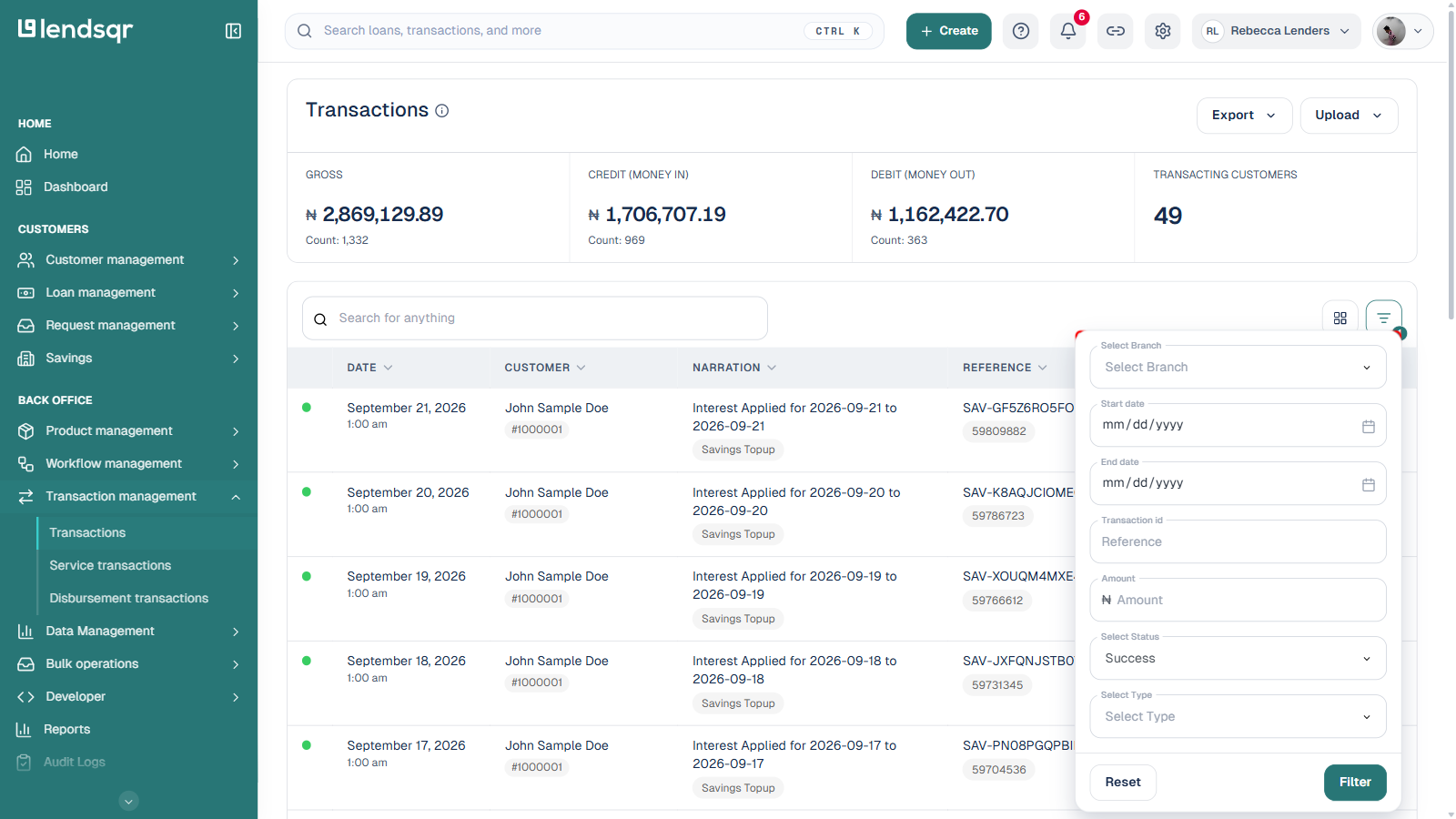
Use the Filter button to view specific transactions in the Transactions table.
By default, the table shows 20 transactions. To see more or fewer, click the Rows per page dropdown at the bottom of the table and select 10, 30, 50, or 100.
Each transaction carries a status, shown as a small coloured dot next to the row rather than as a text column. To filter the table by status, open the Filter panel and use the Select Status field, which lists Success, Failed, Reversed, and Pending. Understanding what each status means helps you decide what action to take next:
Successful means the transaction was completed as expected. For repayments, this confirms that the borrower’s loan account received the credit. For disbursements, this confirms that funds reached the borrower.
Failed means the system attempted the transaction but could not complete it. Common causes include insufficient funds, an expired card, or a network error. A failed repayment does not update the borrower’s loan balance. You need to retry the collection or follow up with the borrower directly.
Reversed means a completed transaction was subsequently undone. This can happen when a disbursement gets recalled, a duplicate charge gets corrected, or a payment gets returned. Review reversed transactions carefully during reconciliation.
Pending means a transaction is not yet completed, and the system is still trying to process it. This can happen due to multiple reasons, such as provider downtime or the volume of transactions being processed by the system.
Practical scenarios where the transaction view is essential
Scenario 1: A borrower reports that a loan disbursement did not reflect
A borrower contacts your support team, saying their approved loan has not arrived. You open the Transactions page and search by the borrower’s name or account. You find the disbursement record and see that it carries a failed status.
You can confirm the issue immediately, investigate the cause, and trigger a retry or manual disbursement. See how loan disbursement works for more on the disbursement process.
Scenario 2: A repayment shows as collected, but the loan stays active
A borrower completed their repayment three days ago. Your team can still see the loan as active in the system. You check the Transactions page and find the repayment record carries a successful status.
Scenario 3: Reconciliation shows a shortfall in collected repayments
Your finance team is reconciling monthly collections and finds that the amount collected is less than expected. You open the Transactions page, filter for failed transactions during that period, and review the results.
Scenario 4: A borrower says their wallet was funded, but the balance looks wrong
A borrower insists they transferred money into their wallet, but the admin console shows a lower balance. You check the Transactions page and find the wallet funding transaction carries a reversed status.
This gives you a clear starting point for the investigation. See Funding a wallet manually on the admin console if you need to credit the borrower’s wallet directly while the investigation continues.
Tips for working with the transactions view
Use the pagination dropdown to change visible rows when reviewing bulk activity. The default shows 20 transactions, but you can switch to 10, 30, 50, or 100 at once.
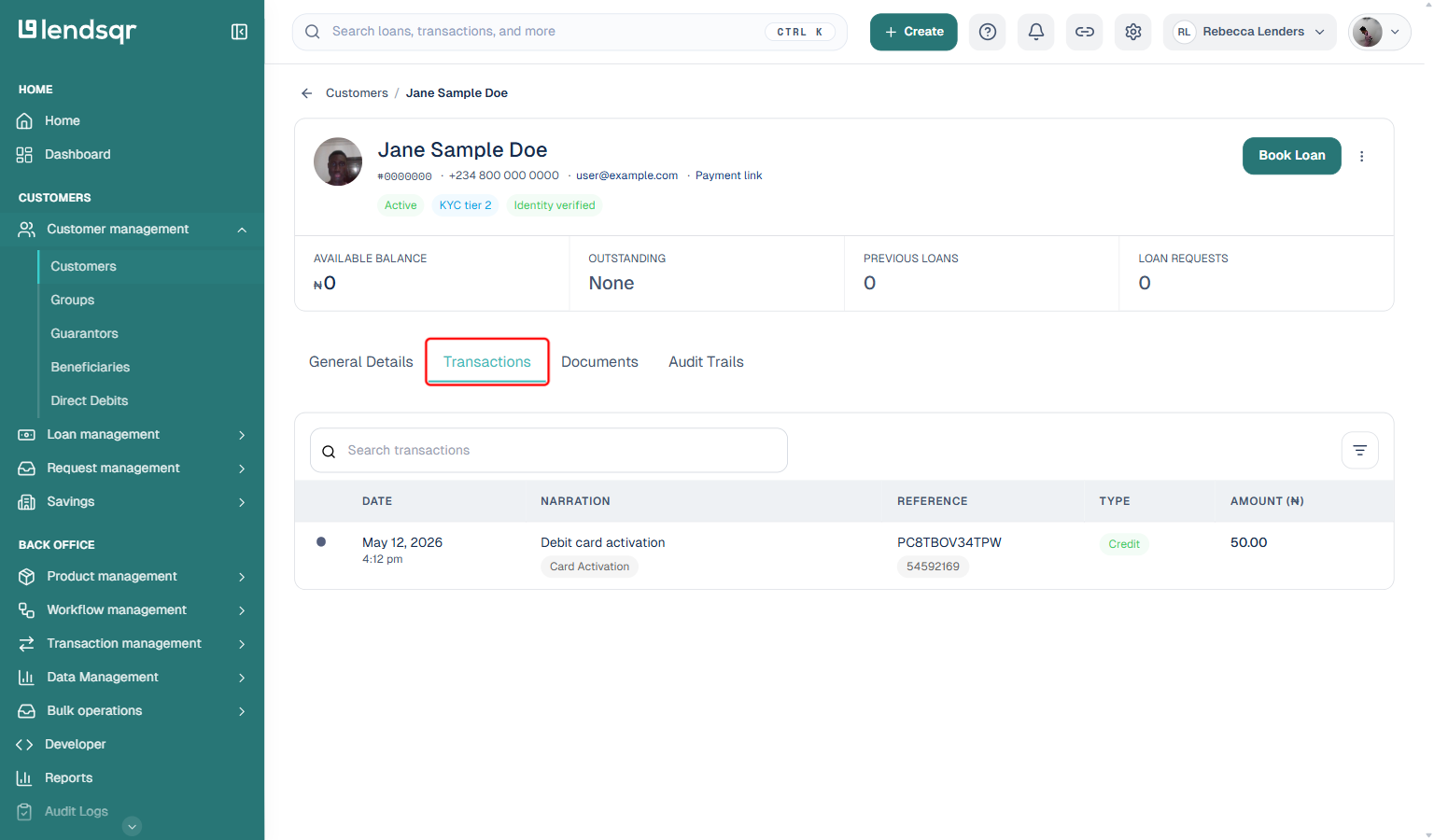
For borrower-specific transaction history, go directly to the borrower’s profile instead of filtering from the main Transactions page. The profile view shows only that user’s activity, which makes it faster to investigate individual cases. See Transactions and bank details: how to view users’ information.
Review failed transaction trends regularly, not only when a complaint arrives. A pattern of failed collections during a specific period can signal issues with your payment provider or mandate setup.