Access your Back Office at your fingertips.
Download the app now on Google Play Store.
Scan the QR code
You can also scan QR code with your phone to download the app.
How to upload documents and files when adding a note
Updated
On this page
Admins often need to keep track of important user activities by adding notes or comments in the admin console. Sometimes, these notes aren’t enough on their own; supporting documents, screenshots, or files might be needed to give the full picture. With this feature, admins can easily upload and attach documents or files while adding a note or comment, making it simpler to share key information with other team members and keeping everything organized in one place.
Why document attachments matter in customer management
Effective customer management in lending operations requires more than just text notes. While written comments capture observations, decisions, and interactions, many situations demand supporting documentation that text alone cannot provide. A loan officer might need to attach a photo of a customer’s damaged ID for compliance review. A collections agent might need to upload proof of payment that a customer sent via WhatsApp. A manager might need to attach email correspondence that clarifies a disputed transaction.
Without the ability to attach files directly to customer notes, this supporting documentation gets scattered across email inboxes, chat applications, local hard drives, and shared folders. When team members need to review a customer’s history, they must hunt through multiple systems to piece together the complete picture. Critical information gets lost, misplaced, or overlooked because it exists separately from the central customer record.
Document attachment capability solves this fragmentation by creating a single source of truth. Every relevant piece of information, whether text notes or supporting files, lives together in the customer’s profile within the admin console. Anyone reviewing the customer’s account sees the complete context immediately without searching external systems.
Types of situations requiring document attachments
Understanding common scenarios where document attachments prove valuable helps you leverage this feature effectively in your daily operations.
Identity verification and KYC documentation
When customers submit identity documents during onboarding or account updates, loan officers often need to flag issues for review. Perhaps the uploaded ID photo is blurry and needs resubmission. Perhaps details on the ID do not match application information. Perhaps the document appears altered or suspicious. In these cases, attaching the problematic ID image to a note creates a clear record for compliance teams or managers to review, with the specific document in question directly visible rather than requiring them to navigate to a separate document repository.
Payment proof and transaction disputes
Customers frequently provide payment evidence through channels like WhatsApp, email, or SMS when they claim to have made payments that did not reflect in the system. Rather than forwarding these images through multiple communication channels, the receiving staff member can immediately attach the payment proof to a customer note. When collections or finance teams later investigate the disputed transaction, they see the customer’s evidence directly in context with the note explaining the situation.
Loan application supporting documents
Sometimes loan applications require additional documentation beyond standard identity verification. A business loan might require invoices, contracts, or business registration documents. An emergency loan might require medical bills or repair estimates. Rather than storing these supporting documents in a separate file system disconnected from the loan application, attaching them to notes on the customer’s profile keeps all application materials together for easy review.
Conversation screenshots and correspondence
Important conversations with customers often happen through WhatsApp, SMS, social media, or email. When these conversations contain commitments, clarifications, complaints, or other significant information, capturing screenshots and attaching them to customer notes creates permanent records. If a customer later disputes what was discussed or agreed, the attached screenshots provide clear evidence.
Field visit documentation
For lenders who conduct field visits for verification, collections, or relationship management, field agents often take photos documenting the visit. Pictures of business premises, inventory, family situations, or living conditions provide valuable context for credit decisions and collections strategies. Attaching these photos to notes creates visual records that help remote teams understand situations without physically visiting locations.
Compliance and audit trails
Regulatory compliance and internal audits often require demonstrating that proper procedures were followed. Attaching relevant documents to notes creates audit trails showing what information was reviewed and what steps were taken. If regulators question why a particular loan was approved or how a specific situation was handled, the attached documentation provides evidence of proper procedure.
Step-by-step guide to uploading documents when adding notes
Follow these steps to attach files to customer notes in the Lendsqr admin console.
Step 1: Find the customer
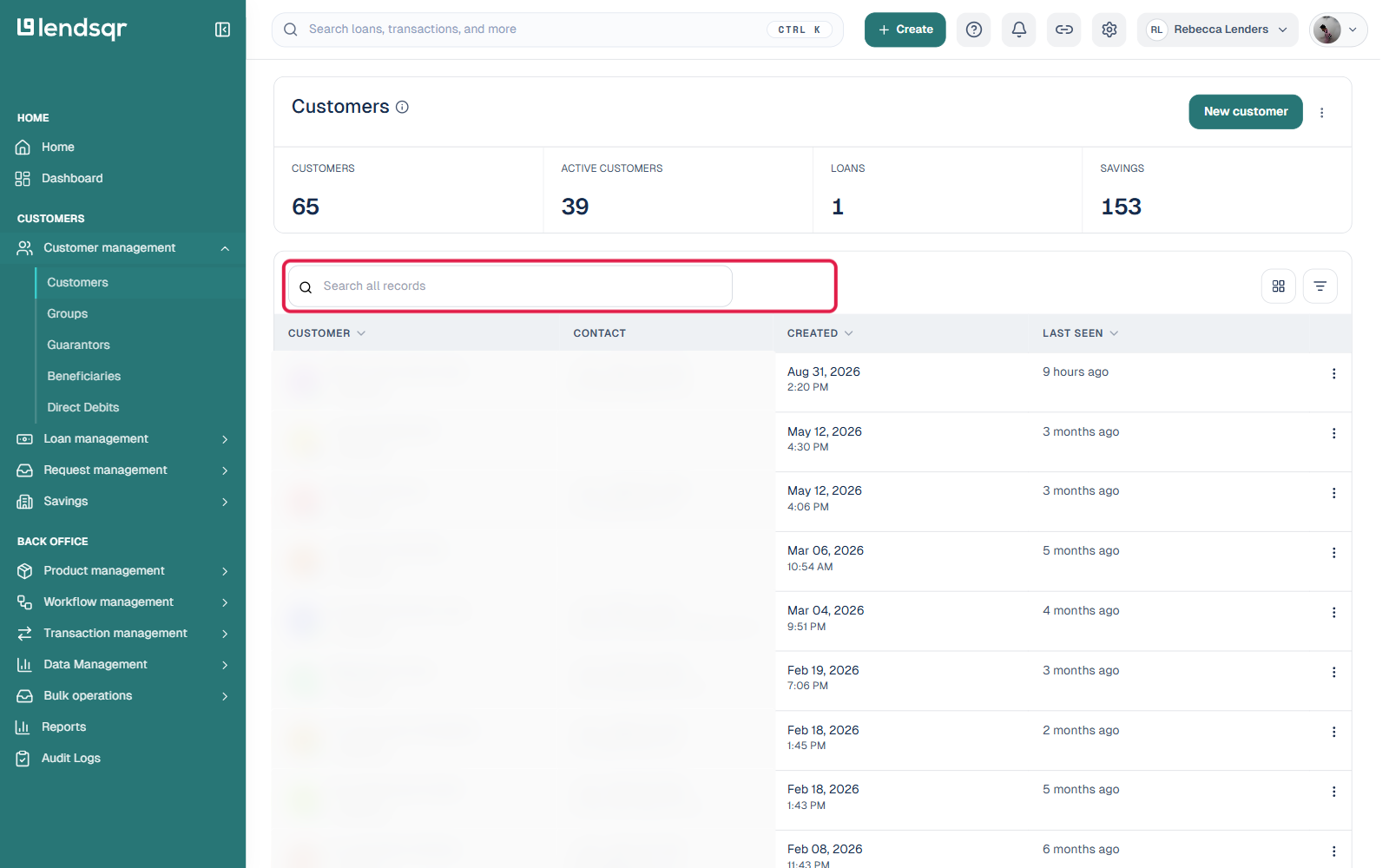
From the left menu, go to Customer Management and click Customers to open the customer list. Use the search box above the table to find the customer by name, email, phone number, or account number, or click the Filter icon next to it to filter by specific fields. Click on the customer’s row to open their profile.
Step 2: Open the Notes panel
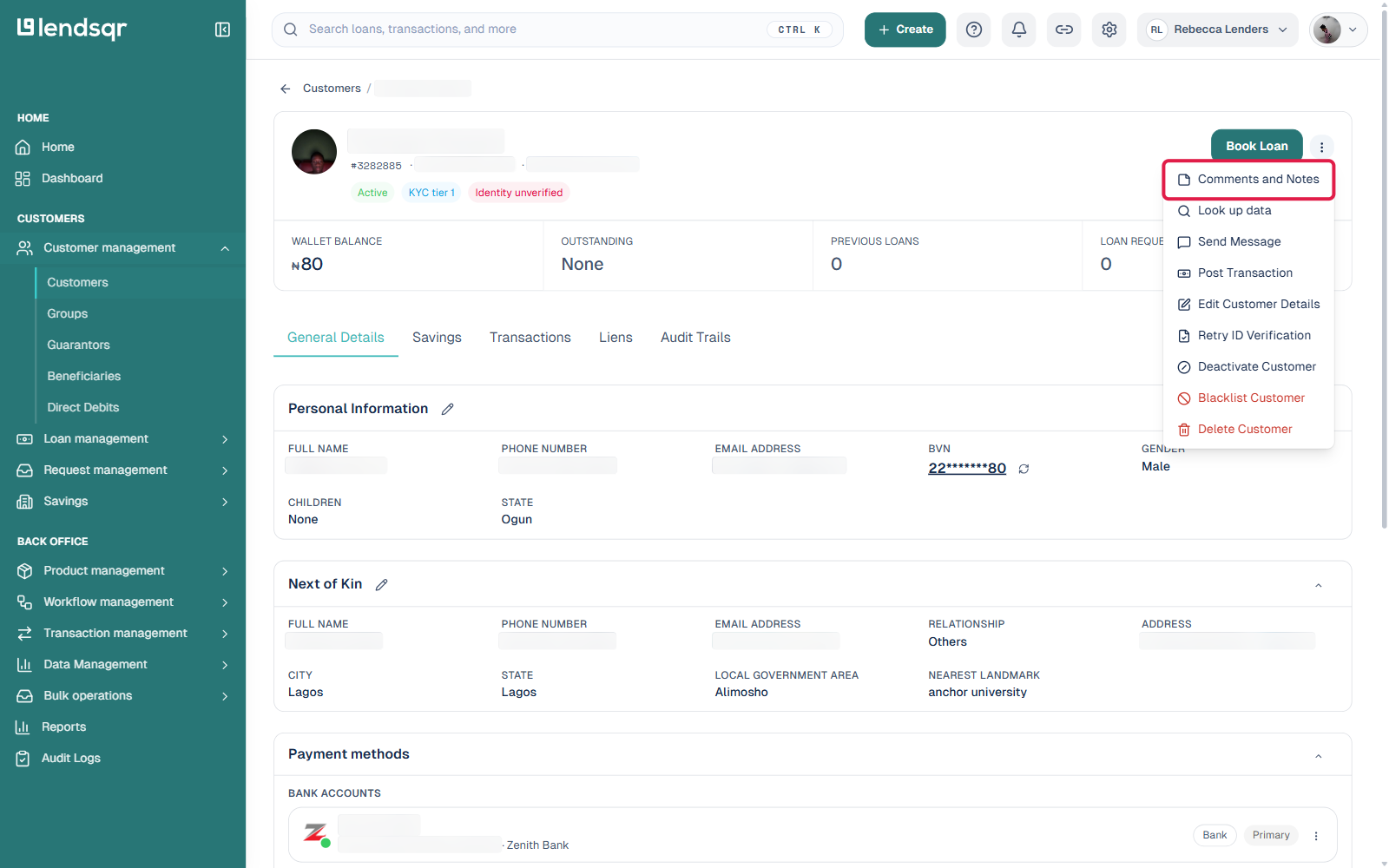
On the customer’s profile, click the More actions menu (the three-dot icon next to Book Loan) and select Comments and Notes. This opens the Notes panel, showing the chronological history of notes already on this record.
Step 3: Write your note
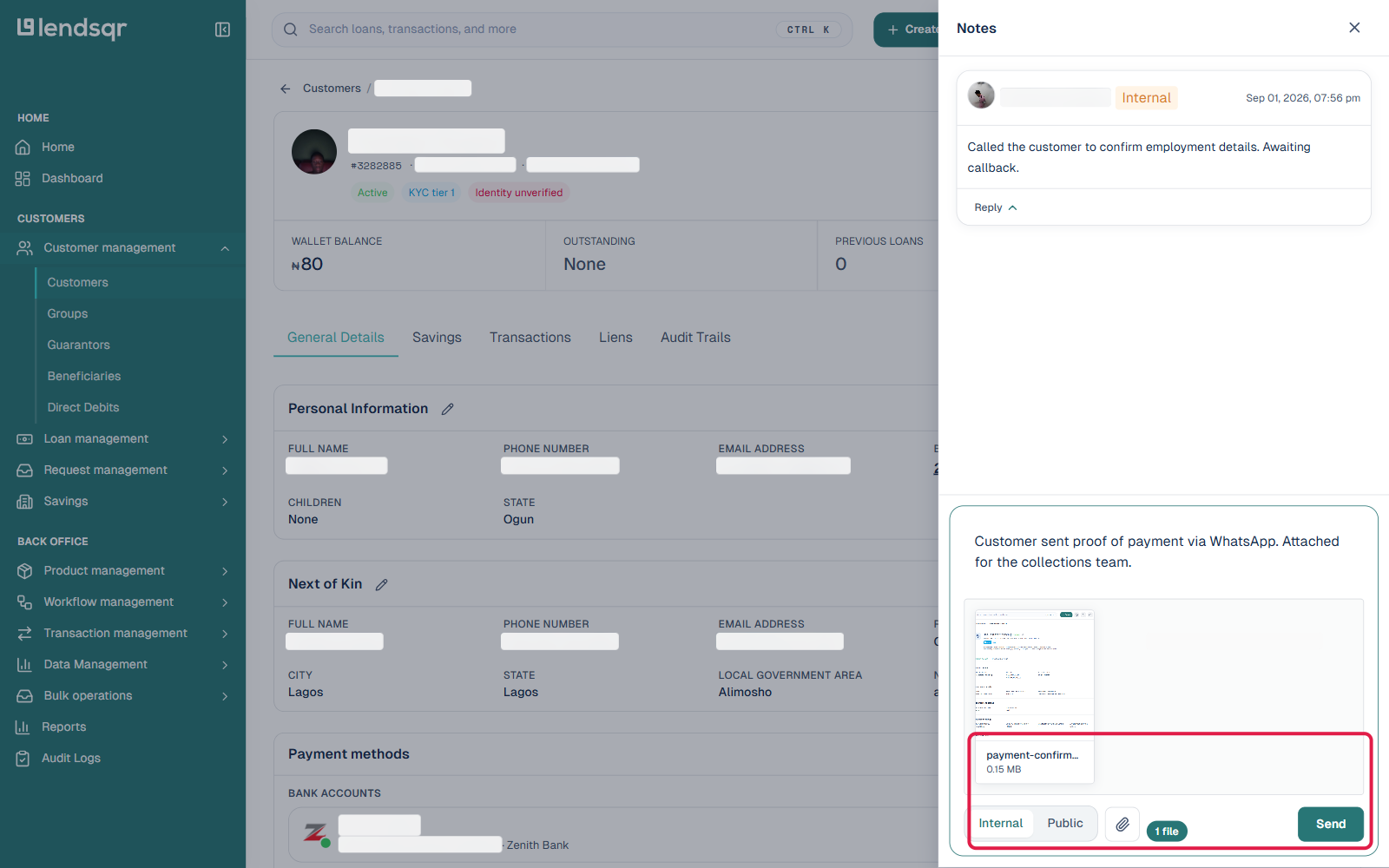
Click into the comment field at the bottom of the panel and type your note, explaining the situation, observation, or context for the file you are about to attach.
Step 4: Attach your file
Click the paperclip icon (Attach files) next to the Internal/Public toggle to open your device’s file picker. The uploader accepts .png, .jpg, .jpeg, .svg, .pdf, .doc, .docx, and .csv files, and you can attach more than one file to the same note. Select the file (or files) you want to attach.
Once selected, the file appears as a preview with its name and size just above the comment field, alongside a count of how many files are attached. You can remove a file before sending by clicking the remove icon on its preview.
Step 5: Choose visibility and send
Choose whether the note (and its attachment) should be Internal or Public using the toggle, the same distinction covered in how to add notes and comments to a record. Then click Send. The note and its attachment are added to the customer’s note history together, where any team member with access to Notes on that record can open the file.
Best practices for using document attachments
To maximize the value of document attachments while maintaining organized, professional customer records, follow these best practices.
Write a clear note text explaining the attachments
Always include text in your note that explains what the attached files are and why they are relevant. Simply attaching a file without explanation creates confusion for other team members who later review the customer’s history. They see an attachment but do not understand its significance or context.
For example, rather than just attaching an ID photo with no comment, write a note like “Customer submitted new ID for verification. Please note the address on this ID differs from the address in our system. Attachment shows the updated ID for compliance review.” This context makes the attachment immediately understandable to anyone reviewing the record.
Use descriptive file names
Before uploading files, rename them with clear, descriptive names that indicate their content. Generic file names like IMG_1234.jpg or Document.pdf provide no information about content, and the file name is what shows up next to your note. Descriptive naming becomes especially important when a customer has multiple attachments in their history, since it lets team members identify the right one without opening every file.
Attach files to the most relevant note
If you are adding multiple notes about different topics for the same customer, attach each file to the note it relates to rather than attaching all files to a single note. This organization keeps related information together and makes it easier to find specific documentation later.
For example, if you are adding a note about a payment dispute and a separate note about an address update, attach the payment proof to the payment dispute note and attach the new ID with updated address to the address update note.
Stick to supported file types
The uploader only accepts PNG, JPG, JPEG, SVG, PDF, DOC, DOCX, and CSV files. Video files, audio recordings, or other formats will not be accepted by the file picker. If you need to document something like a voice note or video, convert it to a supported format first or describe it in the note text and store the original elsewhere.
Maintain customer privacy and data security
Remember that attached files become part of the customer’s permanent record and may be visible to other authorized team members. Do not attach files containing sensitive information unrelated to the note’s purpose. Do not attach personal documents from other customers. Do not attach internal deliberations or communications that should remain confidential.
Who can view the attached documents?
Document visibility follows the same rules as the note it is attached to. A file attached to an internal note is only visible to your staff; a file attached to a public note is visible to the borrower as well. Beyond that, document visibility follows the same permission structure as notes and comments themselves; team members who have permission to view customer notes can view attached documents on those notes.
By leveraging document attachment capability thoughtfully and following best practices, you transform customer notes from simple text records into comprehensive documentation that provides complete context for every customer interaction, decision, and situation your team encounters.