Access your Back Office at your fingertips.
Download the app now on Google Play Store.
Scan the QR code
You can also scan QR code with your phone to download the app.
How to view a user’s loans in the Lendsqr admin console
Updated
On this page
When managing borrowers, you often need a quick picture of a customer’s loan history: how many loans they have taken, which ones are active, whether any are past due, and what their repayment behaviour looks like over time. Having this information at your fingertips makes it easier to approve new requests, follow up on outstanding balances, and build a fuller understanding of each borrower’s relationship with your platform.
The Lendsqr admin console gives you two ways to get to a loan: browse every loan on the platform from one place, or go through a specific customer’s profile when you already know who you’re looking for.
Why viewing a customer’s loans matters
A borrower’s loan history is one of the most useful signals available to a lender. Before approving a new loan or renewing an existing one, it helps to know how the borrower has behaved in the past: whether they repaid on time, whether they have multiple active loans, and whether any loans have gone past due.
This view also helps during collections. Rather than searching through separate reports or transaction records, you can pull up a loan’s full history directly and address any issues in context.
Option 1: Browse all loans
Use this when you want to see loans across your whole customer base, for example to check on everything currently running or past due, rather than starting from a specific customer.
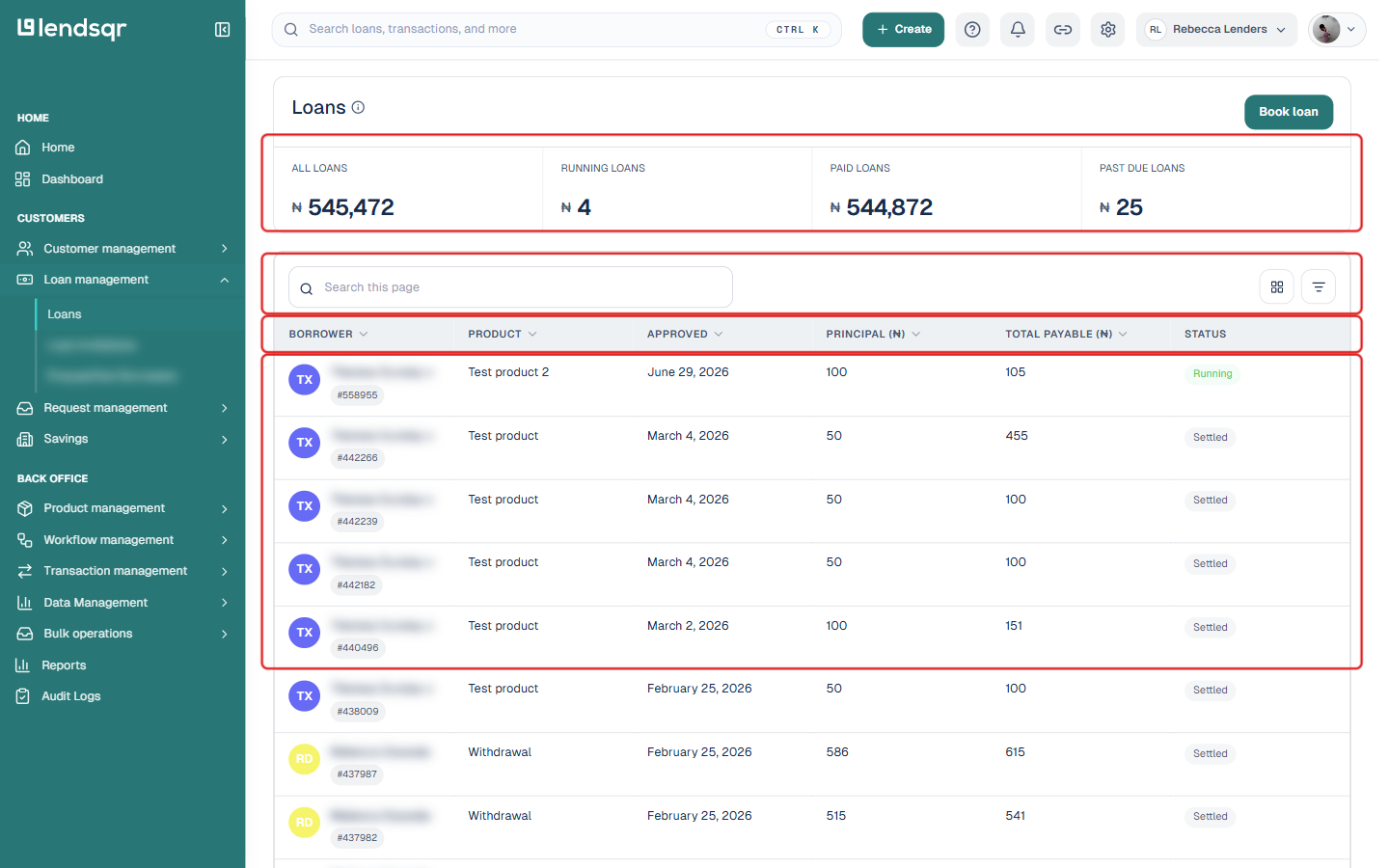
On the side navigation, go to Loan management, then select Loans.
The page opens with summary totals for All Loans, Running Loans, Paid Loans, and Past Due Loans, followed by a table of every loan on the platform.
Use the Filter or Columns icons above the table to narrow the list, or click any column header to sort by it.
Click a row to open that loan.
Each row shows the borrower, product, approval date, principal, total payable, and status at a glance.
Option 2: From a customer’s profile
Use this when you already know which customer you’re looking for. If you are not yet familiar with finding a specific customer on the admin console, see Locating users’ profile page first.
On the side navigation, go to Customer management under Customers, then select Customers.
Find the customer using the filter panel or the search box above the table, then click their row to open the profile.
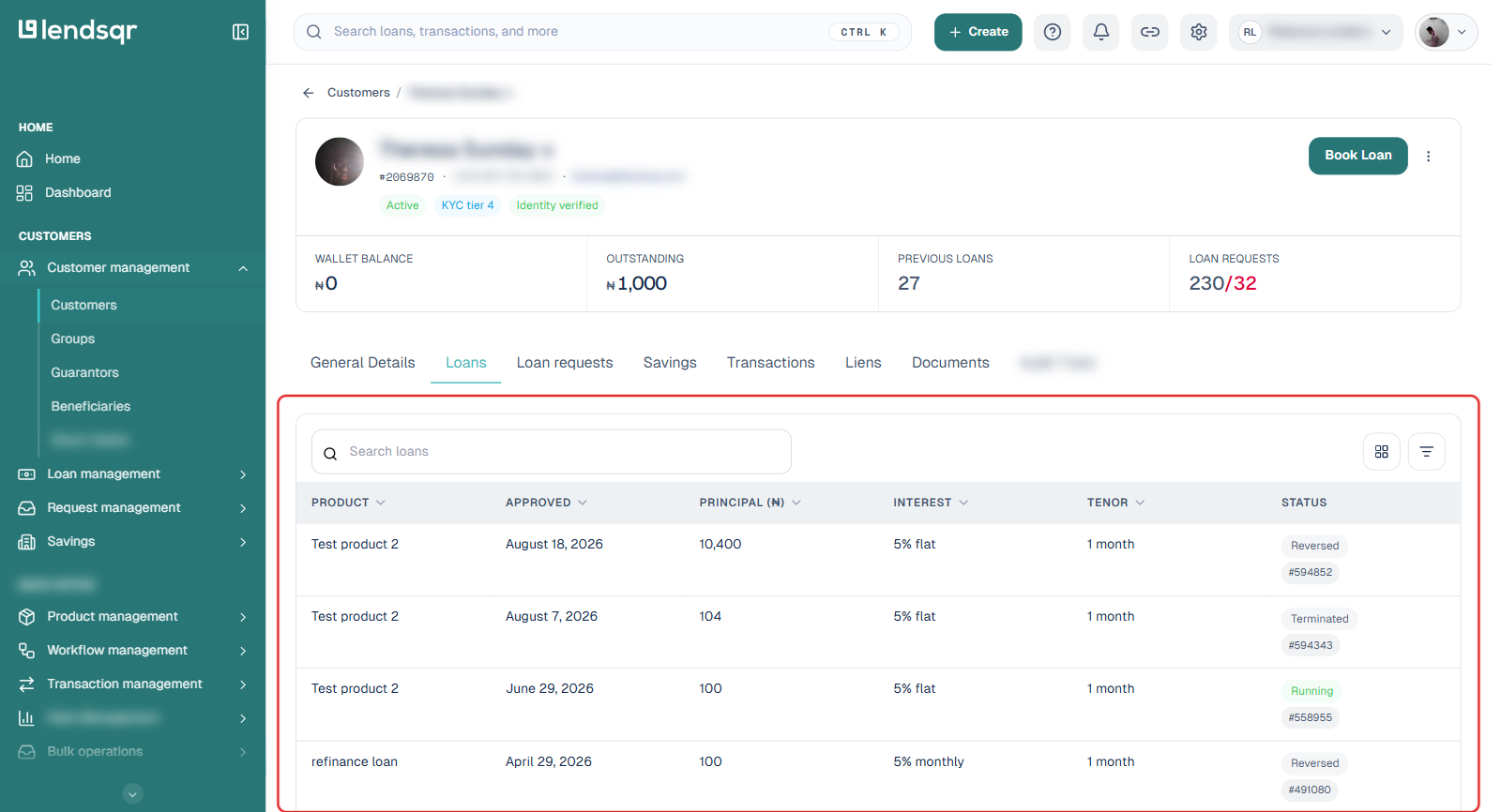
On the customer’s profile, click the Loans tab. This only appears if the customer has at least one loan.
This table is scoped to that one customer, with the same product, approval date, principal, interest, tenor, and status columns. Click any row to open that loan.
What you’ll see on a loan’s page
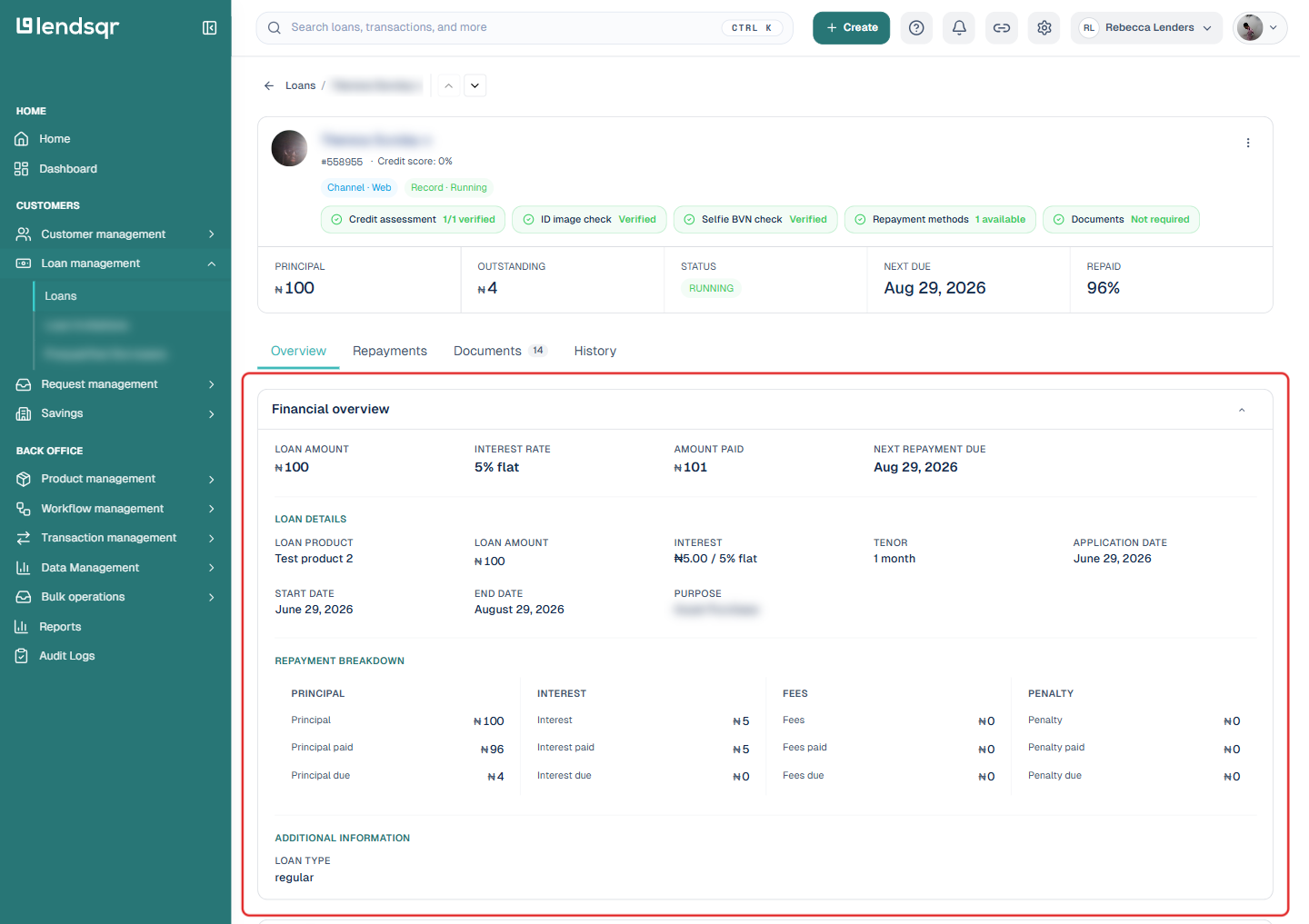
Either method above lands you on the same kind of page: a dedicated page for that one loan, with its own header showing principal, outstanding balance, status, next due date, and percentage repaid. Below the header are four tabs: Overview, Repayments, Documents, and History.
Overview (default tab) shows the full financial breakdown: loan amount, interest rate, tenor, application and start dates, purpose, and a principal/interest/fees/penalty breakdown split into charged, paid, and due. It also includes the borrower’s details as captured at the time of application (contact info, address, employment, and monthly income), the bank accounts and cards linked to repayment, any direct debit mandate tied to the loan, and, where applicable, automated credit decision data and rejection details.
Repayments shows the loan’s repayment schedule (amounts due by date) and a separate transaction history of actual credits and debits recorded against the loan.
Documents lists the documents submitted as part of this loan’s application, with their review status.
History shows a timestamped activity log of status changes for this loan (for example, moving from pending activation to running), plus a table of the borrower’s previous loans for quick comparison.
Understanding loan statuses
As you review a borrower’s loan history, you’ll come across different status labels. The ones confirmed on live loans include:
Pending activation: the loan has been approved but has not yet moved to running, typically while disbursement is being confirmed.
Running: the loan has been disbursed and is currently active.
Settled: the loan has been fully repaid.
Reversed: the loan or a transaction on it was reversed, for example after a failed or disputed disbursement.
Terminated: the loan was closed by the lender or system before natural completion.
Other statuses may appear depending on where a loan is in its lifecycle, such as at the application or decisioning stage before it becomes a loan at all. Check the History tab on a specific loan for the exact sequence of statuses it passed through.
Best practices for using this view
Checking a customer’s loans before any lending decision is a straightforward habit that pays off over time. A few things worth doing consistently:
Use the all-loans view under Loan management when you want a portfolio-wide picture, such as everything currently past due, rather than checking customers one at a time.
Check the History tab on a loan to see when its status last changed, and whether that matches what the borrower is telling you.
Use the Repayments tab’s transaction history to verify whether payments recorded in the system actually reflect what the borrower claims to have paid.
For borrowers with multiple loans, use the Previous Loans table on the History tab to spot patterns of responsible borrowing or signs of over-indebtedness before approving new requests.