Access your Back Office at your fingertips.
Download the app now on Google Play Store.
Scan the QR code
You can also scan QR code with your phone to download the app.
How to generate recovery codes for your two-factor authentication
Updated
On this page
Introduction
Two‑Factor Authentication (2FA) adds a critical layer of security to your Lendsqr admin account by requiring both your password and a one‑time code from an authenticator app. But what happens if you lose your phone or can’t access your authenticator app?
Recovery codes (also called backup codes) are your safety net. They are single‑use codes that let you log in when your primary 2FA method is unavailable. For organizations, ensuring that admins have access to recovery codes prevents costly lockouts that could delay loan approvals, customer support, or financial operations.
This guide explains why recovery codes matter, how to generate them during 2FA setup, how to store them securely, and what to do if you lose them.
Why recovery codes matter
Scenario
Why do you need recovery codes?
Lost or stolen phone
Your authenticator app is on the device; without a backup, you cannot log in.
Factory reset without backup
Authenticator data is wiped; recovery codes are your only way back in.
Authenticator app malfunction
Rare but possible; recovery codes provide a reliable fallback.
Employee offboarding
If a team member leaves without handing over 2FA access, recovery codes allow a secure admin reset.
Having a set of recovery codes ensures business continuity. For lenders, being locked out of the admin console can mean halted operations, no loan approvals, no disbursements, no customer support. Treat recovery codes as part of your organization’s disaster recovery plan.
How recovery codes are generated
Recovery codes are created automatically when you first set up Two‑Factor Authentication on your Lendsqr admin account. You cannot generate them separately, they are only displayed at the moment you complete the 2FA setup.
If you already have 2FA active and have lost your codes, you must deactivate and then reactivate 2FA. This process generates a brand‑new set of recovery codes.
Deactivating your 2FA account
If you have already set up 2FA on your account, you would need to deactivate it to set up a recovery code. You can do this with the following steps:
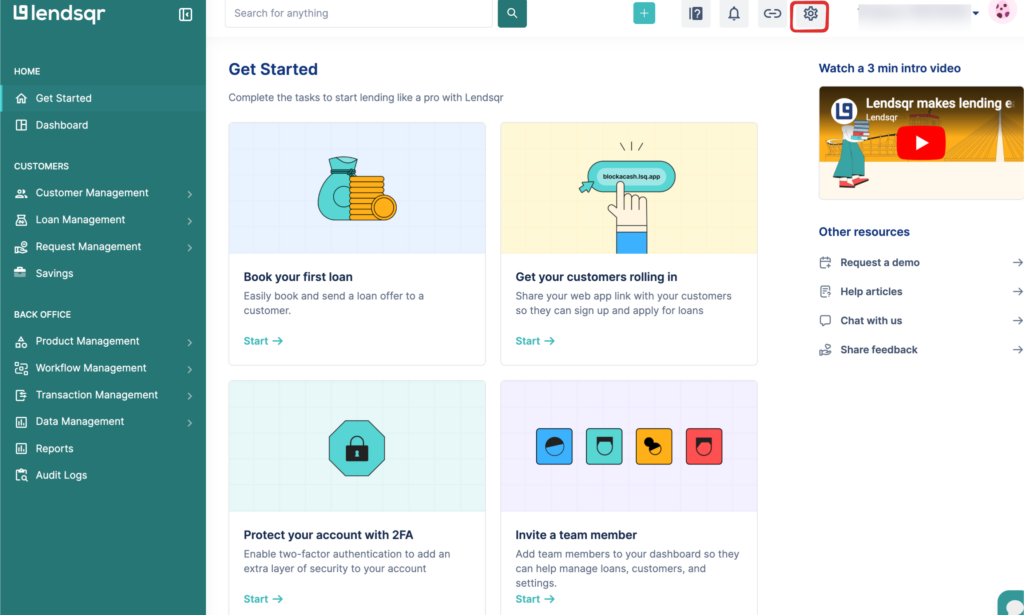
Click on the “Settings” icon at the top of the admin console to open the “Settings” menu.
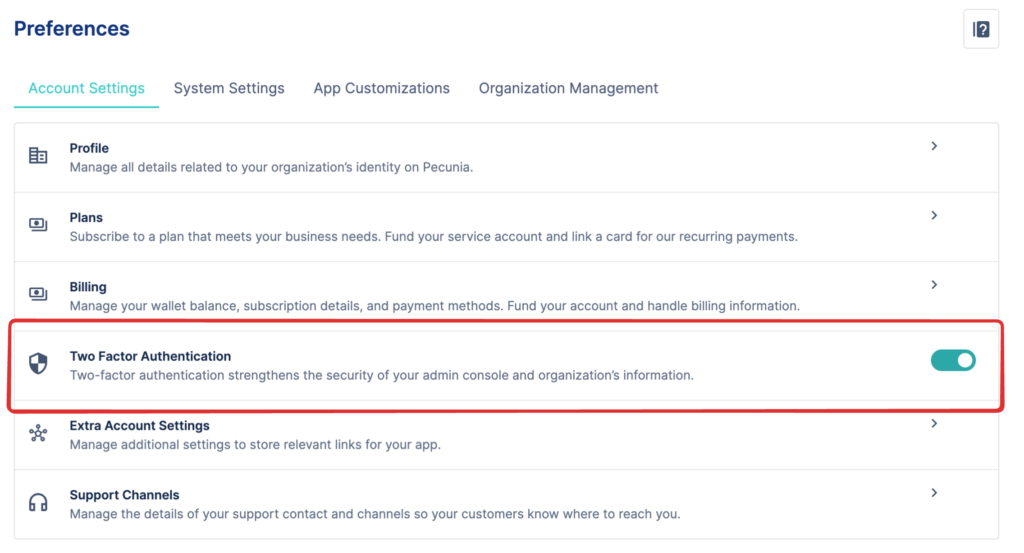
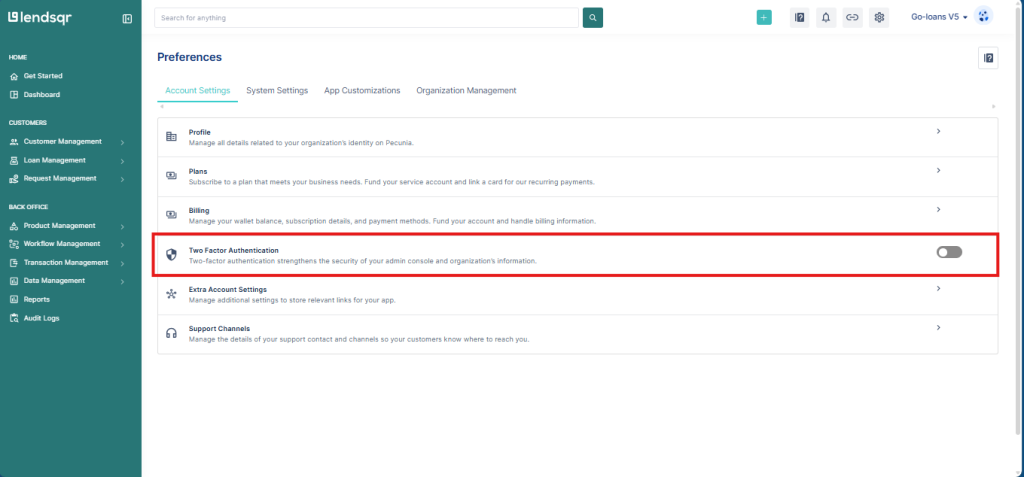
2. On the settings page, locate the “Two-Factor Authentication” option, select this to deactivate the 2FA.
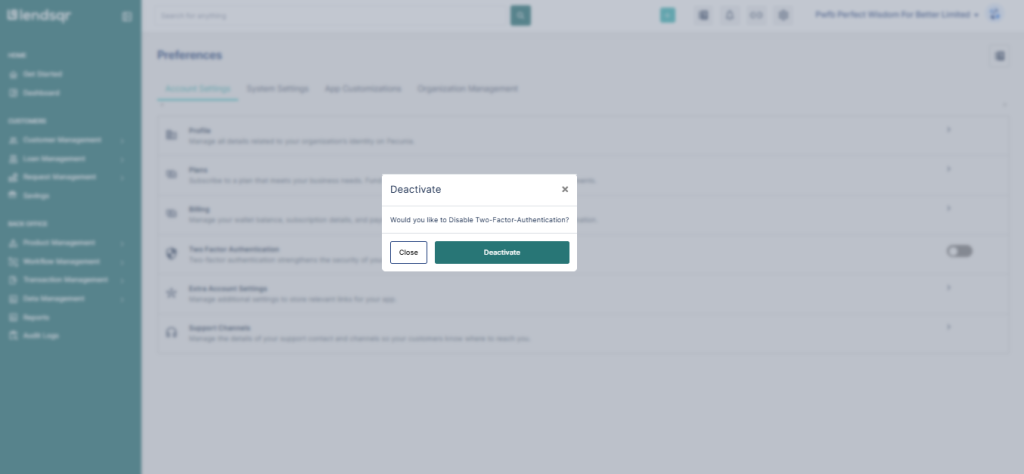
Click ‘Deactivate’
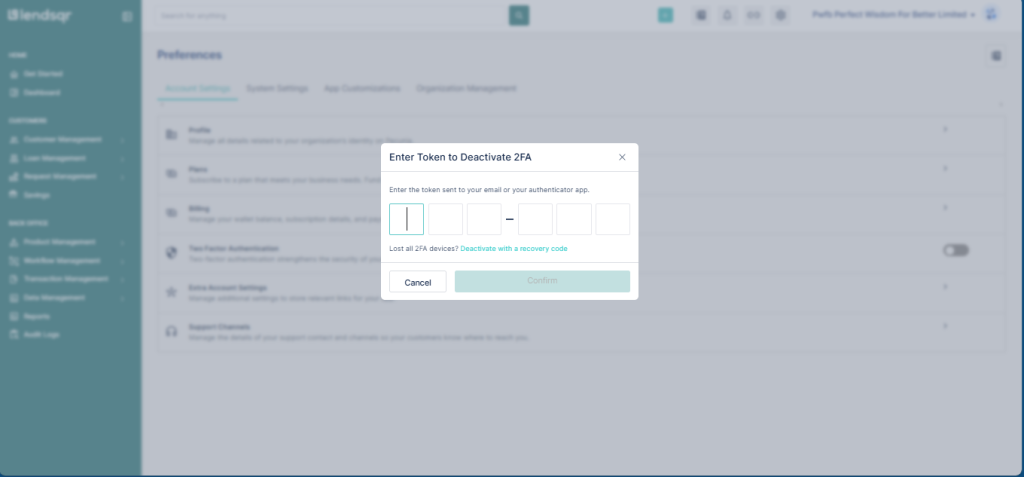
Enter the Token from your authenticator app OR Click on Deactivate with a recovery code.
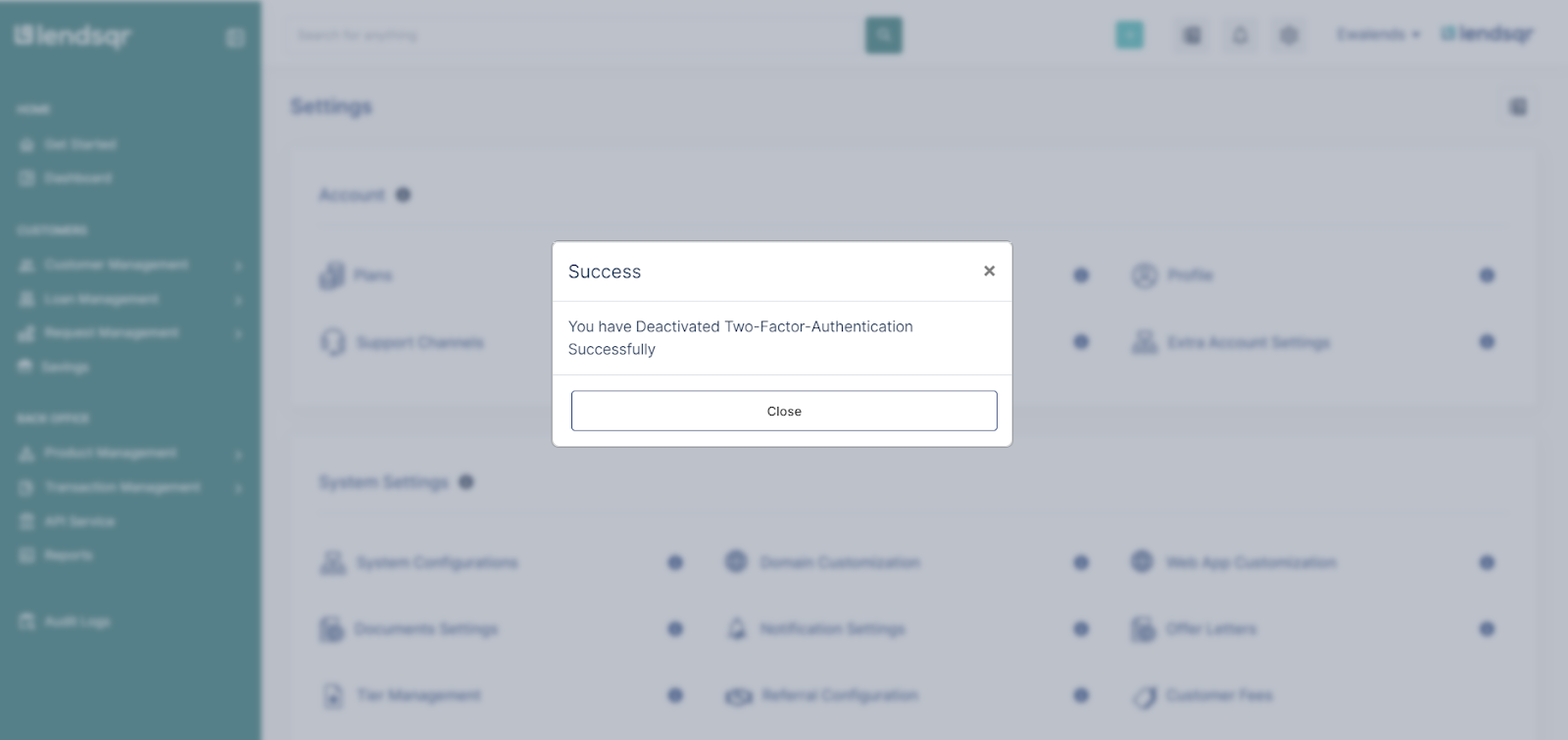
If the correct code was entered, the 2FA should be successfully deactivated.
Setting up your 2FA recovery code
Use the following steps in order to set up a recovery code for your account:
1. Click on the “Settings” icon at the top of the admin console to open the “Settings” menu.
2. On the settings page, locate the “Two-Factor Authentication” option, select this to activate the 2FA.
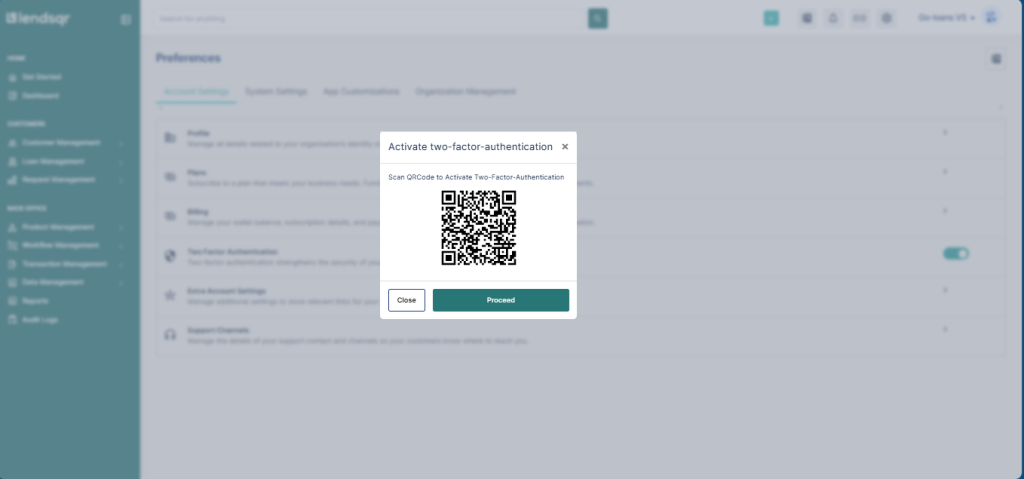
3. You will be required to scan the QR code using an authenticator app.
4. On scanning the code successfully, the platform “Lendsqr-Admin (Your-admin-email)” will appear on your authenticator app with a 6-digit passcode that changes every 30 seconds.
5. Click on the “Proceed” button on your admin console platform and enter the 6-digit passcode displayed to you on the authenticator app to complete your 2FA set-up.
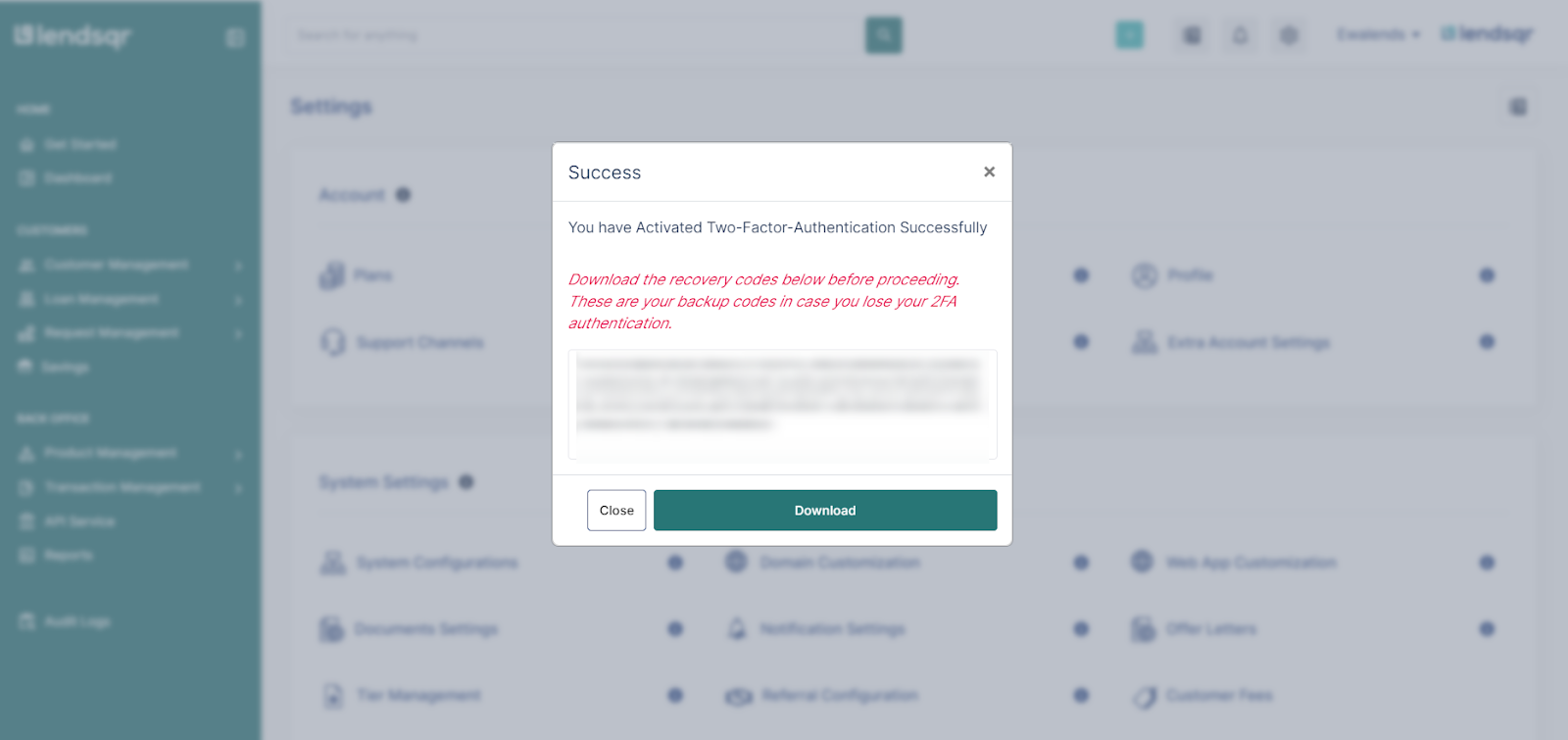
6. A dialog box will appear with recovery codes that you can copy and paste into a safe place or download into a text document