Access your Back Office at your fingertips.
Download the app now on Google Play Store.
Scan the QR code
You can also scan QR code with your phone to download the app.
How to make your app store and Play Store URL show on your web app microsite
Updated
On this page
Many lenders run both a web app and a mobile app. But if borrowers visit your microsite and cannot find a direct link to download your mobile app, you lose them. They leave, search on their own, and sometimes never come back.
Lendsqr lets you display your Google Play Store and Apple App Store download links directly on your web app microsite. This makes it easy for borrowers to find and install your mobile app from the first place they land on.
This guide shows you exactly how to set that up in minutes.
What is a lending microsite?
A microsite is the web-facing front end of your lending operation. It is the branded page your borrowers visit to sign up, log in, or learn about your loan products.
When a lender builds on Lendsqr, the platform generates a web app that serves as this microsite. It carries your branding and connects directly to your loan products and customer experience.
If you also have a mobile app on the Google Play Store or the Apple App Store, adding those download links to your microsite creates a seamless path for borrowers who prefer to use their phones.
Why this matters for your borrower acquisition
Consider a borrower who discovers your brand through a friend’s recommendation. They visit your microsite on a browser, read through your offerings, and decide they want to apply. But your app is where the real experience lives. Without a visible download link, that borrower has to leave your site, open their app store, and search for your app independently. That friction, however small it seems, costs you customers.
On the other hand, displaying your app store links directly on your microsite removes that barrier entirely. Borrowers see your web page, spot the download buttons, and go straight to installing your app. Furthermore, this builds trust. When borrowers see that your lending platform is available on both Android and iOS, it signals that your business is established and accessible.
Beyond trust, there is also the matter of reach. Not all borrowers prefer to apply through a browser. Many people today do most of their financial activity through mobile apps. So by linking your app stores on your microsite, you are effectively opening your platform to a wider pool of borrowers who would otherwise never convert.
This is, therefore, a small configuration change with a real impact on your acquisition numbers.
How to add your app store and Play Store URLs on Lendsqr
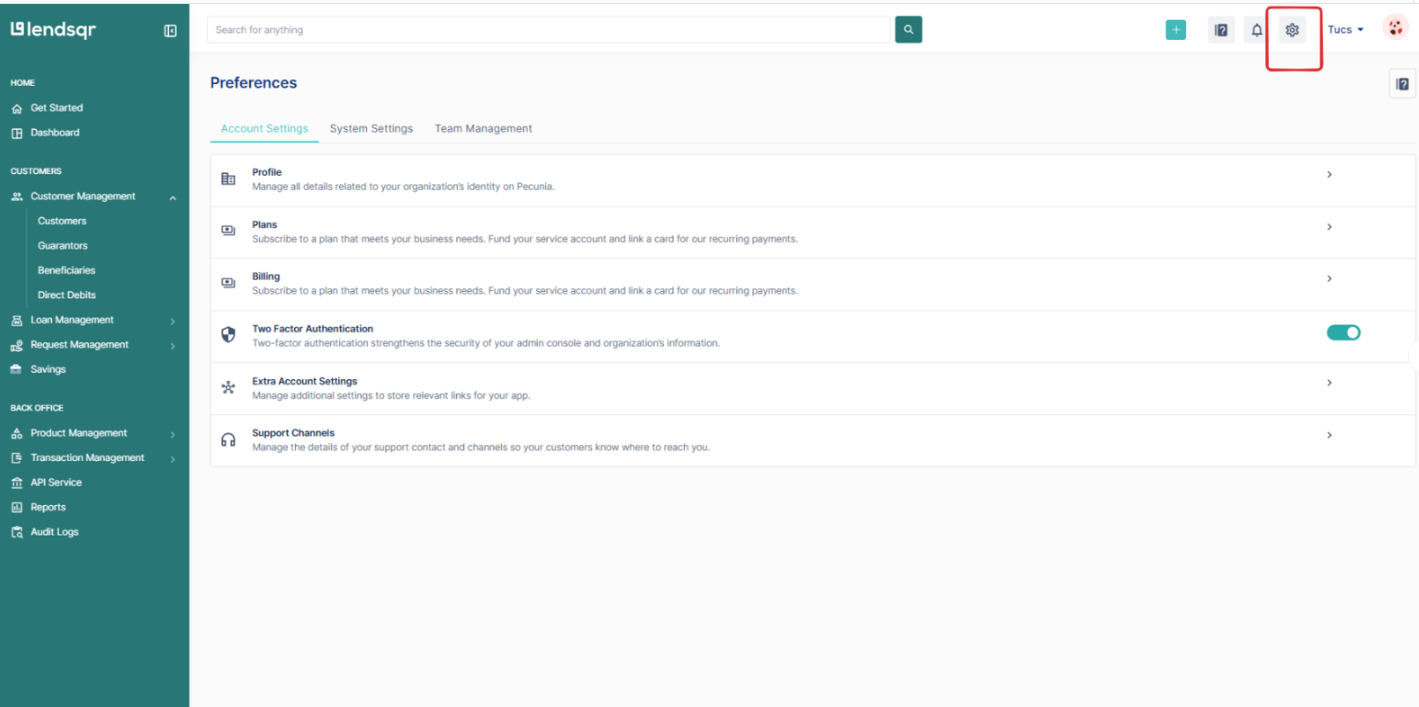
1: Go to preferences
Log in to your Lendsqr admin console. Click the gear icon to open the Preferences page. You will find Account Settings, System Settings, and Team Management here.
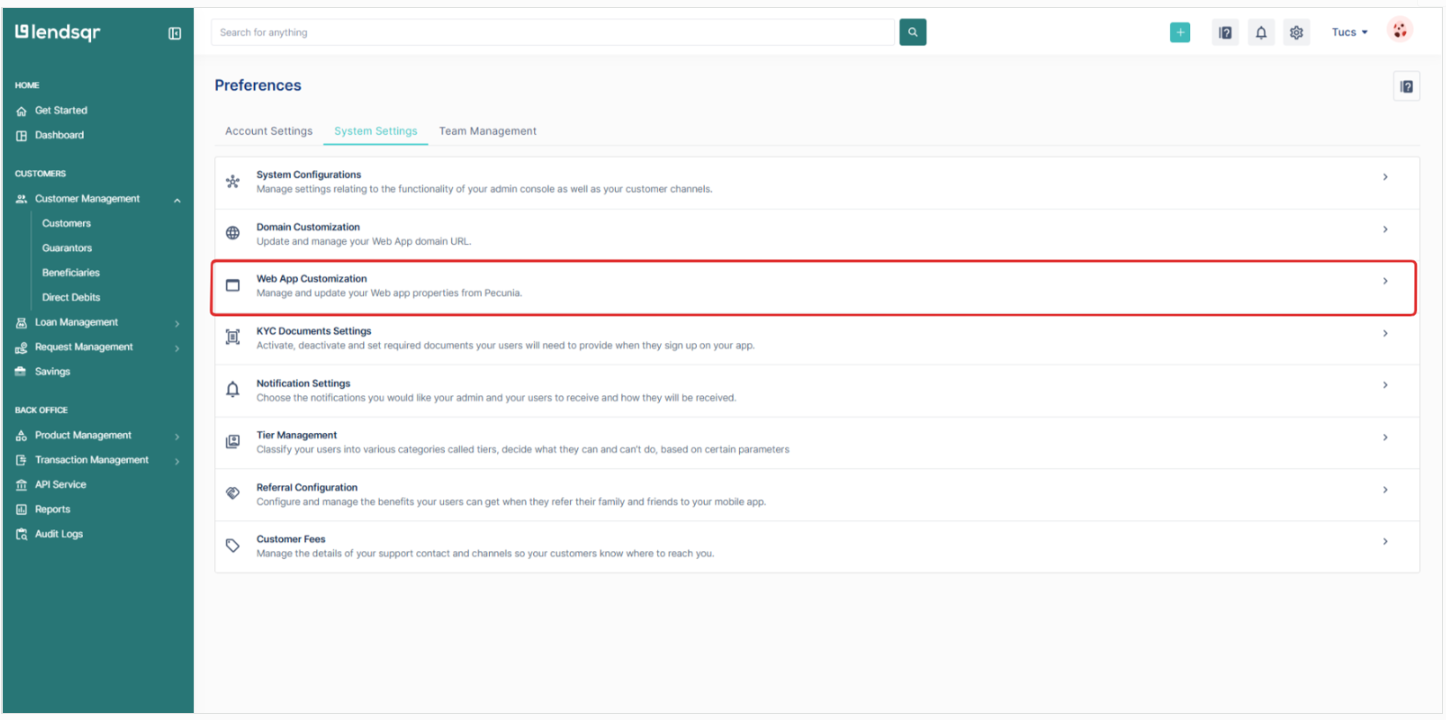
2: Open web app customization
Under the Account Settings tab, click on Web App Customization.
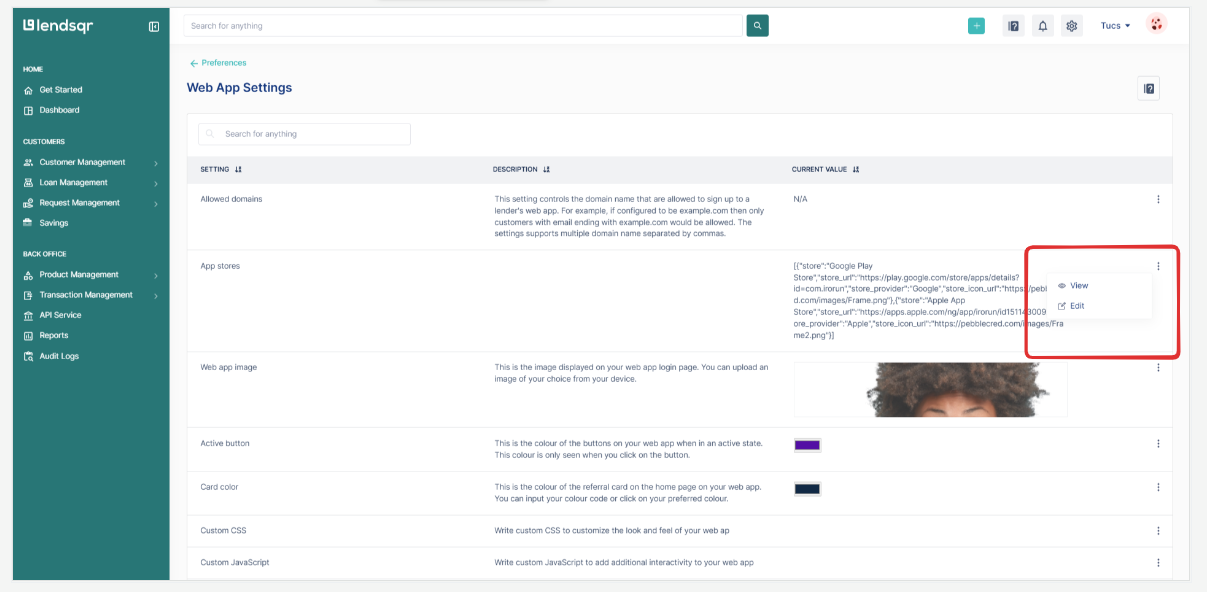
3: Edit the app store settings
Locate the app store setting. Click the three dots on the right side of that row, then click Edit.
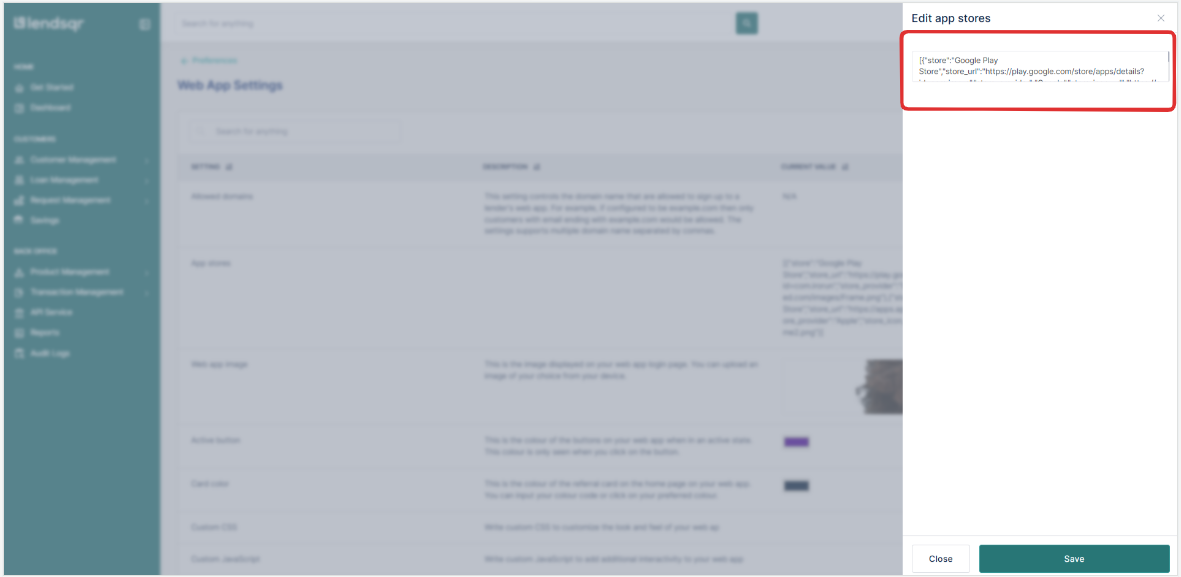
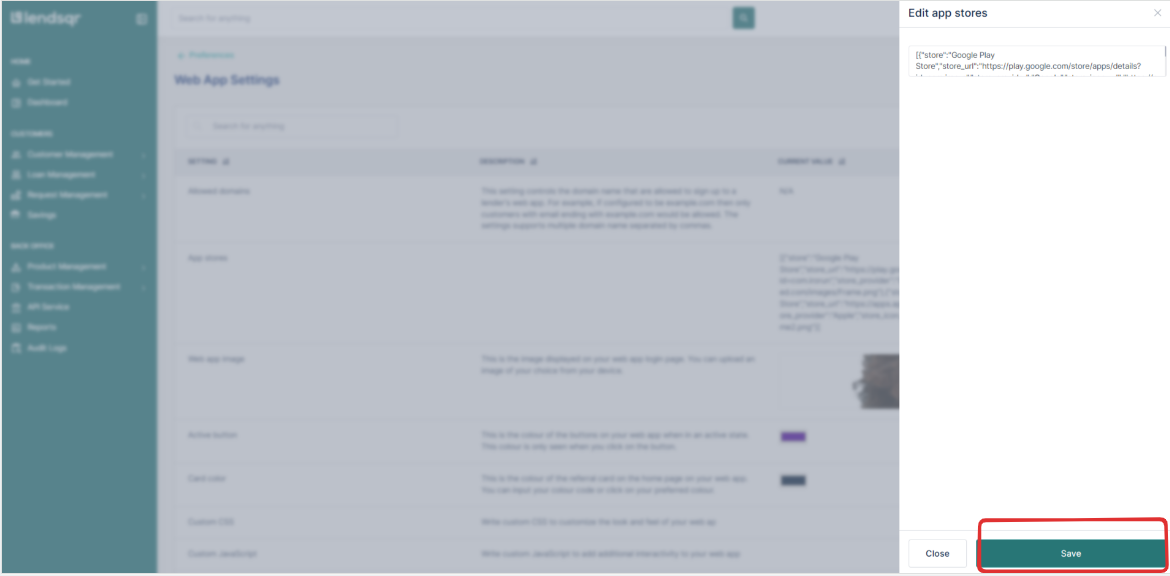
4: Add your store URLs using JSON
Lendsqr uses a simple JSON format to store your app links. JSON is just a structured way of writing data that the system can read and display. Copy the sample below, replace the placeholder URLs with your actual store links, and paste it into the input field.
Example JSON:
[{"store":"Google Play Store","store_url":"https://play.google.com/store/apps/details?id=com.irorun","store_provider":"Google","store_icon_url":"https://pebblecred.com/images/Frame.png"},{"store":"Apple App Store","store_url":"https://apps.apple.com/ng/app/irorun/id1511430092","store_provider":"Apple","store_icon_url":"https://pebblecred.com/images/Frame2.png"}]
Here is what each field means:
store: The name of the app store (e.g., Google Play Store or Apple App Store)
store_url: The direct link to your app on that store
store_provider: The platform provider, either “Google” or “Apple”
store_icon_url: A URL linking to the icon image for that store
You only need to include one store if your app is only available on one platform. If you have both, include both objects as shown above.
5: Save your changes
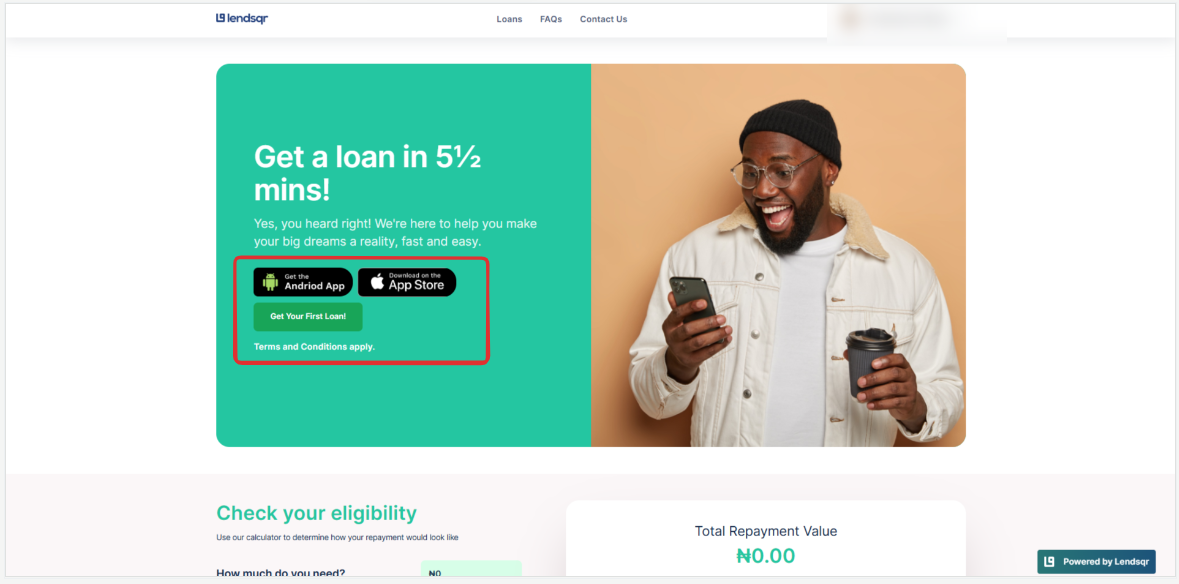
Click Save to confirm. Your microsite will now display the app store download links you configured.
This is how your web app microsite looks after adding these URLs.
What borrowers see after this is set up
Once you save your changes, borrowers who visit your microsite will see clearly labelled download buttons for your app. These buttons link directly to your store listings, so a borrower can tap once and land straight on your app page ready to install.
This is particularly useful for borrowers who first hear about your platform online or through a referral. Instead of losing them at the point of discovery, you give them an immediate next step. As a result, your microsite stops being just an information page and becomes a proper acquisition channel for both web and mobile borrowers.
In addition, returning borrowers who switch devices or reinstall your app will always have a reliable place to find the correct download link, rather than risk downloading an outdated or unofficial version.