Access your Back Office at your fingertips.
Download the app now on Google Play Store.
Scan the QR code
You can also scan QR code with your phone to download the app.
How to view users’ general details
Updated
On this page
Introduction
When managing customers on Lendsqr, making well informed lending decisions requires more than just surface level data. It is essential to understand who the customer is, how they earn, and what level of risk they may present. The platform provides a structured way to access this information through the user profile page, where key data points are grouped into clearly defined sections.
One of the most important sections on a user’s profile is the General Details tab. This section offers a snapshot of a customer’s identity, financial background, and support network. By reviewing this information carefully, lenders can build a clearer picture of the customer’s credibility and repayment capacity before approving any loan request.
Why general details matter to lenders
Viewing a user’s general details is central to three key lending functions: risk assessment, customer servicing, and regulatory compliance.
From a risk perspective, general details help lenders evaluate whether a borrower is likely to repay. Guarantor strength and verified banking details contribute to a clearer understanding of repayment capacity and default risk.
For customer servicing, accurate personal and contact information ensures that borrowers can be reached easily for onboarding, repayment reminders, or issue resolution. This reduces friction and improves the overall lending experience.
From a compliance standpoint, general details support Know Your Customer (KYC) requirements. Verifying identity, contact details, and supporting relationships such as next of kin helps ensure that the lender is dealing with a legitimate and traceable individual, which is critical for fraud prevention and regulatory adherence.
Step-by-step guide
To view a customer’s general details:
On the side navigation, go to Customer management under Customers, then select Customers. See Locating users’ profile page for a full walkthrough if this is your first time finding a specific customer.
Click on a customer to open their profile.
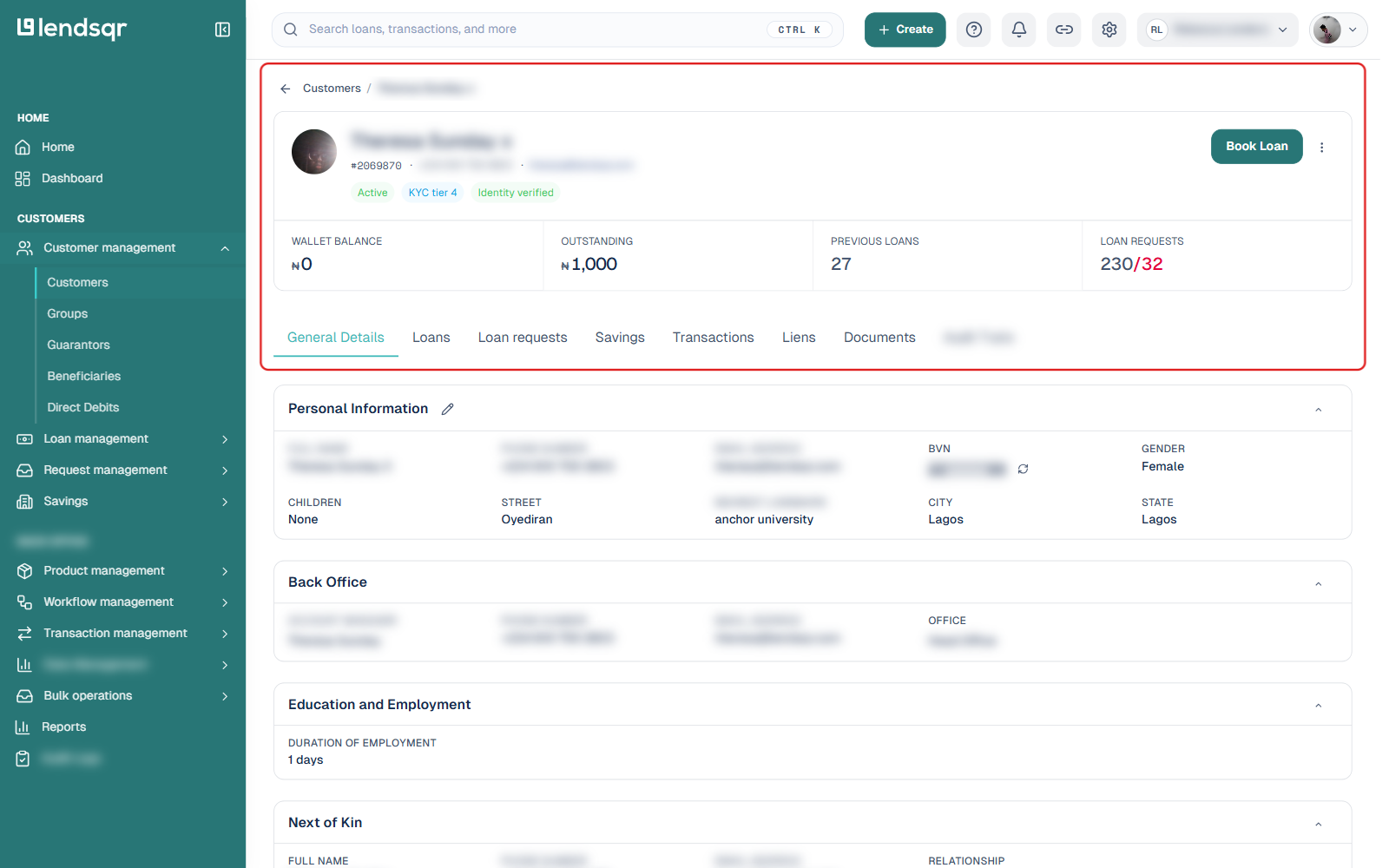
The General Details tab is selected by default when the profile opens.
The General Details tab is organized into collapsible sections rather than one flat list. Which sections appear, and how much they contain, depends on what has actually been recorded for that customer. A section can appear with its heading visible but collapsed by default; click it to expand and see the fields inside.
Personal Information
Contains the customer’s core identity and contact details: full name, phone number, email address, BVN, gender, number of children, and address (street, nearest landmark, city, and state).
Phone number and email are what you’d use to reach the customer directly for verification, updates, or repayment reminders. Consistency between these and the customer’s other submitted documents is a useful signal when validating identity.
Back Office
Shows internal assignment details rather than customer-submitted information: the account manager responsible for this customer, their phone number and email, and the office the customer is assigned to. This is useful for routing a query or escalation to the right person internally.
Education and Employment
Captures employment-related information for the customer, such as duration of employment. What’s recorded here depends on what the customer has provided, so this section can be brief for some customers and more detailed for others.
Next of Kin
Contains details of a person who can be contacted in case of emergencies or when the customer is unreachable: full name, phone number, email address, and relationship to the customer. While a next of kin has no financial responsibility for the loan, their presence adds a layer of accountability and gives you a secondary contact point during collections or urgent follow-ups. A close relationship, such as a parent, sibling, or spouse, may suggest a higher likelihood of cooperation if contact is needed.
Guarantors
Lists individuals who have agreed to act as financial backups for the customer’s loan, in a table with full name, phone number, email, and relationship columns. A guarantor is someone who agrees to take responsibility for the loan if the borrower is unable to repay, which makes their credibility relevant to your risk assessment. Reviewing this section helps answer whether the borrower has credible support in case of default, and how many guarantors are on file.
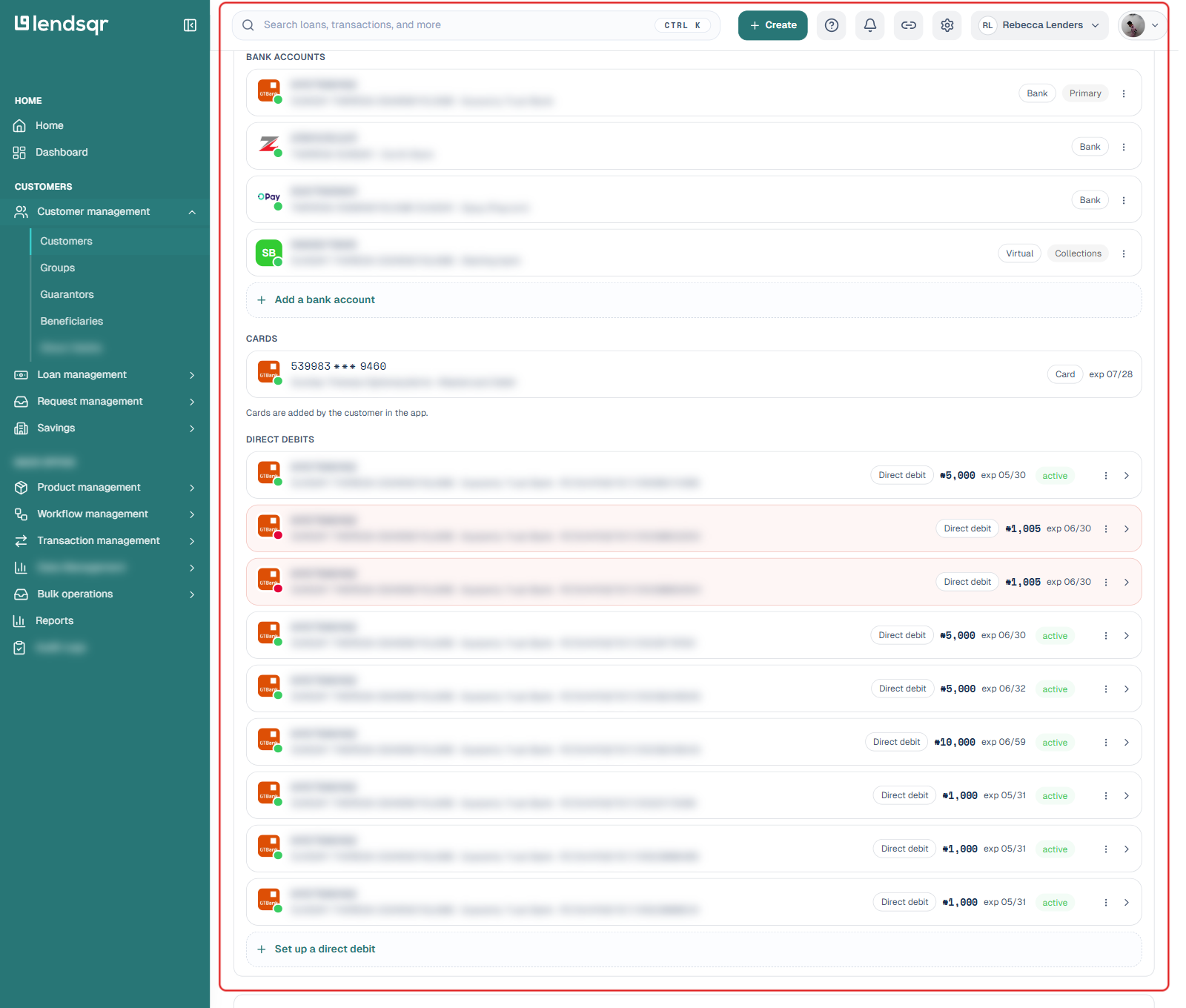
Lists the customer’s linked bank accounts (including virtual accounts used for collections), debit cards, and direct debit mandates. Bank and card details are not entered separately elsewhere on the profile, this is where they live. Cards are added by the customer from their own app, not from the admin console.
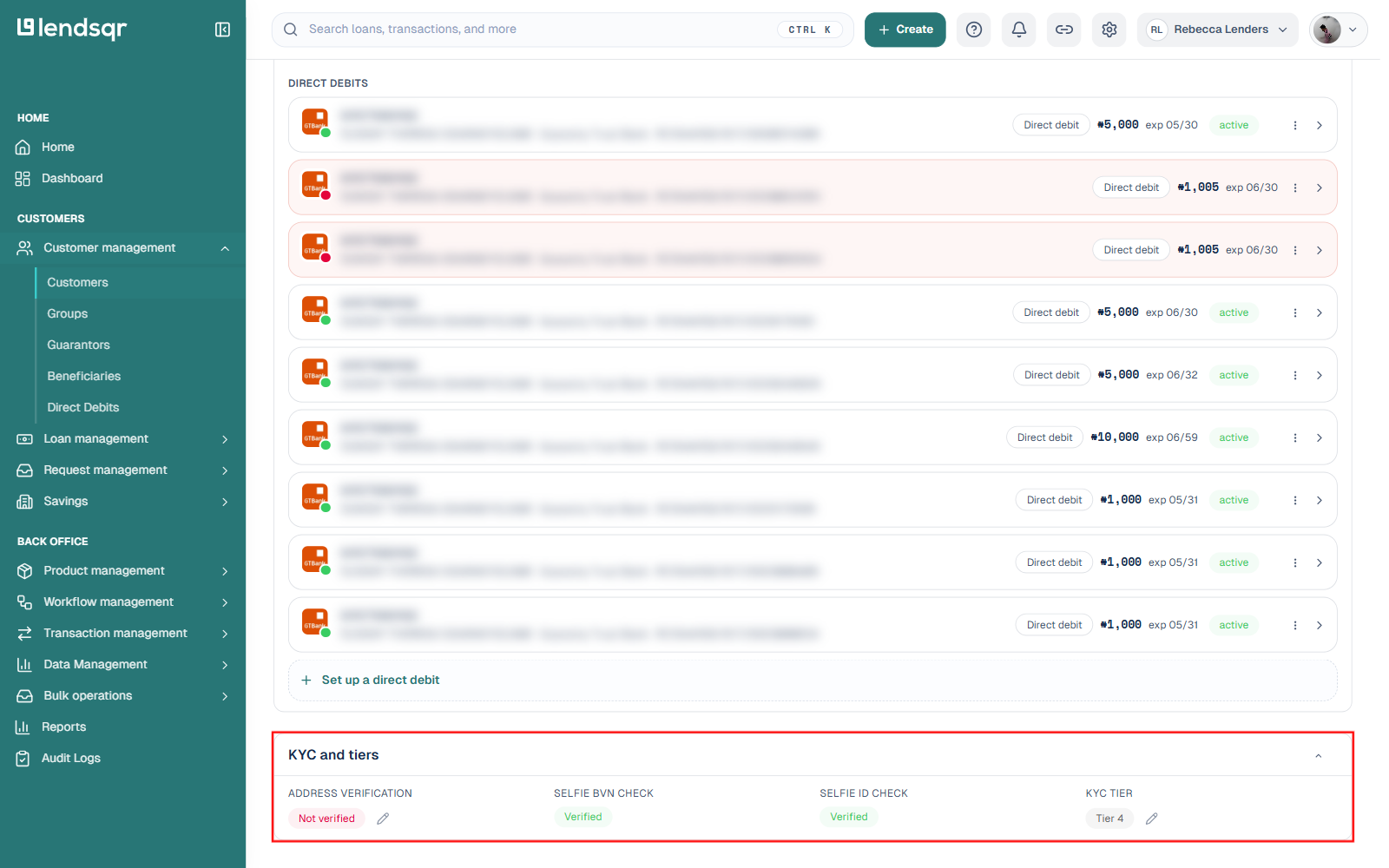
KYC and tiers
Shows the customer’s current verification status: address verification, selfie BVN check, selfie ID check, and KYC tier, each with an option to edit the status. This reflects where the customer stands right now rather than a historical log of past changes.
KYC tier is important because it often determines what services or loan limits a customer can access. A higher tier usually means the customer has passed stricter verification checks. If your organization requires specific documents for tier upgrades, you can configure those requirements in platform settings.