Access your Back Office at your fingertips.
Download the app now on Google Play Store.
Scan the QR code
You can also scan QR code with your phone to download the app.
How to upload custom loan schedules during loan booking
Updated
On this page
In Lendsqr, the Upload Schedule feature allows you to define a custom repayment schedule when manually booking a loan. Instead of using the standard schedule logic, you can upload an Excel file containing specific due dates and payment breakdowns. This is especially useful for data migrations and non‑standard repayment structures such as balloon payments or seasonal terms.
What is a custom loan schedule?
A loan schedule is the repayment plan attached to a loan. It lists every installment date, the amount due, and how it breaks down into principal and interest.
Normally, Lendsqr calculates this schedule automatically based on your loan product settings: the amount, interest rate, tenor, and repayment frequency. But there are situations where a lender needs to use a custom schedule instead of the system-generated one:
You are migrating existing loans from another platform and each loan already has an agreed repayment plan.
You have negotiated a non-standard schedule with a borrower. For example, irregular installment amounts due to seasonal income.
A field agent has already structured a loan with specific repayment dates that do not match any standard product template.
Lendsqr allows you to upload these custom schedules during the manual loan booking process, so all loans no matter where they originated are tracked in one place.
Note: Uploading a custom schedule bypasses the loan product’s standard schedule logic including max tenor, principal limits, or default frequency rules.
Required and optional fields
Your upload file must be a properly formatted Excel (.xlsx) file with the following columns:
✔ Required fields
Field
Description
date
Repayment due date (format: yyyy‑mm‑dd)
principal
Principal due on that date
interest
Interest due on that date
⚪ Optional fields
Field
Description
fees
Any additional fees due on that schedule
penalty
Penalty amount applicable
principal_paid
Amount of principal already paid (migration)
interest_paid
Amount of interest already paid
fees_paid
Fees already paid
penalty_paid
Penalty already paid
paid_date
Actual date payment was made
Using optional fields lets you migrate historical repayment data precisely, including amounts already settled, which is critical in loan book transitions.
You’ll also have access to a downloadable sample template that outlines all the required and optional fields, making it easier to format your uploads correctly.
Limitations and validation rules
Before uploading:
The system allows a maximum of 120 schedules per loan. Any file exceeding this will be rejected.
Custom schedules ignore product constraints such as max tenor and standard installment frequency.
All dates in the schedule must be valid and in yyyy‑mm‑dd format. Invalid date formats will cause upload errors.
How to upload a custom loan schedule
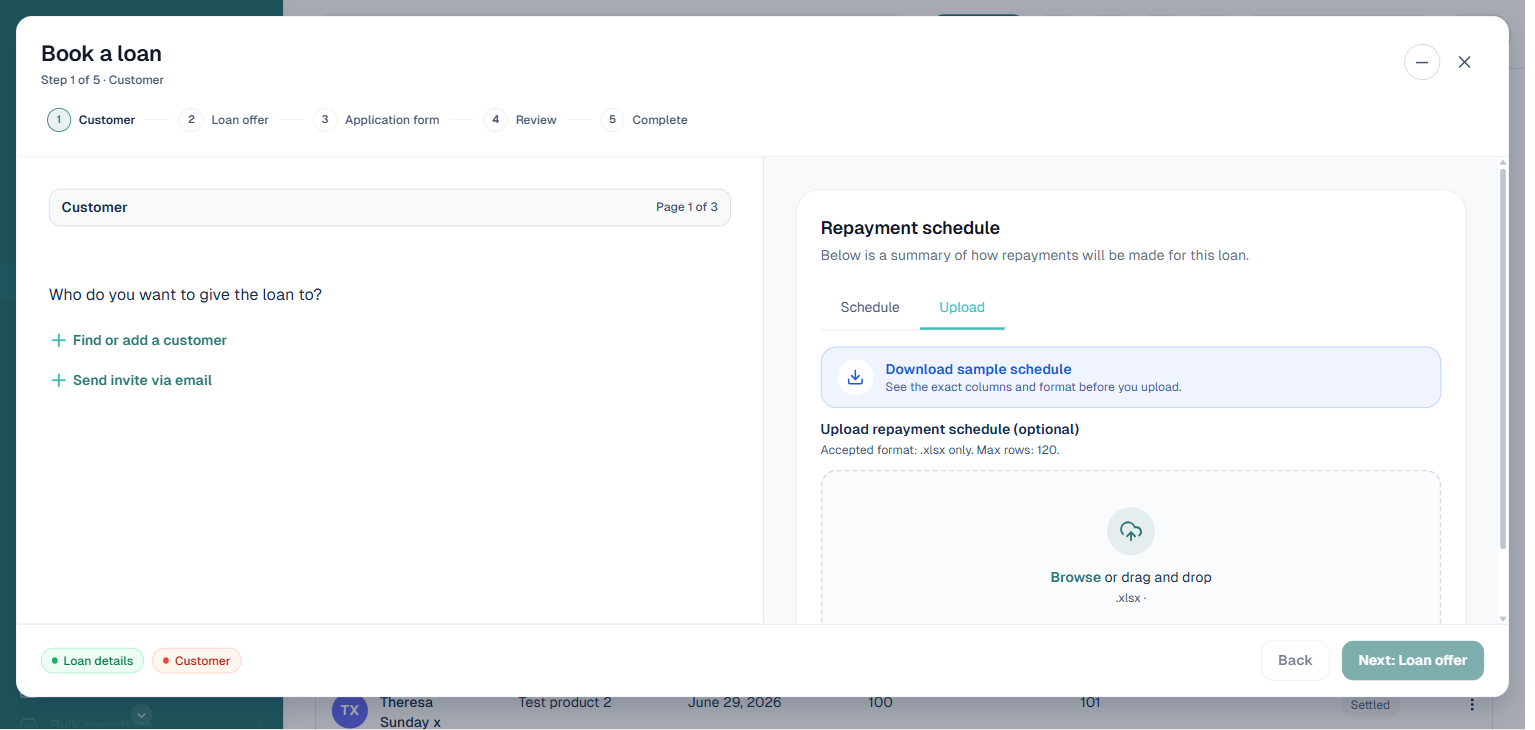
Manual loan booking is now a single, unified 5-step wizard (Customer → Loan offer → Application form → Review → Complete), reachable from one place, and the schedule upload option lives right on its first step.
Log in to the Lendsqr admin console.
Go to the left menu and select Loan Management → Loans.
Click Book loan at the top of the Loans page. This opens the “Book a loan” wizard.
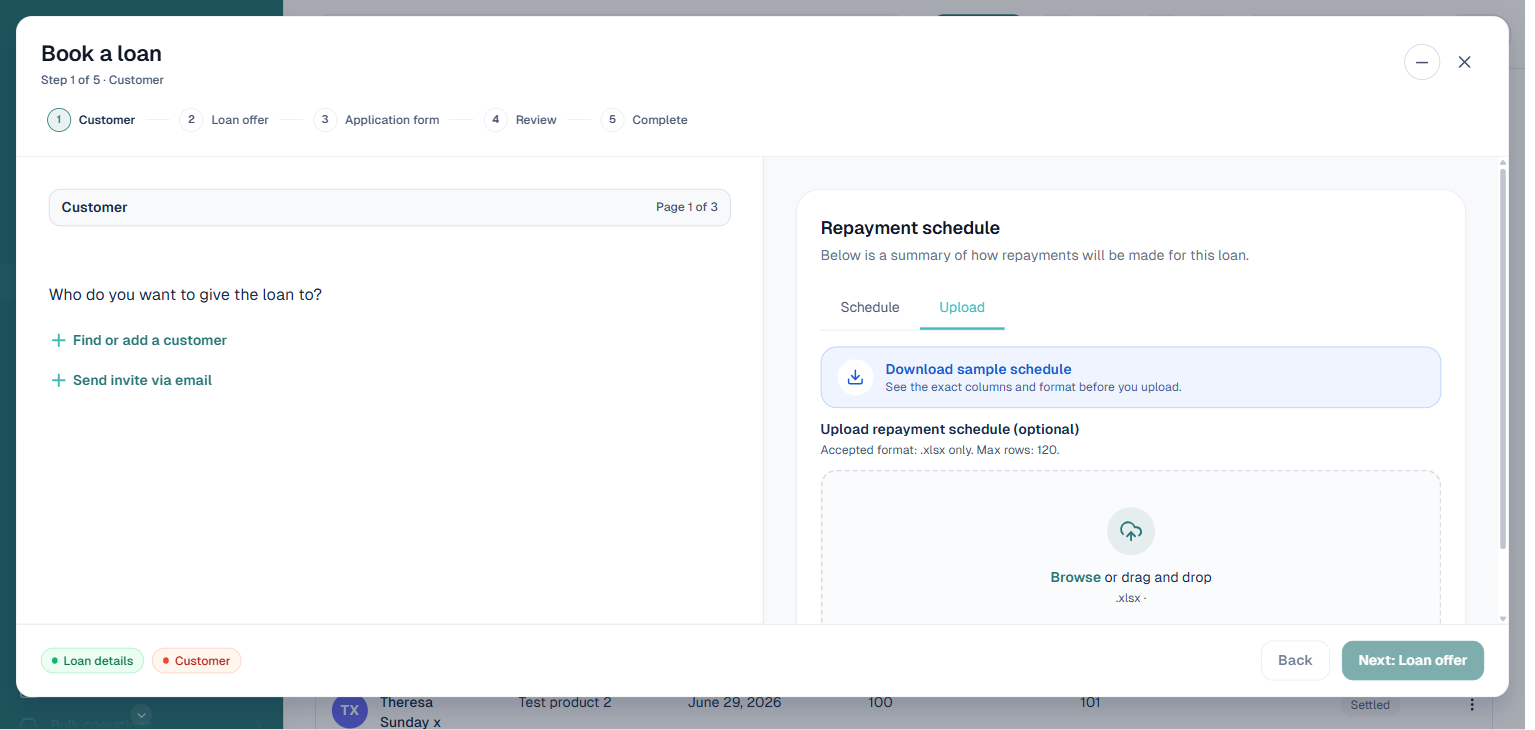
On Step 1 (Customer), alongside choosing or adding the customer, look for the “Repayment schedule” panel. It has two tabs: “Schedule” (the standard, system-generated preview) and “Upload”. Click “Upload”.
Click “Download sample schedule” to get the template that shows the exact columns and format expected.
Open the downloaded Excel file and fill in the required schedule rows (due dates, principal, interest, and any optional fields you need).
Back in the wizard, use the “Browse or drag and drop” area under “Upload repayment schedule (optional)” to select your completed .xlsx file. The panel reminds you of the format and row limit: accepted format is .xlsx only, with a maximum of 120 rows.
Continue through the remaining steps of the wizard, Loan offer, Application form, and Review, then finish on the Complete step to finalize the booking.
Once uploaded, the system attaches the custom schedule to the loan. You will see the schedule reflected in the loan details and its repayment timeline.
What happens after upload
The system attaches the custom schedule to the loan before it is formally booked.
Repayment installments, due dates, and amounts are stored exactly as listed.
Repayment tracking and aging reports will use your schedule instead of the generated default.
Historical paid amounts (if imported) will reflect correctly in reporting and portfolio management.
Common issues and troubleshooting
❗ File rejected due to too many schedules
Cause: More than 120 repayment rows. Fix: Reduce the number of rows; ensure you do not exceed the max allowed.
❗ Invalid date format
Cause: Dates not in yyyy‑mm‑dd format. Fix: Correct dates to use the required format.
❗ File doesn’t upload
Cause: File type not recognized or columns misnamed. Fix: Ensure the Excel file matches the sample template exactly and uses the required column headers.
❗ Custom schedule skips standard product rules
Reason: Custom upload overrides product defaults. Note: This is expected behavior. Validate your schedule before uploading.
Best practices
Communicate clearly with your team or auditors on any custom schedules added, especially when they deviate from standard schedules.
Always download and use the latest sample template to avoid formatting errors.
Validate all dates and numeric values before uploading.
For migrations, include paid amounts and paid dates when available for accurate historical reporting.
Frequently asked questions
Can I upload a custom schedule for a loan product that already has auto-generation configured?
Yes. The custom upload overrides the auto-generated schedule for that specific loan only. Your loan product settings remain unchanged and new loans under that product will still use the auto-generated schedule by default.
What file format is accepted for the schedule upload?
Lendsqr accepts .xlsx Excel files only for schedule uploads, with a maximum of 120 rows. Download the sample template from the Upload tab of the Repayment schedule panel to ensure your file matches the expected column structure. Files with missing or incorrectly named columns will not process successfully.
Can I update a custom schedule after the loan has been booked?
Yes. Admins with appropriate permissions can modify a loan schedule from the loan detail page. Any changes are logged in the loan’s activity history, making it easy to track what changed and when.
Uploading a custom loan schedule during loan booking gives lenders the flexibility to support non‑standard repayment plans and data migrations, providing precise control over installment dates and amounts. By following this guide including proper file formatting, validation understanding, and the step‑by‑step workflow you can book loans with tailored schedules in Lendsqr with confidence.