Access your Back Office at your fingertips.
Download the app now on Google Play Store.
Scan the QR code
You can also scan QR code with your phone to download the app.
How to delete team members
Updated
On this page
Whether you’re offboarding a former employee, revoking access for a contractor whose engagement has ended, or simply restructuring your organization’s roles and permissions, knowing how to properly delete a team member from your Lendsqr admin console is essential.
This guide walks you through exactly how to do it, step by step, while also helping you understand the permission structure behind the action, why it matters, and best practices to follow before and after deleting a team member.
Not just anyone on your team can remove another member from the Lendsqr admin console. This action is intentionally restricted to protect your organization from unauthorized changes. To delete a team member, you must either hold a Super Admin role or have been explicitly granted the Delete Team Member permission within your role configuration.
The Super Admin role is the highest level of access on the Lendsqr admin console. Users with this role have unrestricted access to all administrative functions, including team management, organization settings, audit logs, and more.
If you’re not a Super Admin but still need to remove team members, your organization’s Super Admin can grant you the specific “Delete Team Member” permission without elevating your entire access level.
Before you delete: Things to consider
Deleting a team member is an irreversible action on the console. Once done, the user loses all access immediately. Before you proceed, it’s worth running through a quick checklist:
Confirm that the offboarding is authorized. Make sure the deletion aligns with your HR or operations process. Accidental removals can disrupt workflows, especially if the team member is mid-task on an active loan portfolio or approval queue.
Reassign open tasks or responsibilities. If the team member has pending approvals, loan reviews, or any unfinished actions tied to their account, ensure those have been handed off to another team member before deleting their profile.
Document the action. For audit and compliance purposes, especially in regulated lending environments, it’s good practice to note when and why a team member was removed. Lendsqr’s audit trail helps with this, but maintaining your internal records is equally important.
Communicate with the outgoing member. Especially in professional offboarding scenarios, giving the team member advance notice ensures a smoother transition and avoids confusion when their access is revoked.
Once you’ve confirmed that you have the right permissions and you’ve completed any necessary pre-deletion steps, here’s how to remove a team member from the Lendsqr admin console. The exact menu options you see depend on whether the team member is currently Active or already Inactive/pending — more on that below.
Step 1: Open Team Members
Click the Settings (gear) icon in the top navigation of your Lendsqr admin console, then under “Access & Security“, select “Team Members“. This loads a list of every individual currently added to your organization’s admin console, each row showing their name, contact details, role, branch, and recent activity.
Step 2: Find the team member and check their status
Scroll through the list or use the search bar to locate the specific team member you want to remove. Take a moment to confirm you have the right person — double-check the name and contact details before proceeding. Each row shows a status badge next to their avatar: Active or Inactive.
Step 3a: If the member is Active — deactivate first
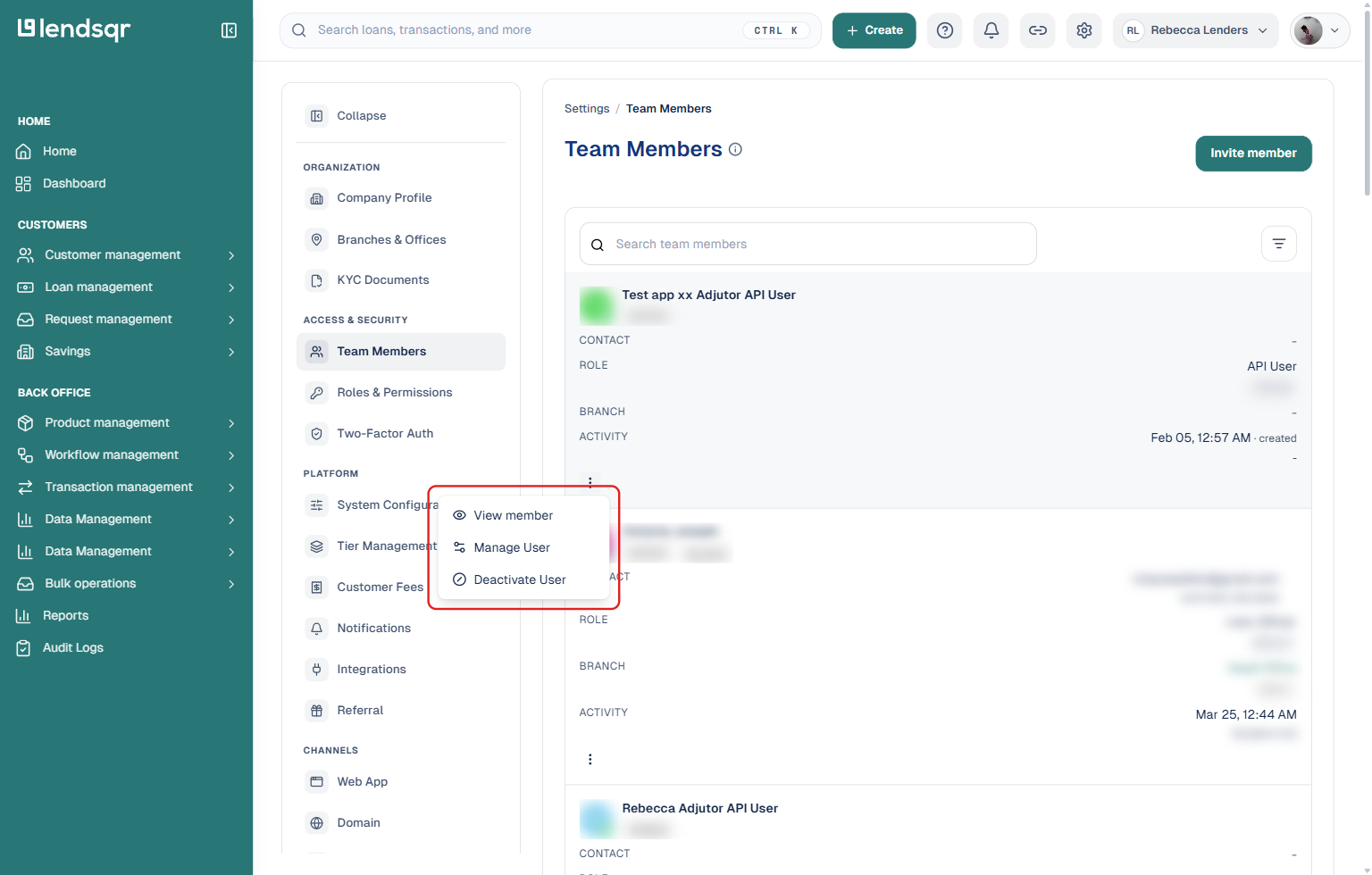
Active team members can’t be deleted directly. Click the three-dot menu on the far right of their row — you’ll see “View member“, “Manage User“, and “Deactivate User“, but no delete option. Select “Deactivate User” and confirm. This revokes their access immediately but keeps the record so you can delete it in the next step.
Step 3b: Once the member is Inactive — delete them
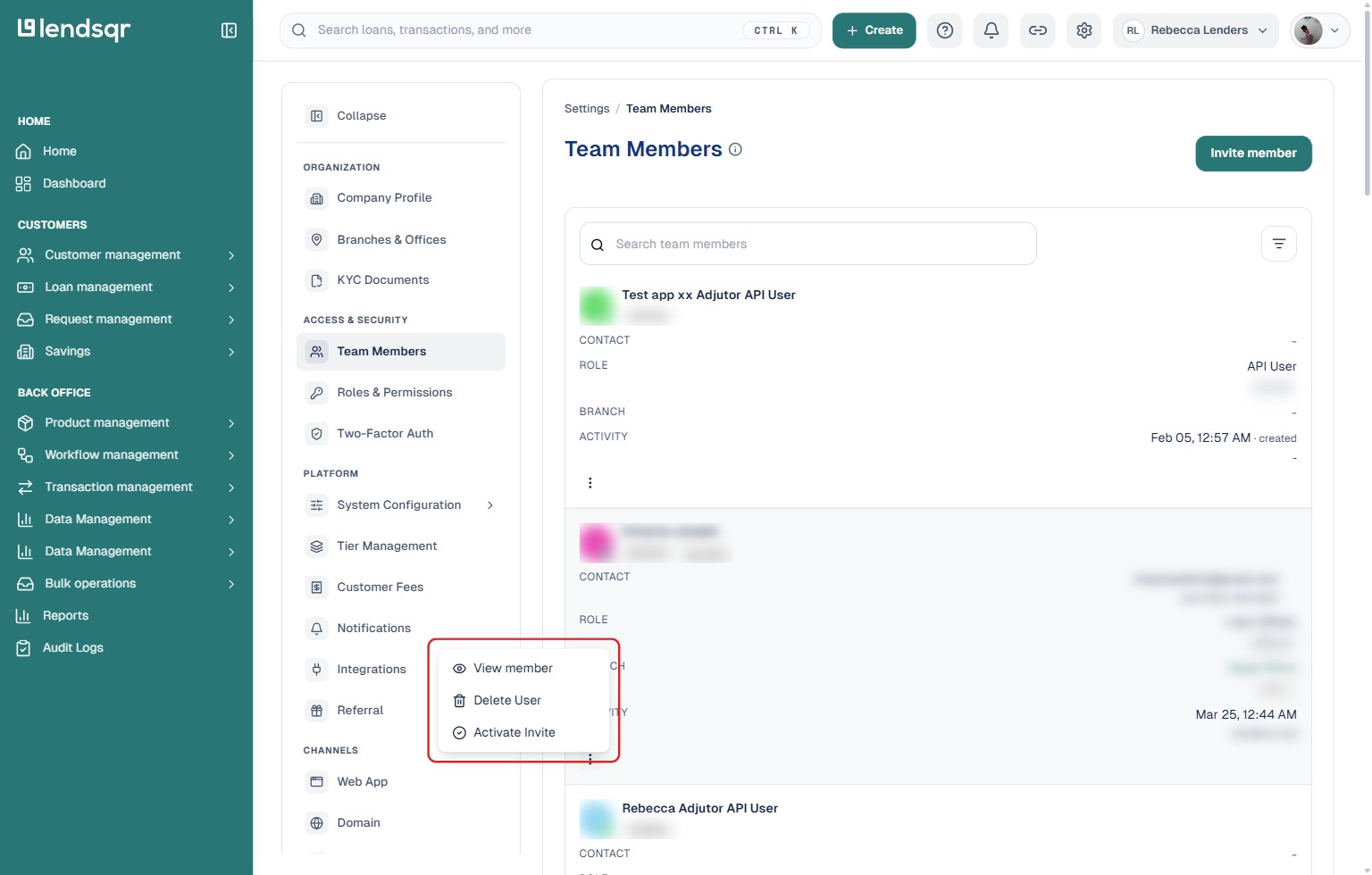
Find the team member again (their status badge now reads “Inactive”) and open their three-dot menu. This time you’ll see “View member“, “Delete User“, and “Activate Invite“. Select “Delete User” and confirm the prompt. The team member is permanently removed from your organization’s roster and their access is revoked for good.
Note: if the team member was never activated in the first place (a pending invite that hasn’t been accepted yet), their row already shows “Inactive” and you can go straight to Step 3b — no separate deactivation step needed.
What happens after deletion?
Once a team member is deleted, their account is removed from the organization’s roster. Any actions they previously performed remain in the system’s audit log for record-keeping and compliance purposes. The deletion only removes their access going forward.
If you ever need to bring the same person back onto the platform, say, a contractor is rehired, or a role is reinstated, you would need to re-invite them as a new team member and reassign their role and permissions from scratch.
Keeping your team’s access clean
Regularly auditing your team member list is a healthy practice for any organization using the Lendsqr admin console. Access creep, which is when former employees or inactive users retain platform access longer than necessary, is a common security risk in financial technology environments. Building a routine of reviewing your team members quarterly, or immediately after any offboarding, ensures your console remains secure and your data stays protected.
Managing your team well is the same as managing your lending operations well. With the right permissions and a clear process, deleting a team member on Lendsqr takes less than a minute, and the steps above make sure you do it right every time
You need the “super admin” role or the “delete team member” permission to delete a team member in the admin console.