Access your Back Office at your fingertips.
Download the app now on Google Play Store.
Scan the QR code
You can also scan QR code with your phone to download the app.
How to edit customer details in Lendsqr (Step‑by‑step guide)
Updated
On this page
Editing a customer’s details is a critical function in any system that manages user data, particularly in financial and identity-sensitive environments like Lendsqr. Accurate customer information ensures that transactions are processed correctly, communications are delivered without interruption, and compliance requirements are consistently met.
Inaccurate or outdated data can lead to failed repayments, missed notifications, identity mismatches, and even regulatory issues. For this reason, the ability to update customer details in a controlled, auditable manner is essential for maintaining both operational efficiency and trust.
This guide explains why maintaining accurate data is important, when updates are necessary, and how to safely edit customer details within the Lendsqr Admin Console.
Why accurate customer data matters
Customers may change their phone numbers, email addresses, residential addresses, or even their names due to marriage or other legal reasons. Allowing administrators or support agents to update these details helps maintain data integrity, improves communication, and ensures services are delivered efficiently without disruption.
For example, imagine a customer mistakenly registers with a misspelled email address. Without the ability to edit this detail, they would not receive important updates, repayment reminders, or verification links, potentially leading to missed payments or delayed loan processing. By enabling staff to quickly update such errors after proper validation, the platform improves customer experience, strengthens trust, and boosts operational efficiency.
Promptly editing and documenting changes to customer information is also critical for audits, fraud prevention, and meeting legal requirements. Every change is recorded in the customer’s audit trail, providing a clear history of updates.
When to edit customer details
There are several common scenarios where editing customer information becomes necessary.
One of the most frequent cases is when a customer updates their contact details. This includes changes to phone numbers or email addresses.
Another common scenario is correcting errors made during registration. This could include misspelled names or incorrectly entered data.
Customers may also need to update their residential address after relocation. Keeping this information current is important for both communication and compliance.
In operational contexts, you may need to reassign an account manager to a customer. This ensures that the right staff member is responsible for managing the relationship and handling support requests.
Each of these scenarios requires careful handling to ensure that updates are accurate and properly documented.
Access and permission requirements
Editing customer details is a controlled action and is typically restricted to users with specific roles.
Before making any changes, confirm that you have the required permissions. This capability is usually available to Admins and Support agents, depending on your organisation’s configuration.
For sensitive updates such as a name change, additional verification is recommended before you save, since it affects identity records tied to the customer’s account.
It is also important to confirm internally who has the authority to perform these updates. This should be clarified with your super admin to ensure that governance policies are followed.
Step-by-step instructions
Step 1: Navigate to Customer Management
Log in to your Lendsqr Admin Console.
In the left sidebar, expand Customer Management and click Customers.
Use the search bar to find the customer by name, email, or phone number.
Click on the customer’s row to open their profile.
Step 3: Open the edit form
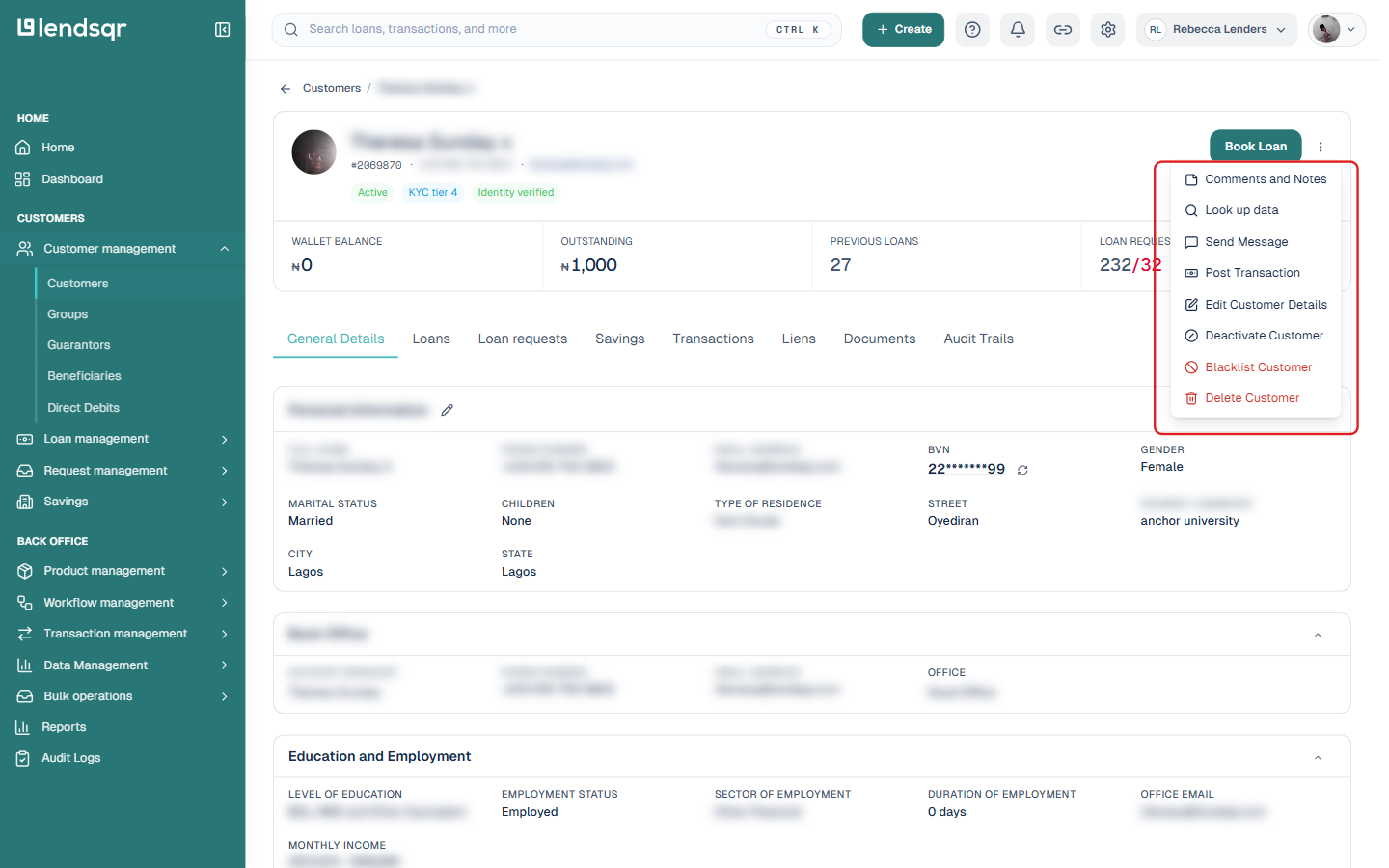
On the customer’s profile, click the three-dot More actions button near the top of the page. This opens a menu with several account actions, including Comments and Notes, Send Message, and Edit Customer Details.
Select Edit Customer Details.
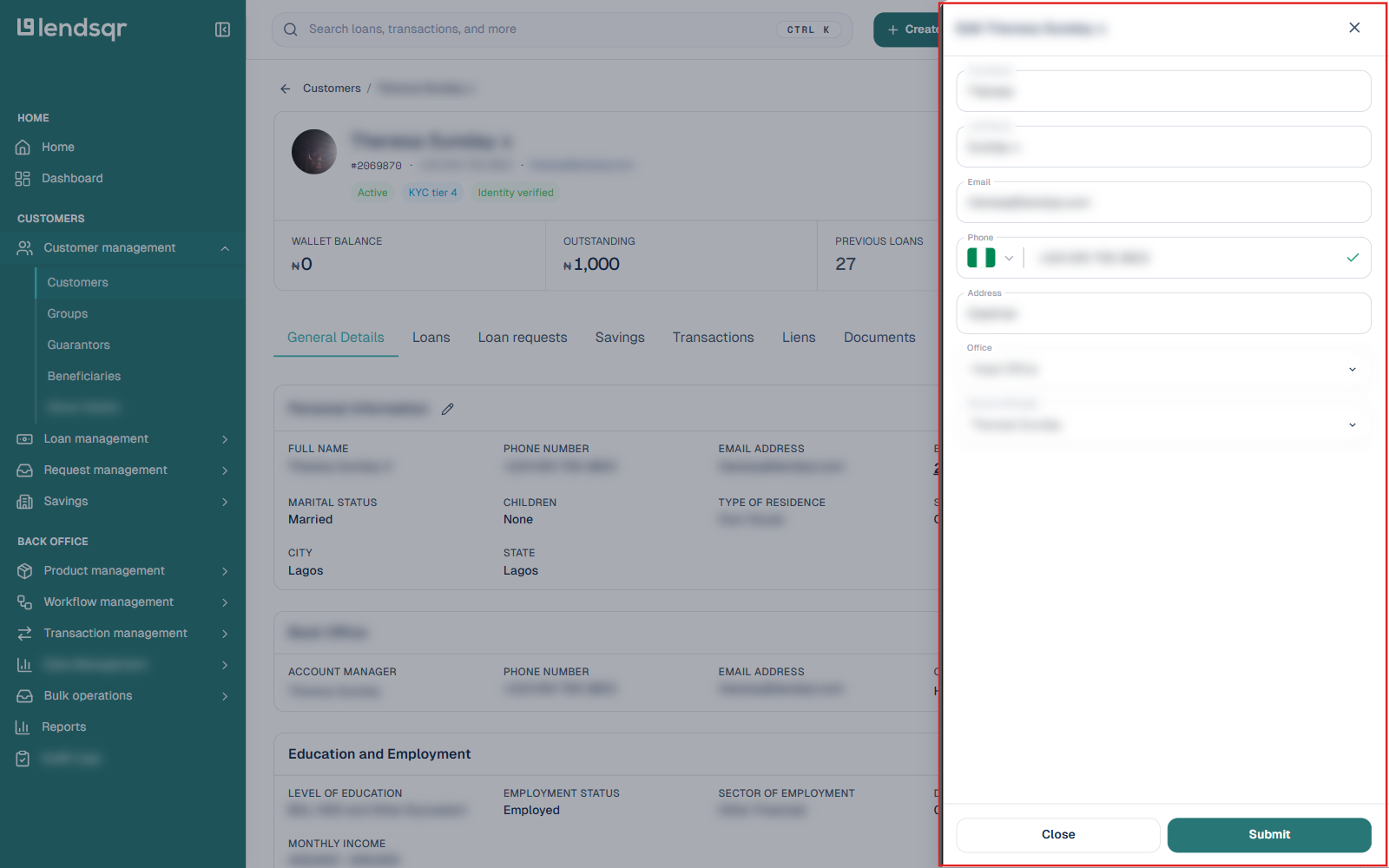
Step 4: Update the information
In the form that appears, you can modify the following fields:
First Name / Last Name
Email
Phone (include country code)
Address
Office
Account Manager (assign or change the responsible staff member)
Make the necessary changes and click Submit.
Real life scenarios
A customer notices that their email address was entered incorrectly during registration. They contact support, and an admin verifies their identity before correcting the email. This ensures that the customer begins receiving important notifications.
In another case, a customer relocates to a new city and updates their address. The admin updates the record to reflect the new location, ensuring compliance with internal documentation requirements.
A support team lead may also reassign a customer to a different account manager to balance workload or improve service quality.
Important notes
Audit trail: All changes to customer details are recorded and viewable from the Audit Trails tab of the customer’s profile. It is good practice to leave a note explaining why the edit was made, especially for legal or security-sensitive updates.
Sensitive fields: Editing a customer’s name may require additional verification. Always follow your organization’s security policies.
Account manager: Assigning an account manager helps track ownership and ensures consistent support.
Best practices for editing customer details
Always verify the customer’s identity before making any changes, especially for sensitive fields.
Ensure that all updates are accurate and properly formatted before submission.
Document the reason for each change, particularly for compliance-sensitive updates.
Limit editing permissions to authorized roles to maintain data integrity.
Regularly review audit logs to ensure transparency and detect any irregular activity.
Conclusion
Editing customer details in Lendsqr is a fundamental capability that supports accurate data management, regulatory compliance, and seamless customer experience.
By following the correct process, verifying information, and maintaining proper documentation, admins can ensure that customer records remain reliable and up to date.
When handled correctly, this process strengthens trust, improves operational efficiency, and supports better decision-making across the lending lifecycle.