Access your Back Office at your fingertips.
Download the app now on Google Play Store.
Scan the QR code
You can also scan QR code with your phone to download the app.
Setting up dynamic offerings for your loan products
Updated
On this page
Introduction
Building a separate loan product for every customer segment takes time. It also creates a cluttered experience where customers scroll through dozens of options just to find one that fits their situation.
Fortunately, dynamic loan offerings solve this. Instead of creating multiple static products, you configure one adaptable loan product that serves different customer needs at once. As a result, customers see only the options relevant to them, presented clearly and without the noise.
A good example is car financing. Rather than creating separate products for a Toyota Corolla, a Toyota Camry, and a Range Rover, you build one car loan product and attach each vehicle as a distinct offering within it. Each offering carries its own loan amount, repayment tenor, and image. From there, your customer simply picks the car, and the loan details populate automatically.
Dynamic offerings work across many lending contexts. A school fees lender can list different institutions with their respective tuition amounts and repayment periods. A solar energy lender can display different panel packages at different price points. A device financing lender can present a catalogue of phones or laptops, each with its own principal and tenure. In every case, one loan product handles the full range of options without requiring you to rebuild your product catalogue from scratch.
What you need before you start
Before you start, prepare the following details for each option you want to display to customers:
#
Variable
Description
1
Label
The name of the loan offering, as it will appear to customers.
2
Description
A brief overview of the loan offering, highlighting its key features and benefits.
3
Principal
The loan amount that can be offered.
4
Tenor
The duration for which the loan is available
5
Tenor type
The type of duration (e.g., days, months, years) applicable to the loan tenor.
6
Photo URL
The URL of an image representing the loan offering, which will be displayed to your customers.
How to format your JSON configuration
Once you have these details ready, the next step is to format them as a JSON configuration. Below is an example for a car financing product:
{"label": "Choose one of the cars to get a loan for","description": "","display_option": "dropdown | cards","loan_amount_options": [{"label":"Toyota Camry 1999","description":"Get the best car money can buy. This baby flies like an Edo witch!","principal":2345678,"tenor":12,"tenor_type":"months","photo_url":"https://images.app.goo.gl/EjA24zDaPyzSKnrPA"},{"label":"Toyota Corolla 1999","description":"Get the best car money can buy. This baby flies like an Edo witch!","principal":2345678,"tenor":24,"tenor_type":"months","photo_url":"https://images.app.goo.gl/EjA24zDaPyzSKnrPA"},{"label":"Toyota Camry 1999","description":"Get the best car money can buy. This baby flies like an Edo witch!","principal":2345678,"tenor":36,"tenor_type":"months","photo_url":"https://images.app.goo.gl/EjA24zDaPyzSKnrPA"},{"label":"Range Rover Sports 2020","description":"Get the best car money can buy. This baby flies like an Edo witch!","principal":12345678,"tenor":48,"tenor_type":"months","photo_url":"https://images.app.goo.gl/EjA24zDaPyzSKnrPA"} ]}
Validate your JSON before pasting it into the admin console. A single missing comma, unclosed bracket, or extra character outside the main structure will prevent the configuration from saving correctly. Use a free JSON validator such as jsonlint.com to check your configuration before proceeding.
How to set up dynamic offerings on the admin console
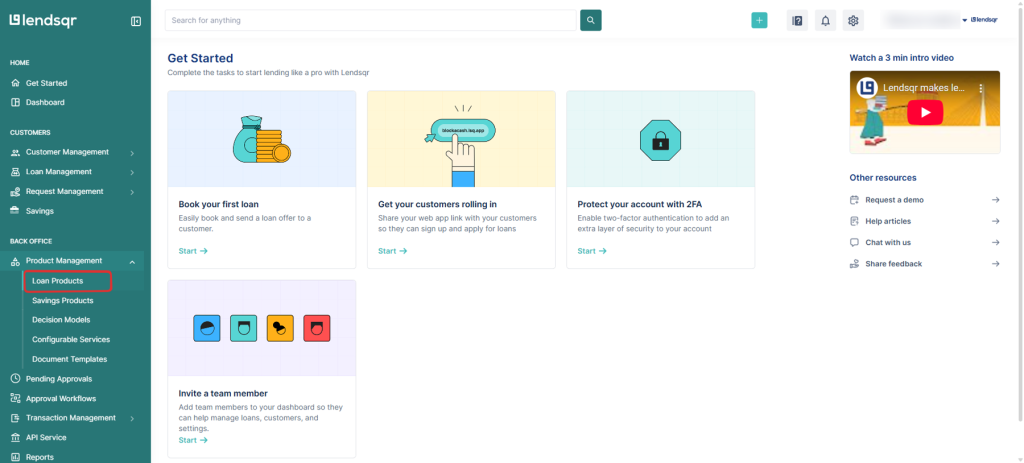
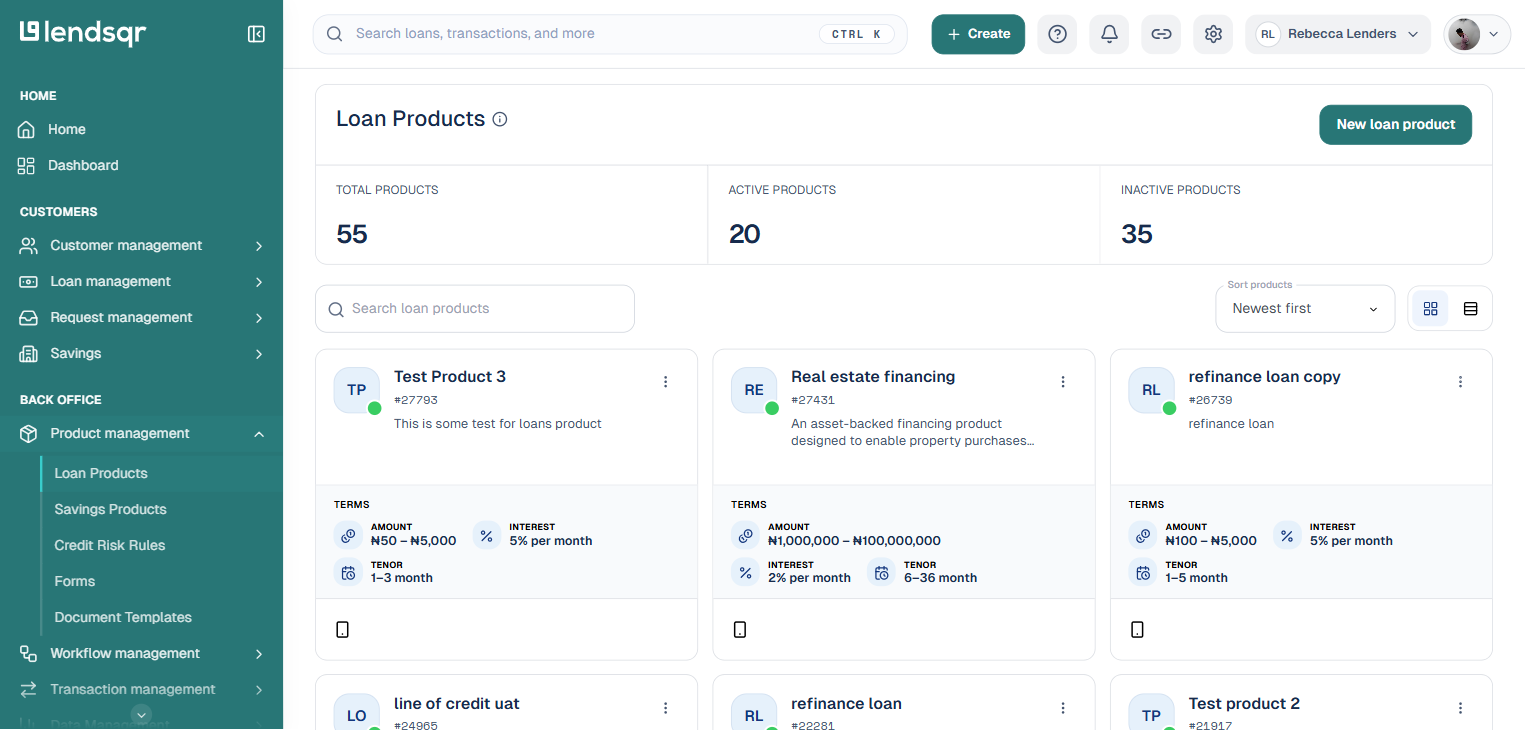
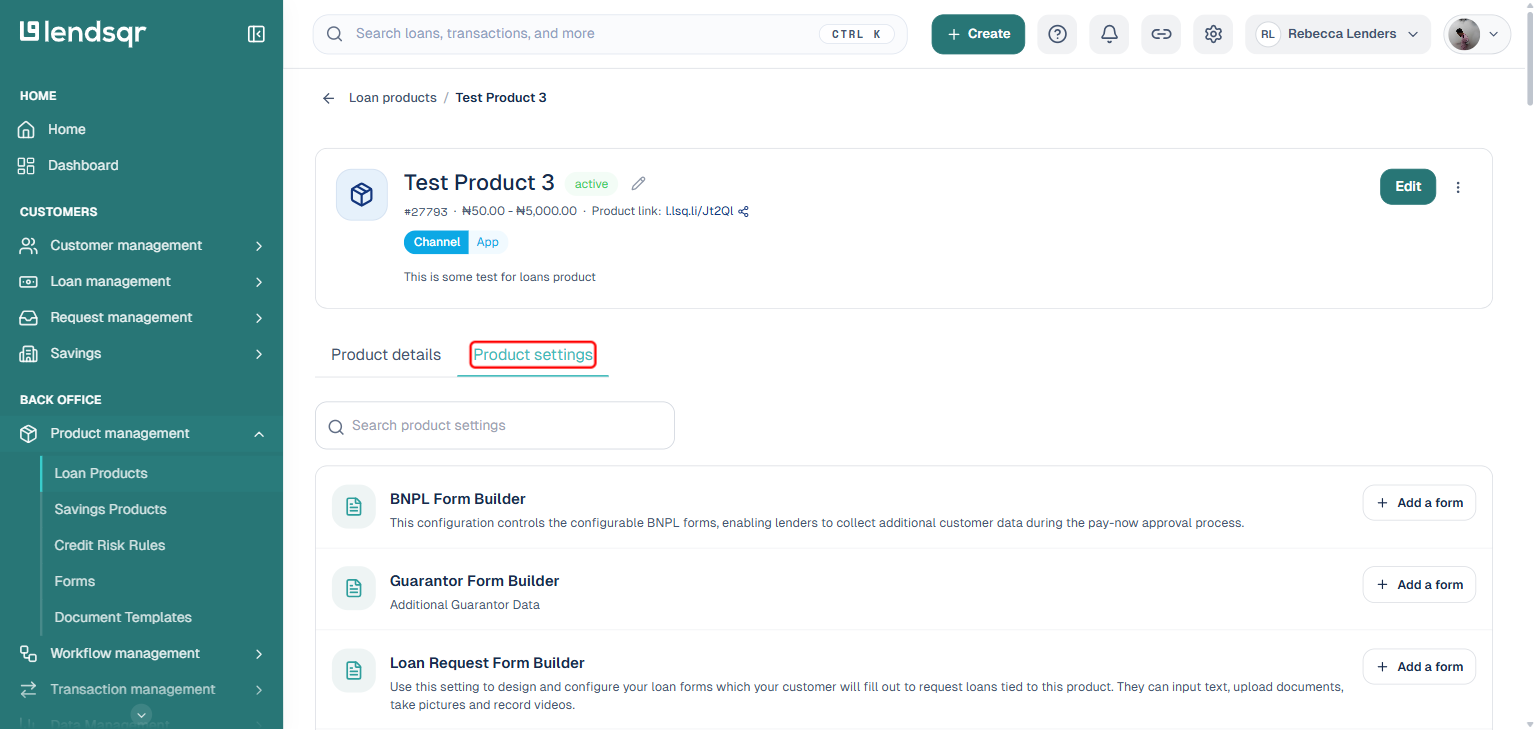
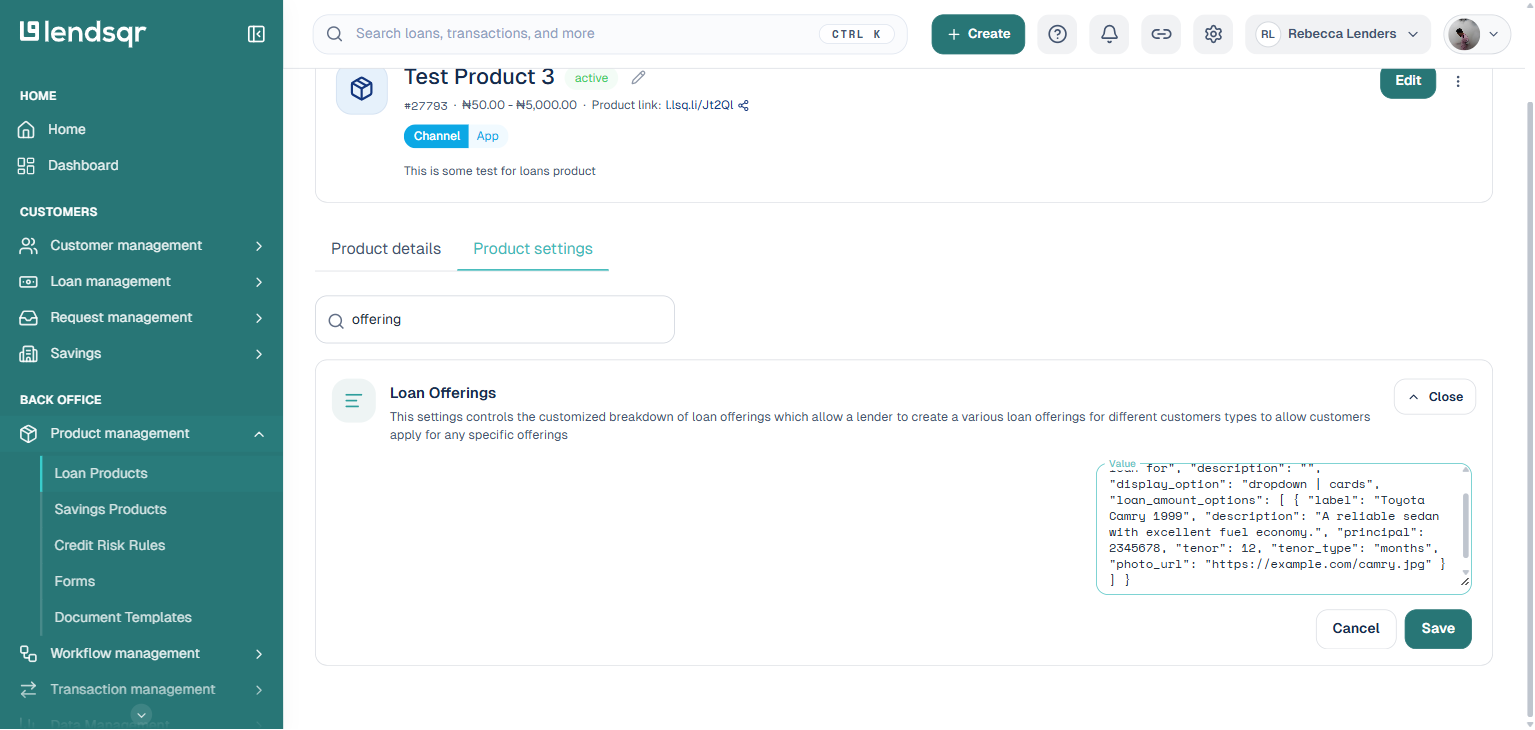
4. Select the “Product settings” tab on the loan product page.
5. Use the search box to find the “Loan Offerings” setting.
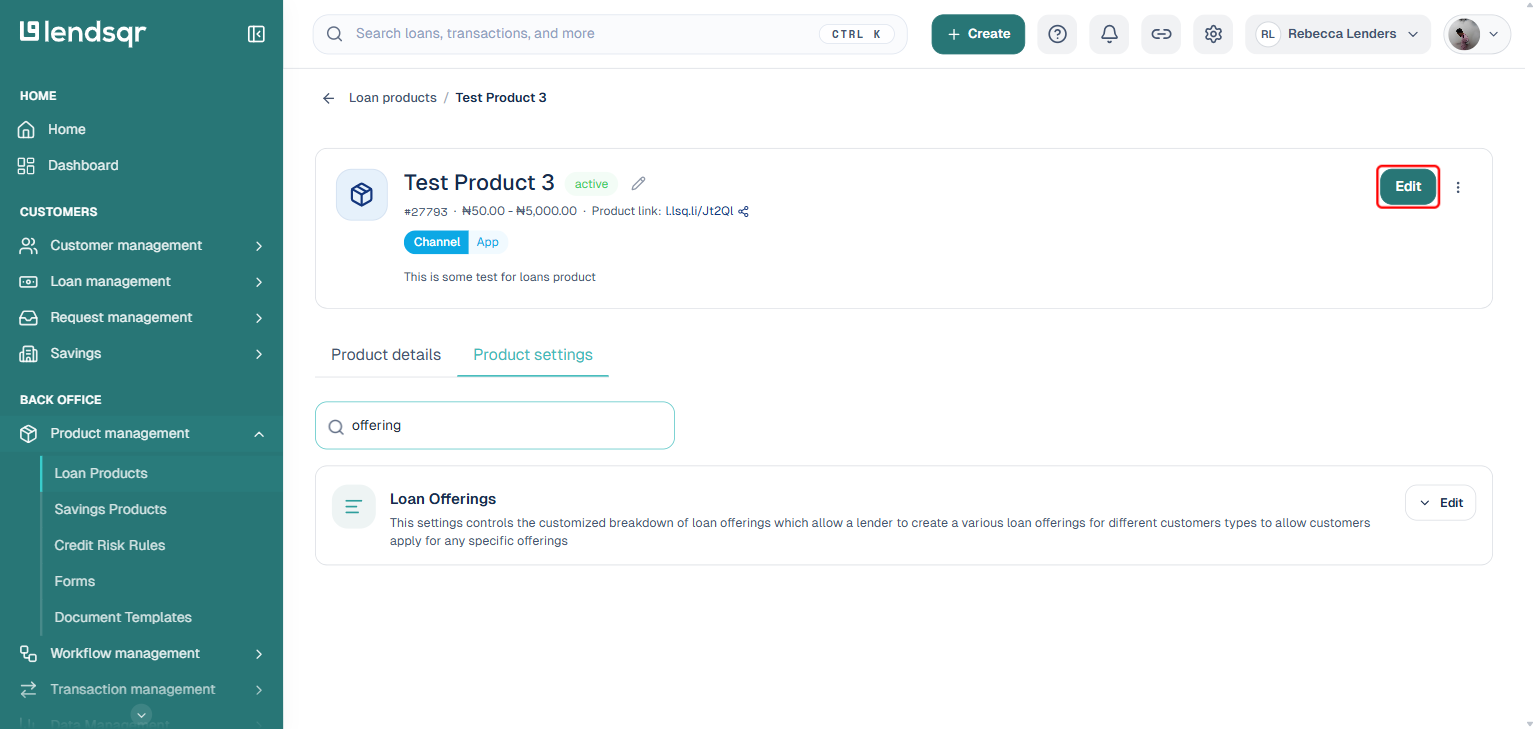
6. Click “Edit” on the Loan Offerings row.
7. Copy the loan offering setup into the “Value” input.
8. Click “Save”.
Once this is set up completely, your customers will see the configured offerings on your web app, as either cards or a dropdown depending on your display_option, described below.
The display experience depends on the display_option value in your JSON configuration.
With cards, each offering renders as a visual tile. Customers see the image, label, and description presented side by side. They scan the options and tap the one that fits their needs. Once they select an offering, the loan amount and tenor populate automatically, and they proceed through the application without entering any figures manually.
With a dropdown, offerings appear inside a select menu. Customers open the menu, scroll through the list, and choose their preferred option. The loan details populate in the same way as the card format once a selection is made.
In both cases, the borrower experience is streamlined. Customers make one selection and move forward. There is no manual input of loan amounts or repayment periods.
UX considerations
How you configure your offerings directly shapes the borrower experience on your platform. A few principles to keep in mind.
Keep labels specific and meaningful. Customers make faster, more confident decisions when labels clearly describe what they are selecting. Avoid generic names like “Option 1” or “Package A.”
Write descriptions that add context. If two offerings look similar, the description should highlight the key difference. Focus on what matters to the customer, such as the repayment period, the intended use, or a standout feature.
Use stable, high-quality image URLs. Broken images reduce trust and create a poor first impression. Host your images on a reliable server and test each URL in a browser before adding it to your configuration.
Limit the number of offerings to what is genuinely relevant. Presenting too many options at once can overwhelm customers and increase drop-off rates. If you have a large catalogue, consider grouping offerings into separate loan products by category rather than listing everything in a single configuration.
Match your display option to your product type. Cards work well for visual, item-based products like vehicles or devices. Dropdown works better for list-heavy products like institution financing or tiered loan packages.