Access your Back Office at your fingertips.
Download the app now on Google Play Store.
Scan the QR code
You can also scan QR code with your phone to download the app.
How to edit your support channel details
Updated
On this page
Imagine a lender who recently changed their customer support phone number after switching to a new service provider. A borrower tries to reach them through the mobile app, but the old number is still displayed. The call does not go through, the borrower gets frustrated, and a loan query goes unresolved. A simple update to the support channel details on the Lendsqr admin console would have prevented this entirely.
Keeping your support contact details accurate and up to date is one of the simplest but most important things you can do to maintain trust with your borrowers. When customers need help, they rely on the contact information displayed on your microsite or web app to reach you. If those details are outdated or incorrect, you risk losing borrower confidence and creating unnecessary friction in your lending operations.
What are support channels?
Support channels are the contact methods your borrowers use to reach your team when they need help. On the Lendsqr platform, these are the details that appear on your microsite and web app as clickable support icons. When a borrower taps the phone icon, they are connected directly to your support phone number. When they tap the WhatsApp icon, they are linked to your WhatsApp number. When they tap the email icon, their email client opens with your support email address pre-filled.
The three support channel fields you can manage on Lendsqr are:
Phone number: the primary phone line borrowers can call for support
WhatsApp number: the WhatsApp contact borrowers can message directly
Email address: the support email address borrowers can write to
Keeping all three fields accurate ensures that borrowers across different markets and with different communication preferences can always reach your team through their preferred channel. Support channel preferences vary by region. In many markets across Africa, for example, WhatsApp is often the fastest and most familiar way for borrowers to reach a lender’s support team, while email may be preferred in others. Configuring all three channels ensures you are accessible regardless of where your borrowers are.
Read further: Can my support team get training on managing users?
Before you start
Before editing your support channel details, confirm the following:
Role and permissions: Not every admin can edit support channel details. To perform this action, a team member must be assigned a role that includes permission to manage workspace settings or the organisation’s account. Lenders can grant these permissions by assigning a default role such as Super Admin, or by creating a custom role with the appropriate authorisations.
Have your updated details ready: Before opening the edit screen, make sure you have the correct and verified phone number, WhatsApp number, and email address ready to enter. This avoids saving incomplete or incorrect information.
Step-by-step: how to edit your support channel details
To edit your support details, kindly do the following:
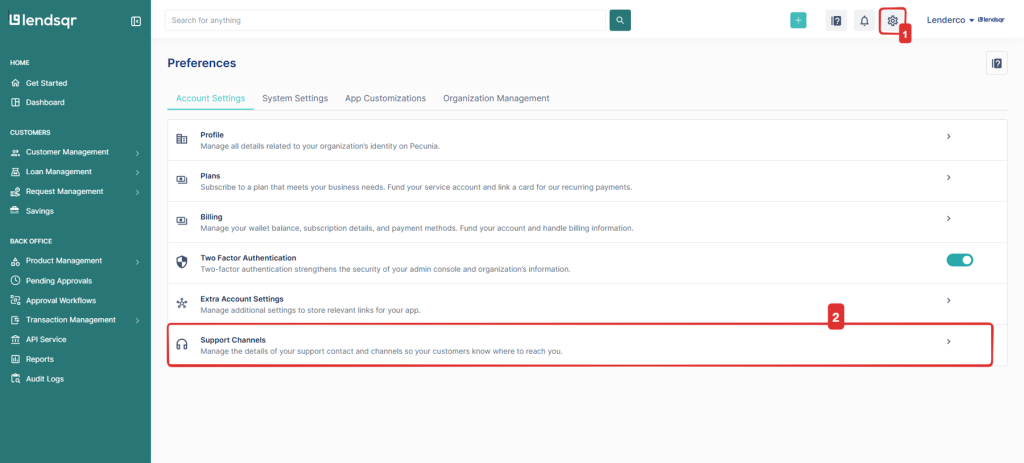
Click the “Settings” icon on the top of the page on the Lendsqr Admin console to open the settings page”.
On the settings page, select “Support Channels”
3. This will take you to the support channel page, click the “Edit“ button at the top-right corner of the page to edit the details.
4. Update the relevant fields with your new contact information. The fields available to edit are:
Phone number: enter the phone number you want borrowers to call for support
WhatsApp number: enter the WhatsApp number borrowers can message directly
Email address: enter the support email address borrowers can write to
Make sure all details are accurate and currently active before saving. Double-check that the phone number and WhatsApp number are in the correct international format for your market.
5. Once you have updated your details, click “Save” to apply the changes. Changes take effect immediately after saving. Your updated contact details will be reflected on your microsite and web app right away, so borrowers who tap the support icons will be connected to the new contact information without any delay.
What happens after
Once your changes are saved, the updated contact details will appear on your microsite and web app immediately. Borrowers who tap the phone, WhatsApp, or email support icons will be connected to the new details straight away.
There is no approval step required. Changes are applied instantly, so it is important to make sure your support team is ready to receive queries on the updated channels before you save.