Access your Back Office at your fingertips.
Download the app now on Google Play Store.
Scan the QR code
You can also scan QR code with your phone to download the app.
How to override risk and verification checks for loan products in Lendsqr
Updated
On this page
Sometimes, strict risk and verification checks prevent you from approving loans that deserve quick funding. This is common in salary advance lending, microfinance, or relationship-based lending, where you know the borrower well.
Lendsqr gives you the flexibility to override these checks on specific loan products while keeping full control and compliance. When you enable the override option, the system still requires a justification for every override. This creates a clear audit trail for your lending operations.
This guide explains why and when to allow overrides, and shows the simple steps to enable this setting in the Lendsqr admin console.
Why allow overriding checks?
Risk and verification checks help protect your lending business from bad loans. However, strict enforcement can sometimes slow down or block deserving cases. Allowing overrides adds flexibility so you can make informed, human-judged decisions when needed.
Benefits include:
Handling edge cases or exceptional borrowers
Speeding up urgent or time-sensitive disbursements
Balancing automation with relationship lending
The override feature maintains security because every exception requires a written justification that is logged in the system.
When should you enable this setting?
Enable the override option when your lending model involves frequent exceptions or high-trust relationships. Common situations include:
Salary advance lenders approving loans timed to payroll dates, even if a check flags a minor issue
Microfinance institutions supporting group guarantors or community-based borrowers who may not pass every automated verification
Relationship-driven lenders who want to reward loyal customers with faster approvals
Start with the setting turned off for new products. Enable it only on products where you need this flexibility.
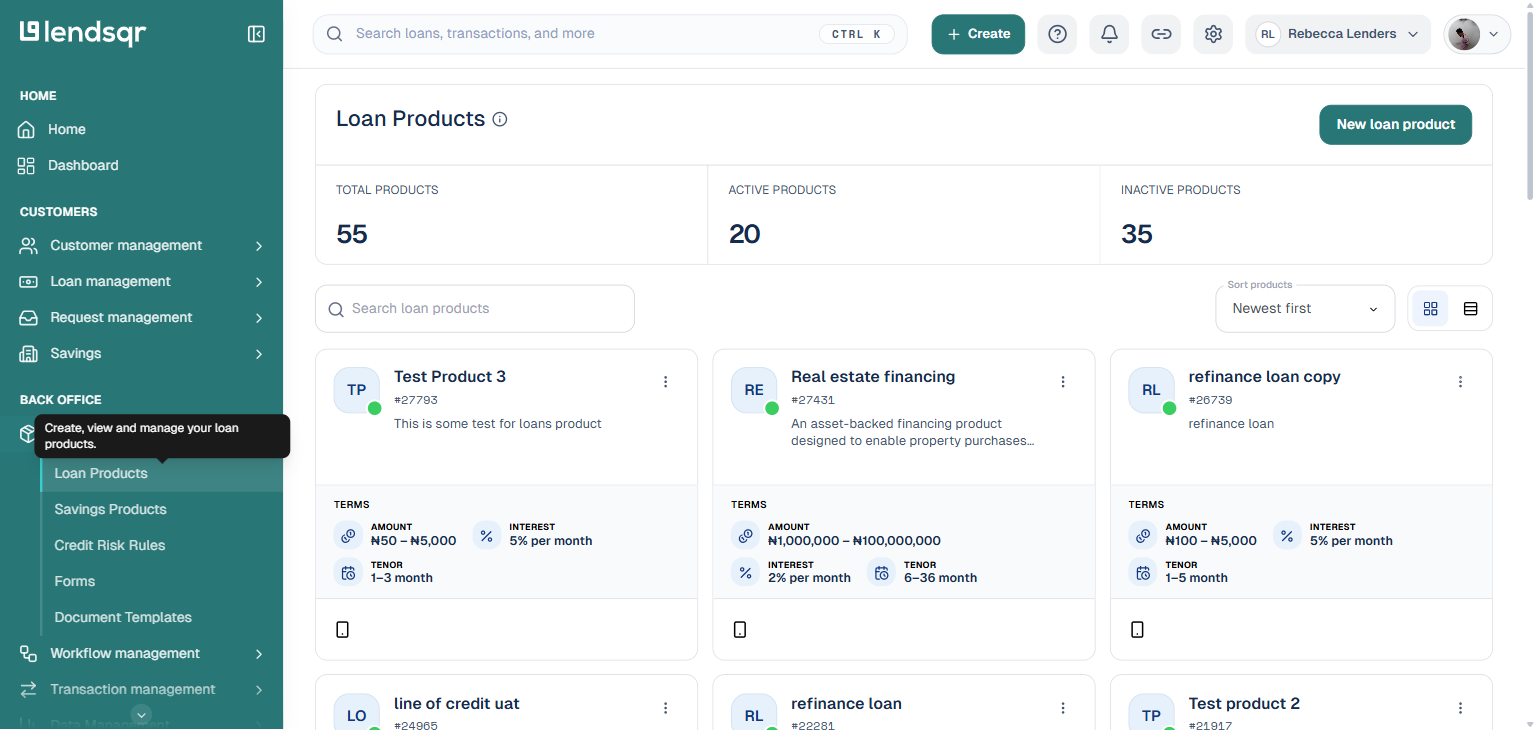
4. Click on the “Product settings” tab on the loan product’s page.
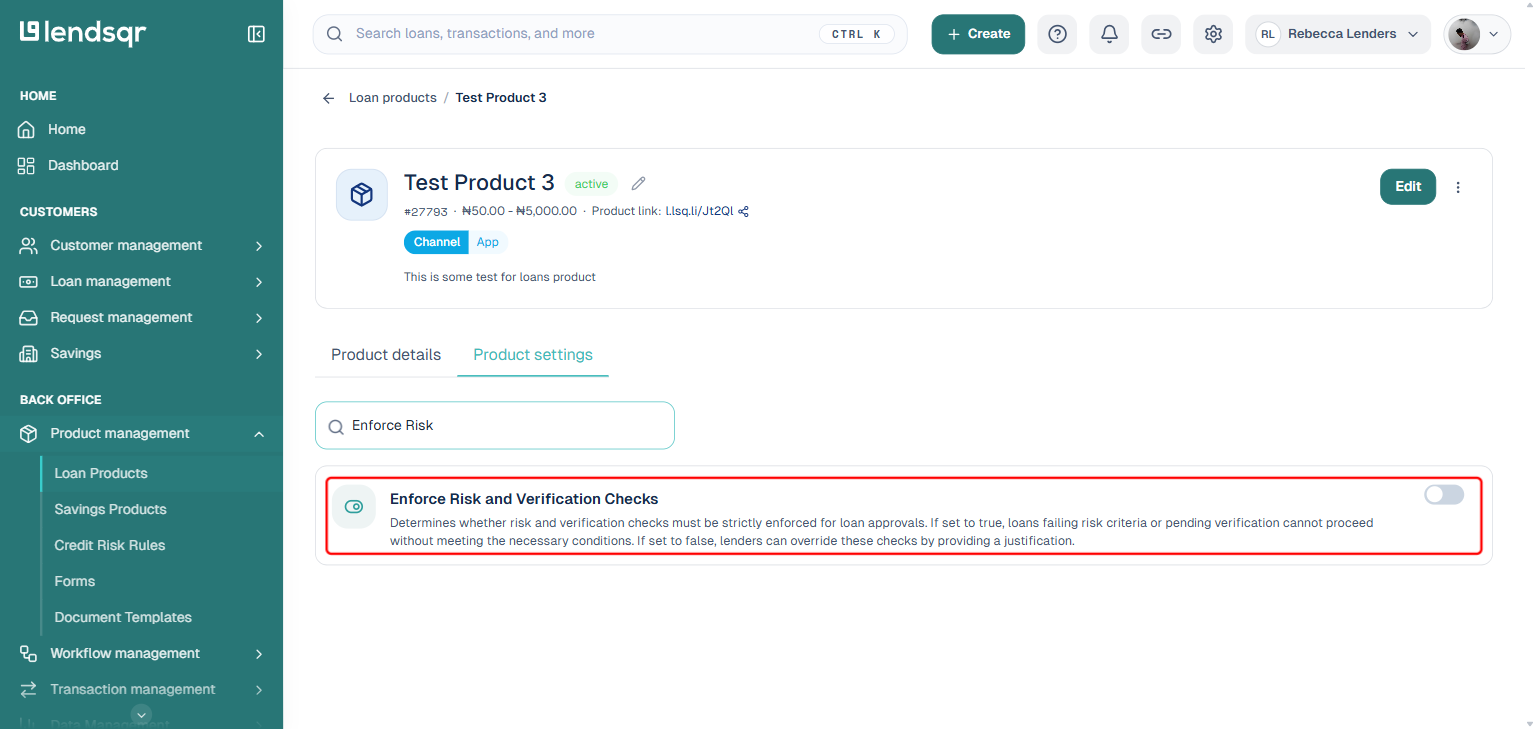
5. Type “Enforce Risk” into the search box to find the “Enforce Risk and Verification Checks” setting, then click the toggle switch beside it to turn it off. This takes effect immediately, no separate Save step is needed. Team members can now override checks for loan requests on that product, as long as they provide a justification.
What happens when checks are overridden
When the enforce risk and verification checks setting is turned off, team members can proceed with loan approval even if some checks fail. However, they must provide a clear reason for the override.
This justification is recorded for audit purposes. It helps you review exceptions later and maintain proper risk management in your lending operations.
The feature gives you better control: strict automation by default, with safe flexibility when human judgment is required.
Next steps
Review your existing loan products and decide which ones need override flexibility.
Train team members to always provide clear justifications when overriding checks.
Monitor override activity through reports in the Lendsqr admin console to ensure responsible use.
With the override setting in the Lendsqr admin console, you gain flexible control over loan approvals. This allows justified exceptions while keeping full audit trails and compliance in one secure platform.
Ready to add more flexibility to your loan approval process? Log in to Lendsqr and adjust your product settings today.