Access your Back Office at your fingertips.
Download the app now on Google Play Store.
Scan the QR code
You can also scan QR code with your phone to download the app.
Adding a Custom Checklist to Groups
Updated
On this page
Consider a cooperative lending organisation that offers group loans to its members. Before any member can view or access the group’s loan offers, the organisation needs them to acknowledge three things: that co-guarantee applies, that an annual membership fee is required, and that they understand how to invite new members. Without a structured way to present these conditions, members might access loan offers without fully understanding their obligations, leading to disputes and drop-offs later in the process.
The custom checklist feature on the Lendsqr admin console solves this. It allows you to configure a set of conditions that every user must acknowledge before they can view a group’s loan offers, whether they are an existing member or a new visitor. This guide walks you through what the feature does, how to configure it using a simple JSON format, and best practices for writing effective checklist conditions.
What is a custom checklist for groups?
When users try to view group offers, whether they are members or not, they’re first shown a custom checklist. This checklist presents important requirements or conditions that must be acknowledged before the group’s offers can be accessed.
It is especially useful for organisations that need to display terms such as:
Co-guarantee agreements, where each member guarantees the loans of other members
Membership or annual fees that participants are required to pay
Onboarding rules, such as how new members can be invited to the group
Any other terms or conditions specific to your organisation’s lending policy
The checklist is configured directly on the Lendsqr admin console using a JSON object, giving you full control over the title, description, and individual conditions displayed to users.
Before you start
Before configuring a custom checklist, confirm the following:
Roles and permissions Not every admin can edit group attributes. To configure a custom checklist, your role must include permission to manage group attributes on the admin console. If you do not see the option to edit group attributes when following the steps below, contact your system administrator to confirm your access level.
Prepare your checklist content Before opening the admin console, prepare your checklist content in advance. You will need an overall title, a description, and at least one condition, each with its own label and description. Having this ready beforehand makes filling in the form on the Group Attributes tab quicker.
Currency and localisation If your checklist conditions include fees or monetary amounts, use the currency symbol and format relevant to your market. The example in this guide uses Nigerian Naira (₦) but lenders operating in other markets should substitute the appropriate currency symbol and amount for their region.
Step-by-step: how to add a custom checklist to a group
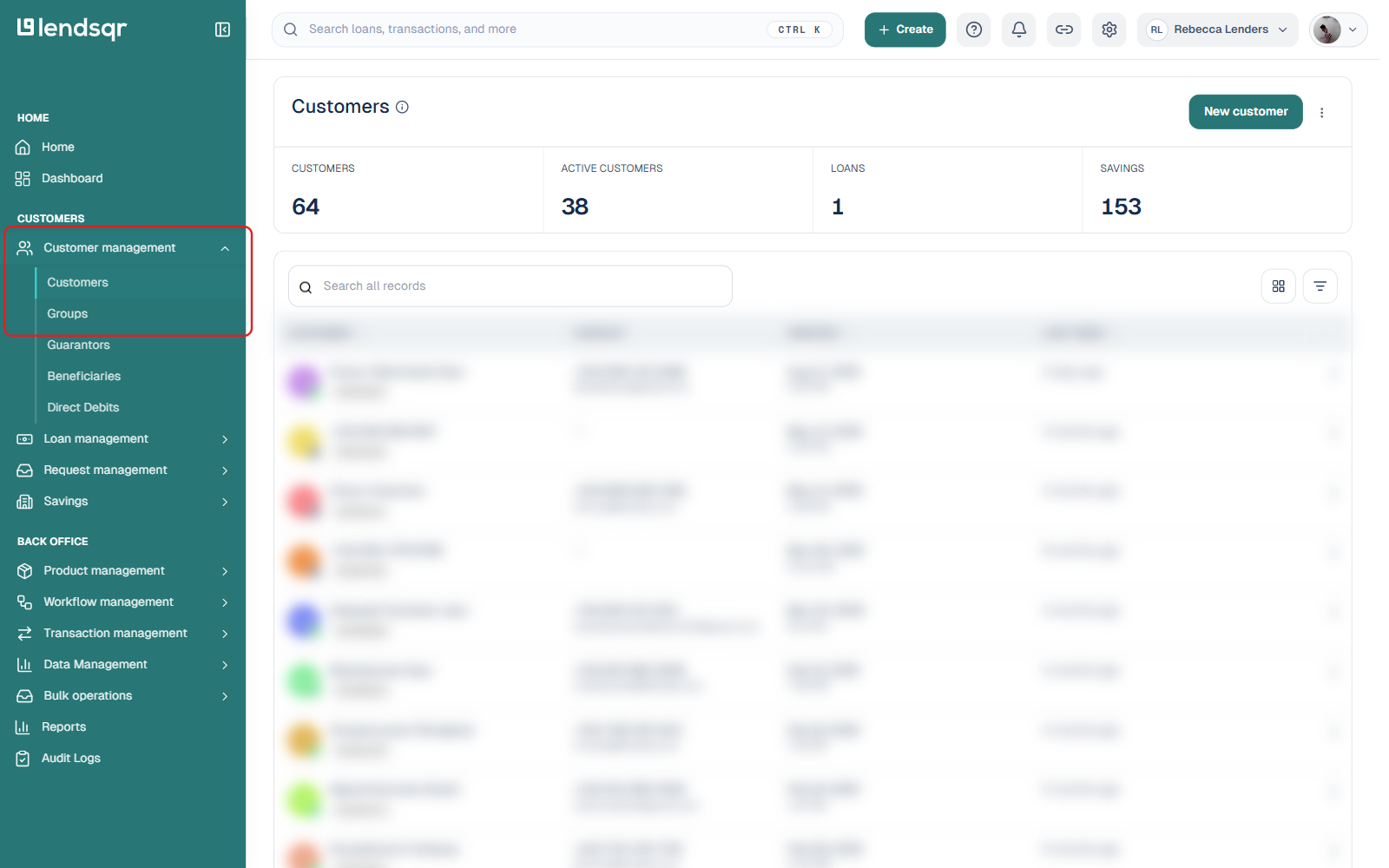
Log in to the Lendsqr Admin Console. From the sidebar, click “Customer management”, then select “Groups” from the submenu that expands.
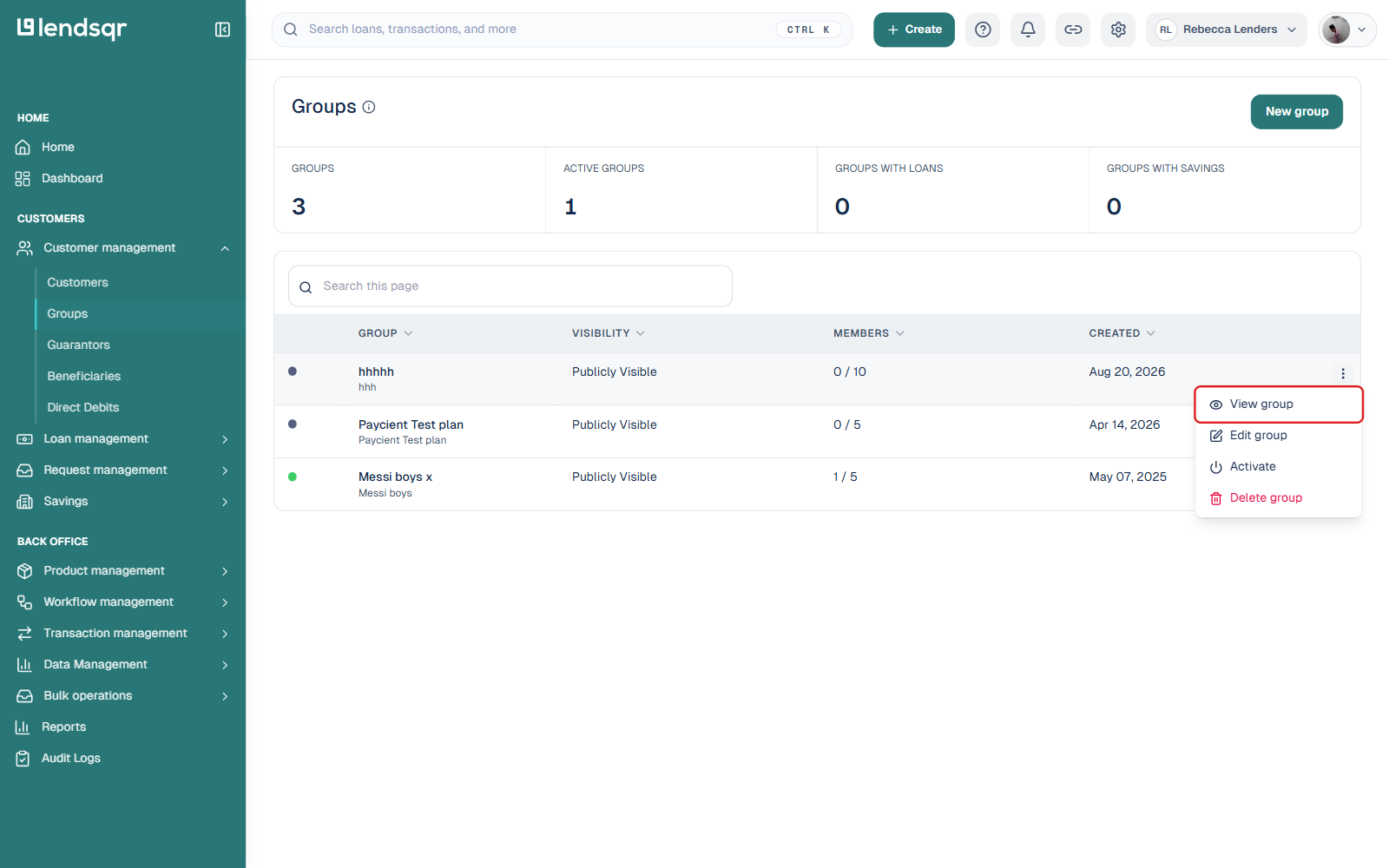
Locate the group whose checklist you want to configure, click the three-dot menu icon beside it, and choose “View group”.
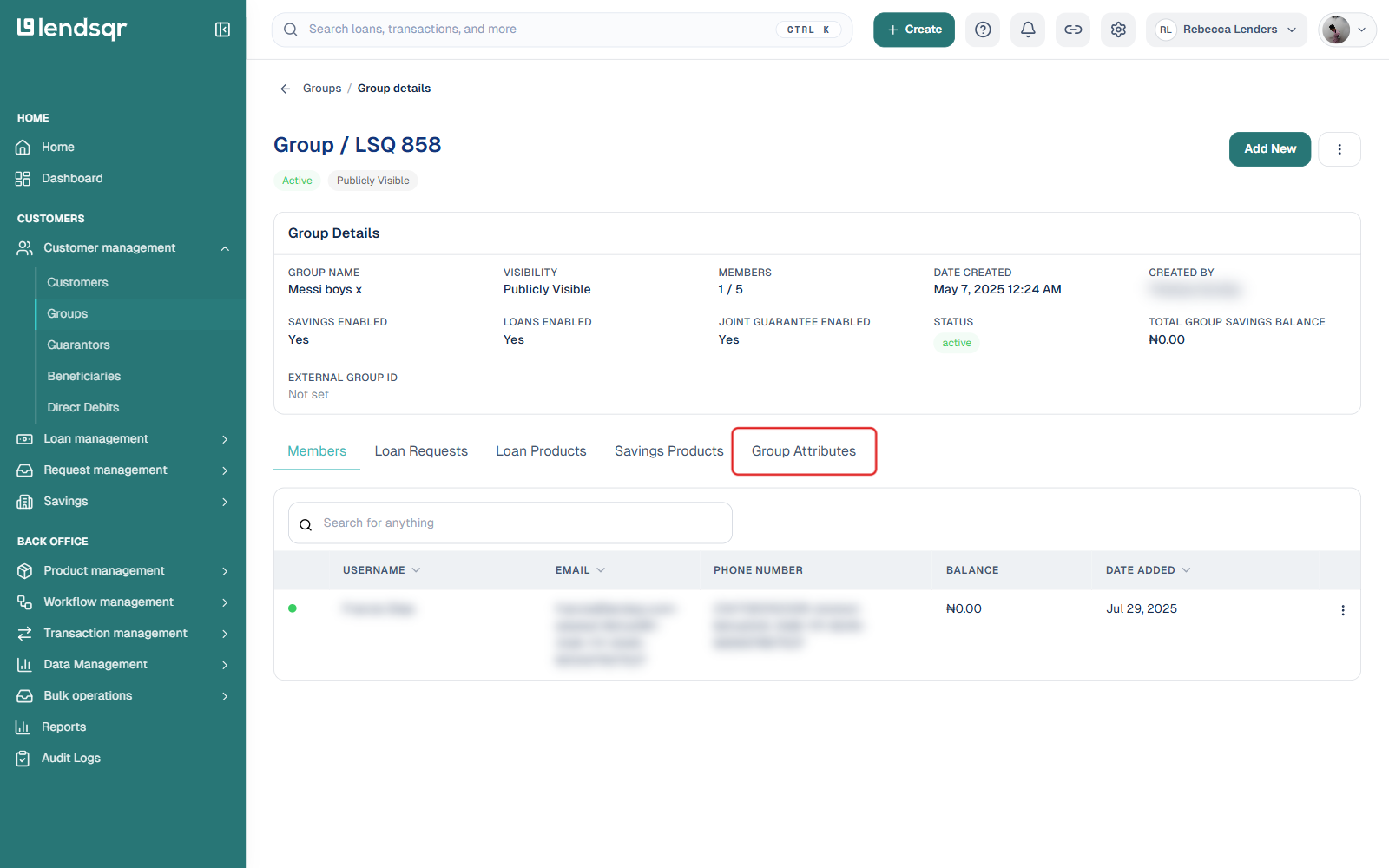
On the group details page, click the “Group Attributes” tab.
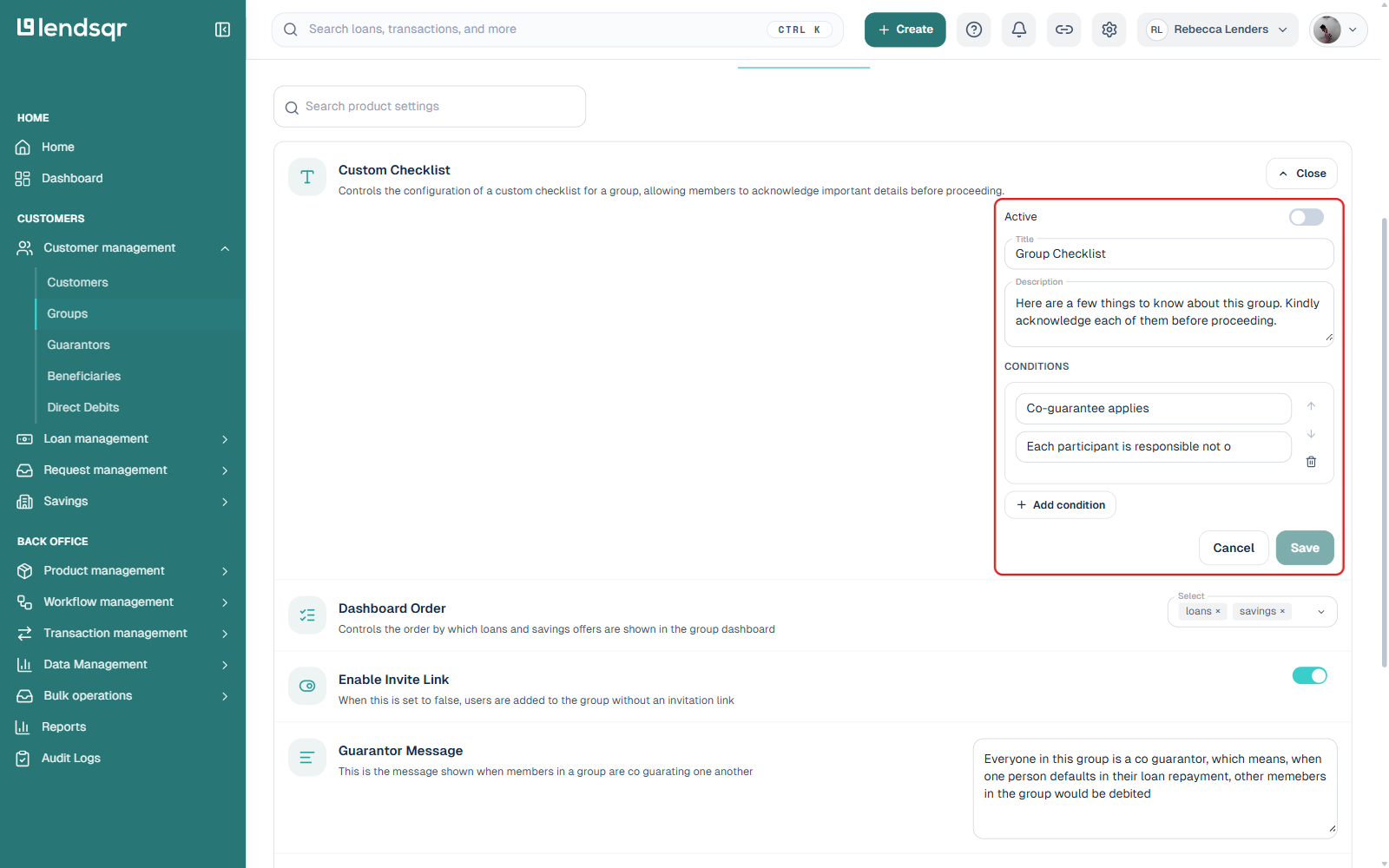
This opens a searchable list of individual group settings. Type “Custom Checklist” into the search box at the top to filter the list down to just that setting, then click it to expand the editor.
Fill in the checklist. Switch “Active” on, set a Title and overall Description, then add one or more conditions under “Conditions”: each condition has its own label and description field. Use “Add condition” to add more, or the up/down arrows and the trash icon on a condition to reorder or remove it. When you are done, click Save.
Once saved, the setting collapses back into the list and a small revert icon appears beside it, confirming the checklist is active for that group. There is no separate confirmation dialog to click through.
How to verify the checklist is live
After saving, follow these steps to confirm the checklist is displaying correctly on your platform.
Log in to your web app using a test account.
Navigate to the group section and find the group you configured.
Click “View offers” on the group.
The custom checklist should appear before the offers are displayed, showing the title, description, and each condition you configured.
If the checklist does not appear, confirm that the “active” field in your JSON is set to true and that the JSON was submitted successfully without errors.
Best practices for writing checklist conditions
Well-written checklist conditions help borrowers understand their obligations clearly and reduce disputes later in the lending process. Keep the following in mind when preparing your checklist content.
Keep labels short and specific The label is the first thing a user sees for each condition. It should be a clear, short phrase that summarises the condition in five words or fewer. For example, “Co-guarantee applies” is more scannable than “Each member must guarantee the loans of all other members in the group.”
Write descriptions in plain language The description should expand on the label in one or two sentences using clear, simple language. Avoid legal jargon where possible. If technical terms are necessary, explain them briefly within the description itself.
Use the correct currency for your market If any condition references a monetary amount, use the currency symbol and format that is standard in your market. For example, use KES for Kenyan Shilling, GHS for Ghanaian Cedi, or USD for US Dollar. Do not use a currency your borrowers are unfamiliar with, as this can cause confusion or distrust.
Limit the number of conditions While the JSON format supports multiple conditions, a long checklist can overwhelm users and increase drop-off rates. Aim for three to five conditions that cover the most important terms. If you have more terms to communicate, consider linking to a full document in the description field rather than listing everything in the checklist.
Test before going live Always verify the checklist on the web app after saving, as described in the verification steps above. Check that the text is displaying correctly, that no fields are blank, and that the conditions make sense to a first-time reader.