Access your Back Office at your fingertips.
Download the app now on Google Play Store.
Scan the QR code
You can also scan QR code with your phone to download the app.
Assigning an account manager and branch during manual customer creation
Updated
On this page
When creating a customer manually on the admin console, lenders are able to assign a branch and an account manager to each customer. This helps improve operational efficiency by allowing for better customer segmentation, performance tracking at the branch level, and clear ownership of customer relationships all directly from the admin interface.
In this article, we will walk you through how to assign an account manager and a branch when creating a customer manually, helping you maintain cleaner data and improve overall customer management.
How to assign an account manager and branch
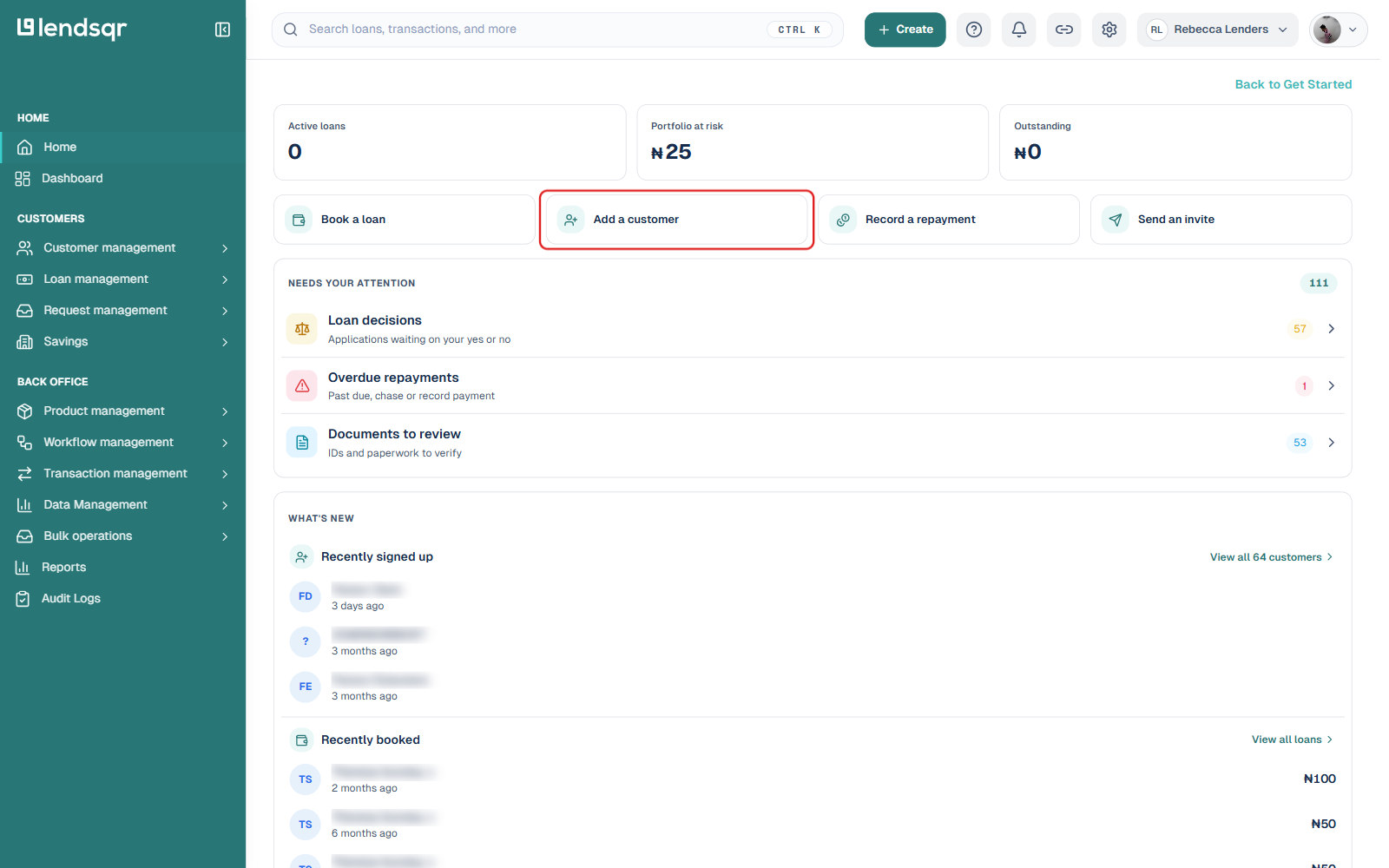
Log in to your admin console. From the Home page, click Add a customer.
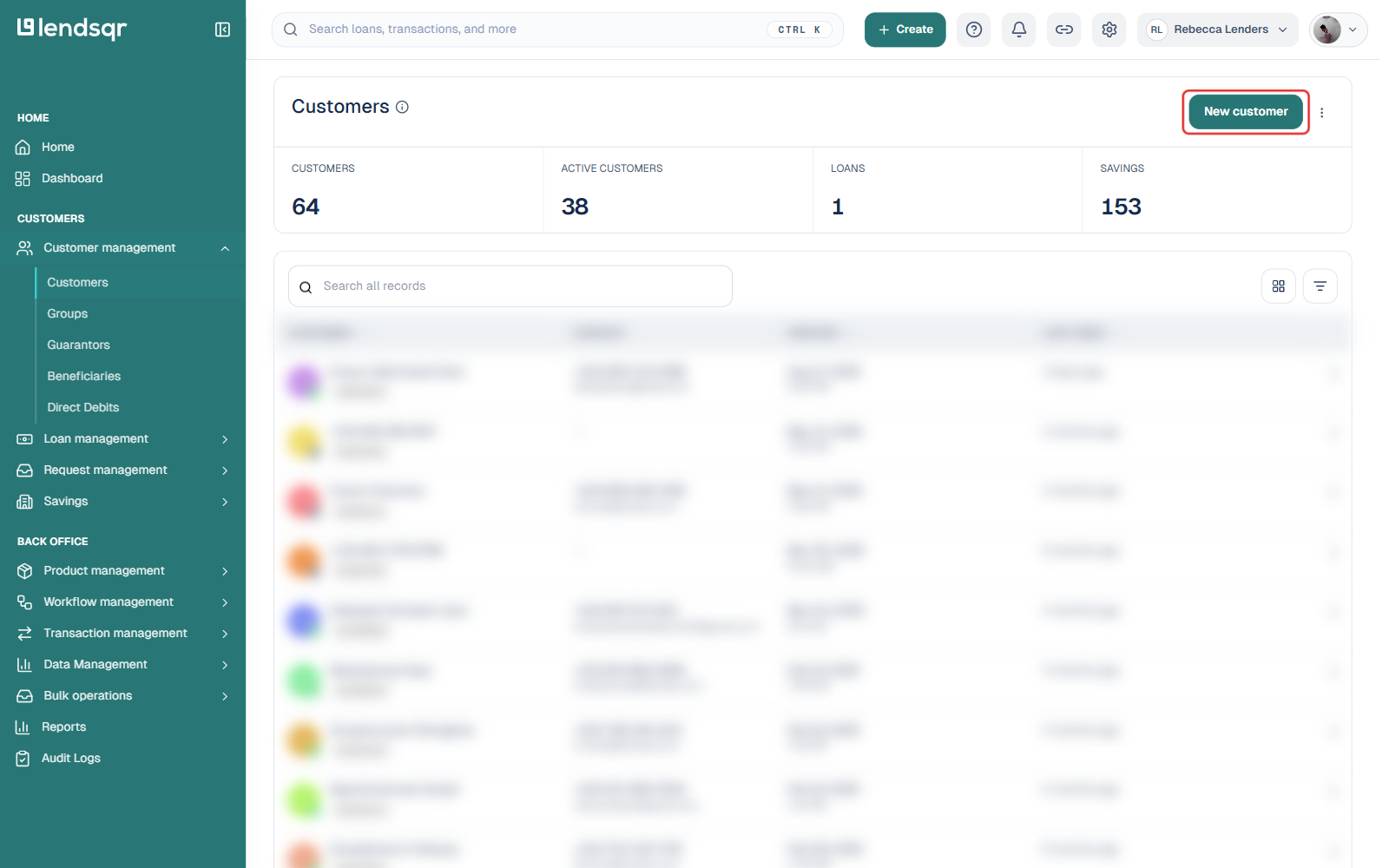
Alternatively, go to Customer management > Customers and click New customer.
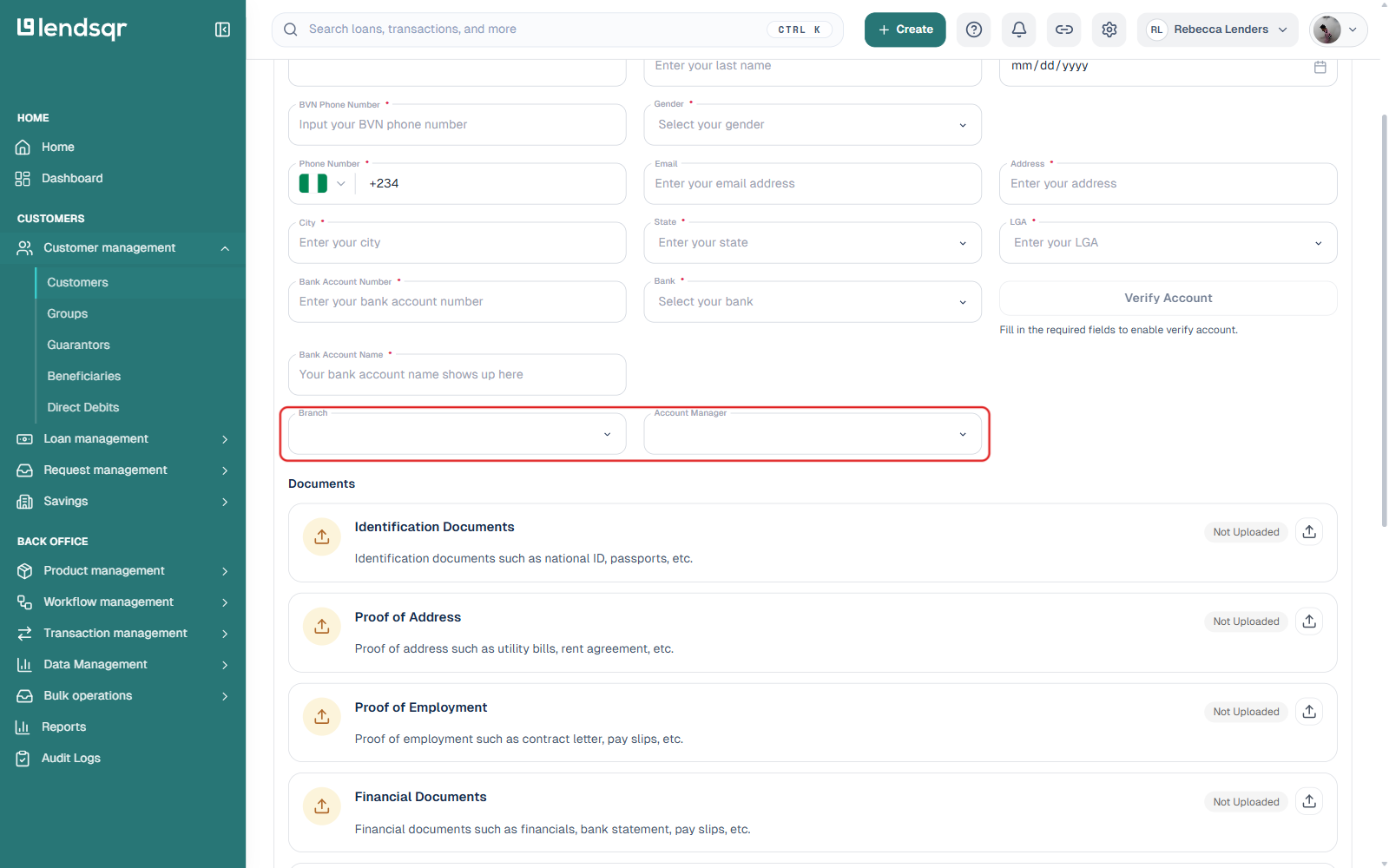
Fill in the customer’s required details, BVN, name, date of birth, contact information, address, and bank account. Near the bottom of the form, below the bank account fields, you’ll find Branch and Account Manager fields.
Click each dropdown to choose from the branches and account managers already set up for your organization. Both fields are optional, you can leave either blank and assign them later by editing the customer.
Once you’ve filled in the form, click Create customer to save.
Where to view the assignment afterward
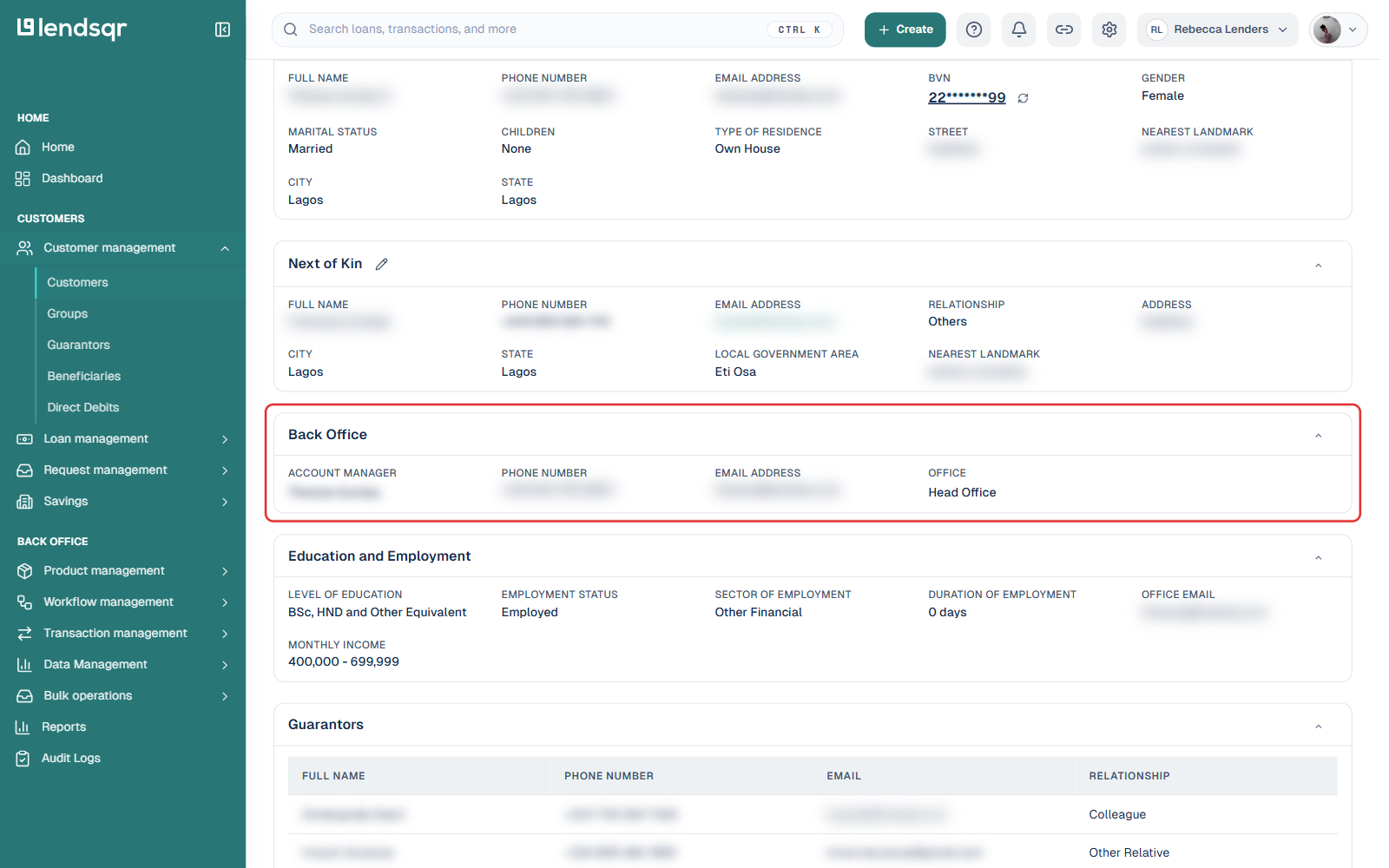
Once the customer has been created, open their profile and scroll to the Back Office section to see the assigned account manager and their contact details, alongside the office the customer is assigned to.
One naming detail worth knowing: the field you fill in on the creation form is called Branch, but the same value is displayed as Office on the customer’s profile. These refer to the same setting, just labeled differently depending on where you’re looking at it.
To change the assigned account manager or branch after a customer has been created, edit the customer’s details from their profile page.