Access your Back Office at your fingertips.
Download the app now on Google Play Store.
Scan the QR code
You can also scan QR code with your phone to download the app.
How to manually book a loan for a customer
Updated
On this page
Manual loan booking is how lenders process loans for customers who cannot complete the application themselves. A credit officer or admin enters the loan details directly into the Lendsqr admin console on the customer’s behalf, and the system creates the loan request as if the customer had applied through the regular channel.
This is a common need in field lending, agent-assisted lending, and situations where a customer cannot access the app due to technical issues or limited connectivity. Rather than turning the customer away, the admin steps in and books the loan using information collected from the customer.
Only admins with the Super Admin role can manually book loans for customers.
Quick summary: who uses this feature and when
Manual loan booking is useful for the following situations:
A customer cannot access their phone or the borrower app at the time of application
A field agent is processing loans on behalf of customers in underserved areas
A customer needs funds urgently and requires an admin to process the request
A loan application failed partway through and the admin needs to re-enter it manually
The lender operates a partially offline loan channel for specific borrower segments
In all of these cases, the admin collects the required details from the customer, enters them into the system, and then routes the request through the normal approval workflow before releasing any funds.
Controls to check before booking a loan manually
Because manual booking bypasses the self-service application flow, it introduces higher risk when the right verification steps are not followed first. Before creating a manual loan request, the booking admin should confirm the following:
The customer’s identity has been verified using a valid government-issued ID
The customer’s phone number matches the one on their platform account
The loan amount and tenor fall within the approved limits for the selected loan product
The admin has collected supporting documentation such as proof of income or employment where required
A second person will review and approve the request before the system releases funds
The admin has confirmed the disbursement account details directly with the customer
Running through this checklist reduces the risk of fraud and data entry errors that are harder to catch when an admin enters loan data rather than when a customer applies through an automated flow.
How to book a loan manually on Lendsqr
To book a loan manually for any customer using the offline loan channel, follow the steps below:
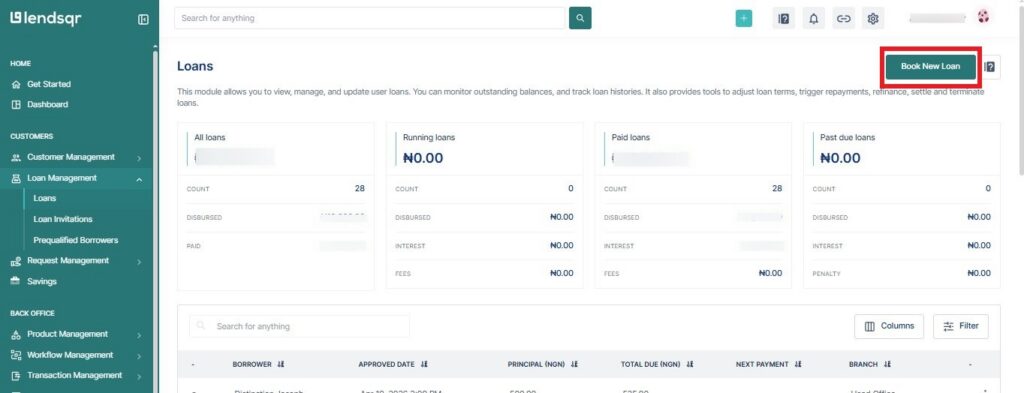
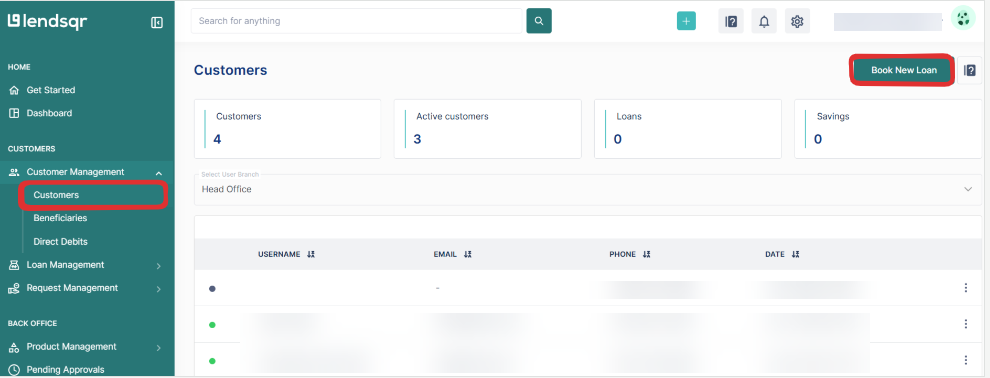
Navigate to either the Customers, Loans or Loan Requests pages on the Lendsqr admin console.
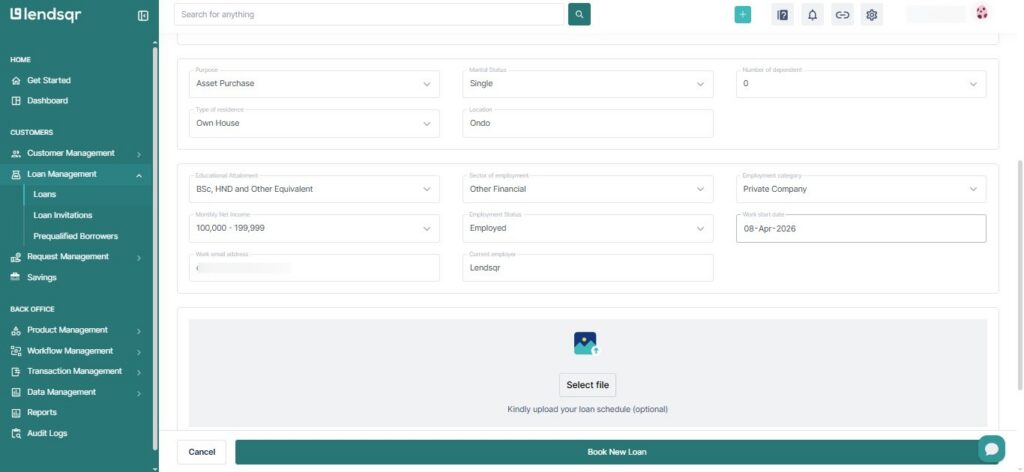
Enter all the details of the existing customer per what has been provided to you by the customer and click on the “Book New Loan” button to create the loan request.
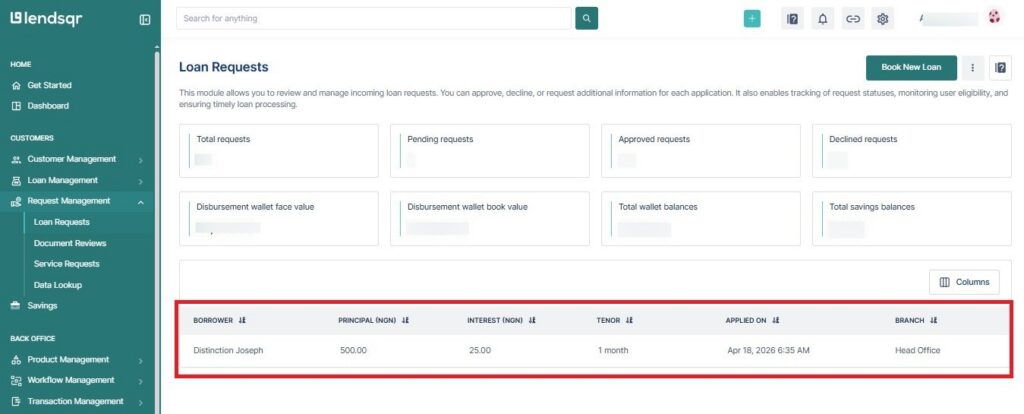
Proceed to the Loan requests page on the Lendsqr admin console to approve the request.
Data collected for loan booking
The table below covers every field you will encounter in the manual booking form. Having all this information collected from the customer before you open the form will make the process faster and reduce the need to pause and follow up.
Field
Description
Phone number
The customer’s phone number as provided
Amount
The specific loan amount you’re booking for the customer. Must fall within the specified amount range for the loan product
Loan Tenor
The specific loan duration for the loan you are booking for this customer. Must fall within the specified tenor range for the loan product
Product
The offline loan product you created
Disbursement Method
Where the money should be sent to after approving the loan. Choose the bank option if the customer has no app and the money would be disbursed directly to their bank account.
Purpose
The reason the customer is requesting for the loan
Marital status
The customer’s marital status.
Number of dependents
The number of children the customer has.
Type of residence
The type of residence the customer lives in.
Educational attainment
The level of educational attainment the customer possesses.
Sector of employment
The sector of employment the customer works in.
Employment category
The current employment category which the customer’s work falls under
Monthly Net Income
The customer’s income
Employment Status
The current employment status of the customer. Options are: Unemployed, Employed, Self-employed, and Retired
Work start date
The date the customer started working with their current employer.
Work email address
The customer’s official email address, if they have one.
Current employer
The customer’s current place of employment
How disbursement works after manual booking
Once the approver authorizes the loan, the system disburses funds based on the disbursement method the admin selected during booking. If the admin chose Bank, the funds go directly to the bank account the customer provided. If the admin chose Wallet, the funds go into the customer’s in-app wallet instead.
Because manual loans often serve customers who do not actively use the app, the Bank option is generally the right choice for offline loan channels. In that case, the admin should confirm the account number and bank name with the customer before completing the booking. Disbursing to the wrong account creates a recovery problem that the system cannot resolve automatically, so confirming these details upfront is always the safer approach.