Access your Back Office at your fingertips.
Download the app now on Google Play Store.
Scan the QR code
You can also scan QR code with your phone to download the app.
How to trace transaction Details
Updated
On this page
Introduction
A borrower calls your support line. They say a payment was left in their account, but nothing shows on their loan record. Your loan officer needs to find the transaction fast, confirm what happened, and give the borrower a clear answer before the call ends.
Without a reliable way to trace transactions, that call becomes a frustrating back-and-forth. Your team scrolls through hundreds of records trying to match amounts and dates manually. The borrower loses confidence. The issue drags on longer than it should.
In the Lendsqr admin console, you can find any transaction in seconds using three filters: transaction ID, date range, or transaction amount. Each method serves a different situation. This guide explains when to use each one and what information you will find once you locate the transaction.
Why transaction tracing matters for lenders
Every lending operation generates a constant stream of financial activity. Disbursements go out. Repayments come in. Fees are charged. Wallet transfers happen. Over time, the volume of transactions makes it impossible to manage any single record manually.
Transaction tracing gives your team the ability to cut through that volume and find exactly what they are looking for. It is essential in three common scenarios.
Customer support. A borrower disputes a charge, claims a payment was not applied, or asks why their wallet balance looks wrong. Your support team needs to find the exact transaction, review the details, and resolve the issue without making the customer wait.
Financial reconciliation. Your finance team needs to match platform records against bank statements at the end of each period. Finding specific transactions by amount or date range makes this process accurate and fast.
Audit and compliance. A regulator or internal auditor asks for records of specific transactions. Being able to locate and present transaction details quickly and accurately demonstrates operational control.
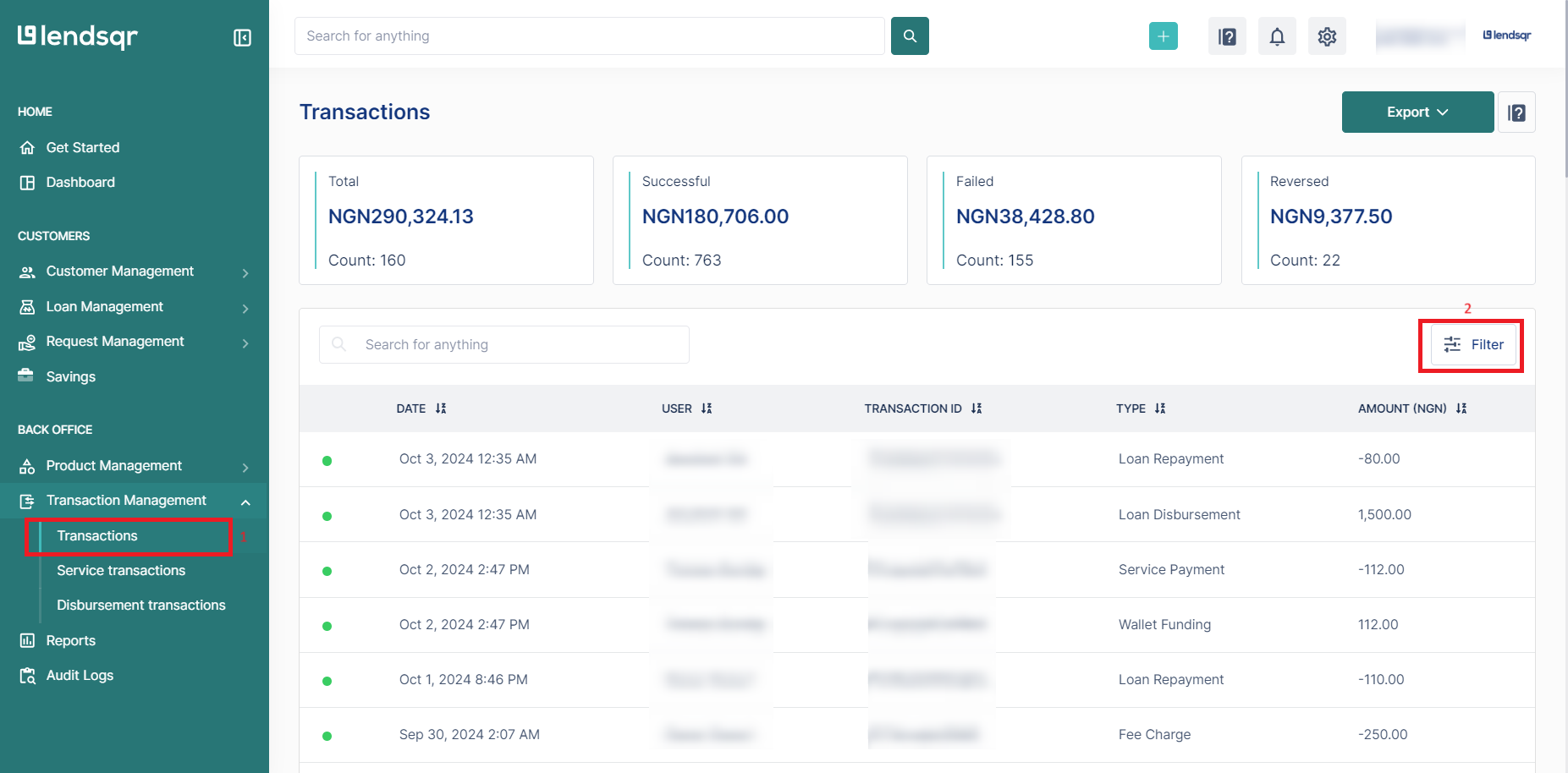
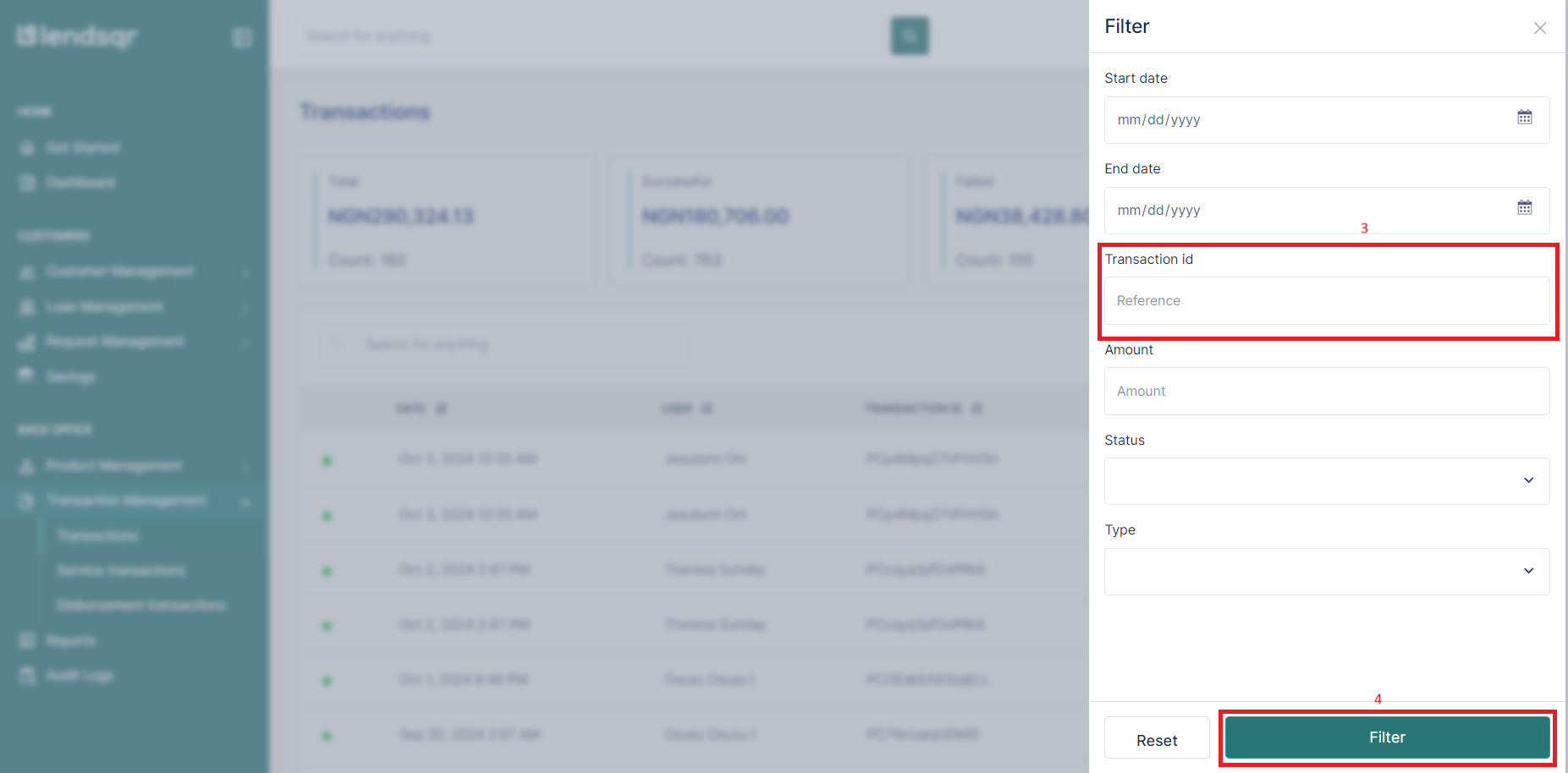
The best way to filter a transaction is by using the unique transaction ID, as the result would be the exact transaction you are looking for.
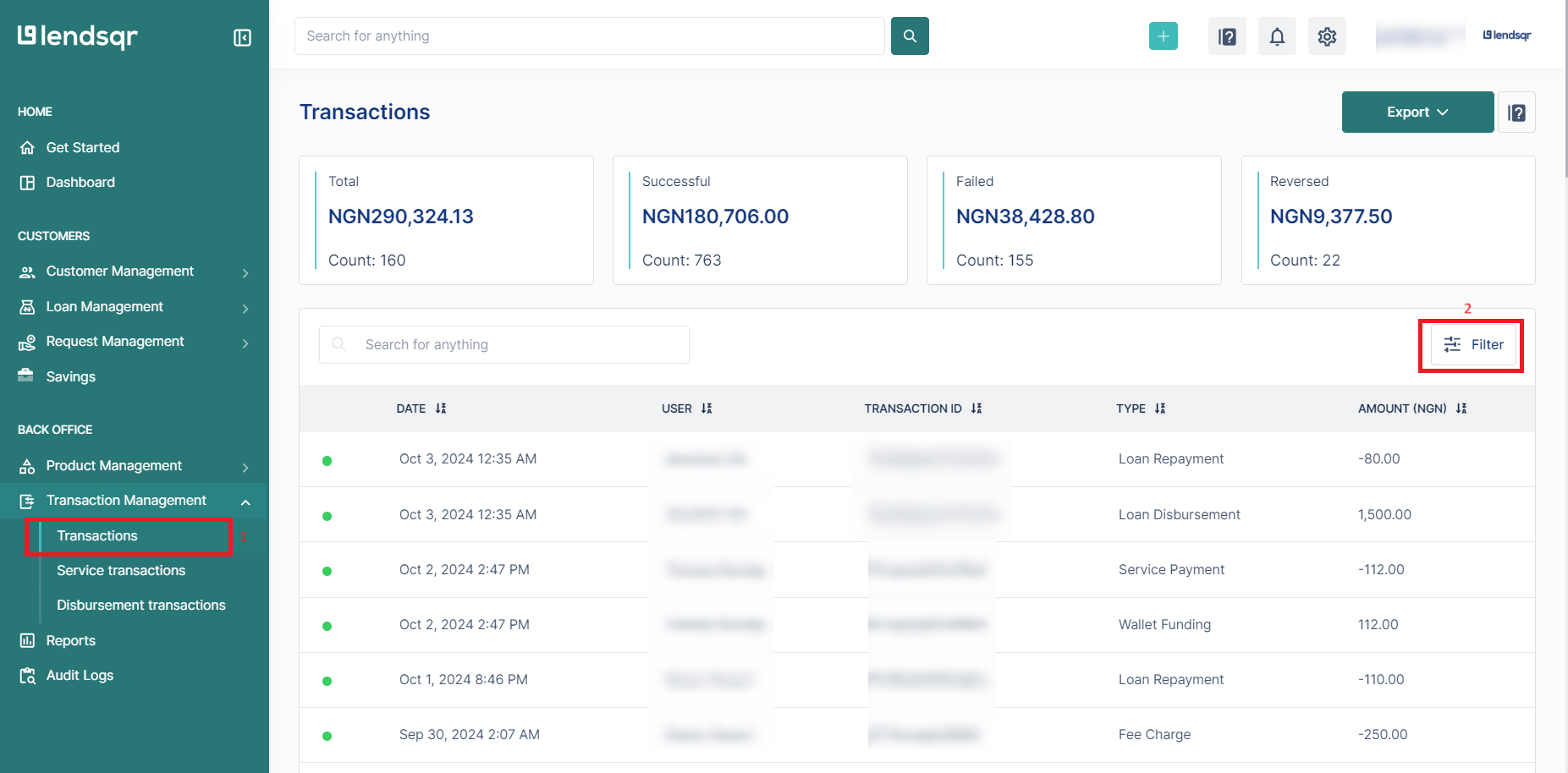
Navigate to ‘Transactions’ on the side navigation pane
Click on ‘Filter’
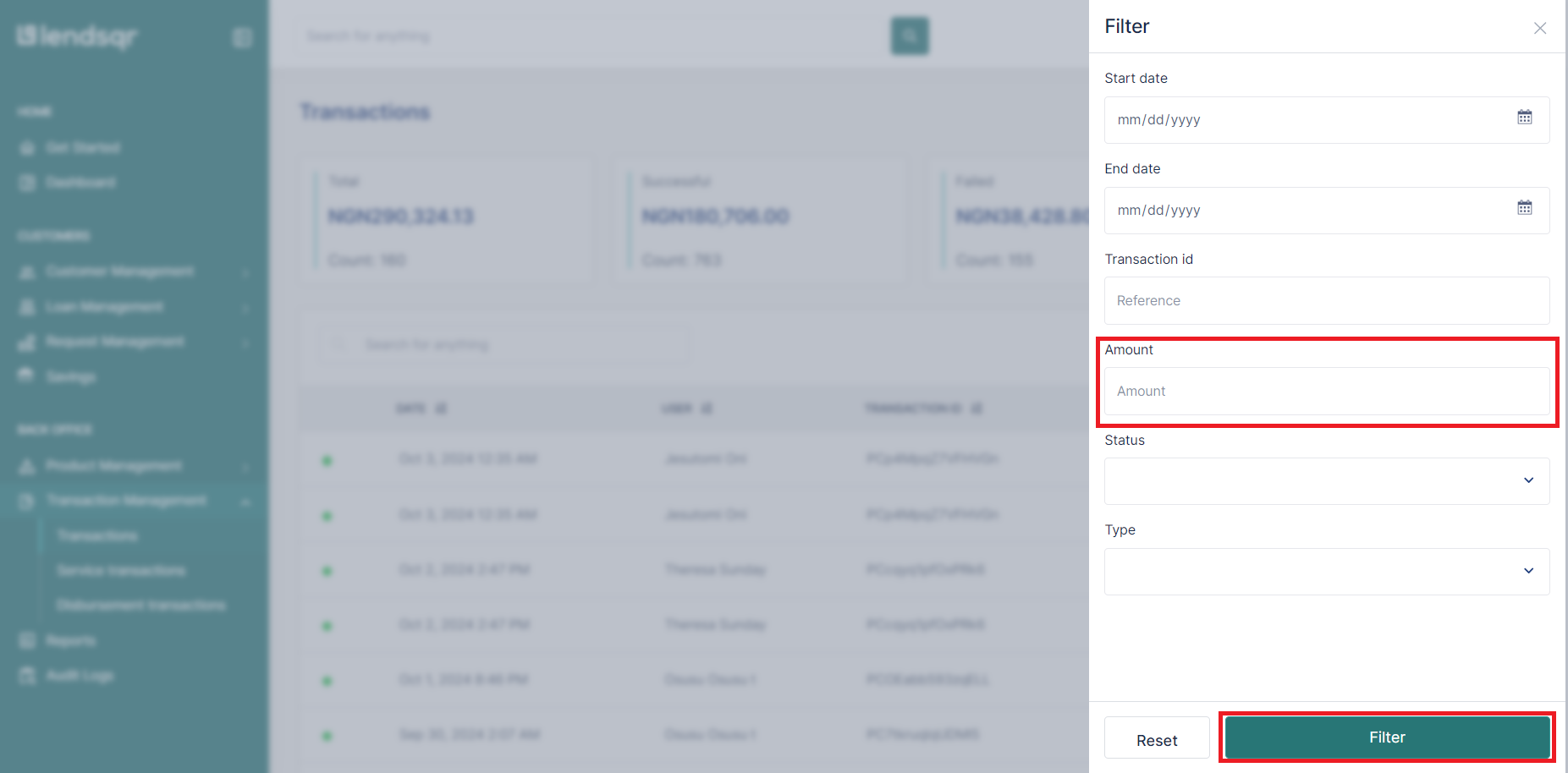
Input the transaction ID
Click ‘Filter’
Filtering transaction using transaction ID
2. Using date range
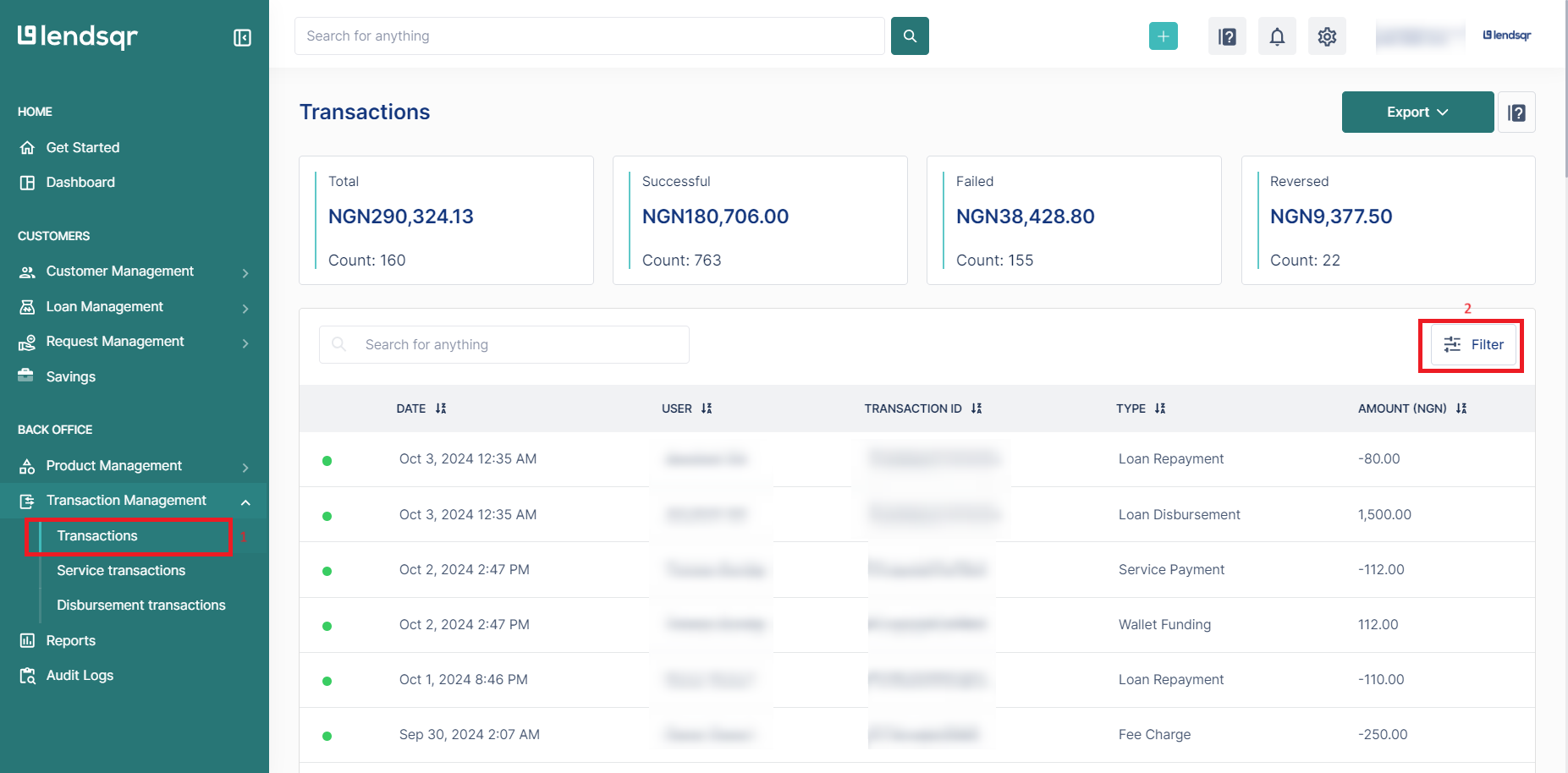
Navigate to ‘Transactions’ on the side navigation pane
Click on ‘Filter’
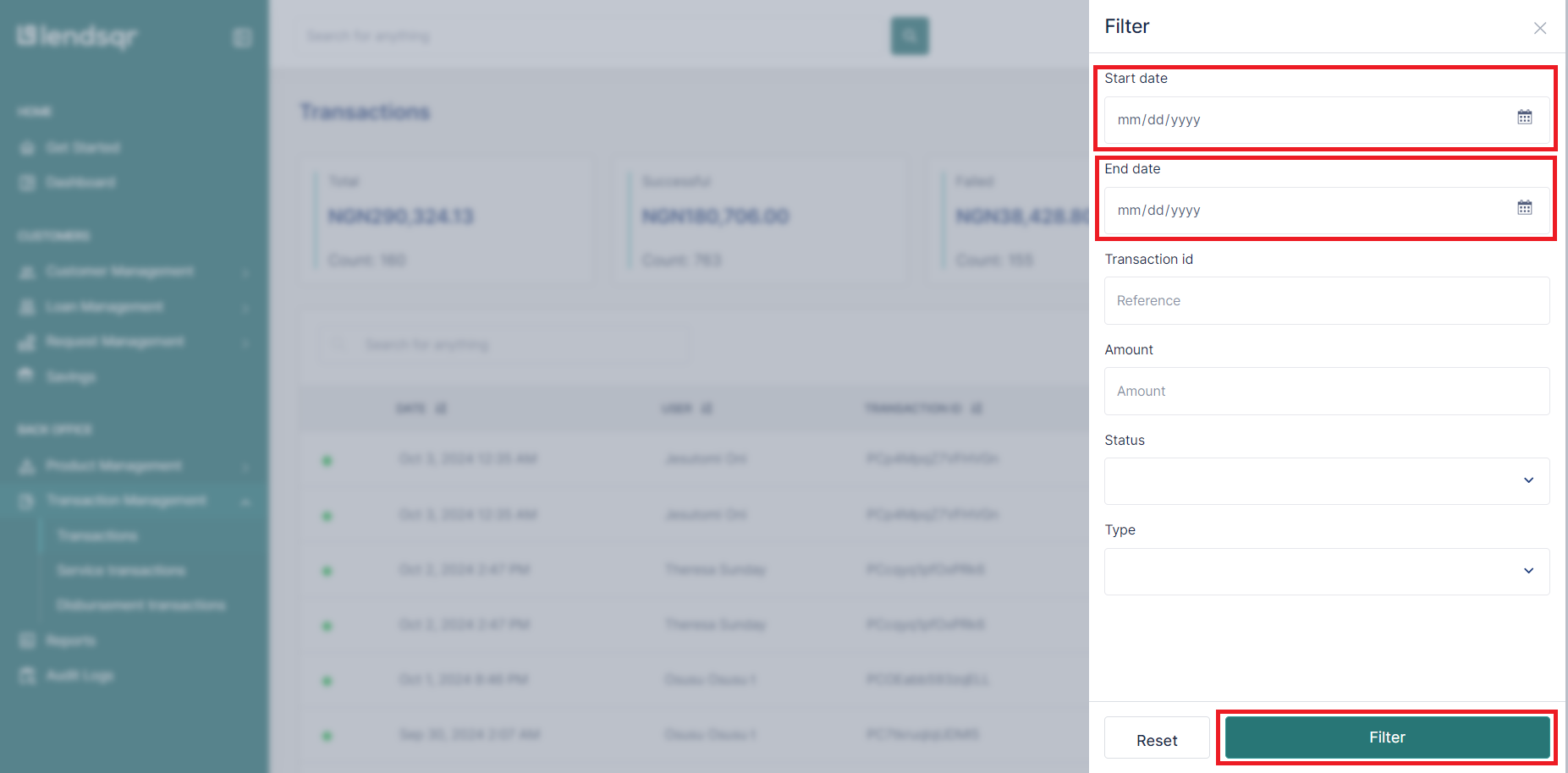
Enter the start date
Enter the end date
Click ‘Filter’
Filtering transaction using date range
3. Using amount
Navigate to ‘Transactions’ on the side navigation pane
Click on ‘Filter’
Input the transaction amount
Click ‘Filter’
Filtering transaction using amount
Transaction details
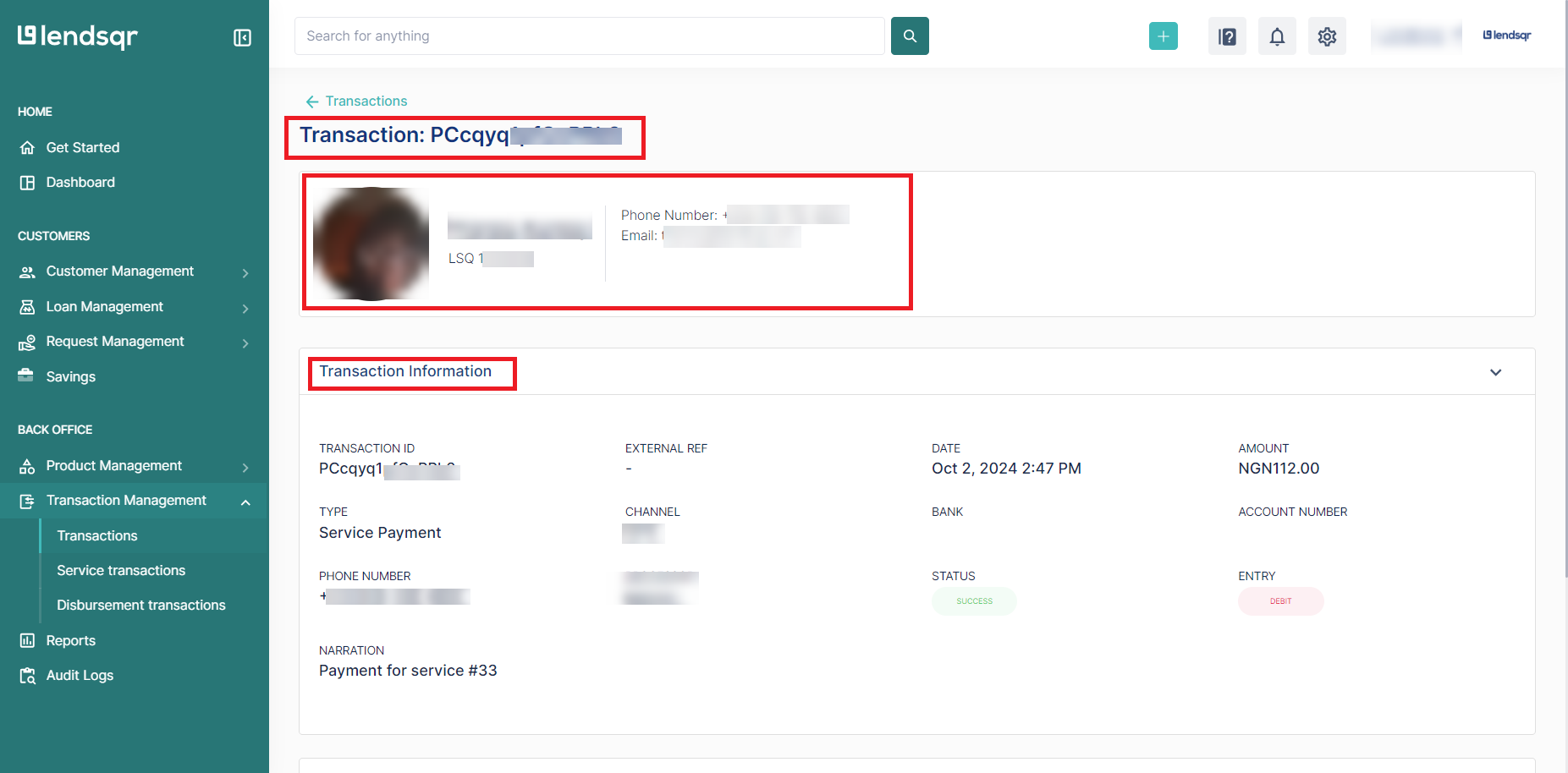
After filtering a transaction, below details are seen:
Transaction ID
User’s Details – full name, selfie, email address, user ID, phone number.
Transaction Information – transaction ID, external reference, amount, type, transaction type, etc.
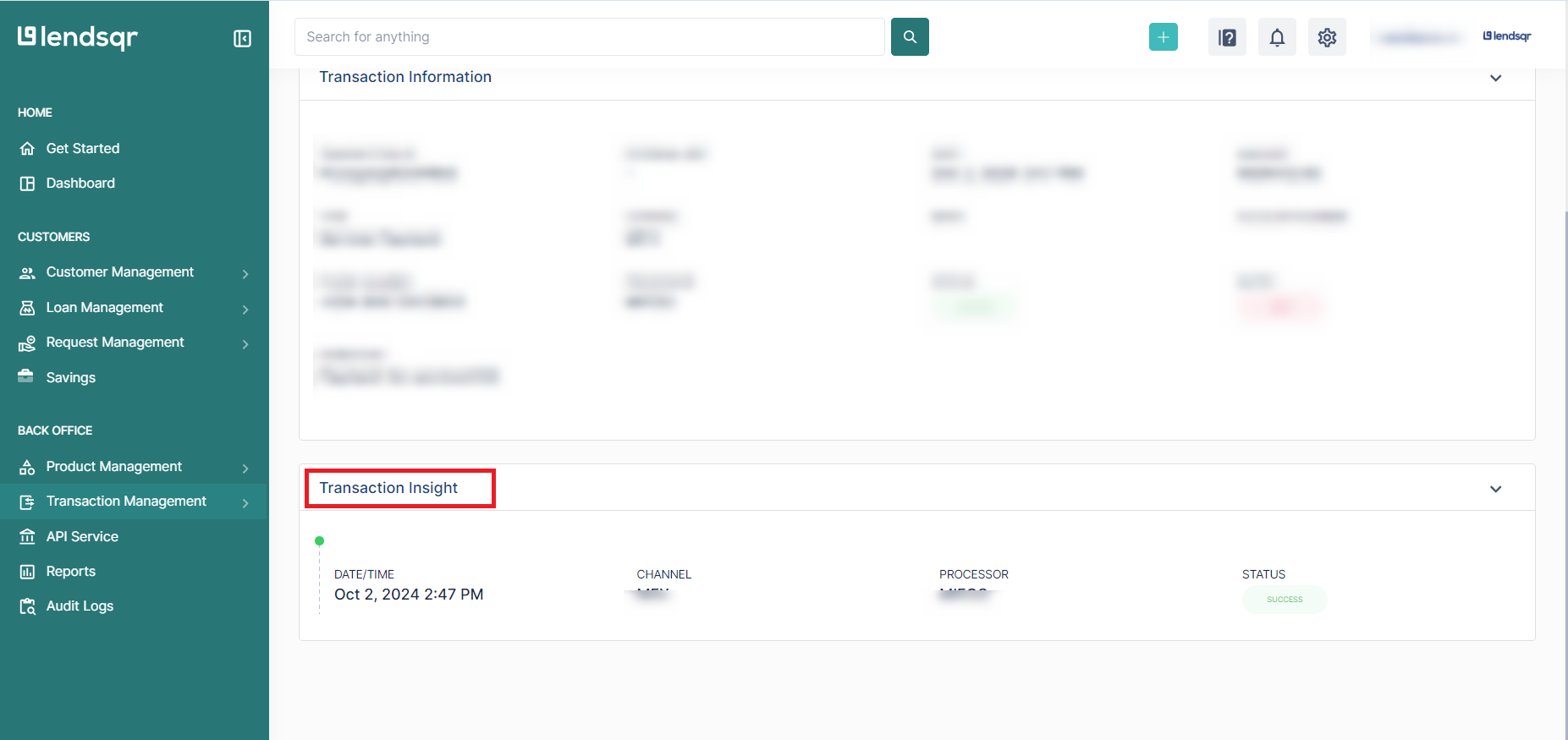
Transaction Insight – date, time, processor, status.
Clicking on the user’s selfie from here takes you directly to the user’s profile page
Transaction details
What you see on the transaction details page
Once you locate the transaction in the filtered results, click on the row to open the full transaction details page. This page gives you a complete picture of that specific transaction organized into four sections.
Transaction ID
The unique identifier assigned to this transaction. Use this reference when escalating the transaction to Lendsqr support or to your payment processor.
User details
This section shows the borrower associated with the transaction. It includes their full name, selfie, email address, user ID, and phone number. Clicking on the borrower’s selfie from this page takes you directly to their full profile on the admin console, where you can review their loan history, documents, and account activity.
Transaction information
This section contains the core financial details of the transaction. It includes the transaction ID, external reference number, amount, transaction type, and any other relevant transaction parameters. Use this section to confirm what the transaction was for, how much it involved, and what type of movement it represents.
Transaction insight
This section shows the operational details of the transaction. It includes the date and time the transaction was processed, the payment processor that handled it, and the current status of the transaction. Use this section to confirm whether the transaction completed successfully, is pending, or failed.
How Lendsqr makes transaction tracing practical
In many lending operations, transaction records are scattered across payment processors, bank statements, and internal spreadsheets. Matching a specific transaction across all three sources takes time and introduces the risk of error.
On Lendsqr, all transaction activity sits in one place. Your team searches from a single screen, applies a filter in seconds, and opens the full transaction record with one click. The borrower’s details, the payment processor information, and the transaction status are all visible without switching between tools or making external calls.
This level of operational visibility reduces the time your team spends resolving transaction disputes and increases the accuracy of your financial records.
Frequently asked questions
Can I combine multiple filter methods at once? Yes. You can apply more than one filter criterion simultaneously. For example, filtering by both date range and amount helps narrow results when multiple transactions share the same value within a period.
Can I export transaction records after filtering? For export options related to transaction records, see the guide on downloading your disbursement transaction statement or contact Lendsqr support for available export capabilities.
Who can access the transactions page? Team members with the appropriate admin permissions can access and filter transactions. If a team member cannot see the transactions page, check their role and permissions with your Super Admin.
What does the external reference number on the transaction details page mean? The external reference is a unique code assigned by the payment processor that handled the transaction. Use this reference when contacting your payment processor to investigate a specific transaction from their end.