Access your Back Office at your fingertips.
Download the app now on Google Play Store.
Scan the QR code
You can also scan QR code with your phone to download the app.
Approving or declining a customer’s document
Updated
On this page
Document verification is one of the most important steps in the loan approval process. Before a lender can approve a loan request, they need to confirm that the customer has submitted valid, readable, and appropriate identity or supporting documents. The approve and decline feature on the Lendsqr admin console gives admins the tools to review these documents, make a decision, and keep the loan process moving.
This guide explains what approving and declining a document means in system terms, who can do it, how to do it step by step, and what happens to the customer’s account and loan request after each action.
Overview
When a customer applies for a loan on your platform, they are required to upload supporting documents as part of the verification process. These documents may include a government-issued ID, proof of address, a selfie, or other materials depending on your platform’s requirements and the regulatory standards in your market. Accepted document types may vary by region, lenders operating across multiple markets should ensure their document requirements align with local compliance standards.
Once a customer uploads their documents, they are queued for review in the Document Reviews section of your admin console. As an admin, you can either approve a document, confirming it meets your requirements and moving the customer closer to loan approval, or decline it, flagging it as invalid and prompting a follow-up with the customer.
Approving a document does not automatically approve the loan. It is one step in the overall loan review process. Once all required documents are approved, the admin can then proceed to review and approve the loan request itself. After the loan is approved and disbursed, the system will automatically notify the borrower via email and an in-app notification.
Before you start
Before reviewing documents, confirm the following:
Role and permissions: Not every admin can approve or decline documents. To perform these actions, a team member must be assigned a role that specifically includes the “Documents” permission, which grants them the rights to manage documents on the admin console. To check or update roles and permissions, navigate to Settings and select “Roles and Permissions”.
Loan context: Before approving or declining a document, take a moment to review the customer’s loan request and profile. This gives you the full picture and helps you make a more informed decision.
Document requirements: Make sure you are familiar with what constitutes a valid document on your platform. Common requirements include a clear, unexpired, government-issued ID, a legible proof of address, and a recognisable selfie. These requirements may vary depending on your market and compliance obligations.
Step-by-step: how to approve or decline a customer’s document
For approving or declining a Customer’s document on the Lendsqr admin console, you can:
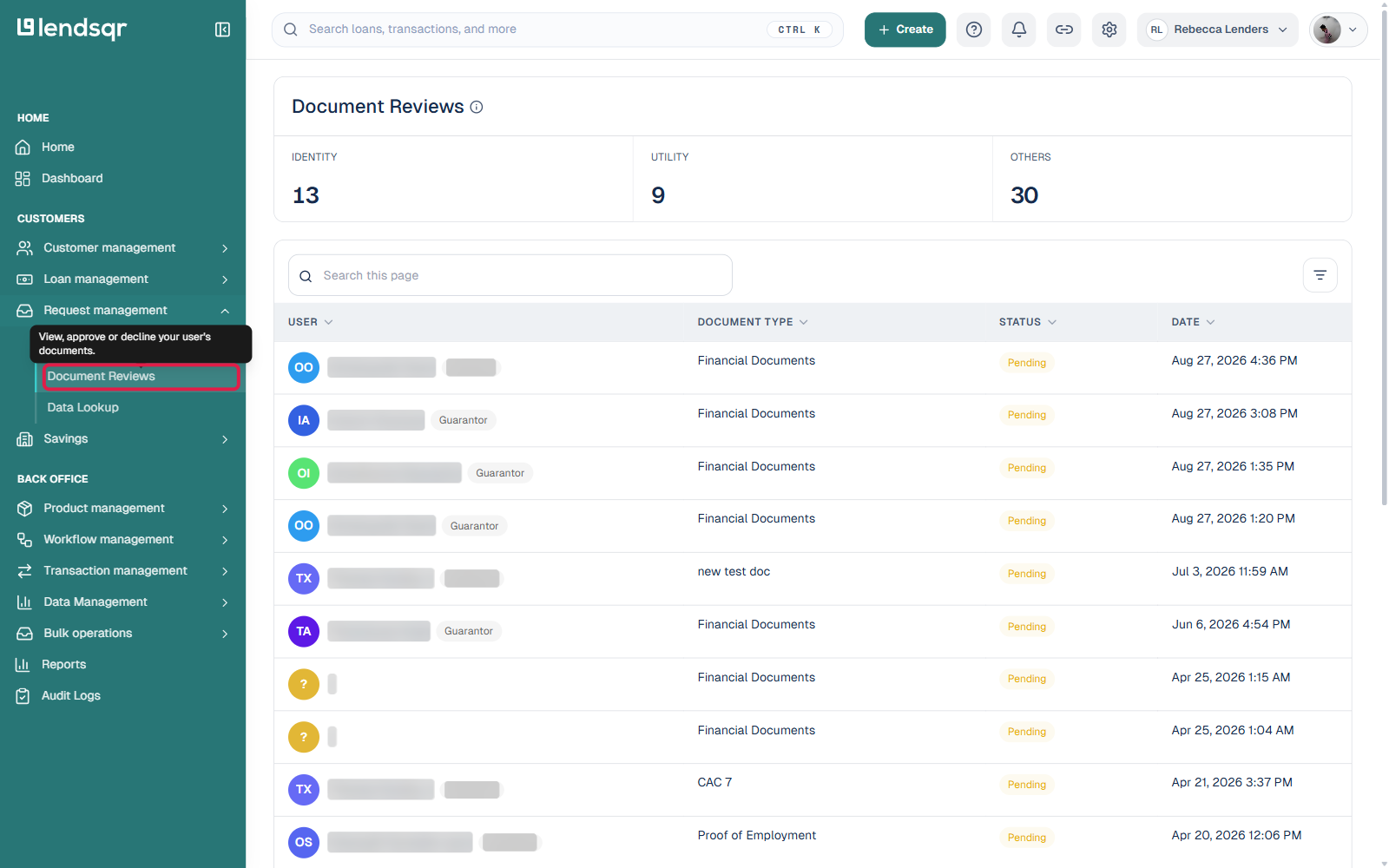
Navigate to “Document Reviews” under “Request Management” and click on a customer’s pending document
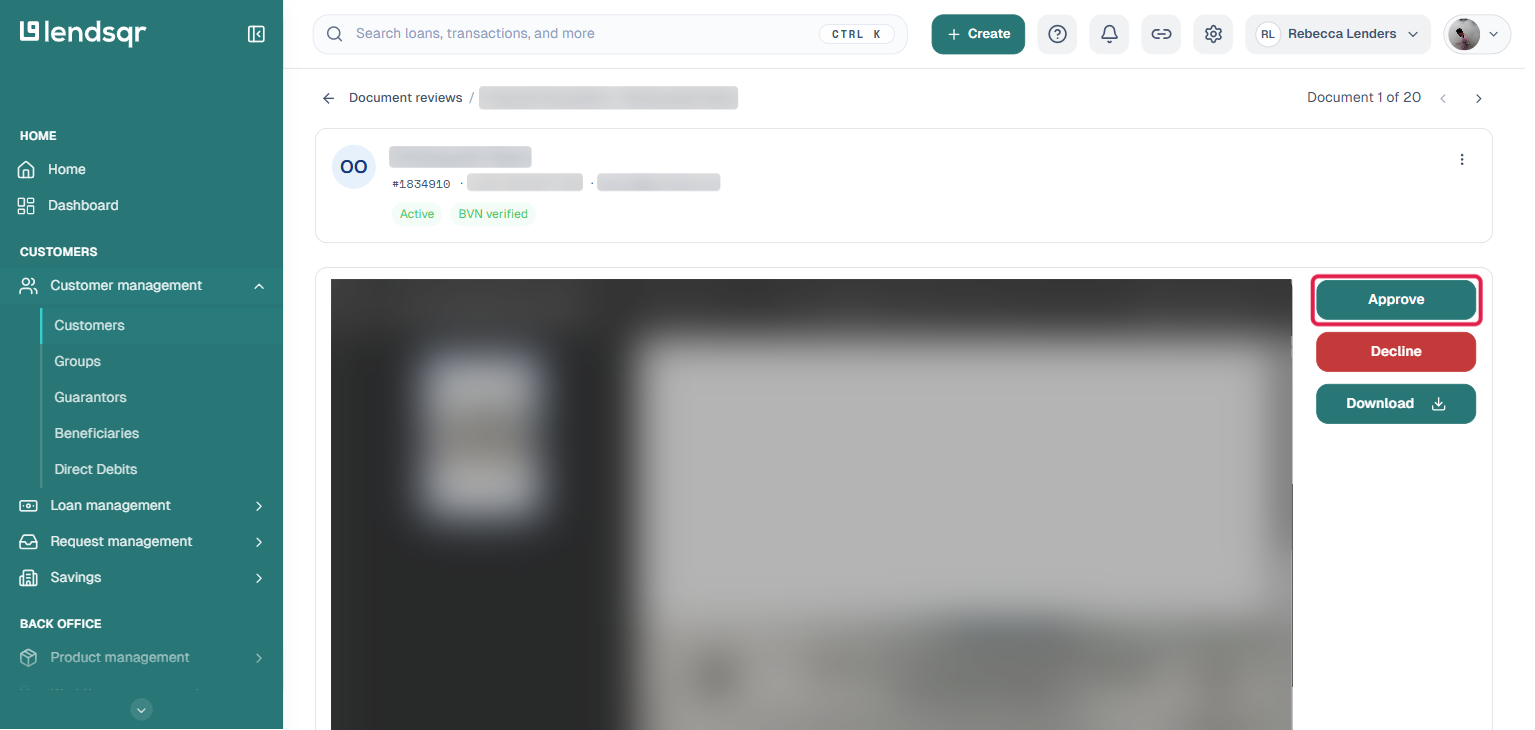
2. On the document’s detail page, click “Approve” to approve the document, or “Decline” and select the appropriate reason to decline it. A “Download” button is also available if you need to inspect the file outside the browser preview.
3. A “Document X of Y” counter and “Previous document” / “Next document” arrows sit at the top right of the page, letting you move straight to the next document pending review without going back to the list each time.
What happens after
After approving a document
The document is marked as approved in the system. Once all required documents for a customer have been approved, you can proceed to review and approve their loan request. After the loan is approved and disbursed, the customer will be automatically notified via email and an in-app notification.
Declining a document does not automatically notify the customer. You are required to manually reach out to the customer to inform them of the rejection and explain what is needed. Here is the process to follow:
Decline the document and select the appropriate reason on the admin console.
Contact the customer via email and WhatsApp to inform them that their loan approval is on hold pending a valid document upload. Explain clearly what the correct document should look like and what makes it valid.
Wait for the customer to re-upload a valid document. Once they do, return to the Document Reviews section and review the new upload.
If the customer does not re-upload a valid document within 24 hours, cancel the loan request.
Reasons for declining a document include the following;
Document is blurry
Document has expired.
Customer uploaded the wrong document.
Customer uploaded image instead of document.
Customer’s address cannot be verified from the document provided
Frequently asked questions
Can a customer resubmit a document after it has been declined? Yes. After declining a document, the admin must contact the customer via email and WhatsApp to explain what is required. Once the customer re-uploads a valid document, the admin can review and approve it. If the customer does not resubmit within 24 hours, the loan request should be cancelled.
Does the customer receive a notification when their document is declined? Not automatically. The admin is responsible for manually contacting the customer via email and WhatsApp to inform them of the decline and explain what is needed for a valid document.
Does approving a document mean the loan is approved? No. Approving a document is one step in the overall loan review process. Once all required documents are approved, the admin can proceed to review and approve the loan request. The customer will be notified automatically after the loan is approved and disbursed.
Who can approve or decline documents? Only team members assigned a role that includes the “Documents” permission can perform this action. Contact your system administrator to confirm or update your access level.