Access your Back Office at your fingertips.
Download the app now on Google Play Store.
Scan the QR code
You can also scan QR code with your phone to download the app.
Understanding user statuses
Updated
On this page
In the Lendsqr admin console, user statuses provide a quick and reliable way to understand the state of your customer base at any point in time. They indicate whether a user is fully onboarded and able to interact with your lending product, or whether they have dropped off during registration or been restricted from access.
This distinction is important for both operational and growth workflows. By understanding user status, you can identify customers who are ready for credit offers, detect drop-offs in your onboarding funnel, and maintain clean, well-governed customer records.
Where statuses show up
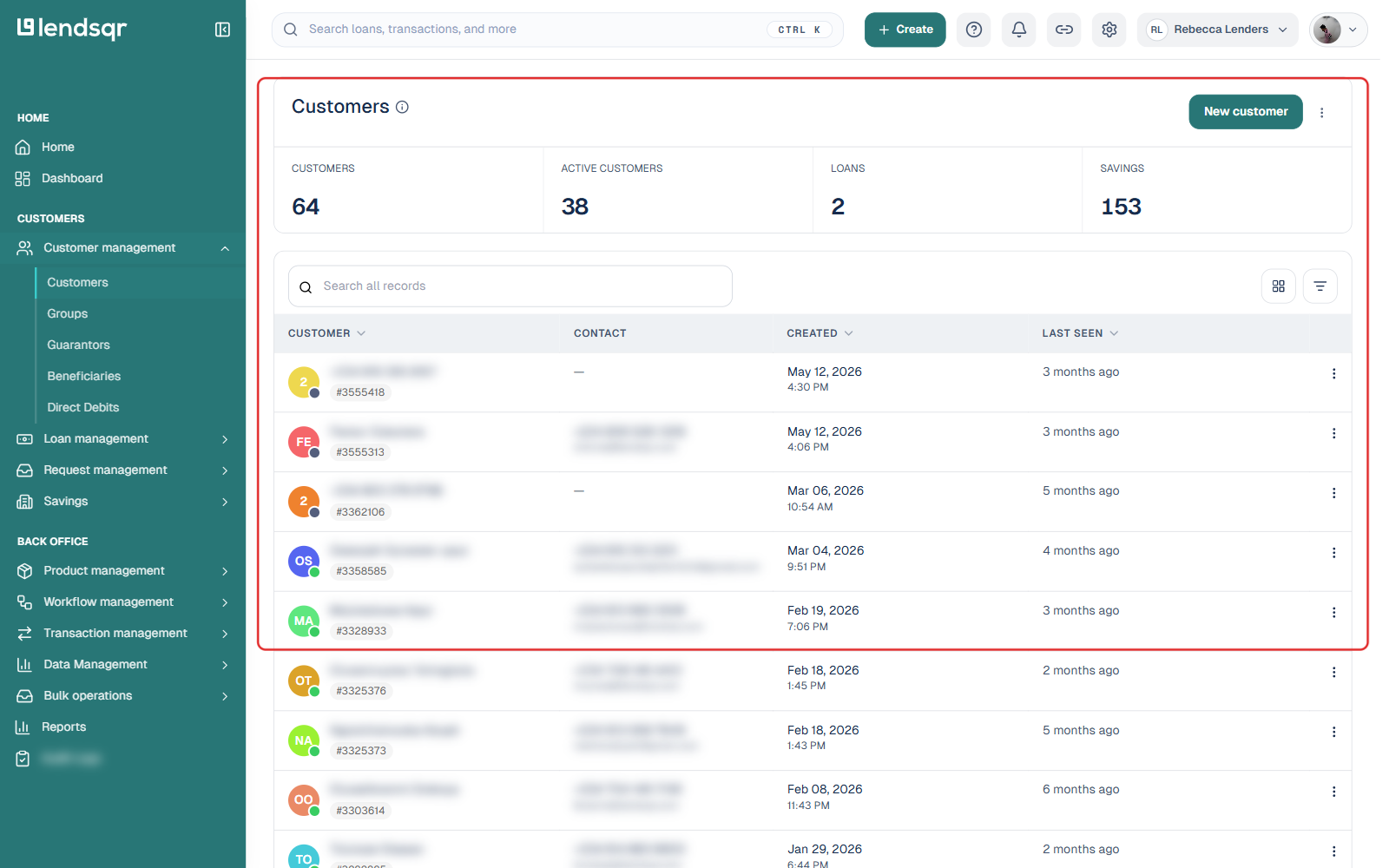
On the side navigation, go to Customer management under Customers, then select Customers.
Each row shows a small coloured dot on the customer’s avatar. Hovering it (or checking the filter panel’s Status field) tells you whether that customer is Active or Inactive.
What the statuses mean
Status
Colour
Description
Active
Green
The customer completed registration and can fully use the app (apply for loans, repay, view balance, and so on).
Inactive
Dark grey
The customer either has not finished registration, or was manually deactivated by an admin.
Note: Both incomplete registrations and manually deactivated customers show as “Inactive.” The status dot alone doesn’t tell you which one applies. Check the customer’s Audit Trails tab (or the “Record” badge shown on their profile) for more context.
Filtering by status
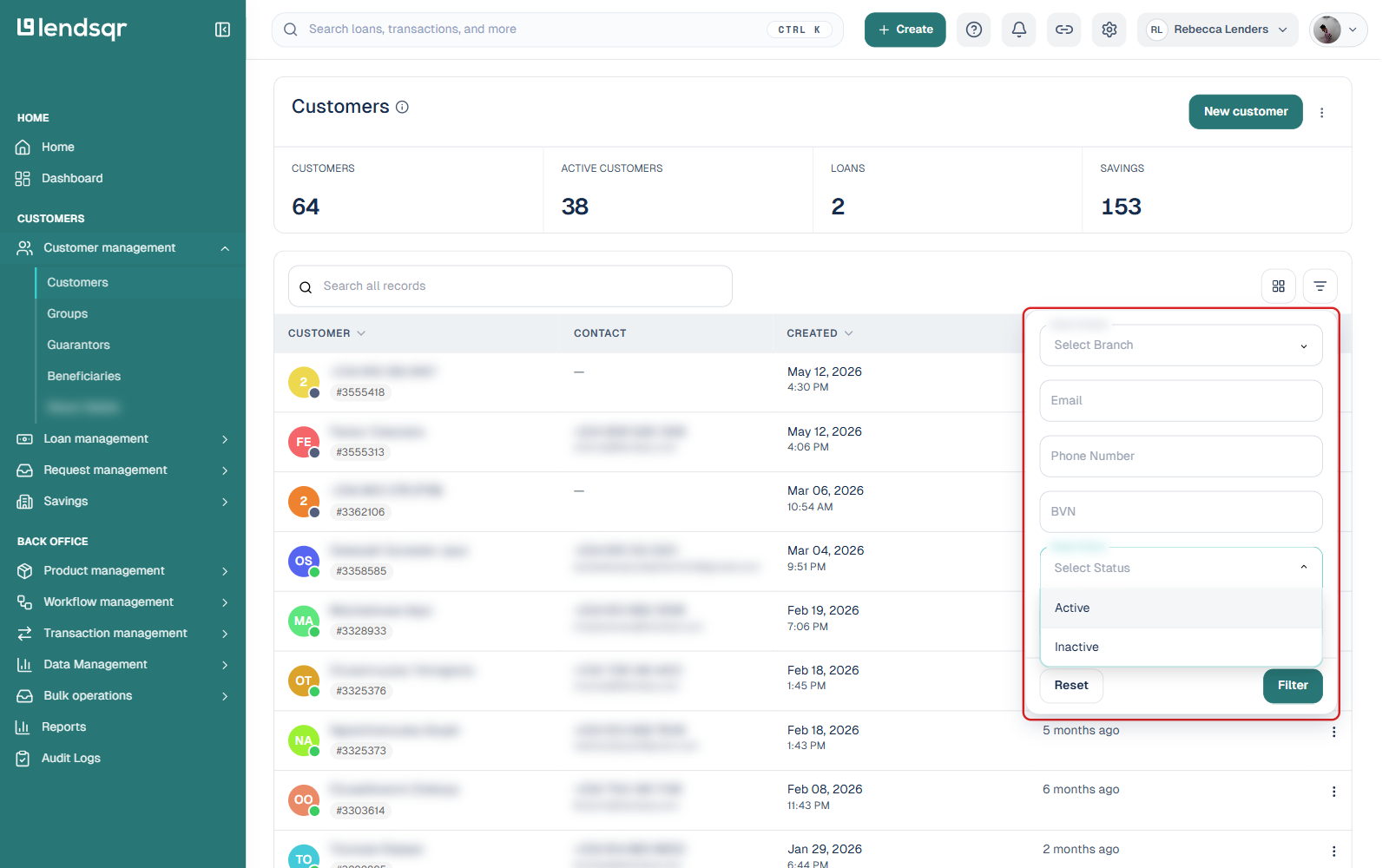
Open the filter panel above the customer table and use Select Status to narrow the list to just Active or just Inactive customers. This is useful when you want to work through active customers for a campaign, or find inactive ones to follow up with.
Changing a customer’s status
To manually deactivate or reactivate a customer:
Open the customer’s profile.
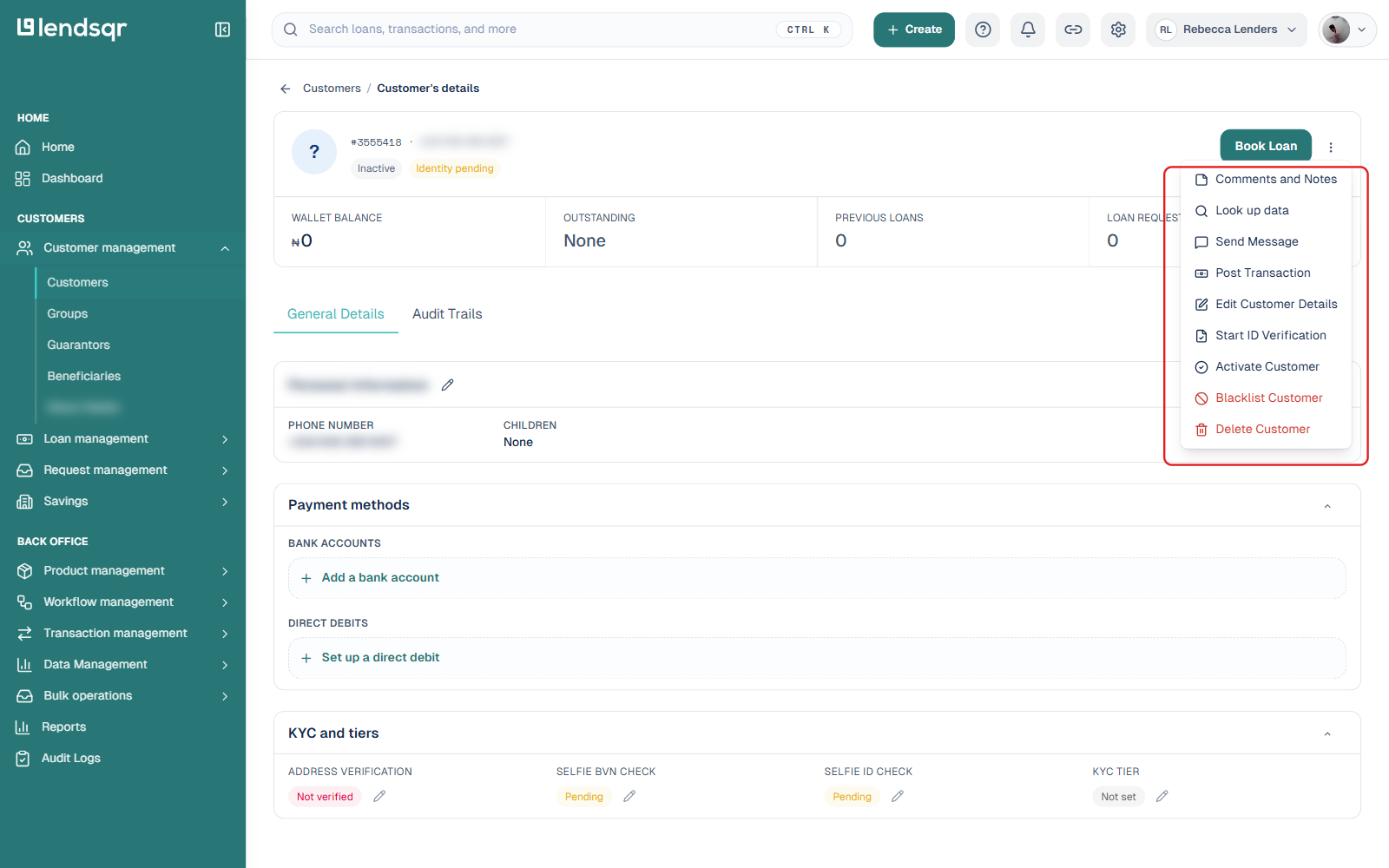
Click More actions next to the Book Loan button.
Select Deactivate Customer (shown for an active customer) or Activate Customer (shown for an inactive one). The menu shows only the action that applies to that customer’s current status.
The same menu also has a separate Blacklist Customer option. Blacklisting is a distinct action from deactivation, meant for customers you want to permanently flag or restrict rather than simply mark inactive; treat it as a separate decision from a routine status change.
An inactive customer whose registration was never completed can’t be switched to Active from here. That status only changes once the customer finishes registration themselves; the menu instead offers a Retry ID Verification option for identity-related issues.
Best practices for managing user statuses
Use the Select Status filter regularly to see how many customers are active versus inactive, as a quick read on onboarding health.
Check a customer’s Audit Trails before assuming why they’re inactive; don’t guess.
Treat deactivation and blacklisting as different decisions with different consequences, not interchangeable options.
Restrict who on your team can change customer status, since it’s a meaningful action with account-wide effects.