Access your Back Office at your fingertips.
Download the app now on Google Play Store.
Scan the QR code
You can also scan QR code with your phone to download the app.
How to set up fees for your customers
Updated
On this page
Setting up customer fees in Lendsqr
Running a lending business involves a variety of operational and transactional costs. As a lender, you may choose to pass some of these costs to your customers in a structured and transparent way. Lendsqr provides the flexibility to define and apply different types of fees across various customer activities within your platform.
This guide explains the types of fees you can configure, how fee structures work, and the exact steps required to set up customer fees in the admin console. It also provides practical guidance to help you implement fees in a way that aligns with your business model and customer experience goals.
An important requirement to note is that any user who has permission to create loan products can also attach fees to those loan products. This ensures that fee configuration is closely tied to product creation and allows for better control over how fees are applied across different lending offerings.
Understanding customer fees
Customer fees are charges applied to specific user actions within your platform. These actions typically involve financial transactions or system usage that incur a cost to your business.
By configuring fees, you can recover operational and transaction costs, generate additional revenue streams, set different service prices, and ensure transparency in customer charges.
Fees in Lendsqr are customizable, meaning you can define what triggers a fee, how it is calculated, and how it is presented to the customer.
Types of fees you can define
Lendsqr lets you configure fee categories based on the type of transaction or activity the customer performs. Each fee type corresponds to a specific interaction within the system.
Card payments
This fee applies to card-related transactions. A common example is when a customer funds their wallet using a debit or credit card, particularly for loan repayments.
Card payments often involve processing costs from payment gateways, and this fee helps cover those charges.
Interbank transfer
This fee applies when a customer transfers money from their wallet to a bank account.
This includes transferring funds from a wallet to a bank account and from a bank account to a wallet. Since these transactions typically involve interbank processing fees, this charge helps offset those costs.
Card tokenization
This fee is applied when a customer connects or saves their card details to their account.
For example, during a loan application process, a user may be required to link their card. This action can involve backend processing and validation costs, which can be recovered through a tokenization fee.
Bill payments
This fee is applied to payments for services such as utilities, subscriptions, or other bill-related transactions.
Bill payment systems often involve third-party integrations and processing charges. Applying a fee ensures that these costs are managed effectively while still offering the service to customers.
Understanding fee types
In addition to defining what the fee applies to, you also need to determine how the fee is calculated. Lendsqr provides three main fee types, each suited to different pricing strategies.
Flat fee
A flat fee is a fixed amount that is charged regardless of the transaction value.
For example, if you set a flat fee of N100, every applicable transaction will incur a charge of N100, regardless of the transaction amount. This fee type is simple and predictable, making it easy for customers to understand.
Percentage fee
A percentage fee is calculated as a proportion of the transaction amount.
For instance, if you set a fee of 3 percent and a customer performs a transaction worth N2,000, the fee charged will be N60. However, percentage fees require additional controls to ensure fairness and predictability.
You must define a minimum and a maximum fee limit. For example, a minimum fee of N50 and a maximum fee of N200 ensure that the fee does not fall below or exceed acceptable thresholds. If a calculated fee is below the minimum, the system applies the minimum. If it exceeds the maximum, the system applies the capped value.
Hybrid fee
A hybrid fee combines both a flat fee and a percentage-based fee.
For example, you may define a base fee of N100, a 5 percent fee, a minimum fee of N50, and a maximum fee of N500. In this case, the customer pays the base fee plus the percentage-based amount, adjusted within the defined limits.
Hybrid fees provide flexibility and allow you to balance fixed cost recovery with proportional pricing.
Follow the steps below to configure customer fees in the Lendsqr admin console.
Step 1: Access the settings menu
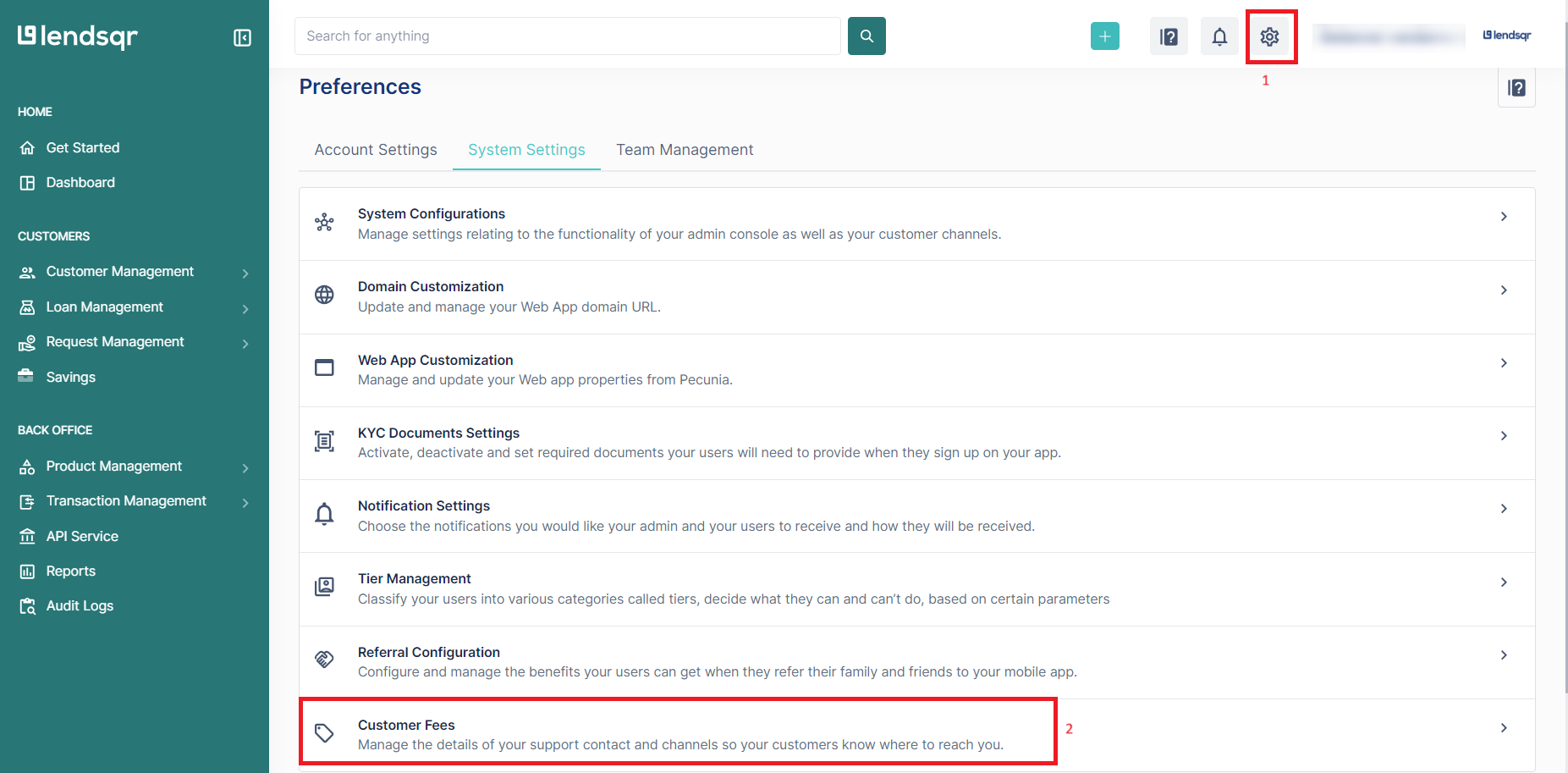
Log in to your Lendsqr admin console and navigate to the top menu.
Locate the settings icon in the top-right corner of the interface and click it. This will open the system settings panel, where various configuration options are available.
This step is important because all fee-related configurations are managed within the system settings section.
Step 2: Navigate to customer fees
Within the system settings panel, locate the Customer Fees option.
Click on Customer Fees to open the fee management interface. Once there, select the Define new fees option. This section allows you to view existing fees and create new ones.
Step 3: Enter fee details
In the fee creation interface, you will need to enter the details of the new fee.
Provide a clear and descriptive fee name that reflects the purpose of the fee. Enter a fee description that explains what the fee applies to and why it is being charged.
Next, specify the fee value and select the appropriate fee type. Depending on your selection, you may also need to define minimum and maximum limits.
Ensure that all values entered align with your intended pricing strategy and the loan products the fee will be attached to.
Step 4: Add an optional comment
You may include a comment when creating the fee.
This field is optional but useful for internal documentation. It can provide context about why the fee was introduced or how it should be used.
Step 5: Save and confirm the fee setup
After entering all required details, save the configuration.
Once saved, the new fee will be added to your system. At this point, it can be attached to loan products by any authorized user who has permission to create loan products.
For a visual, step-by-step guide to setting up customer fees, watch the video below.
Best practices for configuring customer fees
When setting customer fees, ensure all fees are transparent and justifiable. Customers are more likely to accept charges when they understand their purpose.
Align your fees with your target market. High fees may discourage certain borrower segments, while low fees may not adequately cover operational costs.
Start with a simple fee structure and expand gradually. This makes it easier to test and refine your pricing approach over time.
Regularly review your fee configurations to ensure they remain fair and competitive, especially as your business scales.
Document all fee setups clearly so that your team understands how and when fees are applied.
Conclusion
Setting up customer fees in Lendsqr allows you to manage operational costs while maintaining flexibility in your pricing strategy.
By defining appropriate fee types and applying them to relevant customer actions, you can create a system that is both sustainable and transparent.
Following the steps outlined in this guide ensures that fees are configured correctly and can be attached to loan products by authorized users. With careful planning and regular review, customer fees can become an effective part of your overall lending strategy.