Access your Back Office at your fingertips.
Download the app now on Google Play Store.
Scan the QR code
You can also scan QR code with your phone to download the app.
Understanding the dashboard
Updated
On this page
Once you sign in to the Lendsqr admin console, the system takes you straight to the Home screen, where you will find key steps to help you get started with lending. This guide helps you understand what Home and Dashboard show, where to find them, and what you can do with each, so you can navigate the admin console with confidence and manage your lending operations efficiently.
Home
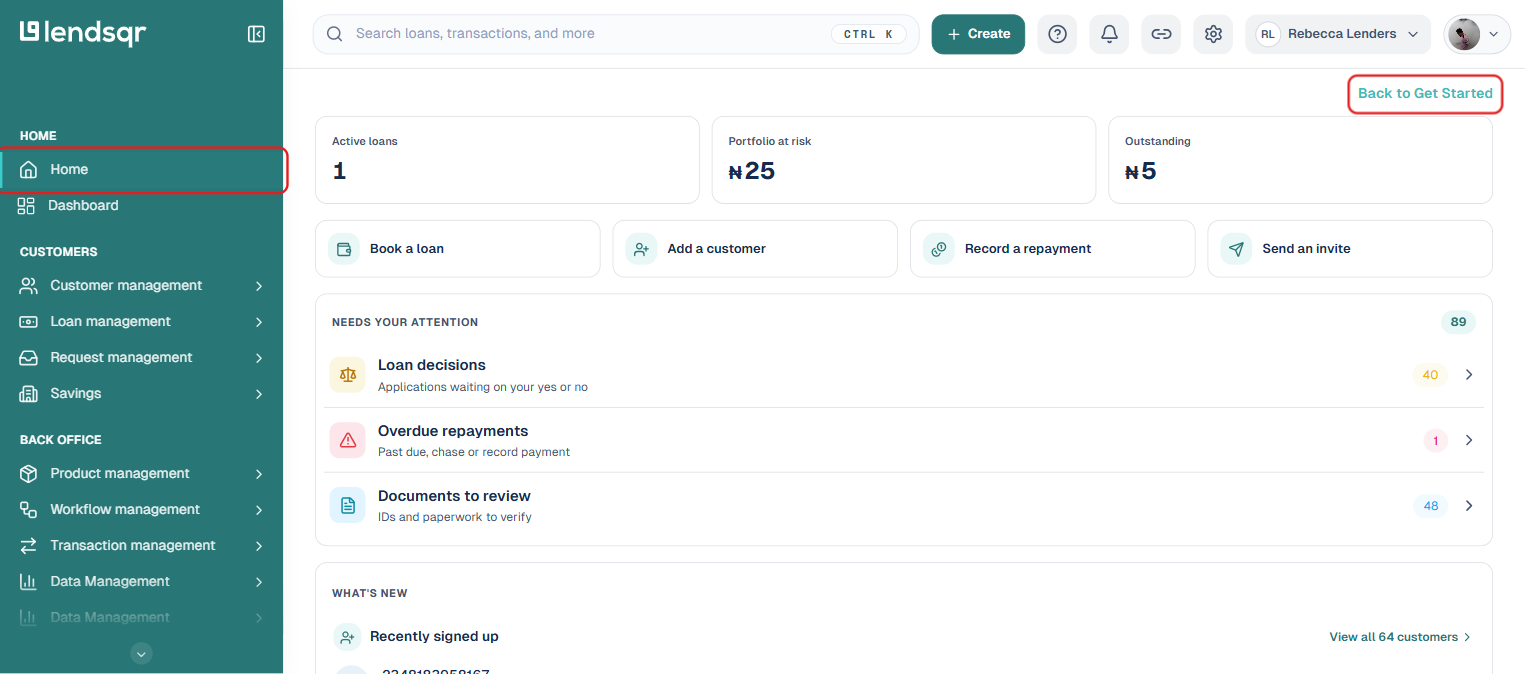
At the top of the side navigation bar, under Home, is the screen you land on after signing in. It gives you an instant, at-a-glance overview of your lending activity, including:
Active loans, portfolio at risk, and outstanding balance
Quick actions to book a loan, add a customer, record a repayment, or send an invite
Items that need your attention: loan decisions awaiting a response, overdue repayments, and documents to review
What’s new: recently signed-up customers and recently booked loans
If you notice the “Needs your attention” panel showing a spike in loan decisions, you can act on them immediately rather than letting applications sit unanswered. If overdue repayments start climbing, that is a prompt to check whether your credit risk rule criteria are too lenient and need adjustment.
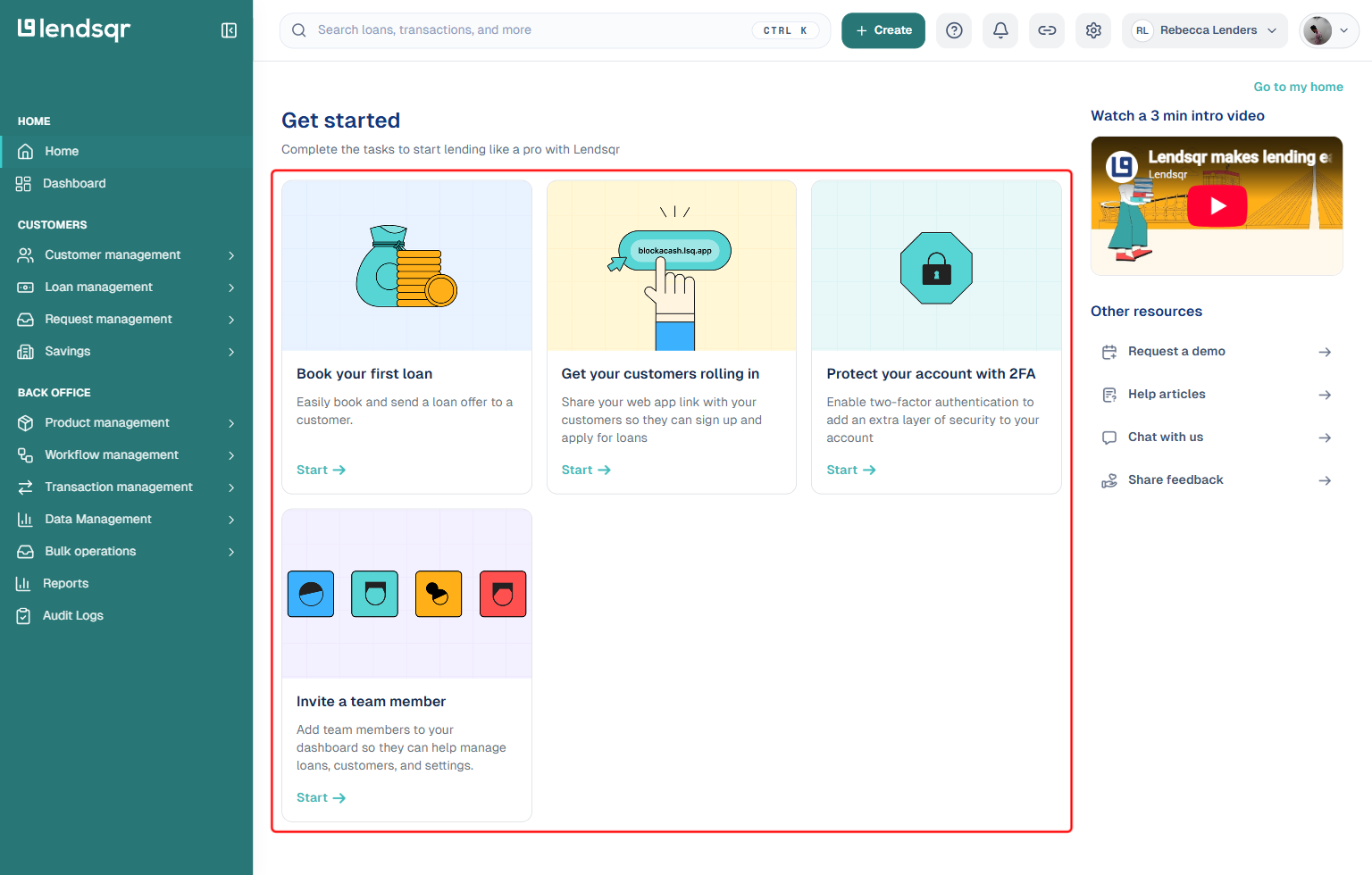
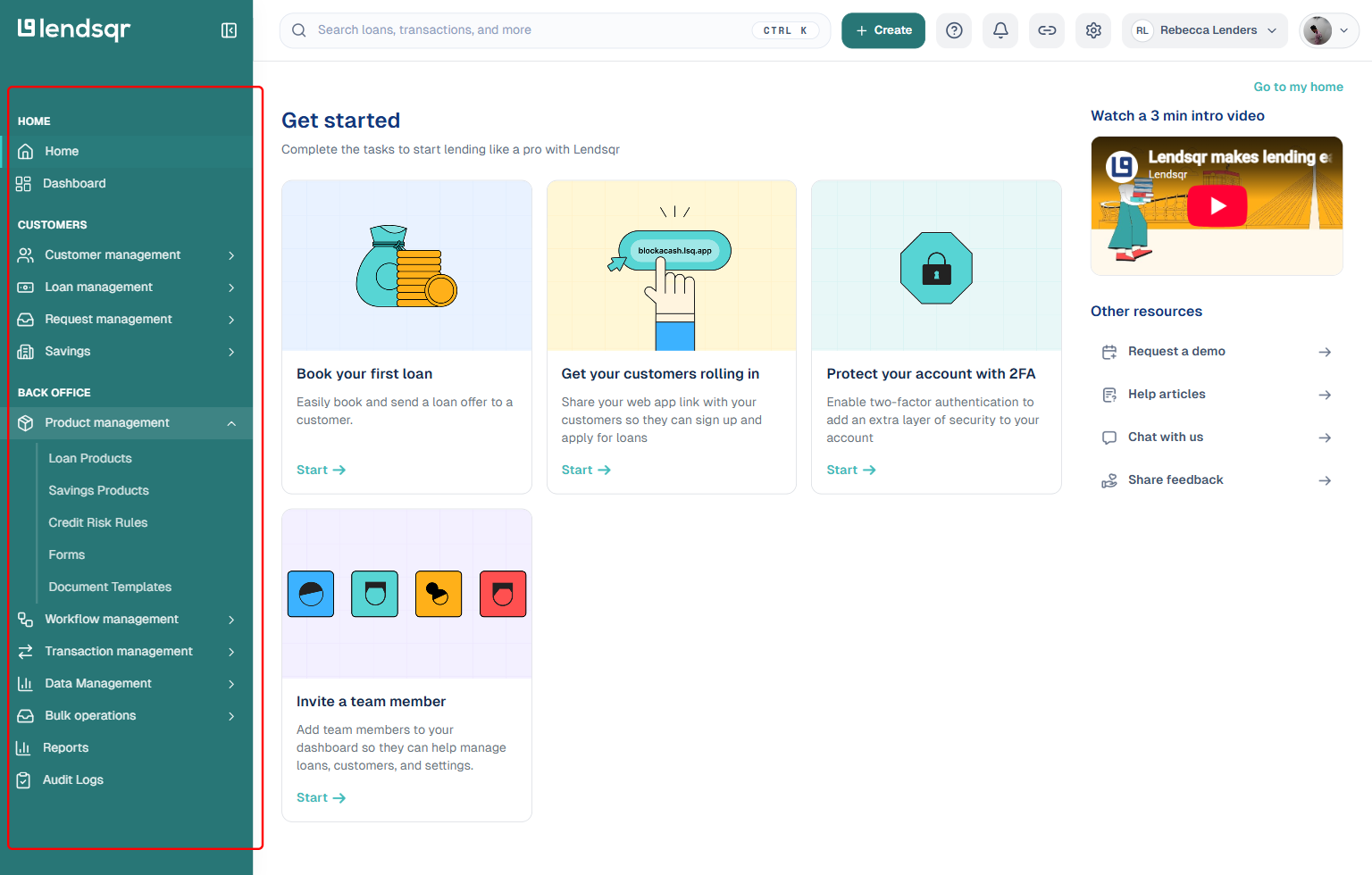
New to an account? A “Back to Get Started” link appears at the top right of the Home screen. Selecting it opens a short checklist to help you complete initial setup: booking your first loan, sharing your web app link so customers can sign up, enabling two-factor authentication, and inviting a team member. Each task links straight to where you complete it. A “Go to my home” link takes you back to the overview above.
Dashboard
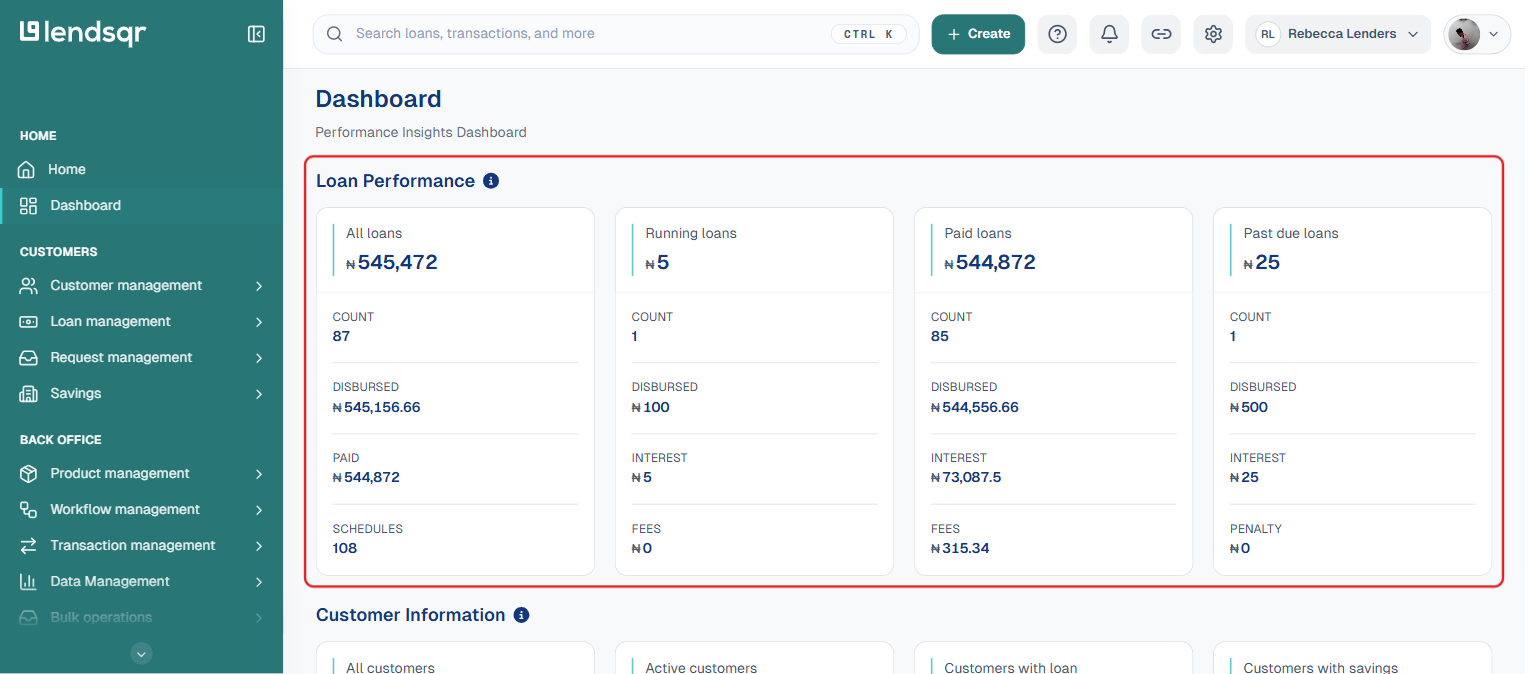
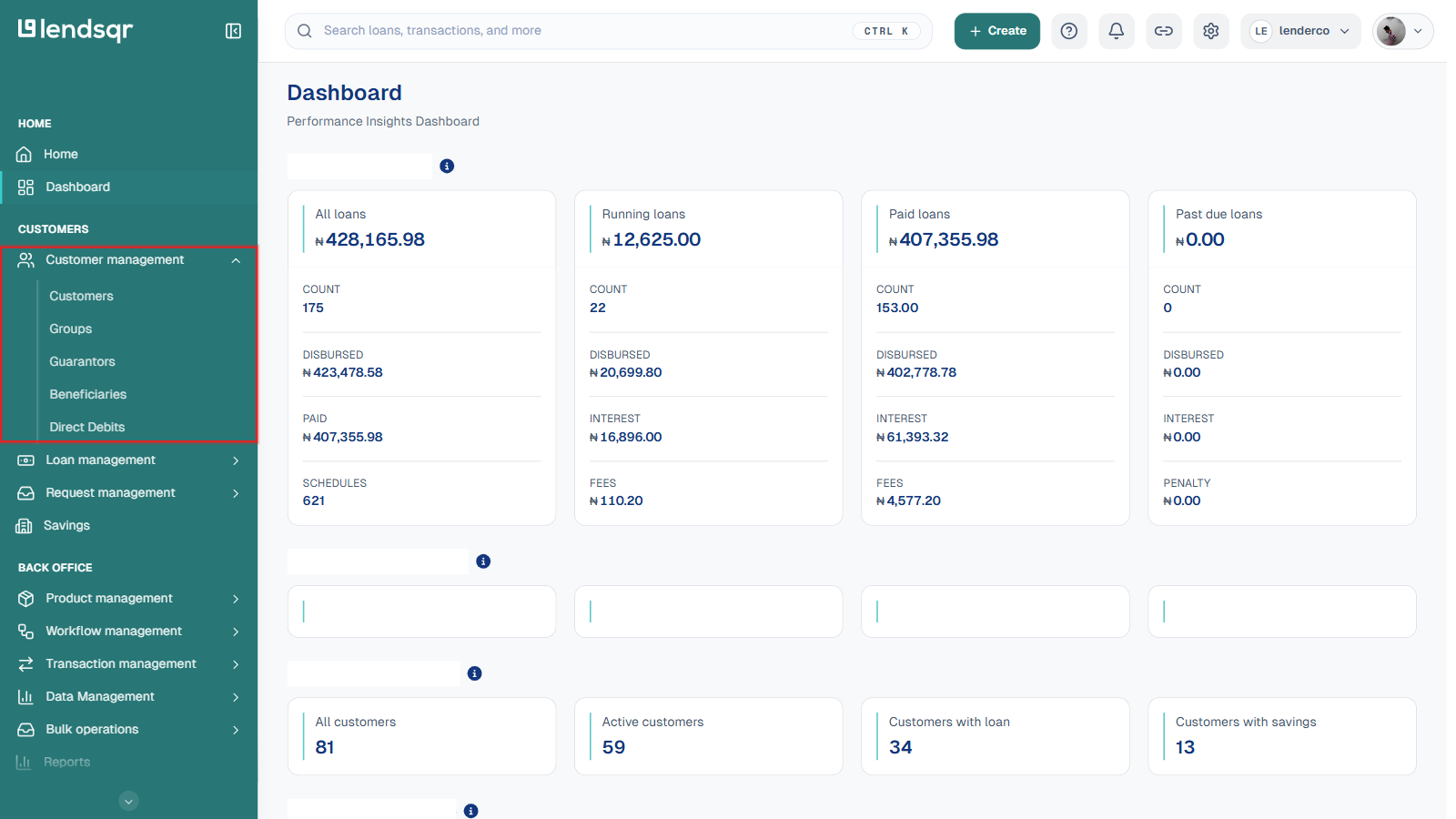
Directly below Home in the side navigation is Dashboard, a separate screen from Home with its own performance insights. Where Home gives you a quick snapshot and a to-do list, Dashboard gives you the numbers behind your portfolio in more depth, broken into three panels.
Loan Performance
Shows all loans, running loans, paid loans, and past due loans, each broken down by count, amount disbursed, amount paid or interest, and fees or penalties where relevant.
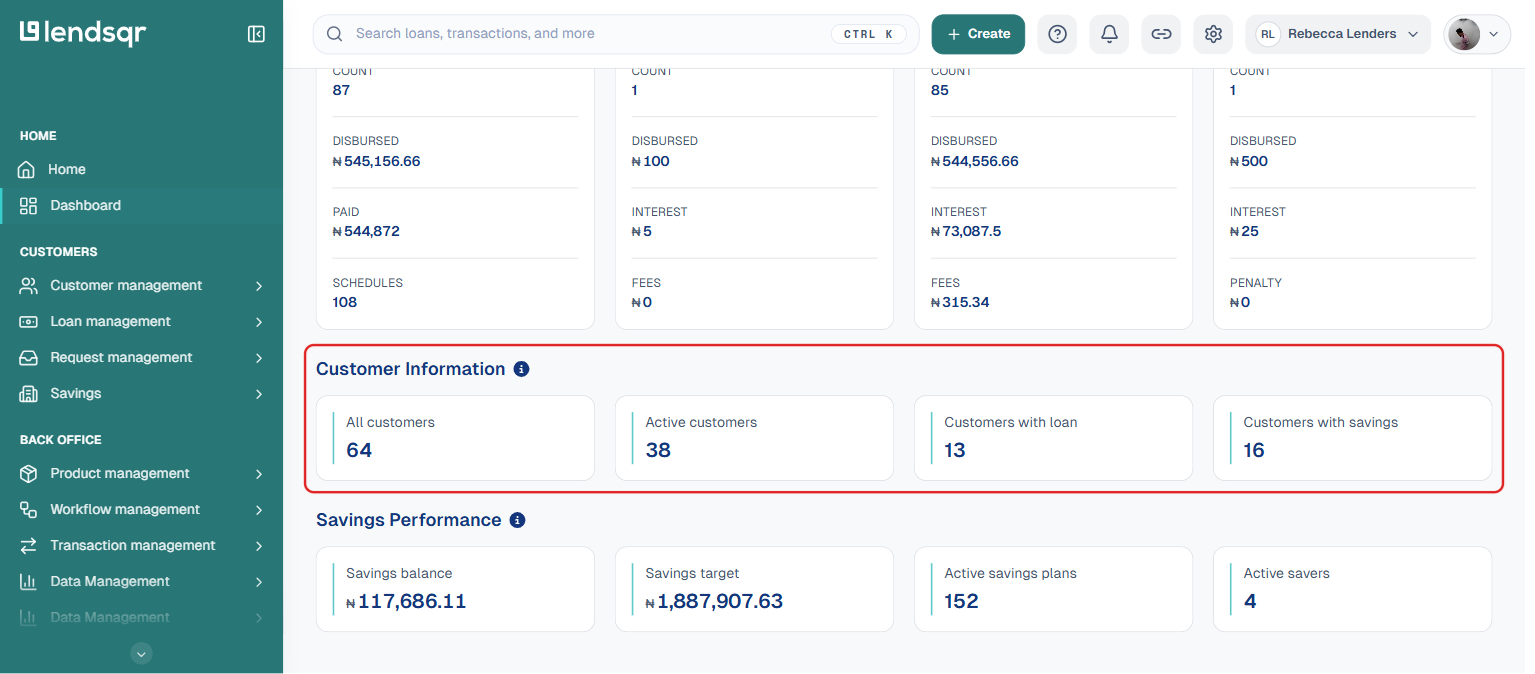
Customer Information
Shows total customers, active customers, customers with an active loan, and customers with active savings, so you can see how your customer base breaks down at a glance.
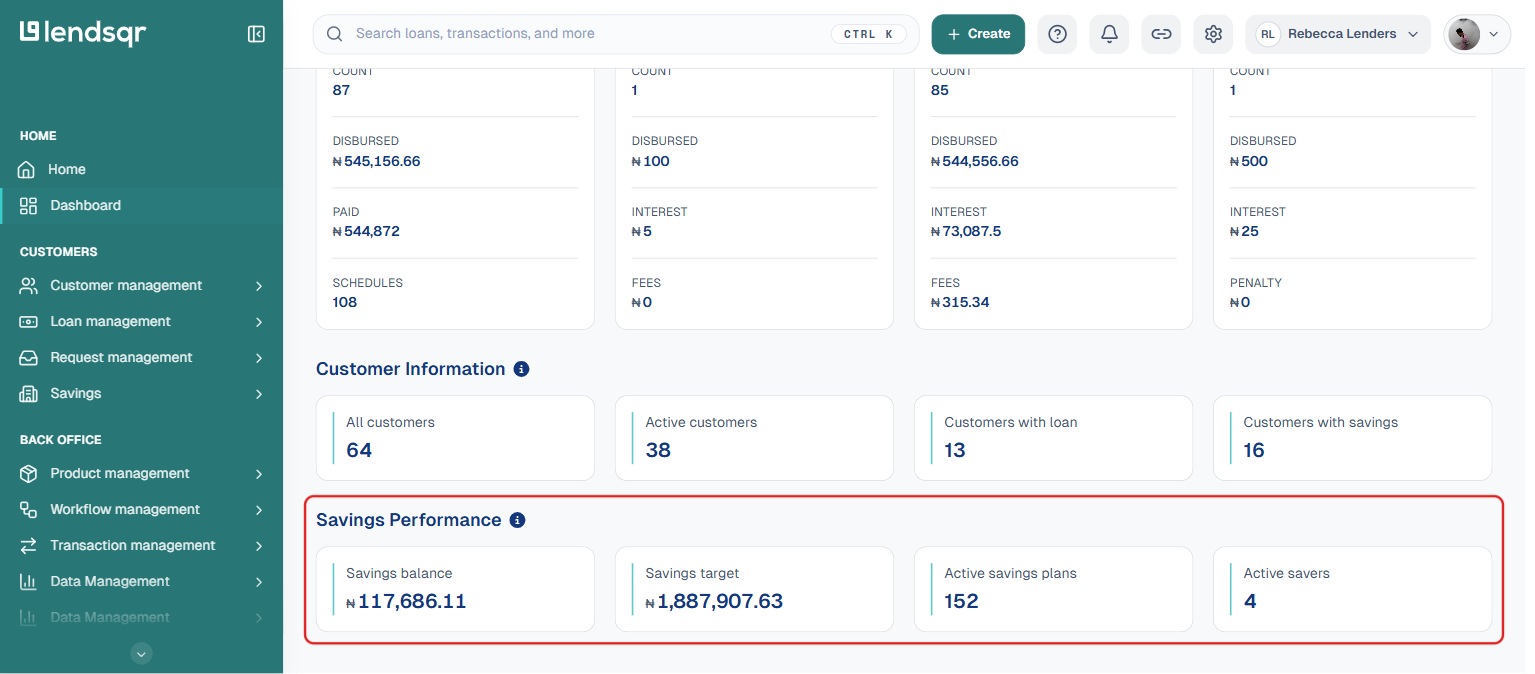
Savings Performance
Shows your total savings balance, savings target, number of active savings plans, and number of active savers, if you offer savings products.
Navigating the rest of the admin console
Below Home and Dashboard, the side navigation pane gives you access to every other section of the Lendsqr admin console. It’s organized into two groups: Customers and Back office.
Customers
The “Customers” group gives you full control over how you view and manage the people and businesses borrowing on your platform. It’s split into four sections:
Customer management: access customer profiles, Groups, Guarantors, Beneficiaries, and Direct Debits
Loan management: view and manage active, overdue, and closed loans
Request management: review and approve incoming loan requests
Savings: track customer savings activity, if you offer savings products
When a new loan request comes in, navigate to Request management, and click on any pending request to open the borrower’s full profile and loan details. From there you can approve or decline the request.
Back office
The “Back office” group gives you direct control over your key products and operations. It’s split into six sections:
Product management: create and edit Loan Products, Savings Products, Credit Risk Rules, Forms, and Document Templates
Workflow management: set up and edit approval workflows
Transaction management: view all transaction details
Data Management: view and export organization reports and data
Bulk operations: perform actions like bulk disbursements or uploads across multiple records at once
Reports and Audit Logs: review platform activity and reporting
To create a loan product, navigate to Back Office, select “Product management”, then select “Loan Products”. Click “Create a loan product” and fill in the necessary information, including product name, description, repayment model, disbursement details, and minimum and maximum loan amount. Credit risk rules are configured separately under Product management, then linked to the loan product.
Settings
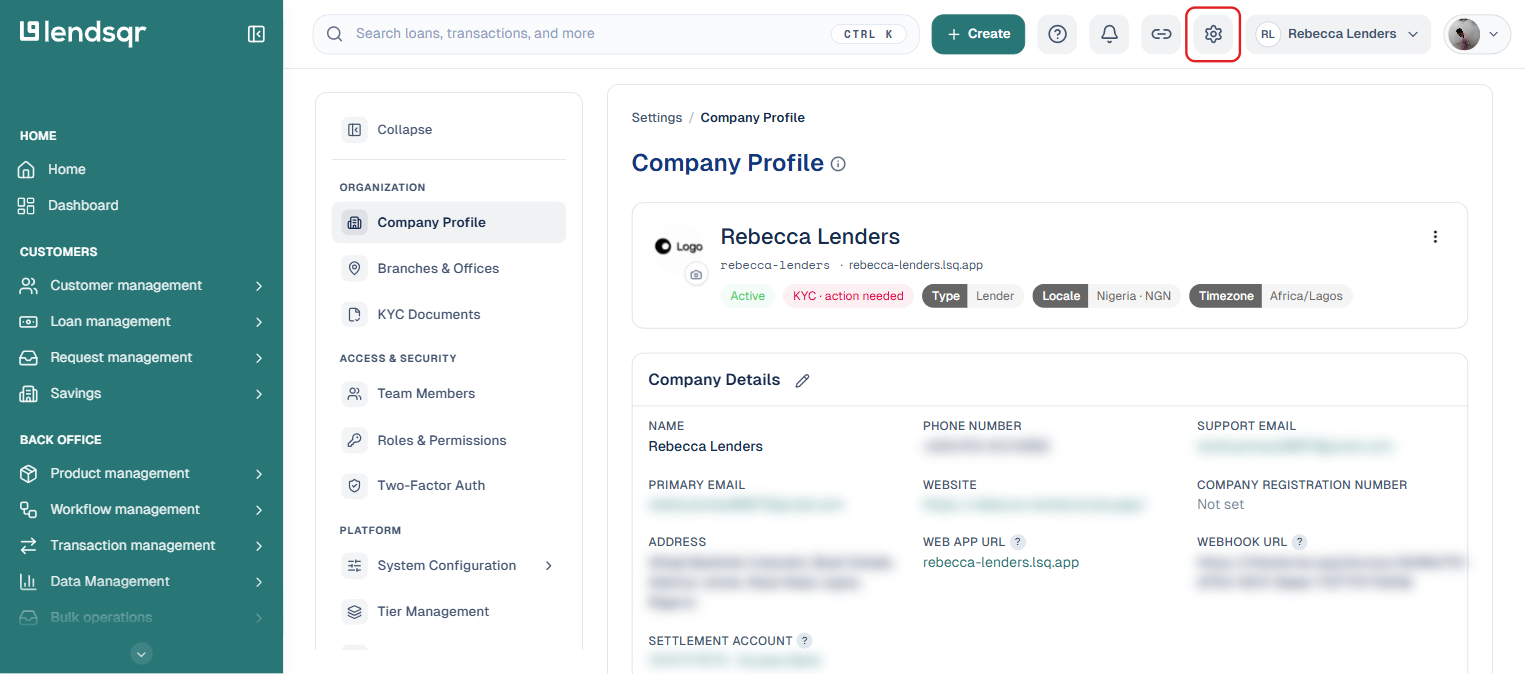
The Settings icon is located at the top right of the page on the Lendsqr admin console. It gives admins control over the organization profile and how the admin console platform itself behaves. Settings is organized into five groups:
Organization: Company Profile, Branches & Offices, KYC Documents
Access & Security: Team Members, Roles & Permissions, Two-Factor Auth
Platform: System Configuration, Tier Management, Notifications, Referral
Channels: Web App, Domain, Support Channels
Subscription: Plans, Billing
From Settings, an admin can invite, activate, deactivate, and delete team members; edit the organization profile; manage roles and permissions; configure notifications; and manage the platform’s subscription plan and billing.