Access your Back Office at your fingertips.
Download the app now on Google Play Store.
Scan the QR code
You can also scan QR code with your phone to download the app.
How to blacklist a borrower in Lendsqr
Updated
On this page
Every lending business occasionally encounters borrowers who repeatedly miss repayments, show signs of fraud, or violate platform policies. Blacklisting allows you to prevent further lending to such customers while keeping a clear record for your team and compliance needs.
Lendsqr makes the process simple and secure directly from the admin console. You can blacklist a borrower in just a few clicks, add a reason for the action, and ensure the decision is visible across your lending operations.
This guide explains why lenders blacklist borrowers, when to do it, and how to blacklist a customer step by step in Lendsqr.
Blacklisting is an important risk management tool in lending. It helps you:
Reduce default risk by stopping exposure to unreliable borrowers
Protect your overall portfolio and maintain healthy repayment rates
Improve collection efficiency by focusing efforts on good customers
Meet regulatory and compliance requirements in many markets
Prevent potential fraud from spreading to other parts of your business
Without proper blacklisting, continued lending to high-risk borrowers can increase losses and create operational headaches as your customer base grows.
When should you blacklist a borrower?
Consider blacklisting when a borrower shows clear warning signs, such as:
High-risk patterns identified through your scoring or review process
For example, a salary advance lender in Nigeria may blacklist a borrower whose payroll deductions consistently fail or who has taken advances from several platforms at once. A microfinance institution might blacklist members of a group that has defaulted on several cycles to protect the rest of the group lending program.
How to blacklist a borrower
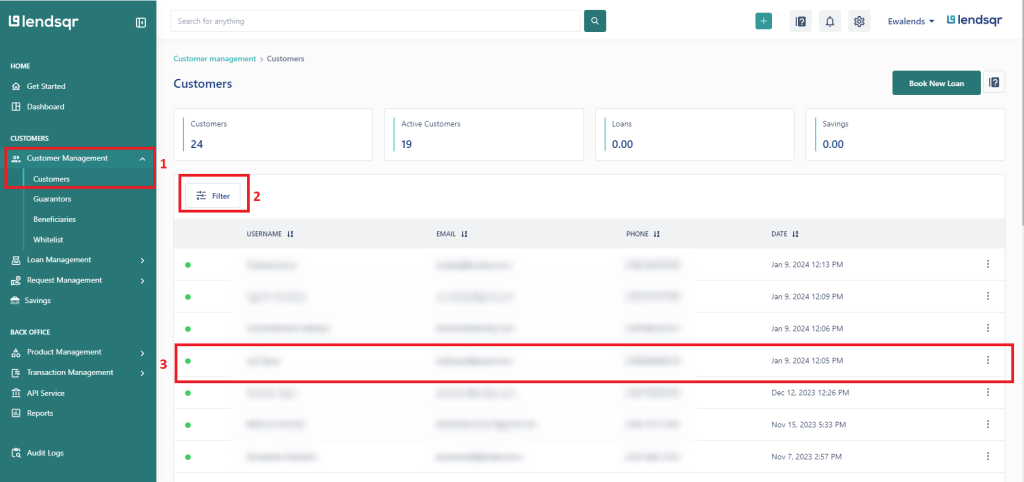
1. Navigate to the “Customers” tab under Customer Management Grouping
On the Customers page, you can filter for a Customer. Click on “Filter By“ to get all the options available to filter by. You can filter by email, phone number, bank verification number etc. After filtering for a customer, you will then click on the row of the user you wish to view their details.
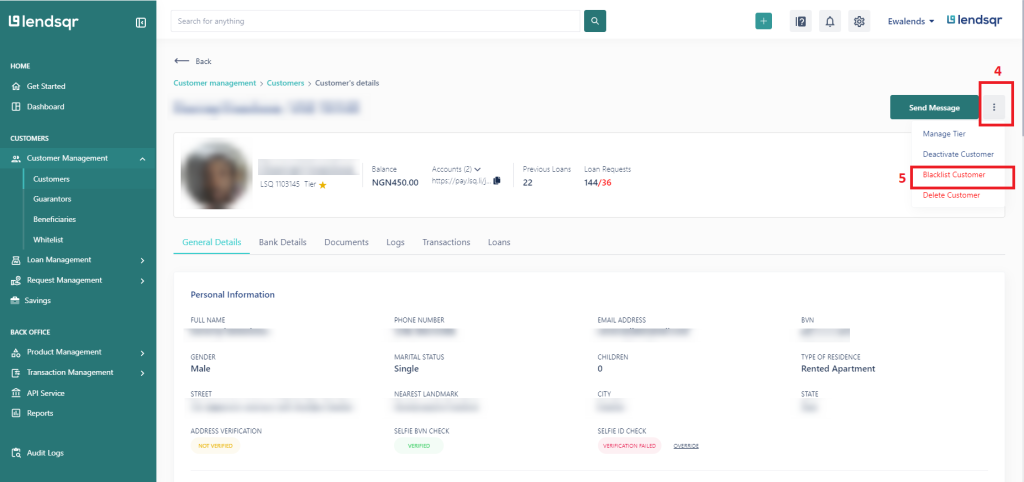
4. On the customer details page, in the top-right corner of the page, is a “More“ button which brings down a drop-down menu.
5. In the drop-down menu, click “Blacklist Customer.”
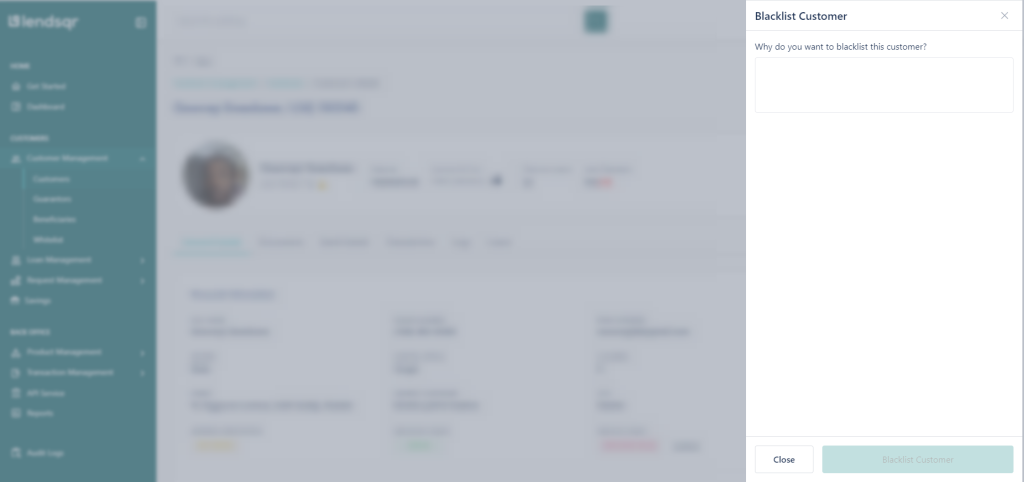
6. Clicking the button pops up a modal. You give your reason for blacklisting the user and click on the blacklist button.
7. Voila! You just blacklisted your first Customer
Tip: Always add a specific and professional reason. This helps your team understand the decision and supports future audits or reviews.
What happens after blacklisting
Once blacklisted, the borrower can no longer apply for new loans or access certain features on your platform. The status is clearly visible in their profile, and the reason you provided is recorded for reference.
Your team will see the blacklisted status when searching or viewing the customer, helping everyone make consistent decisions.
What this enables in your lending operations
With blacklisting in the Lendsqr admin console, you can quickly protect your portfolio, reduce risk, and maintain a healthier lending operation. All it takes is a few clicks and a clear reason for the record.
This feature helps you focus on reliable borrowers, lower default rates, and run a more secure and efficient lending business.
Next steps
Train your team on when and how to use this tool responsibly.
Review your existing blacklisted customers periodically and update reasons if needed.
Combine blacklisting with strong onboarding checks and credit scoring for better risk control.