Access your Back Office at your fingertips.
Download the app now on Google Play Store.
Scan the QR code
You can also scan QR code with your phone to download the app.
Disbursing a loan to a third party
Updated
On this page
When a borrower takes out a loan, the assumption is usually that the funds go directly into their account. But there are real lending scenarios where that is not the most practical arrangement. A borrower may be purchasing goods or services from a vendor, paying school fees on behalf of a child, or settling a supplier invoice. In these cases, sending funds to the borrower first and trusting them to pass it on introduces unnecessary risk and friction.
Third-party disbursement solves this by allowing a lender to send the loan amount directly to another person or entity on the borrower’s behalf. The borrower still takes on the loan obligation, repayments still follow the same schedule, and the loan is still recorded against their account. The only difference is where the money lands at the point of disbursement.
This feature is particularly useful for asset-finance products, school-fee loan products, vendor-payment credit lines, and any lending model where the purpose of the loan is tied to a specific payee. It gives lenders greater control over loan utilization and reduces the risk of funds being diverted away from their intended purpose.
Before you begin
Third-party disbursement must be activated on the loan product before it can be used during approval. If the feature is not yet enabled on the relevant product, the option to disburse to a third party will not appear during the loan approval flow. To set this up, refer to How to activate third-party disbursement before proceeding with the steps below.
You should also have the third party’s bank details ready, or have already saved them as a beneficiary on the admin console. If the beneficiary does not yet exist in the system, you can add them during the disbursement flow.
How to disburse a loan to a third party
To disburse a loan to a third party, follow the steps below.
Step 1: Open the loan request
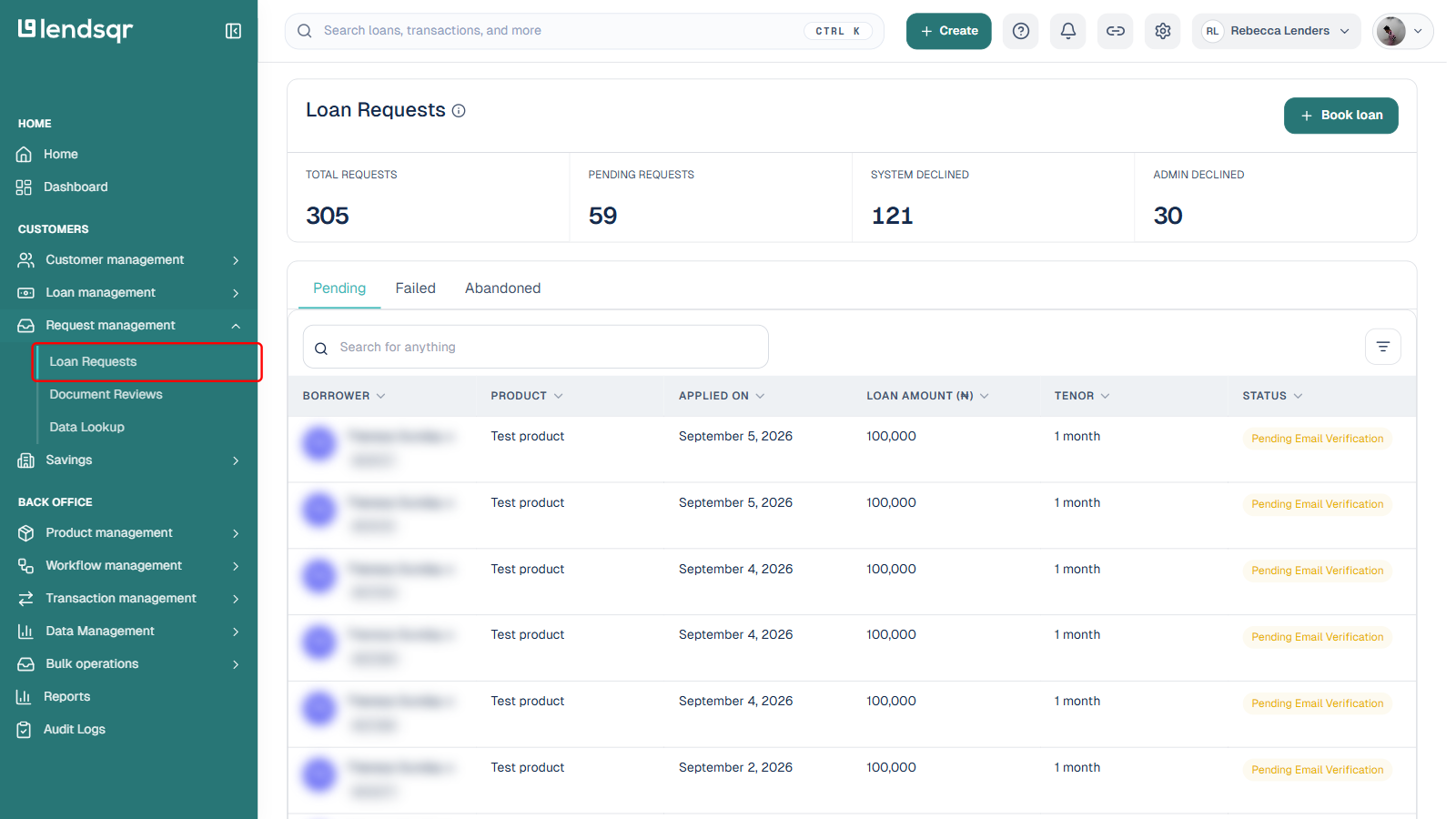
Log in to the admin console and open Request management in the sidebar, then select Loan Requests. Find and open the specific loan request you intend to disburse to a third party. Once opened, the page shows the full details of that loan request, including the borrower’s information, loan amount, product, repayment schedule, and any attached decision data.
Take a moment to review the loan details before proceeding. Confirm that the loan amount, product, and borrower information are correct, as the disbursement step that follows is not easily reversed once confirmed.
Step 2: Approve the loan request
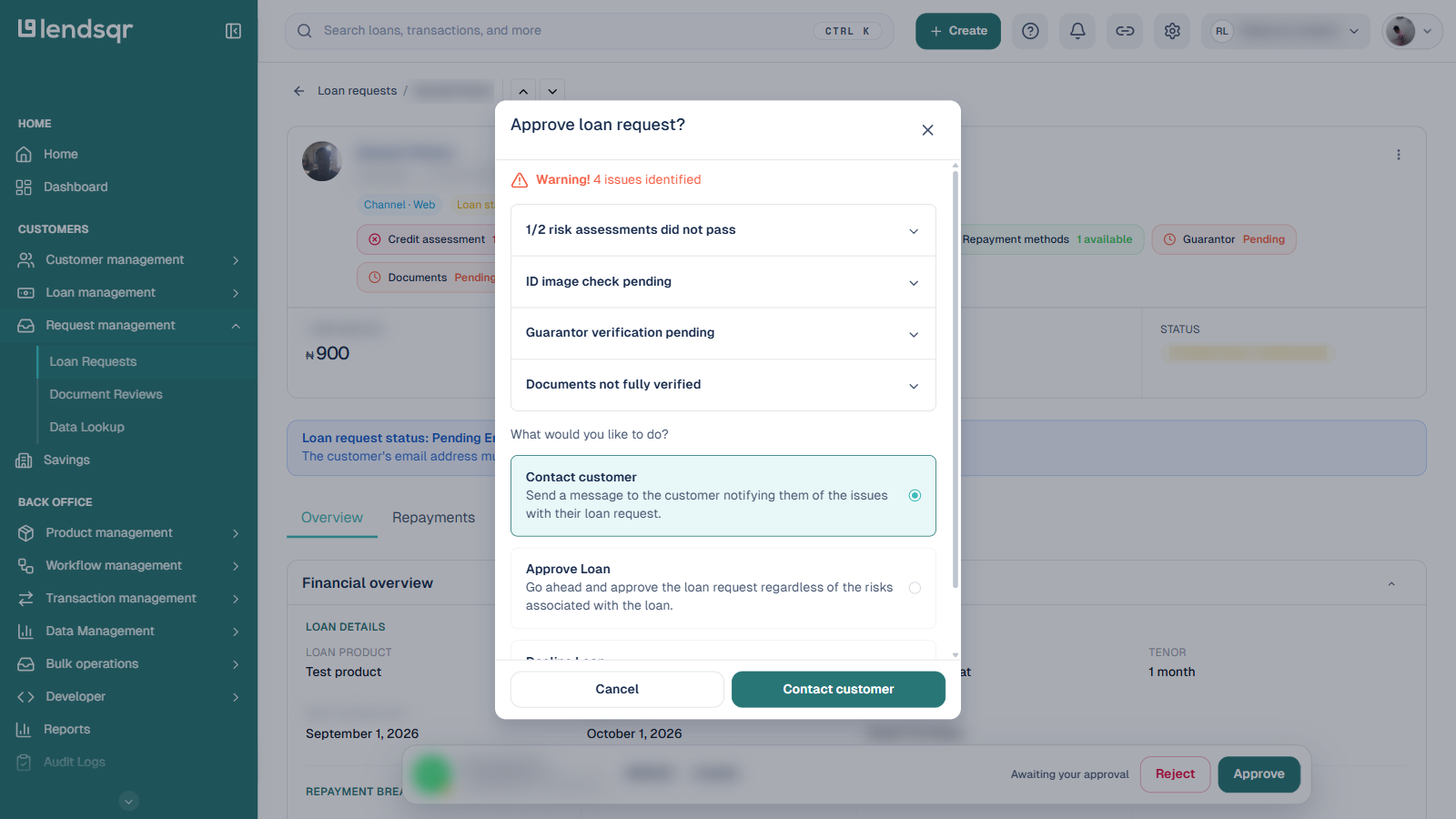
When you have reviewed the request and are ready to proceed, click the Approve button. What happens next depends on the risk profile of the request.
If the loan request has any outstanding flags, such as a risk assessment that did not pass, a repayment method that is not available, or a document name mismatch, an Approve loan request? warning appears first. It lists each identified issue and asks what you want to do, with three choices: Contact customer (send the borrower a message about the issues), Approve Loan (proceed despite the risks), or Decline Loan (reject the request). Select Approve Loan, then click the Approve Loan button at the bottom of the dialog to carry on.
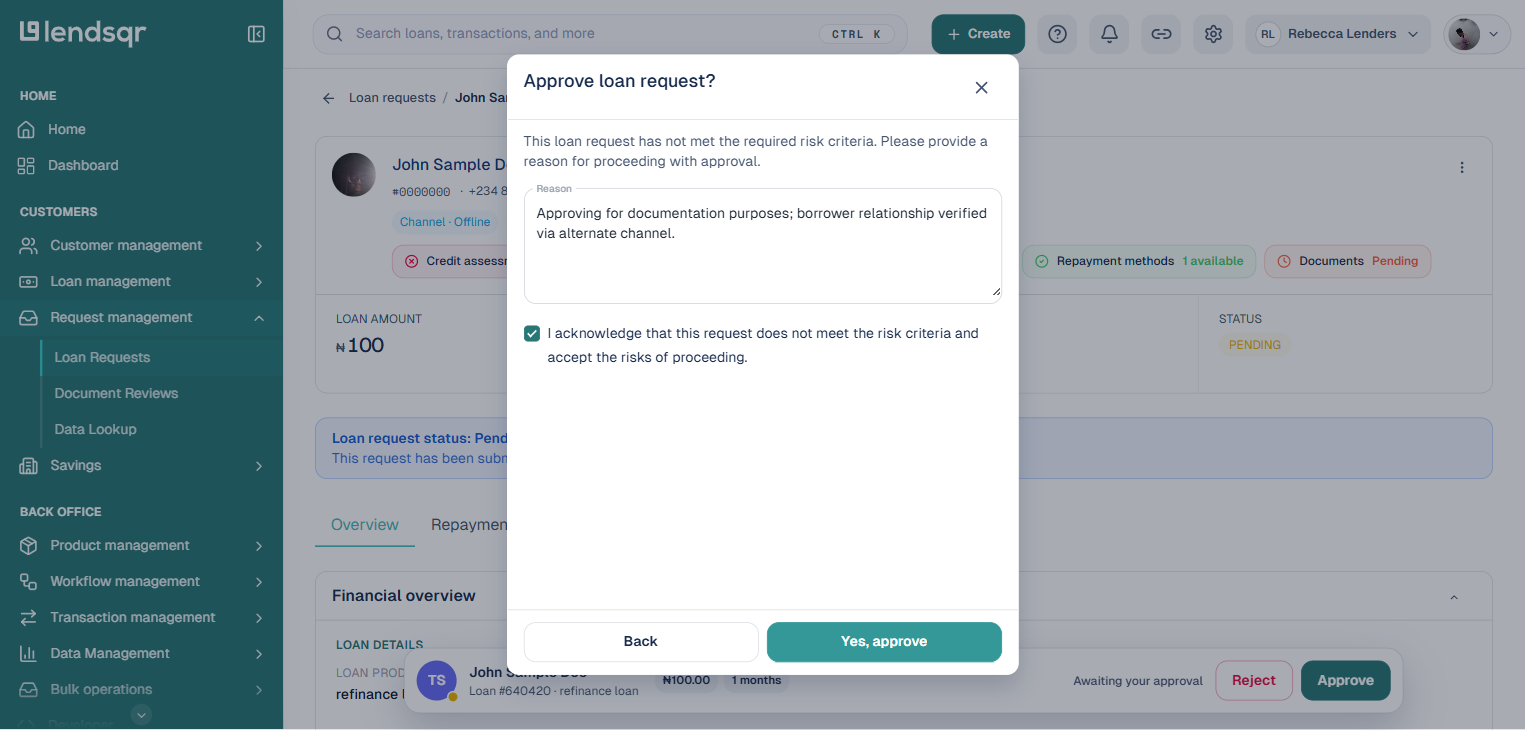
When you approve a request that has not met the required risk criteria, the console asks you to record why. A second Approve loan request? dialog appears with the message that the request has not met the required risk criteria and a Reason field for you to explain why you are proceeding. Enter a reason, tick the checkbox to acknowledge that the request does not meet the risk criteria and that you accept the risk of proceeding, then click Yes, approve. This reason is stored against the loan for audit purposes.
If the product disburses in tranches, an Approve Loan in tranches confirmation appears next, showing the principal, interest rate, and tenor for the tranche. Review the figures and click Approve. On a request with a clean risk profile, clicking Approve takes you straight to this confirmation without the warning and reason dialogs above.
Step 3: Select or add the third-party beneficiary
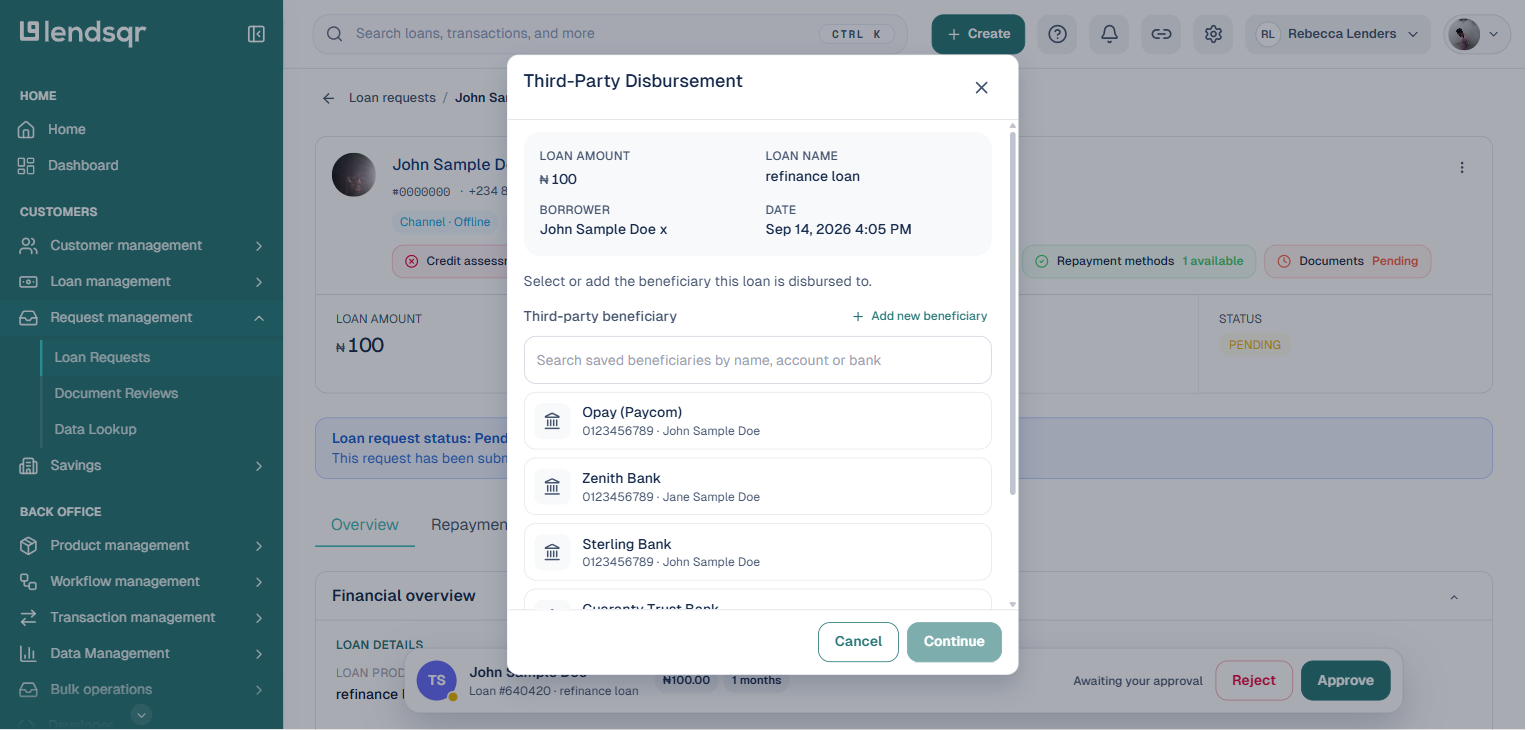
The Third-Party Disbursement dialog opens. The top of the dialog restates the loan amount, loan name, borrower, and date so you can confirm you are working on the right request. Below that, the console asks you to select or add the beneficiary this loan is disbursed to.
Under Third-party beneficiary, use the search box to find a beneficiary that has already been saved for your organization by name, account number, or bank. Each saved beneficiary is listed with its bank, account number, and account name. Select the one you want to disburse to. If the third party has not been saved before, click Add new beneficiary and enter their bank, account number, and name. The console resolves and displays the account name so you can verify it before continuing.
Confirm that the account name matches the intended recipient, then click Continue. As the dialog notes, the funds go to this third-party account, not the borrower’s, so an error in the account number or bank could result in a failed or misdirected transfer.
Step 4: Confirm the transfer details
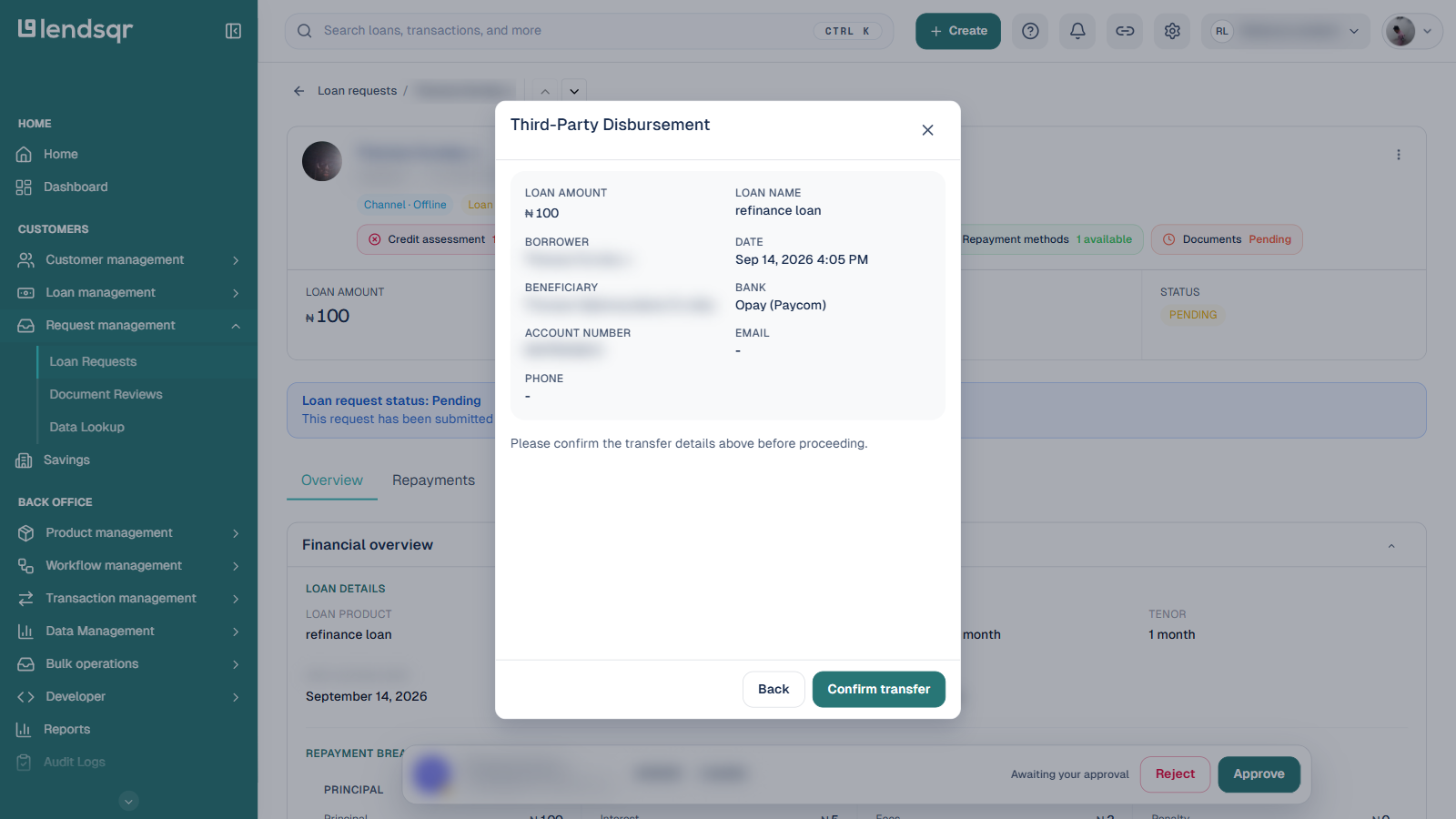
The dialog now shows a full summary of the transfer: the loan amount, loan name, borrower, and date, alongside the beneficiary name, bank, account number, and any email and phone on the beneficiary record. Review every field carefully against what you intended.
When you are satisfied that the details are correct, click Confirm transfer. This authorizes the payment and is the last step before the disbursement is executed, so verify all information before clicking. If you need to change the beneficiary, click Back to return to the previous step.
Step 5: Review the disbursement status
After you click Confirm transfer, the console processes the transfer and disburses the loan amount to the third party’s bank account on behalf of the borrower. The dialog then shows the status of the transfer, telling you whether the disbursement was successful or whether there was an issue that needs to be resolved.
If the disbursement is successful, the loan moves from a pending state to an active state, and the repayment schedule begins according to the terms of the loan product. If the transfer fails, the loan is not marked as disbursed, the status message explains why, and you can retry or investigate the issue before trying again.
Step 6: Borrower email notifications
Once the disbursement completes successfully, the borrower receives two email notifications. The first is a loan notification confirming that their loan has been processed and disbursed. The second contains a PDF copy of the transaction receipt as a record of the disbursement.
These emails are sent automatically and serve as the borrower’s confirmation that the loan has been executed. The borrower does not receive the funds directly in this flow, but the email documentation ensures they are informed of what happened and have a receipt they can reference.
After following these steps, you have completed the process of disbursing a loan to a third party.