Access your Back Office at your fingertips.
Download the app now on Google Play Store.
Scan the QR code
You can also scan QR code with your phone to download the app.
How to assign or edit a customer’s account manager in Lendsqr
Updated
On this page
What is a customer-specific account manager?
A customer-specific account manager is the team member responsible for handling all interactions with a particular borrower. This includes following up on repayments, reviewing loan requests, answering questions, and maintaining the overall relationship.
Unlike a general account manager role that applies across many customers, this assignment is tied to one individual borrower. It limits what other team members can see and do for that customer, enhancing both security and focus.
Why assign a dedicated account manager to a customer?
Lenders use customer-specific account managers for several important reasons:
Improved relationship management through consistent, personalized attention
Better collections by having one person responsible for follow-ups
Enhanced customer service with quicker and more tailored responses
Stronger security by restricting access to sensitive borrower data
Easier portfolio segmentation for high-value or special-risk customers
For example, a salary lender might assign a dedicated account manager to key corporate clients so one person builds deep knowledge of their payroll cycles and handles all related loans. This approach leads to higher repayment rates and greater borrower satisfaction.
When should you assign or edit a customer’s account manager?
Assign or edit the account manager whenever:
Onboarding a new high-value or priority borrower
A staff member changes roles or leaves the company
You want to rebalance the workload across your team
You identify a customer who needs more personalized attention or has special requirements
Regular reviews of assignments help keep your lending operations aligned with team capacity and business needs.
How to assign or edit a customer’s account manager
1. Log in to your admin console.
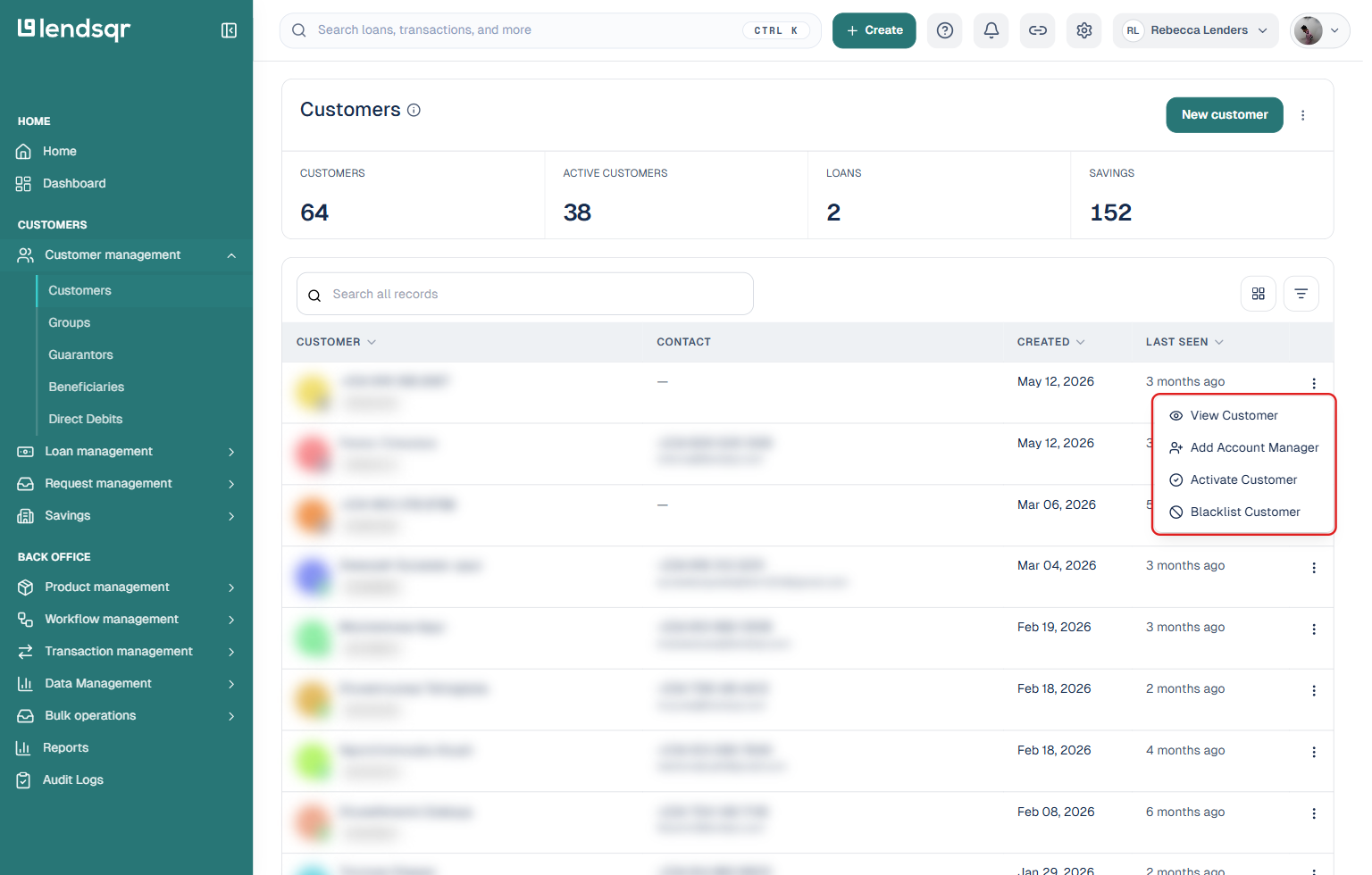
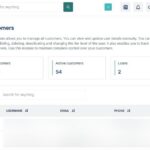
2. Click “Customers” under the “Customer management” section in the left sidebar.
3. On the specific customer’s row, click the “more” (three-dot) icon and select “Add Account Manager“.
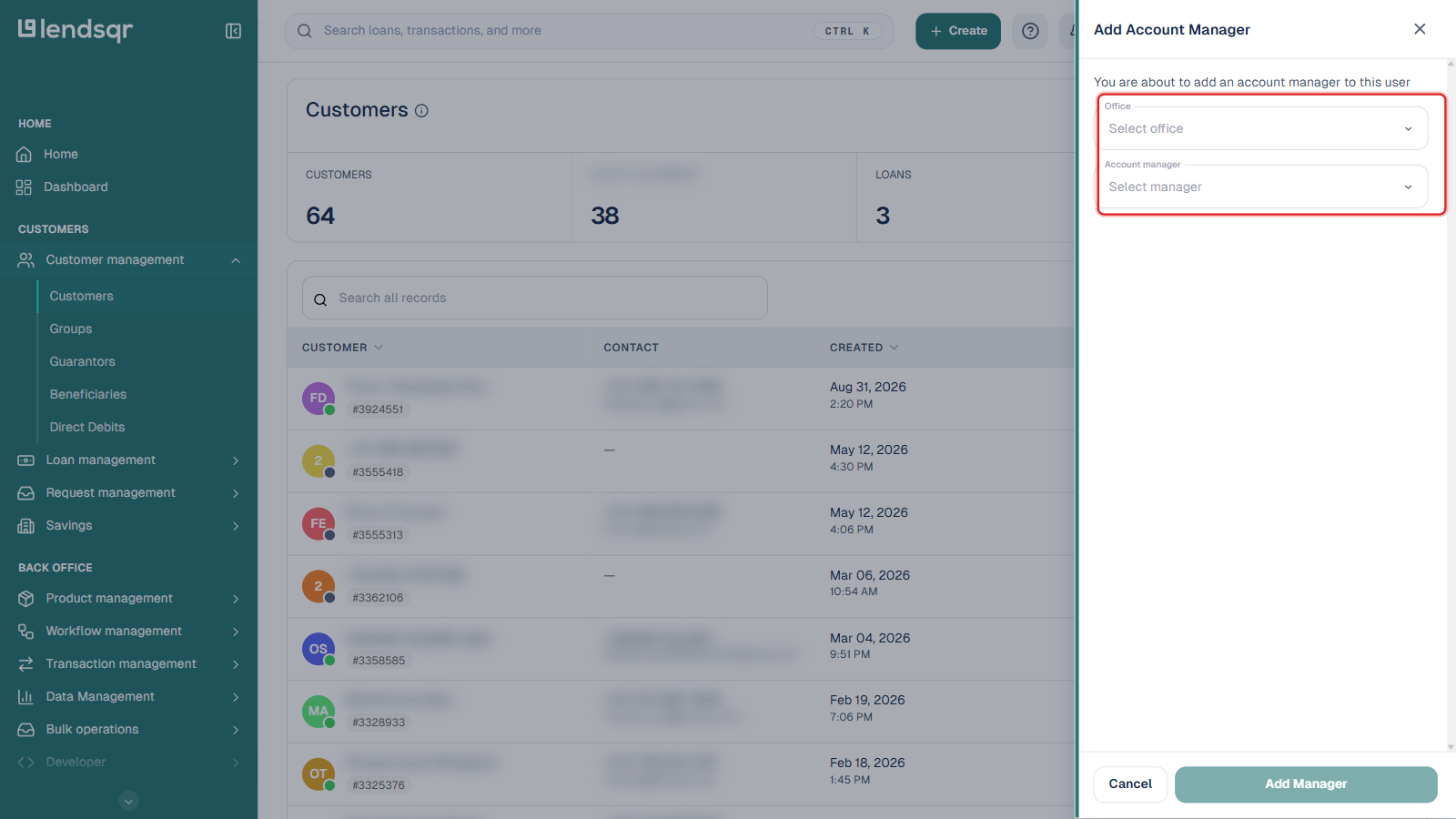
4. In the panel that opens, select the Office the desired team member belongs to, then use the Account manager field to find and select the admin.
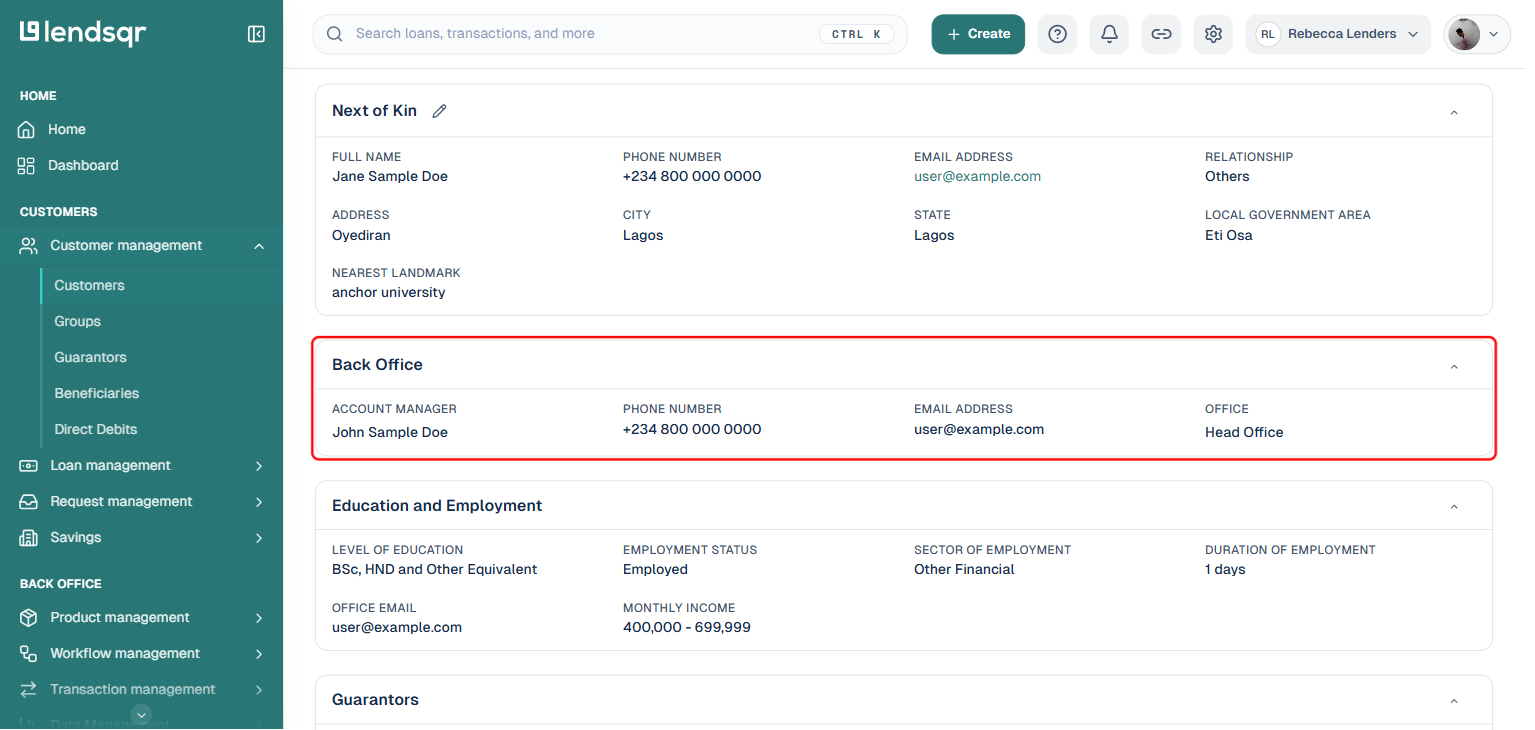
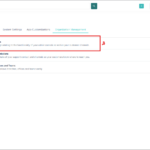
After submitting, open the customer’s profile to view the added account manager in their details under the Back office section of the General details tab.
Both the customer and the team member will get an email notification of the changes.
Alternative method: from the customer’s Edit Customer panel
You can also assign or change an account manager while editing the customer directly:
Open the customer’s profile and click the “more” (three-dot) icon, then select “Edit Customer Details“.
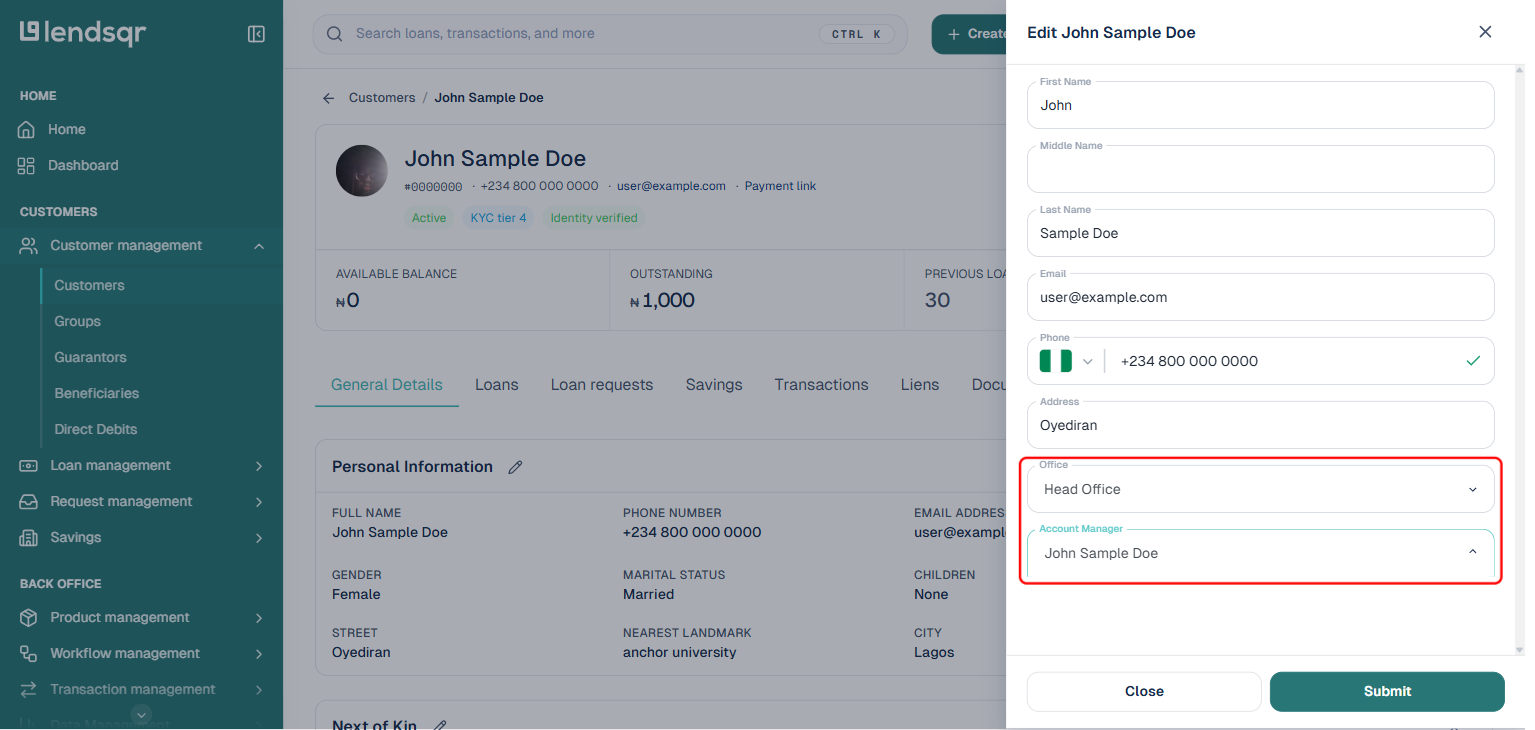
In the panel that opens, scroll down to the Office and Account Manager fields near the bottom of the form.
Select the Office, then choose the Account Manager and click Submit.
Similarly, on the web app, the customer should see their newly assigned account manager and receive an email about this new change.
Tip: You can assign the same account manager to multiple customers if one team member handles a group of related borrowers.
What happens after assignment
Once updated, the assigned account manager gains exclusive visibility and management rights for that customer in the Lendsqr admin console. Other team members will have limited or no access to that profile, depending on their overall roles.
This integration ensures smooth notifications, consistent record-keeping, and better coordination across your lending workflows.
Next steps
Review account manager assignments periodically as your borrower base grows.
Combine customer-specific assignments with general team roles for optimal access control.
Monitor customer interactions and repayment performance after changes.
With this feature in Lendsqr, you can easily assign dedicated account managers, notify customers instantly, and give your team the right level of access. This helps you deliver better service while maintaining full control in one secure admin console.