Access your Back Office at your fingertips.
Download the app now on Google Play Store.
Scan the QR code
You can also scan QR code with your phone to download the app.
How to configure equity contribution on your loan product
Updated
On this page
Introduction to equity contribution
Equity contribution is an upfront payment a borrower makes before a loan is disbursed. Think of it as a deposit or down payment that reduces the total loan amount the lender needs to provide.
Lenders typically require equity contribution for a few practical reasons:
Risk reduction: When a borrower has made an upfront financial commitment, they are less likely to default. The equity acts as a financial cushion for the lender, ensuring that even if a borrower stops repaying, the outstanding balance is lower and easier to recover.
Loan amount control: By collecting part of the financing upfront, lenders reduce their exposure on high-value or long-tenure loans. This is especially common in asset financing, mortgage-style products, and business loans where the amounts involved are significant.
Borrower commitment: It filters out low-intent applicants and ensures borrowers are financially prepared for the repayment journey. A borrower who can raise an equity contribution has already demonstrated a basic level of financial discipline.
Example: If a borrower needs ₦5,000,000 to purchase an asset, and your loan product requires a 20% equity contribution, the borrower pays ₦1,000,000 upfront. The lender then finances the remaining ₦4,000,000. This means the repayment schedule, interest calculations, and monthly installments are all based on ₦4,000,000, not the full ₦5,000,000.
How equity contribution affects the loan
Once equity contribution is configured and enabled on a loan product, it changes the borrower experience in the following ways:
Upfront collection during application: Borrowers applying for the product will be prompted to provide their equity contribution before the loan is approved or disbursed. This happens as part of the application flow, so the borrower knows what is expected before they proceed.
Reduced loan principal: The disbursed amount reflects only the lender’s portion after the borrower’s contribution is deducted. For example, on a ₦5,000,000 loan with a 20% equity contribution, the lender only disburses ₦4,000,000. The borrower’s repayment obligations are calculated on that figure alone.
Adjusted repayment schedule: Since the principal is lower, monthly repayments and total interest charged are recalculated accordingly. Borrowers benefit from smaller installments or a shorter loan tenure depending on how the product is structured. This also means the total cost of the loan to the borrower is reduced.
Where equity contribution is configured
Equity contribution is now a dedicated product setting rather than something set up as a fee. There are two places you will see it on a loan product, and they work together rather than being alternatives to pick between:
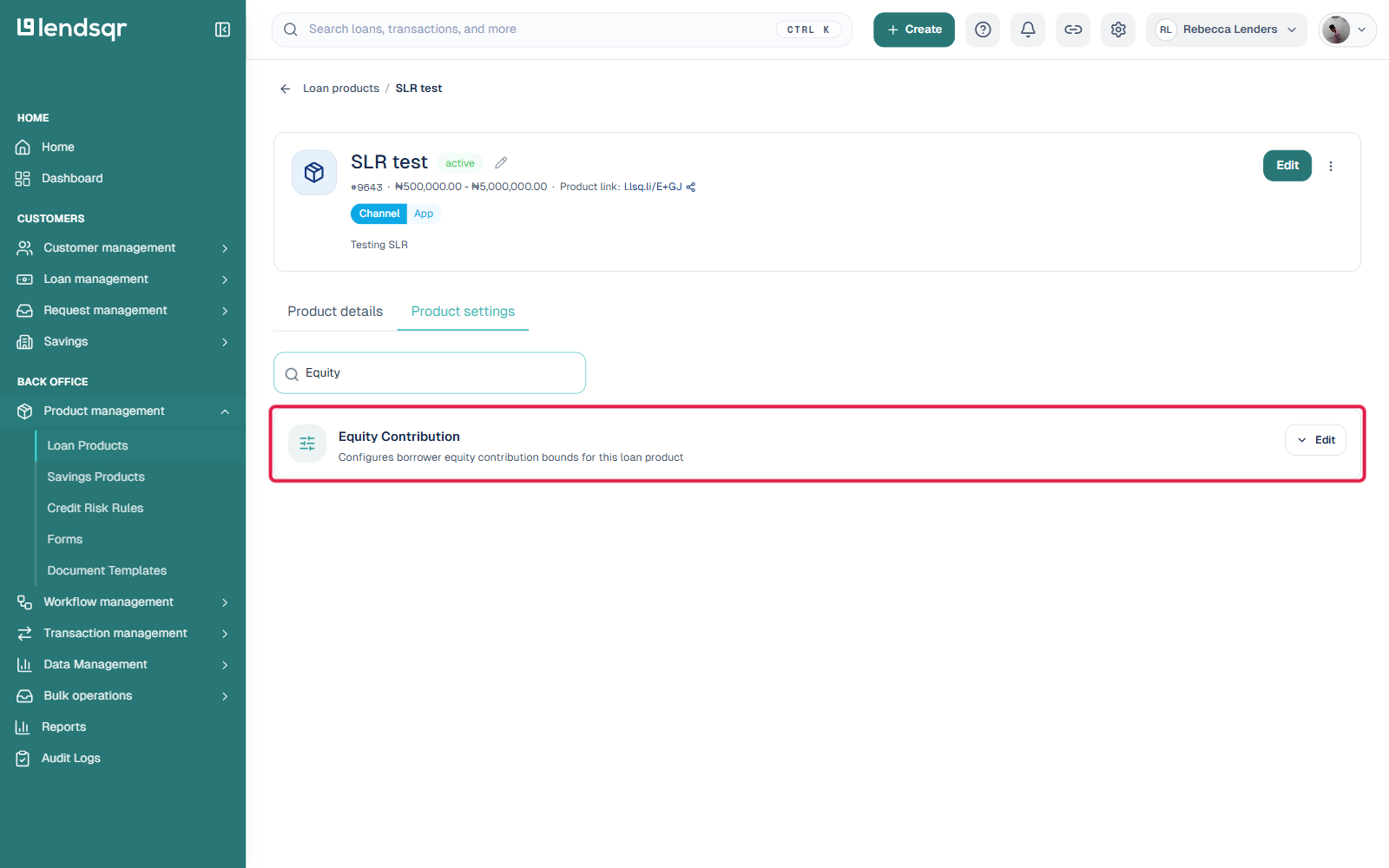
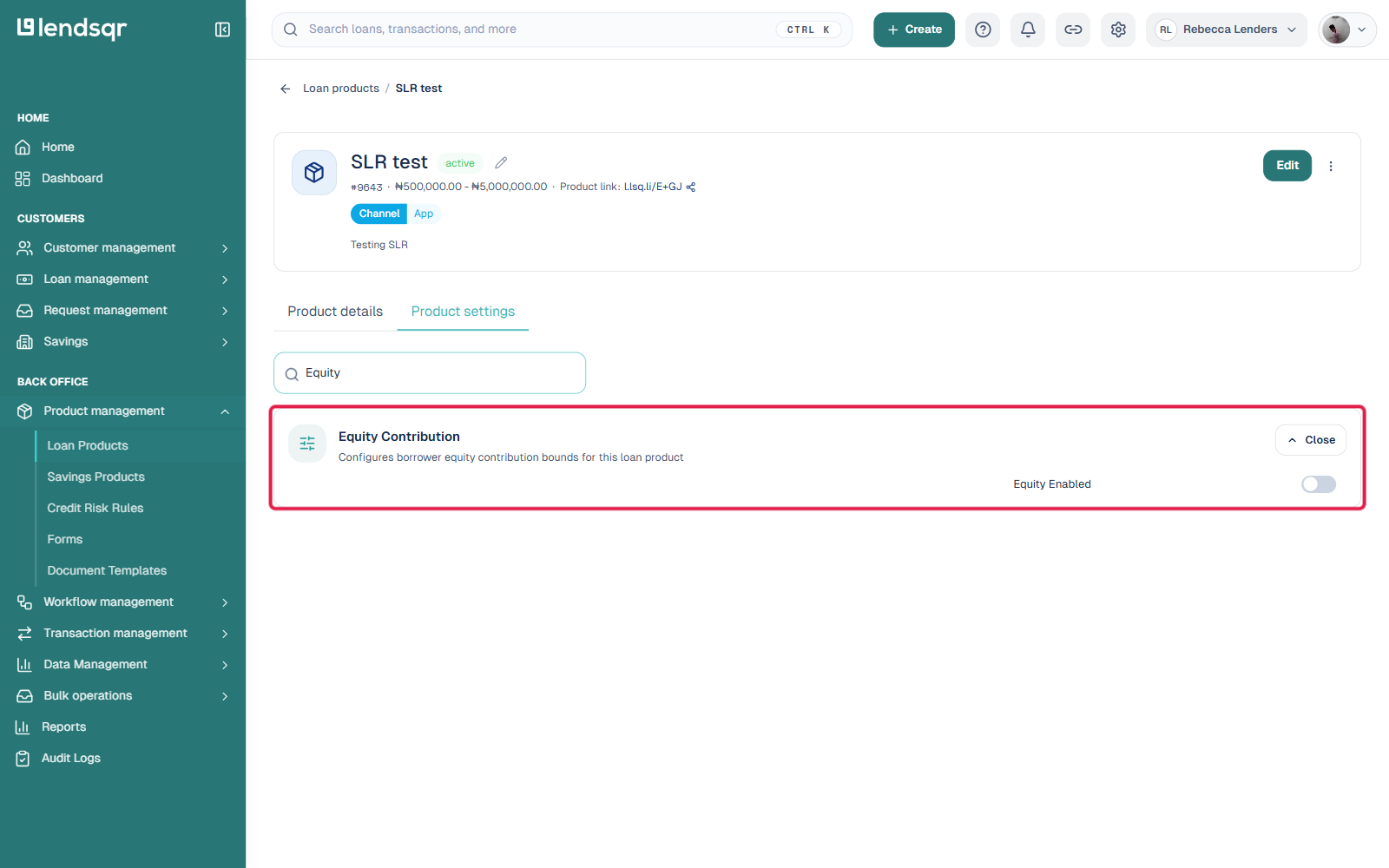
An Equity Enabled toggle in the product’s Product settings list, for a quick view of whether equity contribution is on for the product, and a fast way to switch it on or off.
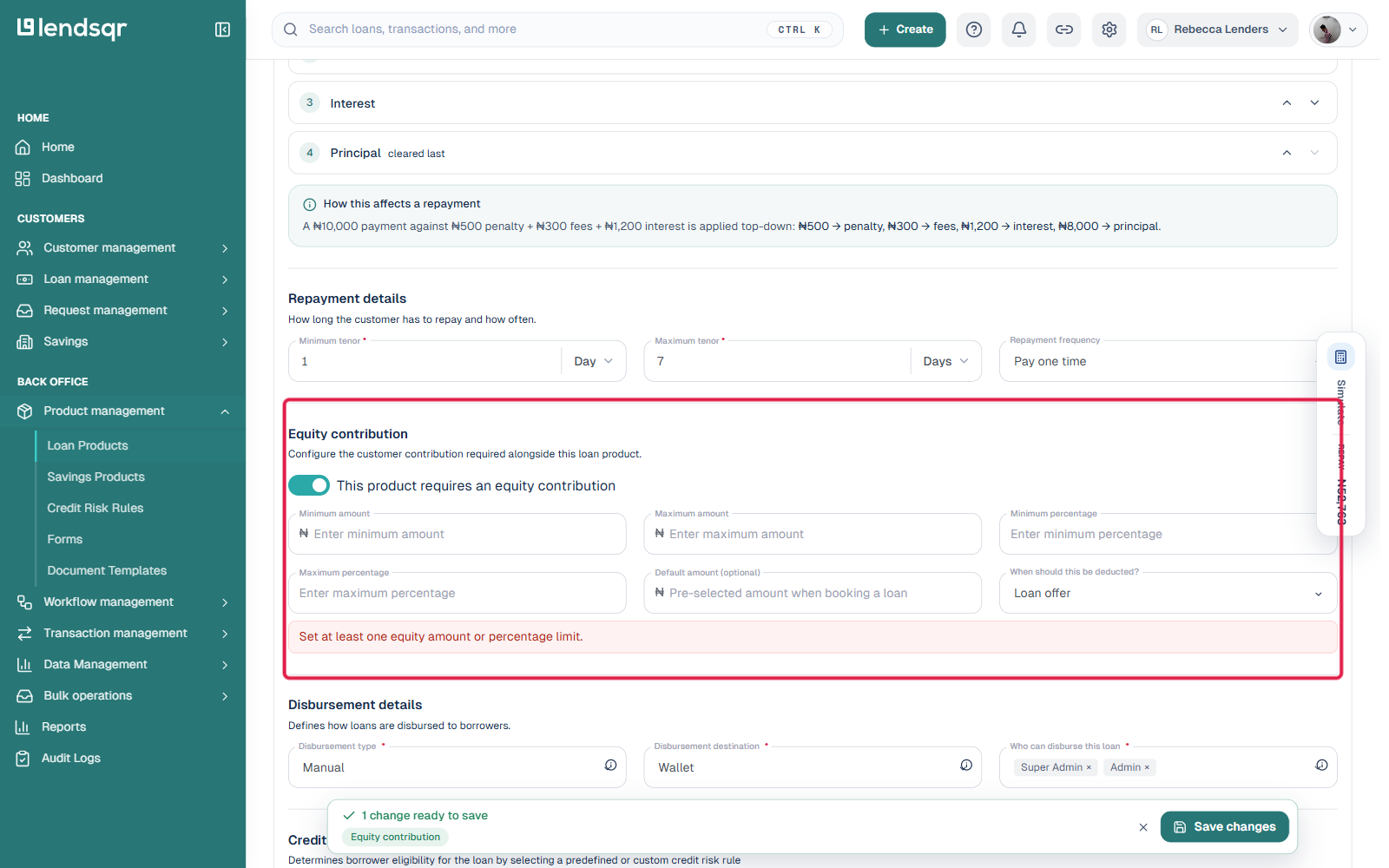
A full Equity contribution section on the product’s Configuration form, where you set the actual amount and percentage bounds and when the contribution is deducted. This is where you do the detailed setup.
In practice, the Configuration form’s own checkbox is the more reliable place to turn equity contribution on, since it sits right next to the fields it controls. The Product settings toggle can require an additional “Update Attributes” permission beyond regular product editing access, if you see a “not authorised” message when switching it there, configure equity contribution from the product’s Configuration form instead.
What happened to the old fee-based setup
Equity contribution used to be set up as a fee type inside a loan product’s Fees section, alongside other charges. That fee-based path still exists for now, so any equity contribution fee your team already created keeps working, but it is being phased out. Your team can no longer create a new equity contribution fee or edit an existing one. Existing equity fees can only be viewed or deleted from the Fees section. New equity contribution configuration should go through the settings described above.
How to configure equity contribution on your loan product
1. Navigate to loan products
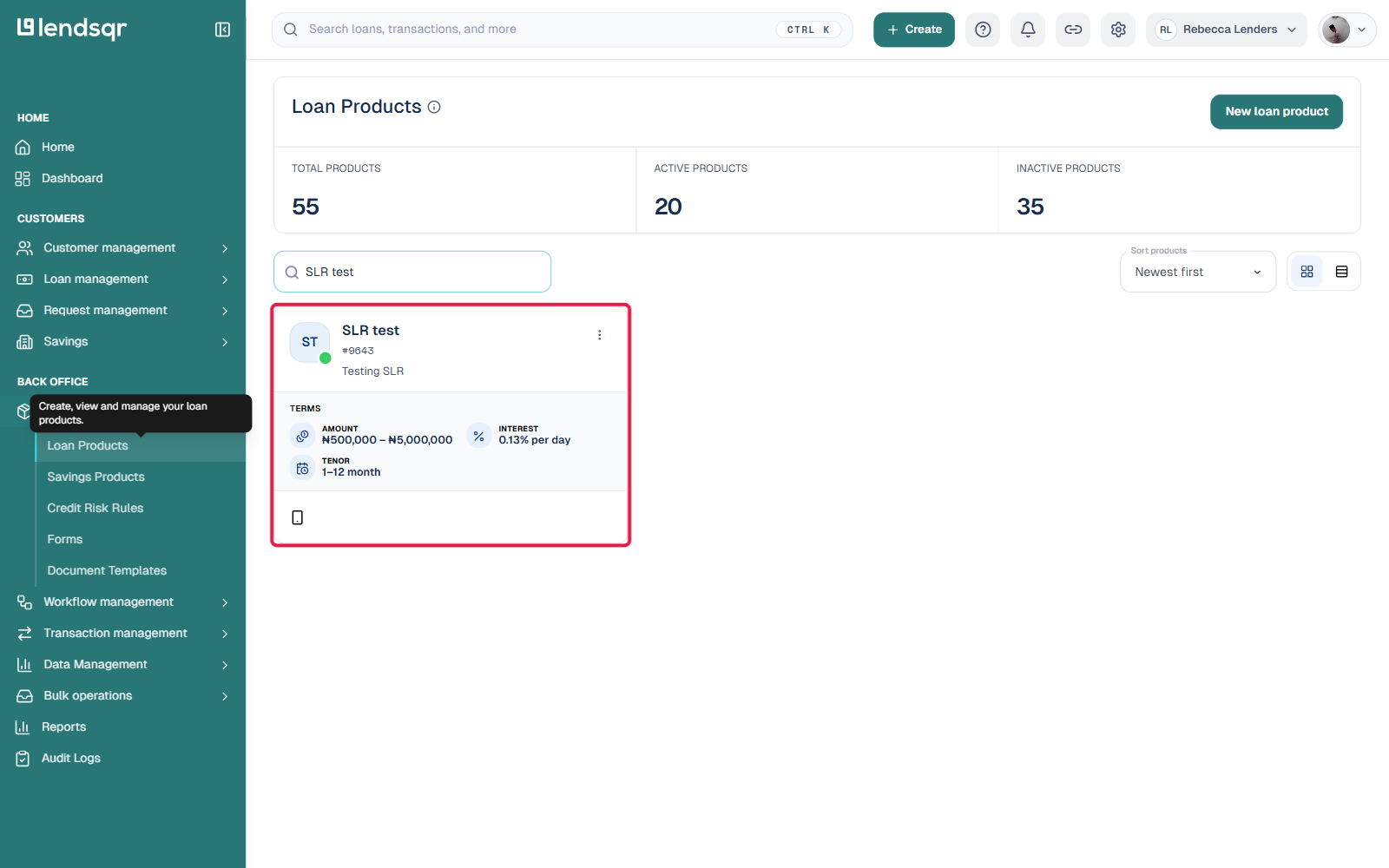
Log in to your Lendsqr admin console. From the side navigation, click Product Management, then select Loan Products.
2. Open the loan product
To set equity contribution on a new product, start creating a loan product. To change it on an existing product, open that product from the list.
3. Check the setting in Product settings (optional)
Click the Product settings tab and search Equity to see the Equity Enabled toggle for this product at a glance.
4. Set up the details on the Configuration form
Go to the product’s Configuration tab and scroll to the Equity contribution section, found between the product’s repayment details and its disbursement details. Check This product requires an equity contribution. This reveals the fields used to define how the contribution is calculated:
Field
Description
Minimum amount
The smallest equity contribution allowed for this product, as a fixed amount.
Maximum amount
The largest equity contribution allowed for this product, as a fixed amount.
Minimum percentage
The smallest equity contribution allowed for this product, expressed as a percentage of the loan amount.
Maximum percentage
The largest equity contribution allowed for this product, expressed as a percentage of the loan amount.
Default amount (optional)
A pre-filled contribution amount to use when one is not otherwise specified.
When should this be deducted?
Determines the point in the loan flow at which the equity contribution is taken from the borrower.
5. Save the loan product
Once the fields are filled in, save your changes to apply the equity contribution setup to the product.
Post-configuration checklist
Before going live with a loan product with an equity contribution, run through these checks to confirm it is set up correctly:
“This product requires an equity contribution” is checked on the Configuration form, and the “Equity Enabled” toggle in Product settings shows the same on state
The minimum and maximum amount or percentage fields reflect your intended configuration
The deduction timing matches when you want the contribution collected
The loan product has been saved successfully
Test the product by simulating a loan application
Testing the configuration
Once you have saved the loan product, simulate a loan application using the product to verify the setup end-to-end. During the application, confirm that the equity contribution prompt appears at the expected point and that the amount displayed matches your configuration. After submission, check the loan summary to confirm that the principal shown is the post-contribution figure, not the full requested amount. Also, verify that the generated repayment schedule reflects the reduced principal. If anything looks off, return to the loan product’s Equity contribution section, review the fields above, and save again.