Access your Back Office at your fingertips.
Download the app now on Google Play Store.
Scan the QR code
You can also scan QR code with your phone to download the app.
How to create a new fee for your loan product
Updated
On this page
Product fees are charges that lenders apply to borrowers for various services and processes associated with lending. These fees ensure that your lending business can cover its operational costs and manage risks effectively. To support this, Lendsqr allows you to create and customize different types of fees directly from the admin console, tailored to the services you offer your borrowers.
Types of fees you can create from the admin console
Lendsqr supports a range of fee types, each serving a specific purpose:
Equity Contribution: While not a traditional fee, this is an amount a borrower must have available in their wallet before the loan is disbursed. It ensures the borrower has a vested interest in the loan. (Learn more about this here.)
Loan Extension: This is applied when a borrower requests an extension on their loan repayment period. It helps cover additional administrative work and compensates for the potential risk of extending the term.
Management: Charged periodically for providing continuous access to lending services.
Subscription: A separate fee type from Management, also charged periodically, typically for a recurring service or plan a borrower subscribes to.
Penal: This is imposed for late repayments or violations of loan terms, serving both as a deterrent and compensation for delayed cash flow.
Regular: A standard fee that covers basic loan maintenance or processing.
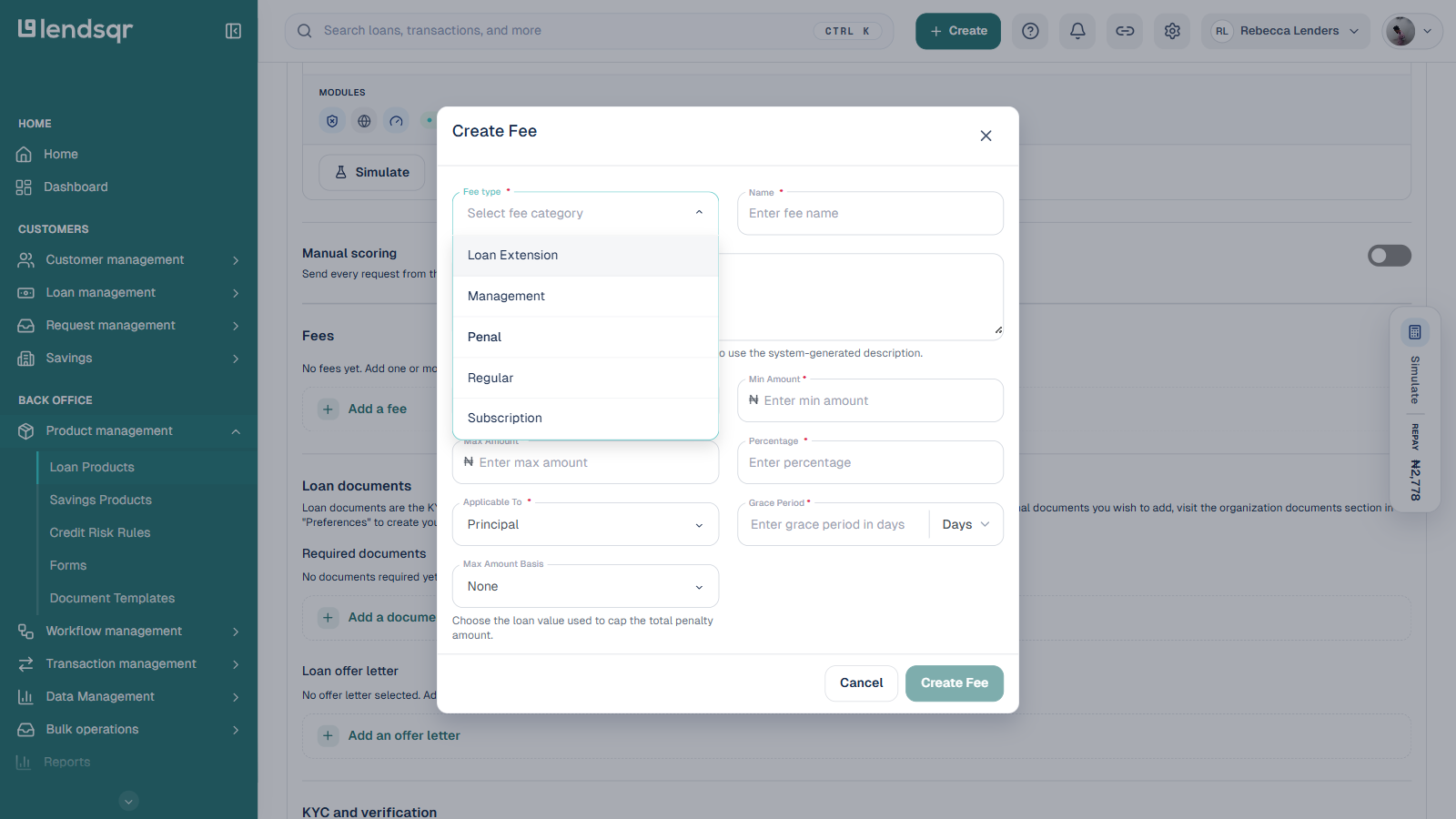
These five options (Loan Extension, Management, Penal, Regular, and Subscription) are the choices available in the Fee type field when you create a fee.
Fee type calculation
When setting up these fees, it’s important to define how they should be calculated. Lendsqr supports three methods, selected in the fee’s Type field:
Fixed: A set amount charged regardless of loan amount. If you set a processing fee of ₦2,000, every borrower pays exactly ₦2,000 regardless of whether they borrowed ₦50,000 or ₦500,000. This works well for flat administrative costs like document processing or account setup. The borrower receives ₦98,000 out of ₦100,000 at disbursement if the fee is deducted upfront.
Percentage: A fee calculated based on a percentage of the loan principal or total value. If you set a management fee of 2% of the loan principal, a borrower taking ₦100,000 pays ₦2,000, while one taking ₦500,000 pays ₦10,000. This scales proportionally with risk and loan size, making it a fairer model for larger loan books. On a 30-day loan of ₦100,000, the borrower’s total repayment obligation becomes ₦102,000 plus interest.
Hybrid: A combination of both fixed and percentage-based amounts. A hybrid fee might be configured as ₦1,000 flat plus 1% of the loan amount. For a ₦100,000 loan, that means ₦1,000 + ₦1,000 = ₦2,000 total fee. For a ₦500,000 loan, it becomes ₦1,000 + ₦5,000 = ₦6,000. This model is useful when you want to cover a baseline administrative cost regardless of loan size, while still capturing proportional value on larger amounts.
When and where fees are applied in the loan flow
Fees behave differently depending on their type and your configuration:
At disbursement: Processing fees and equity contributions are typically applied before or at the point of disbursement. If a fee is set to be deducted upfront, the borrower receives the loan amount minus the fee, so a ₦100,000 loan with a ₦2,000 processing fee results in ₦98,000 hitting the borrower’s account.
During the loan term: Management and subscription fees can be charged periodically, weekly, monthly, or per cycle, and appear as line items on the borrower’s repayment schedule. They are visible on the loan statement and factored into the total amount owed.
On an event trigger: Penal fees and loan extension fees are triggered by specific borrower actions, such as a missed payment or an extension request. They are added to the outstanding balance automatically when the trigger condition is met and will show up in the borrower’s loan activity log.
Fees also have a defined Applicable To value (for example, Principal), which determines what loan value the fee is calculated against, and an optional Grace Period in days before the fee takes effect.
Here is a step by step guide on how you can create a fee on the admin console:
Login to the admin console
Navigate to “Loan Products” under “Product Management“.
Once logged in, locate the side navigation and click on “Product Management” in the back office domain
In the dropdown menu, select “Loan Products.”
3. Create or edit a loan product
To create a new loan product, click New loan product.
To update an existing product, find the product in the list, click its Product actions menu, and select Edit.
4. Access the Fees section
Scroll down to the Fees section of the loan product form.
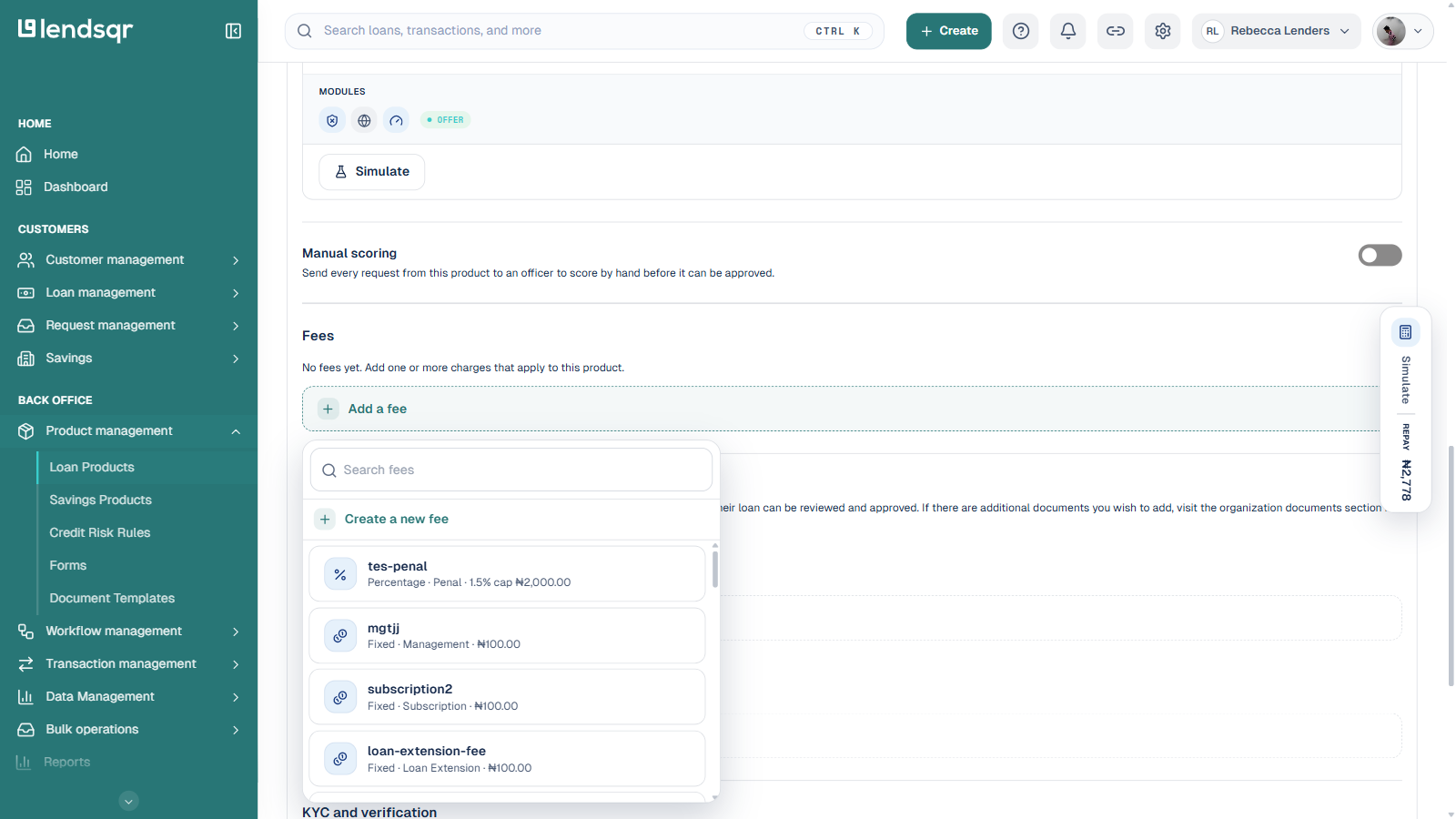
Click the Add a fee button. This opens a searchable picker listing every fee your organization has already created.
5. Create a new fee, or select an existing one
To reuse a fee you already created for another product, search for it by name in the picker and select it from the list. Each entry shows its calculation type, fee type, and amount (for example, “Percentage · Penal · 1.5% cap ₦2,000.00”).
To create a new one, click Create a new fee at the top of the picker. This opens the Create Fee dialog.
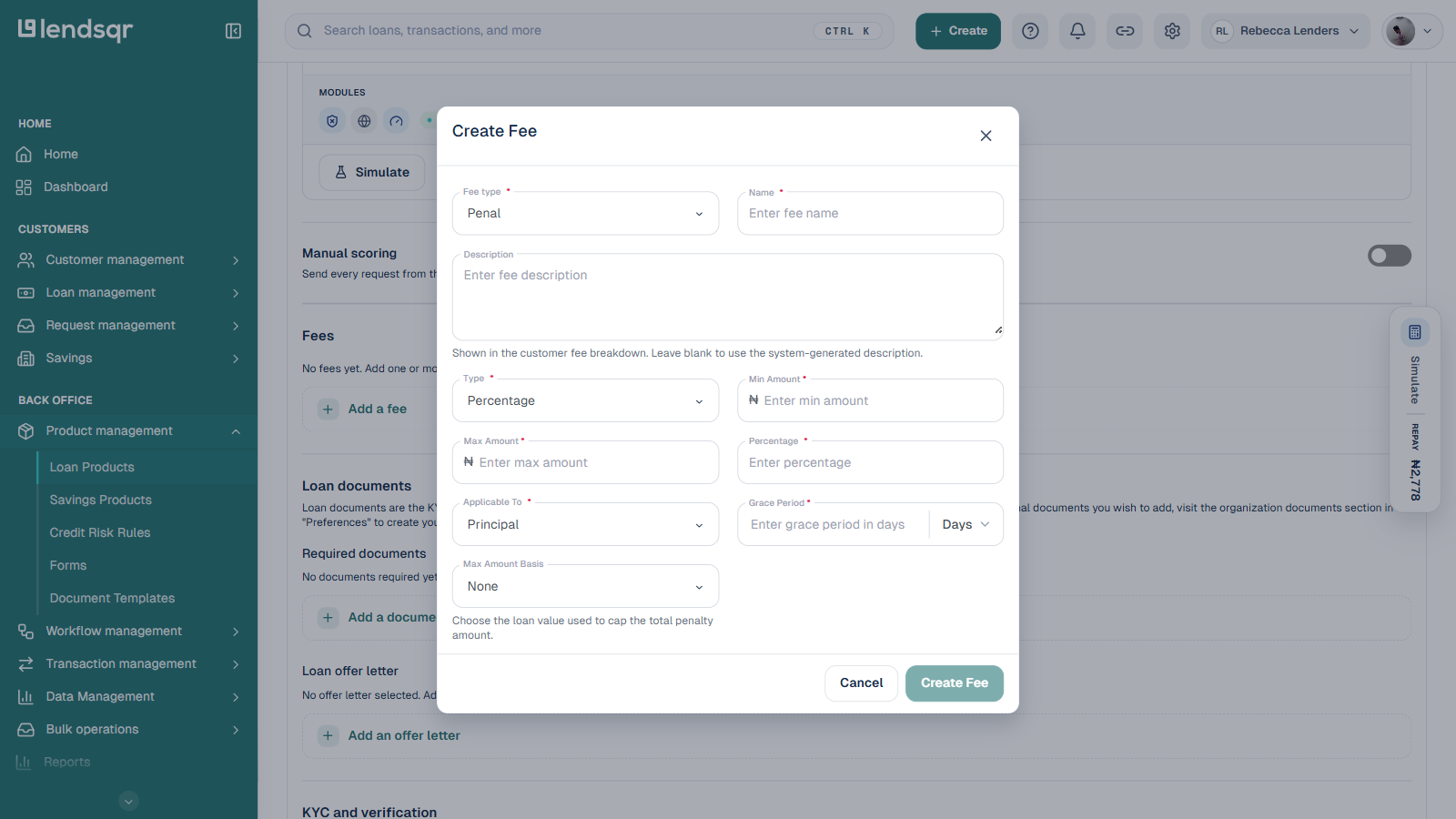
In the dialog, select the Fee type from the dropdown (Loan Extension, Management, Penal, Regular, or Subscription), then enter a Name and an optional Description (shown in the customer fee breakdown; leave it blank to use a system-generated description).
Choose the Type (Fixed, Percentage, or Hybrid) and fill in the amount fields that appear for that type, including Min Amount, Max Amount, and, for Percentage or Hybrid fees, the Percentage value.
Set Applicable To (for example, Principal) to define what loan value the fee is calculated against, and enter a Grace Period in days if the fee should only apply after a delay.
For Penal fees, a Max Amount Basis dropdown lets you choose the loan value used to cap the total penalty amount.
6. Save the fee
Click Create Fee to save it. The fee is attached to this loan product immediately, no separate activation toggle is required.
7. Save changes to the loan product
Scroll to the bottom of the loan product form.
Click Save Changes (or Create Loan Product if you’re creating a new product) to apply the fee to the loan product.