Access your Back Office at your fingertips.
Download the app now on Google Play Store.
Scan the QR code
You can also scan QR code with your phone to download the app.
How to set up a webhook URL on your organization
Updated
On this page
Webhook URL allows you or your third-party partners to receive automated notifications on specific loan events.
Specifically, with Lendsqr, you can configure this feature to receive real-time updates for loan-related events, ensuring your team or third-party systems stay informed on important changes in loan status.
What is a webhook URL and why does it matter?
When a borrower repays a loan, gets approved, or triggers any significant event on your lending platform, your other business systems need to know about it, without your team manually checking for updates.
That is what a webhook URL does. It is an HTTP address from your system that Lendsqr sends a notification to whenever a specific event occurs on your platform. As soon as the event happens, Lendsqr sends a payload of data to your URL automatically.
For example, a fintech company uses a webhook to update its CRM the moment a borrower’s loan is disbursed. Another lender uses it to trigger an SMS notification to the borrower without any manual input. A microfinance institution uses it to log all repayments directly into its accounting software.
Without a webhook, your team would need to constantly poll the Lendsqr API for updates, which is slower, less efficient, and prone to delays.
What is the difference between a webhook URL and a callback URL?
These two are related but serve different purposes:
Webhook URL: This is used by Lendsqr to push event notifications to your system automatically when something happens (e.g., a loan is approved or a repayment fails).
Callback URL: This is an address your system provides so that after an action is completed, the response is returned to you. It is more commonly used in API integrations where you initiate a request and want to receive the result.
For this guide, we focus on setting up the webhook URL on your Lendsqr organization profile.
Before you begin
You will need:
Admin access to your Lendsqr admin console.
A working webhook endpoint URL hosted on your server that can receive POST requests.
Confirmation that your endpoint returns a 200 OK status on receipt — otherwise Lendsqr may flag deliveries as failed.
Supported webhook events
Here are the loan-related events supported:
loan.created – This is triggered when a user successfully applies for a loan.
loan.approved – This is triggered when an admin approves a loan.
loan.activated – This is triggered when a loan is marked as running, with all prerequisites, such as third-party disbursements, completed.
Sample webhook response
A sample JSON response for webhook events looks like this:
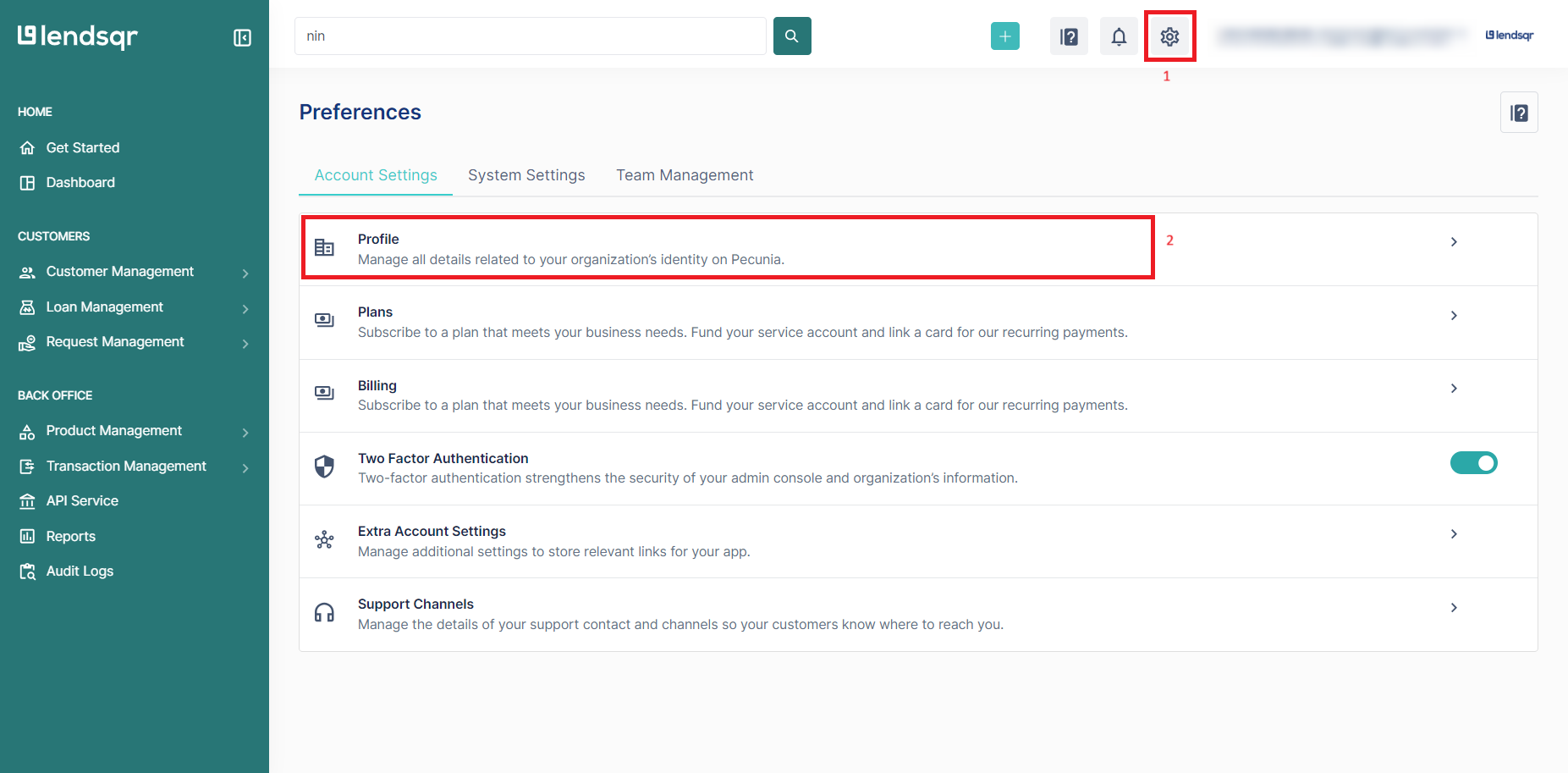
1. Log into the admin console, then click the “Settings” icon at the top-right corner of any page to access “Preferences“
2. Under the “Account Settings” tab, go to “Profile” to view and edit your organization details.
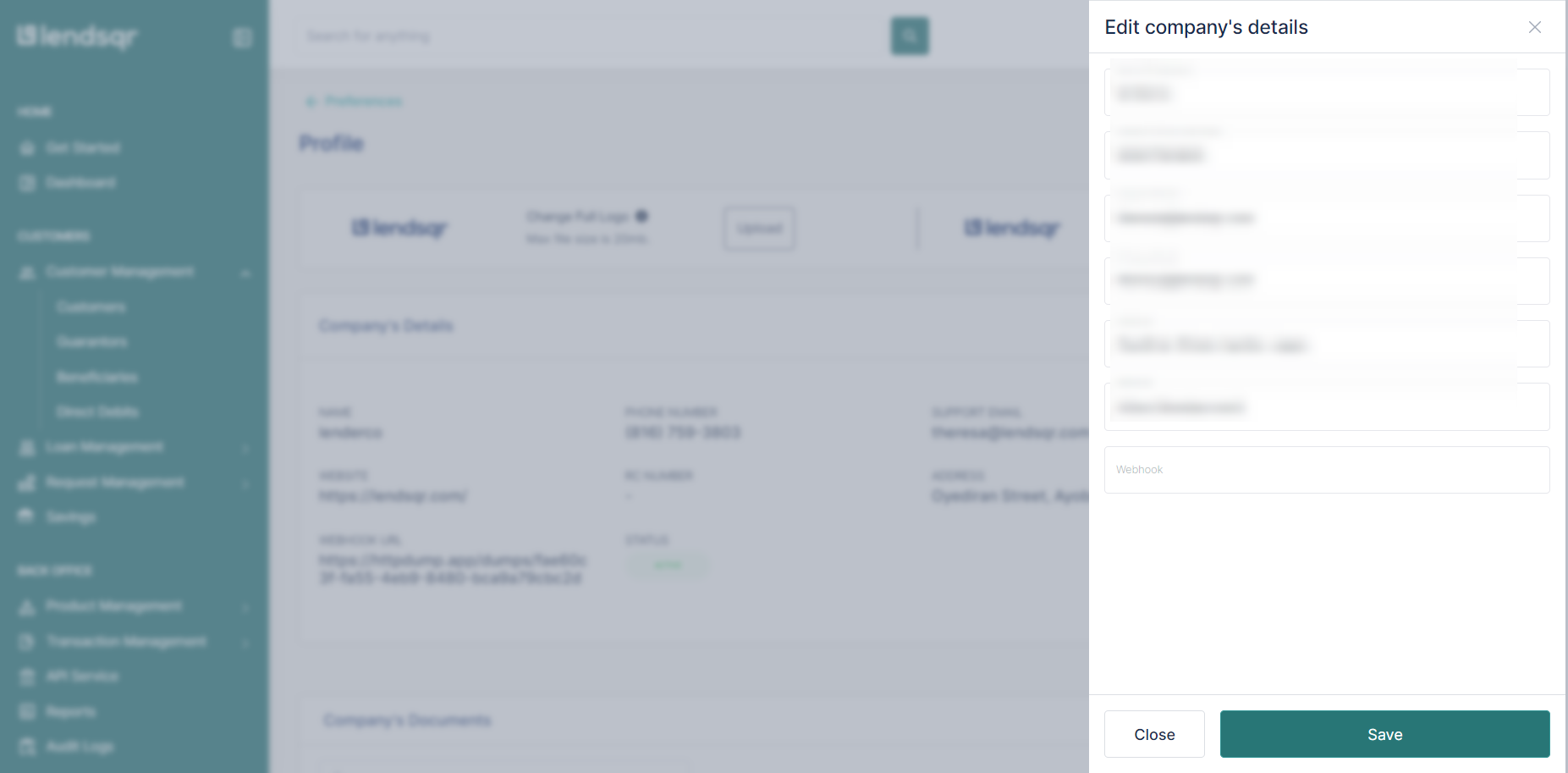
3. Click “Edit” under “Company’s Details“
4. Enter the URL in the webhook field where your server will receive notifications. Ensure the URL is secure and accessible to Lendsqr servers. Then, click “Save” to activate webhook notifications.
5. Lastly, It’s recommended to test your webhook setup to ensure notifications are received accurately.
Use tools like Postman or your server to verify that data is posted as expected. Your webhook URL must be a valid HTTPS address. HTTP endpoints are not accepted for security reasons. If you are testing locally, use a tool like ngrok to expose your local server over HTTPS.
How to verify your webhook is working
After saving your webhook URL, trigger a test event on your platform. For example, try approving a test loan or updating a borrower’s profile and check whether your endpoint receives a payload. Your server logs should show an incoming POST request with a JSON body containing the event details.
If your endpoint does not receive data, check the following:
Confirm the URL is publicly accessible and accepts POST requests.
Verify the endpoint responds with a 200 status code.
Check whether any firewall or security rules are blocking incoming requests from Lendsqr’s IP ranges.
Frequently asked questions
Can I update my webhook URL later?
Yes. Return to the Profile settings in your admin console at any time and replace the existing URL with a new one. Changes take effect immediately.
What events does Lendsqr send to my webhook?
Lendsqr sends notifications for events such as loan approvals, repayments, disbursements, and status changes. The exact list of events depends on your platform configuration. For a full list, refer to the Lendsqr API documentation.
What happens if my endpoint is down when an event fires?
If your endpoint is unreachable, the event notification may be lost. For production environments, it is best practice to implement a retry mechanism or a queue on your server to handle any missed events.