Access your Back Office at your fingertips.
Download the app now on Google Play Store.
Scan the QR code
You can also scan QR code with your phone to download the app.
Locating users’ profile page
Updated
On this page
Navigating to a specific user’s profile quickly and accurately matters when you’re managing more than a handful of customers. The Lendsqr admin console gives you a few ways to reach a customer’s profile depending on where you’re starting from and how much you already know about them.
Once you’ve located the right customer, opening their row takes you to the full profile page. Learn more about what that profile page shows in Understanding a customer profile page.
Option 1: Filter the customer table
Use this when you know a specific identifier, such as an email address, phone number, or BVN.
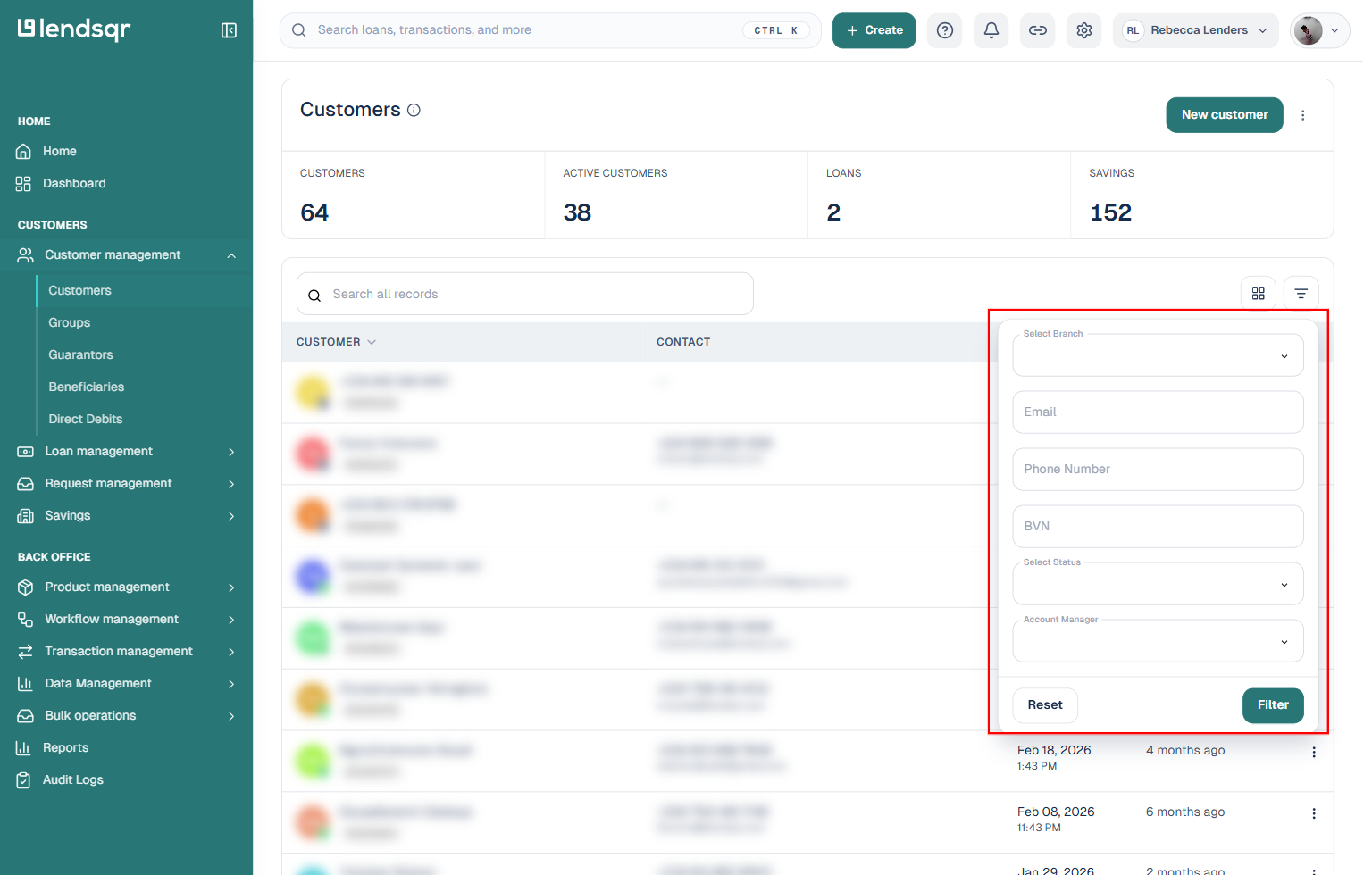
On the side navigation, go to Customer management under the Customers section, then select Customers.
Click the filter icon above the customer table (next to the Columns icon).
Fill in one or more of the available fields: Select Branch, Email, Phone Number, BVN, Select Status, or Account Manager.
Click Filter to apply.
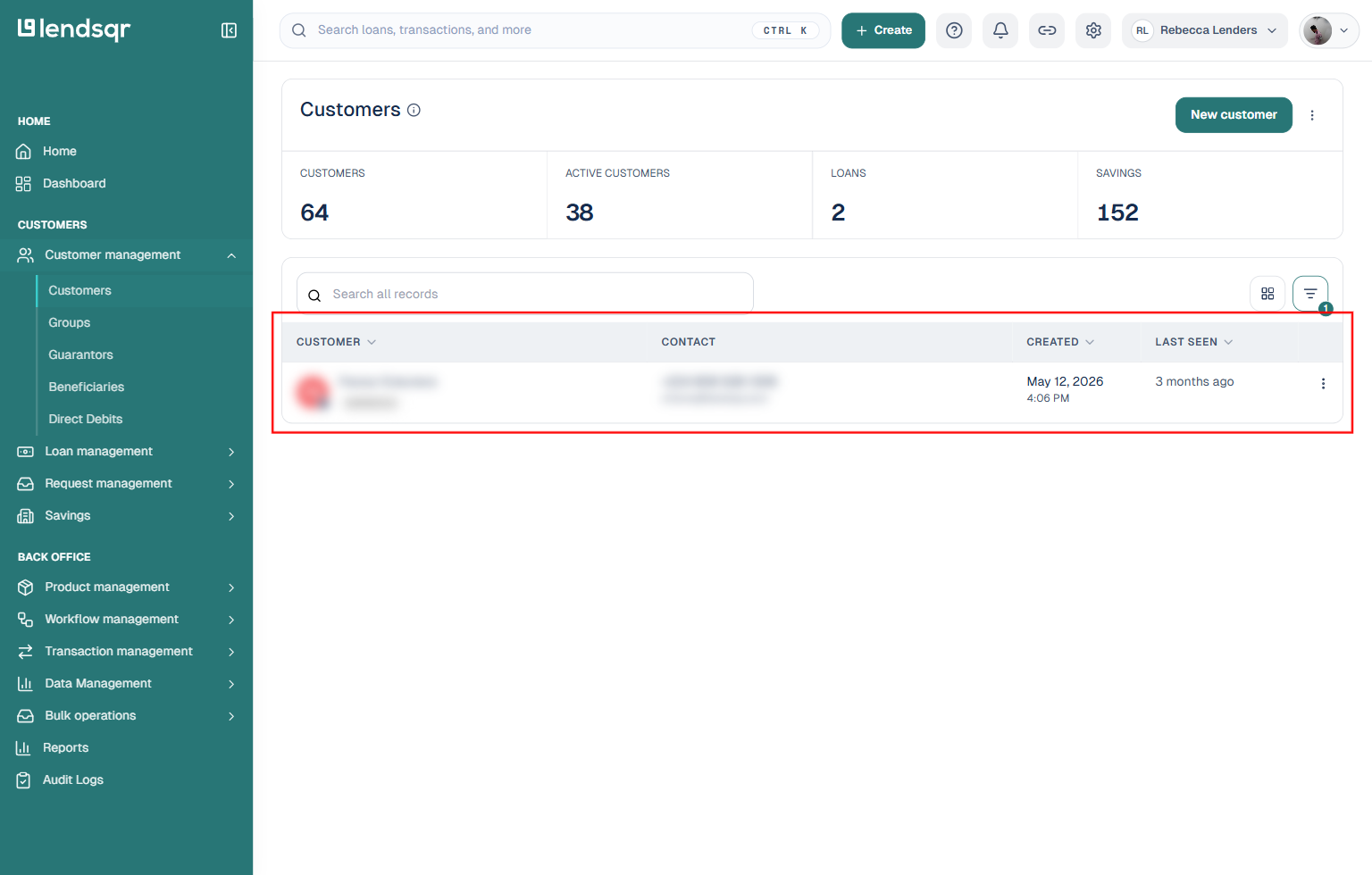
Filtering by email, phone number, or BVN narrows the table to the single matching customer rather than opening their profile automatically. Click that row to open the full profile.
Filtering by Select Status has two options, active and inactive. Choosing active shows every active customer, while inactive shows every inactive customer.
Option 2: Search the table directly
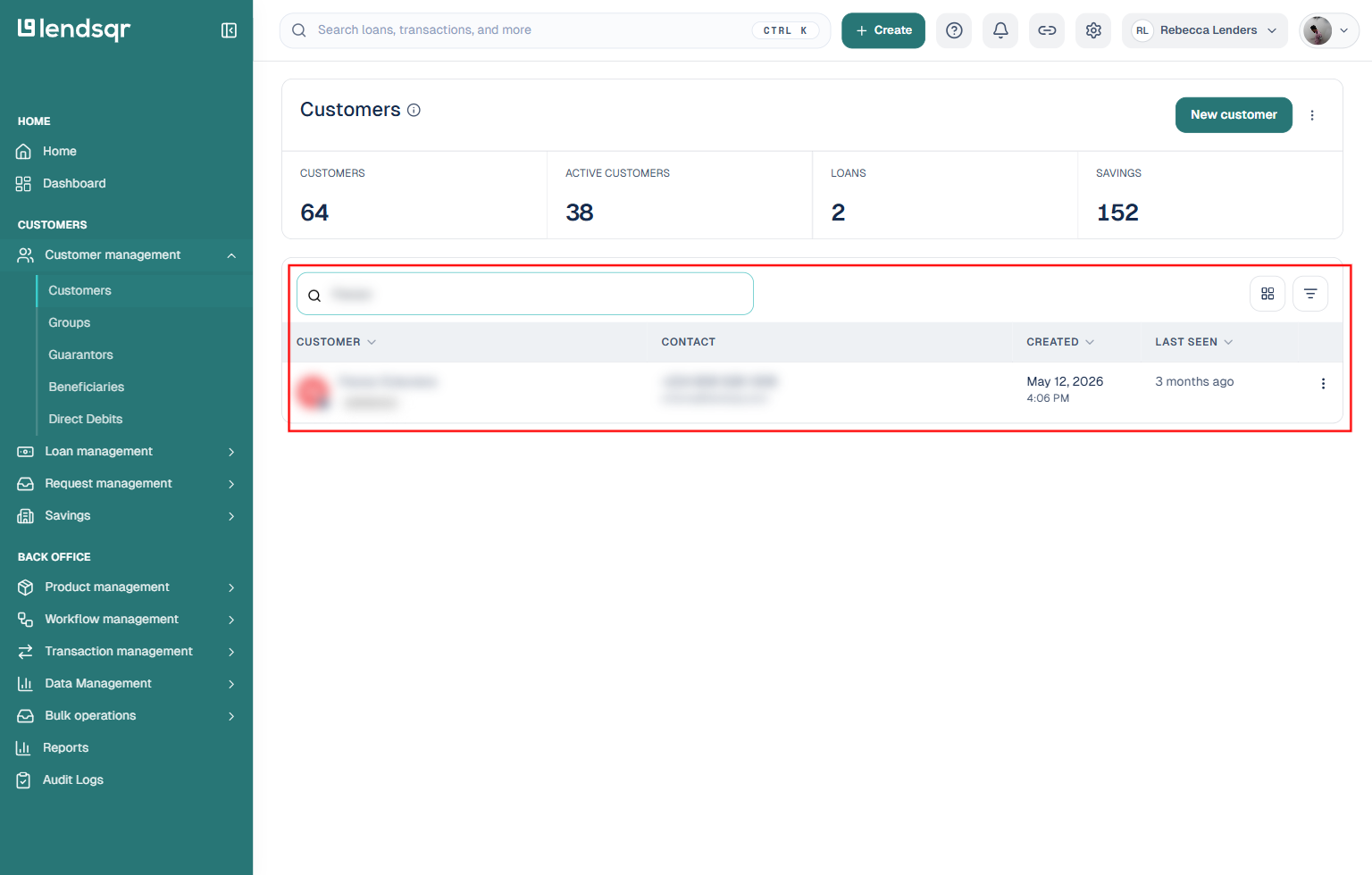
For a quicker lookup that doesn’t need the filter panel, use the Search all records box directly above the customer table on the same Customers page. Type a name, email, or phone number and the table narrows to matching rows as you type. Click the row you want to open that customer’s profile.
Option 3: Use the global search (Ctrl+K)
If you’re not already on the Customers page, the search bar at the top of the admin console (also opened with Ctrl+K, or Cmd+K on a Mac) searches across customers, loans, and transactions at once. Click it, or press the shortcut, then start typing a name, email, or phone number. Select the matching result to jump straight to that customer’s profile.