Access your Back Office at your fingertips.
Download the app now on Google Play Store.
Scan the QR code
You can also scan QR code with your phone to download the app.
How to activate a group
Updated
On this page
Overview
Customer groups on Lendsqr allow lending organizations to organize borrowers into collectives for more efficient loan management, shared accountability, and streamlined operations. When you first create a group on the admin console, its default status is automatically set to inactive. This means the group exists in your system but is not yet available for customers to join or for loan officers to use in active lending operations.
Activating a group is a deliberate action that signals the group is ready for full operational use. This includes making it visible to potential members, enabling loan and savings products for that group, and allowing the group to participate in your lending activities. This documentation will walk you through the complete process of activating a group, understanding group parameters, and managing group features effectively.
What you need to know before activating a group
Before you activate a group, you should understand how groups function within the Lendsqr system and ensure you have configured all necessary parameters.
Groups are for the lender admin console only
The groups feature is designed specifically for your back office operations on the Lendsqr admin console. This functionality is not visible on the customer-facing web app. Groups help your lending team organize customers, track collective performance, manage joint liability arrangements, and streamline operations for customers who share common characteristics or participate in collective lending programs.
Group membership parameters
Every group must have defined membership limits. The minimum number of members in a group cannot be zero. It must be set to at least one member. This ensures that every active group has at least one participant. You can also set a maximum number of members to cap the group size based on your operational capacity or lending strategy.
When configuring membership parameters, you can also set membership fees. These are fees that customers pay to join the group or to maintain their membership status within the group. As a lender, you have full control over these fee structures and can configure them according to your business model and the value proposition of the group.
Creating a new group
Before you can activate a group, you need to create it. Understanding the creation process will help you set up groups correctly from the start.
Step 1: Navigate to customer management
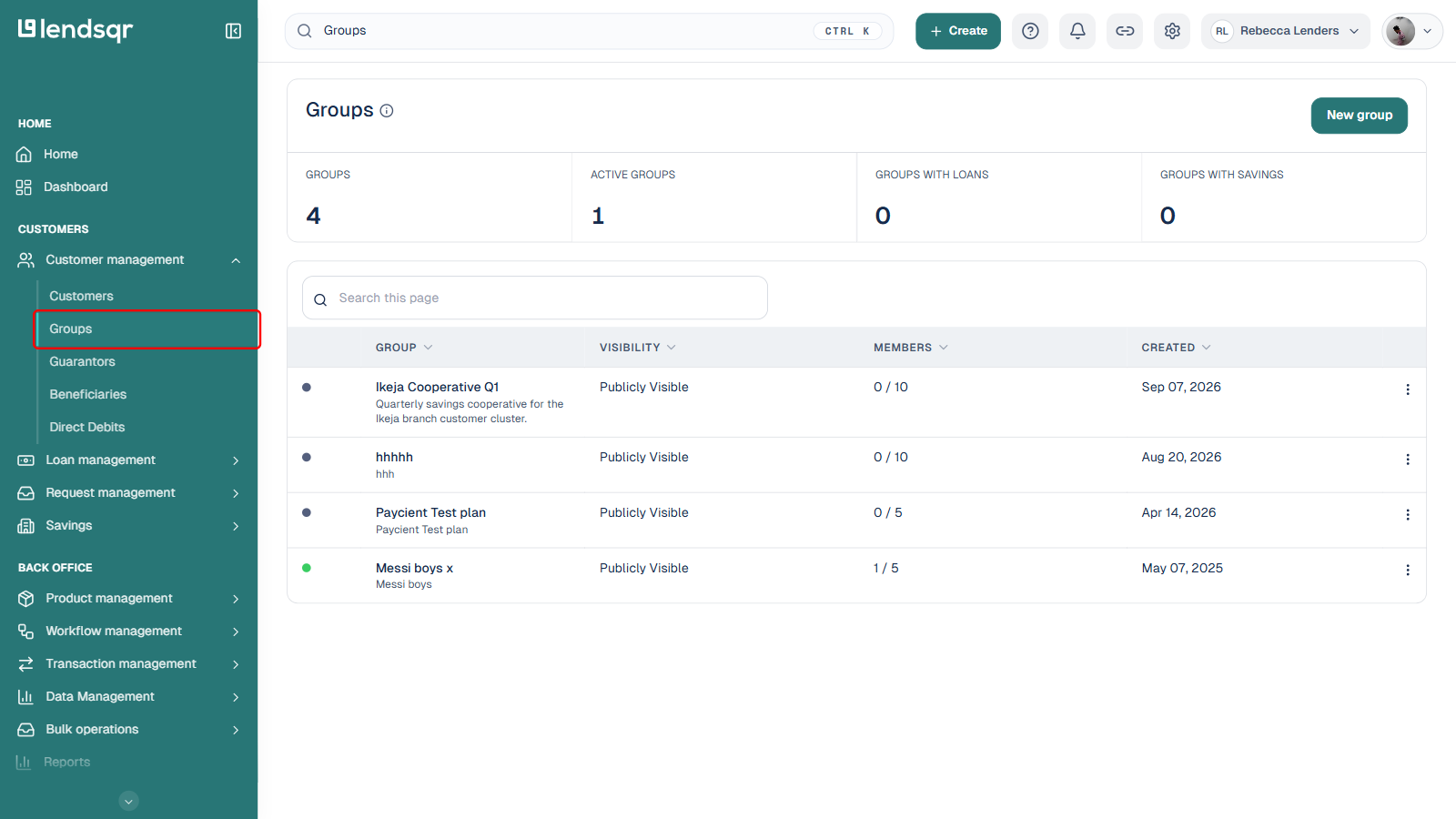
Log into your Lendsqr admin console and locate the Customer Management section in your navigation menu. This is where all customer-related features, including groups, are managed.
Step 2: Select groups
Within Customer Management, click on Groups. This will open a new page displaying all existing groups in your organization.
Step 3: Create a new group
On the Groups page, locate and click the New group button. This will open the group creation panel where you will enter all the necessary parameters for your new group.
Step 4: Configure group parameters
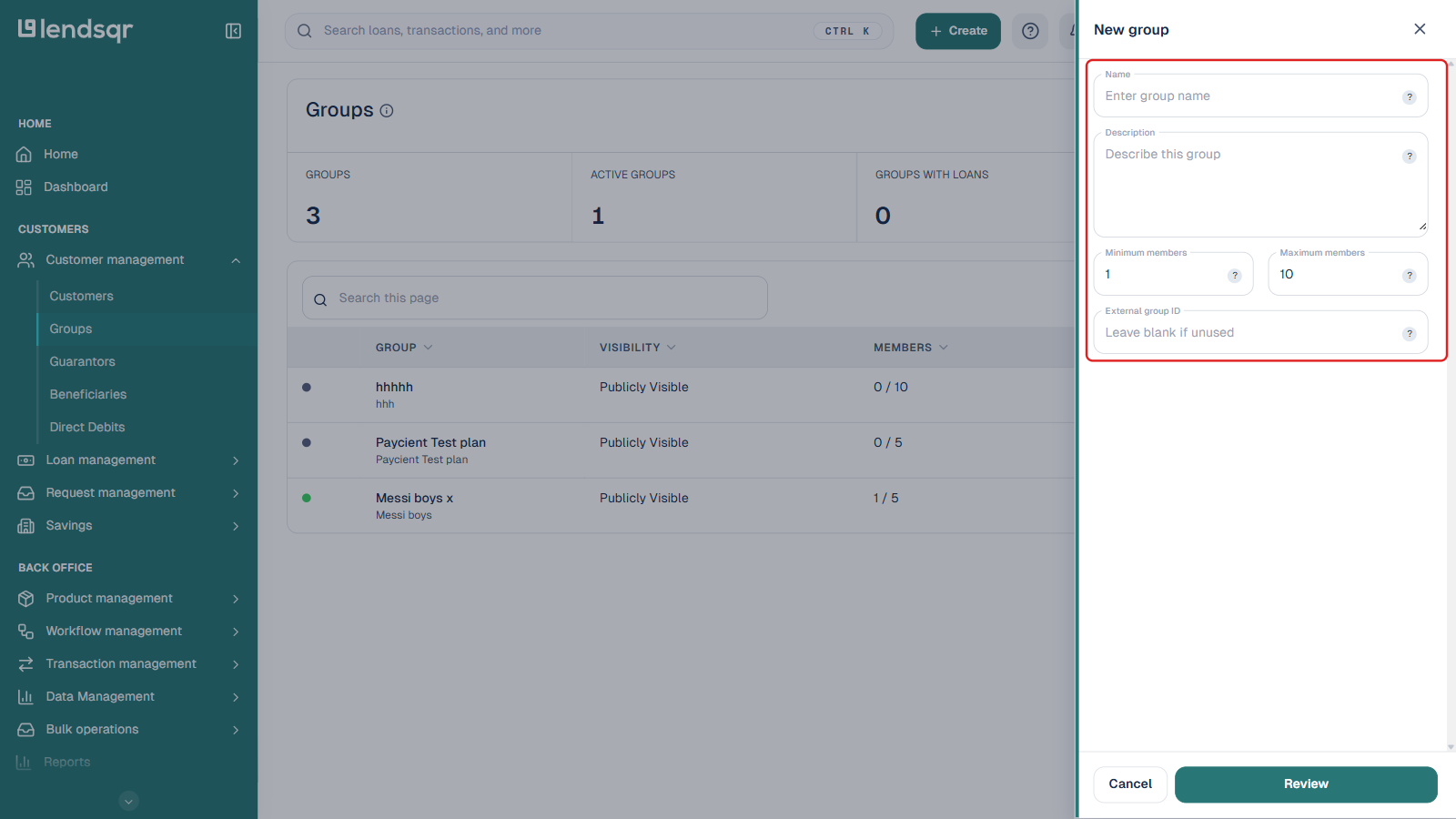
When creating a new group, you will need to provide the following information:
Group name: Provide a clear, descriptive name that identifies the purpose or composition of the group. This could be based on location, industry, lending program, or any other relevant criterion.
Group description: Write a detailed description explaining the purpose of the group, eligibility criteria, benefits, or any other relevant information that helps your team understand what this group represents.
Minimum number of members: Set the minimum number of members required for the group. Remember, this value must be at least one. Setting a higher minimum can be useful for groups designed around collective lending models where a certain critical mass is needed.
Maximum number of members: Define the maximum number of members allowed in the group. This helps you manage operational capacity and maintain group cohesion. Minimum and maximum members default to 1 and 10 if you don’t change them.
External group ID: Optional. Leave this blank unless you’re linking the group to a record in an external system.
Membership fees and other joining requirements are configured separately, after the group is created, from the group’s own settings (see “Configuring group attributes and settings” below).
Step 5: Submit the group creation form
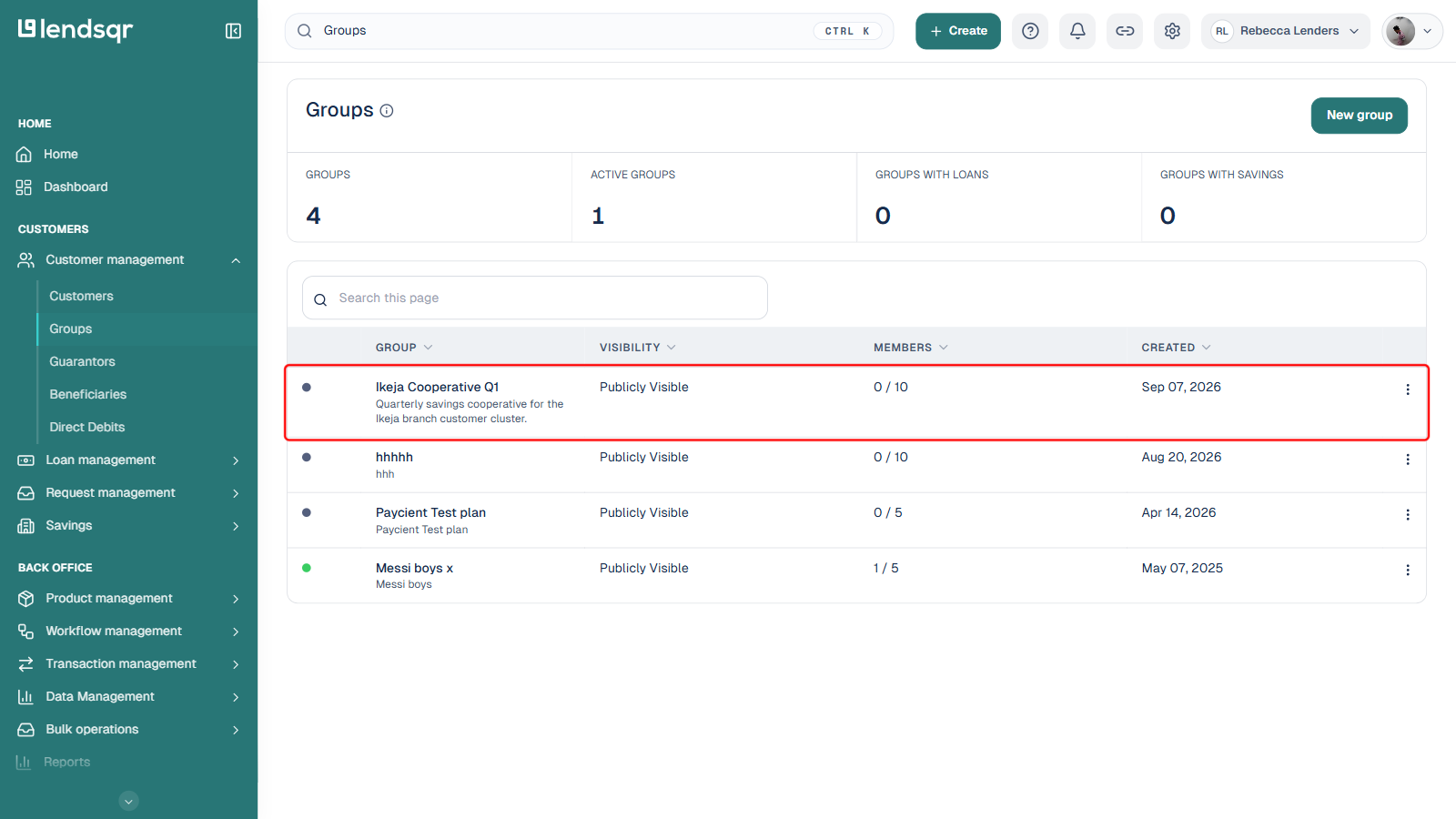
After filling in all required parameters, click the Review button, then confirm on the next screen. The system will create your new group and automatically assign it an inactive status. This is the default state for all newly created groups.
Activating a group
Once your group has been created and you have verified all its parameters are correct, you are ready to activate it. The activation process is straightforward but important, as it makes the group operational within your lending system.
Step 1: Access the groups page
Navigate to Customer Management in your admin console navigation menu, then select Groups. This will display a list of all groups in your organization, including both active and inactive groups.
Step 2: Locate the group you want to activate
From the list of available groups, identify and select the specific group you wish to activate. You can identify inactive groups by their status indicator, which will show as inactive or not active. Click on the group name or row to select it.
Step 3: Open the group options menu
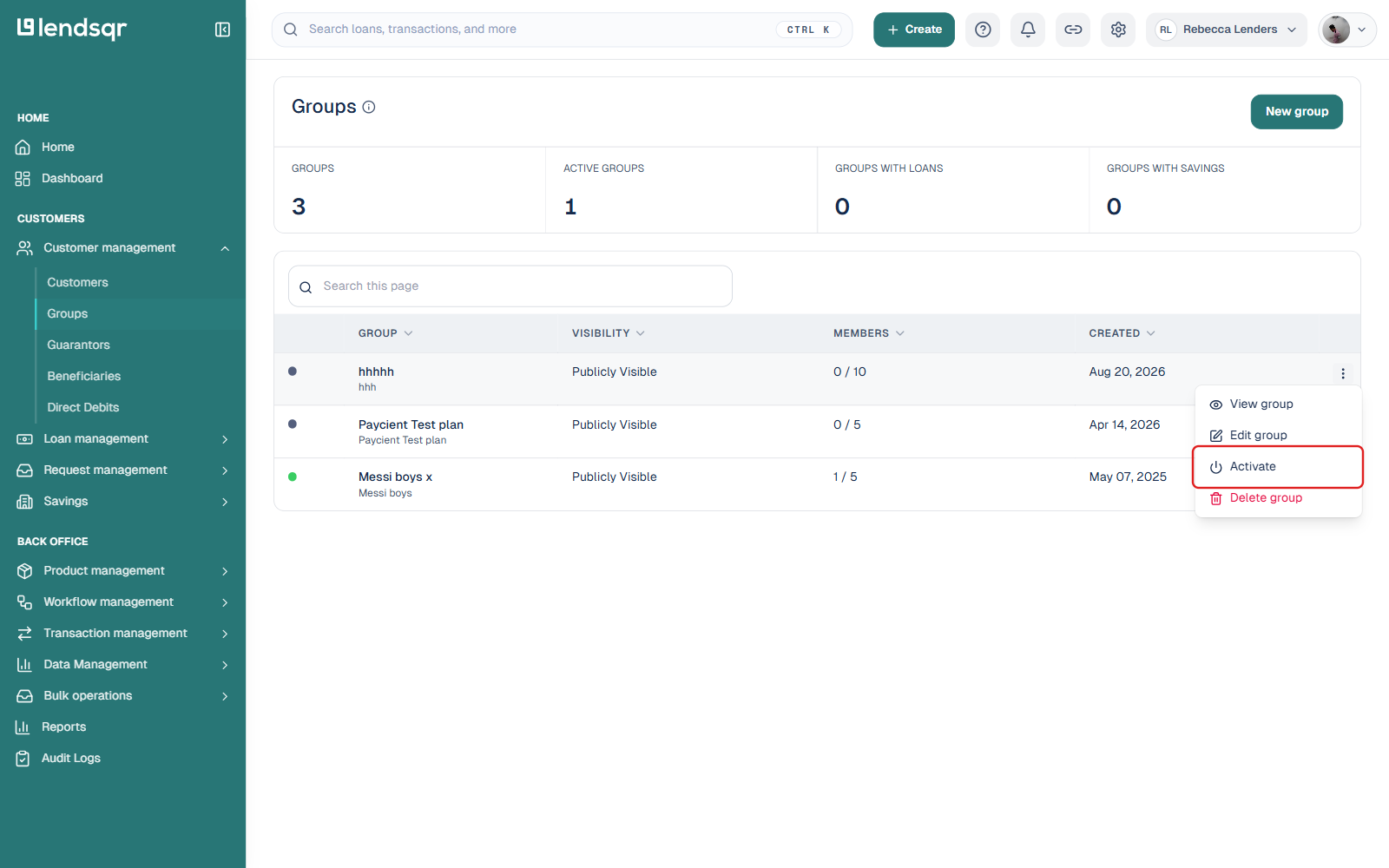
Once you have selected the group, look for the more options menu, typically represented by three vertical dots or a similar icon. Click on this menu to reveal a dropdown list of available actions for the selected group.
Step 4: Select activate group
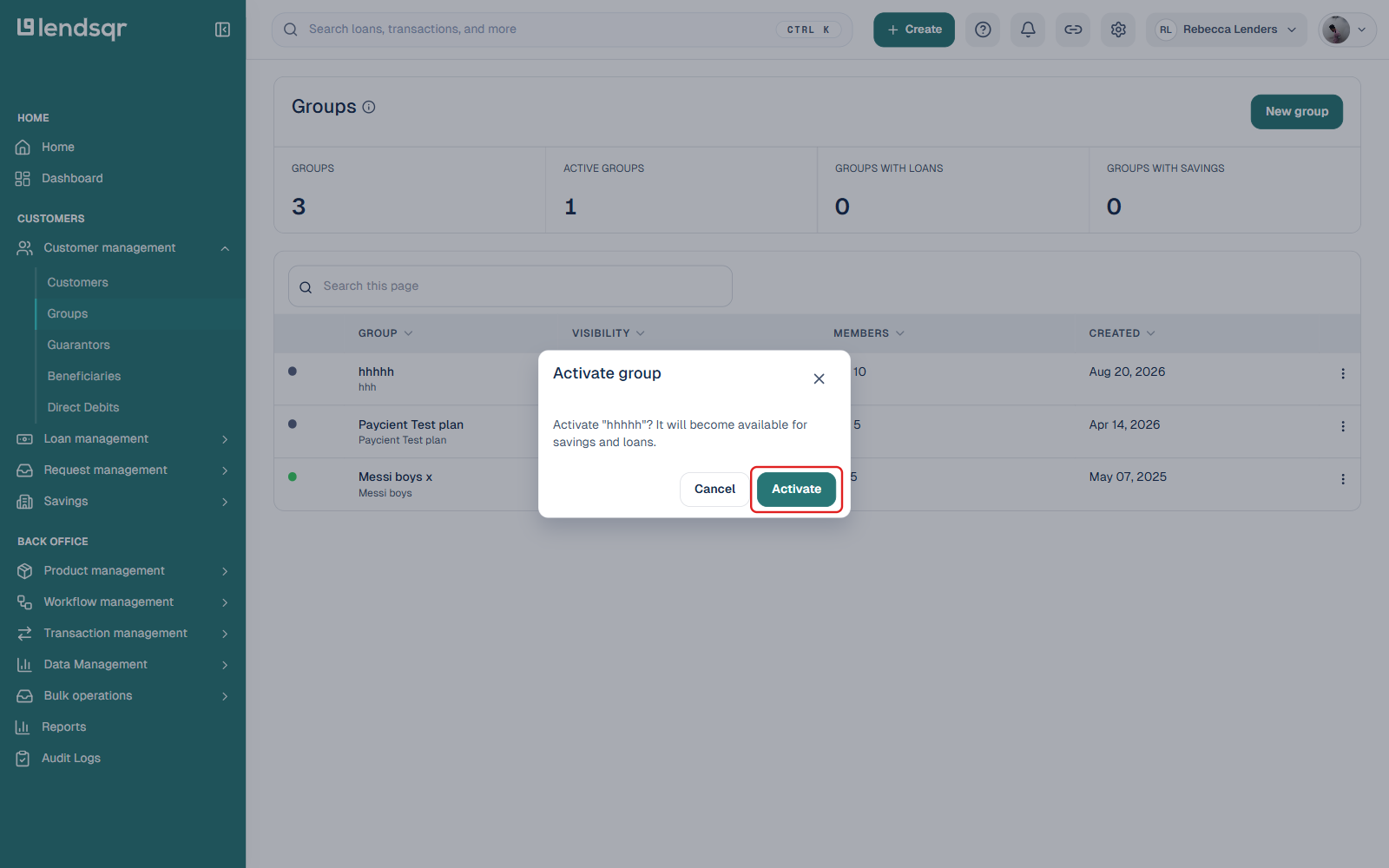
From the dropdown menu of options, choose Activate. This will trigger a confirmation dialog to ensure you want to proceed with the activation.
Step 5: Confirm activation
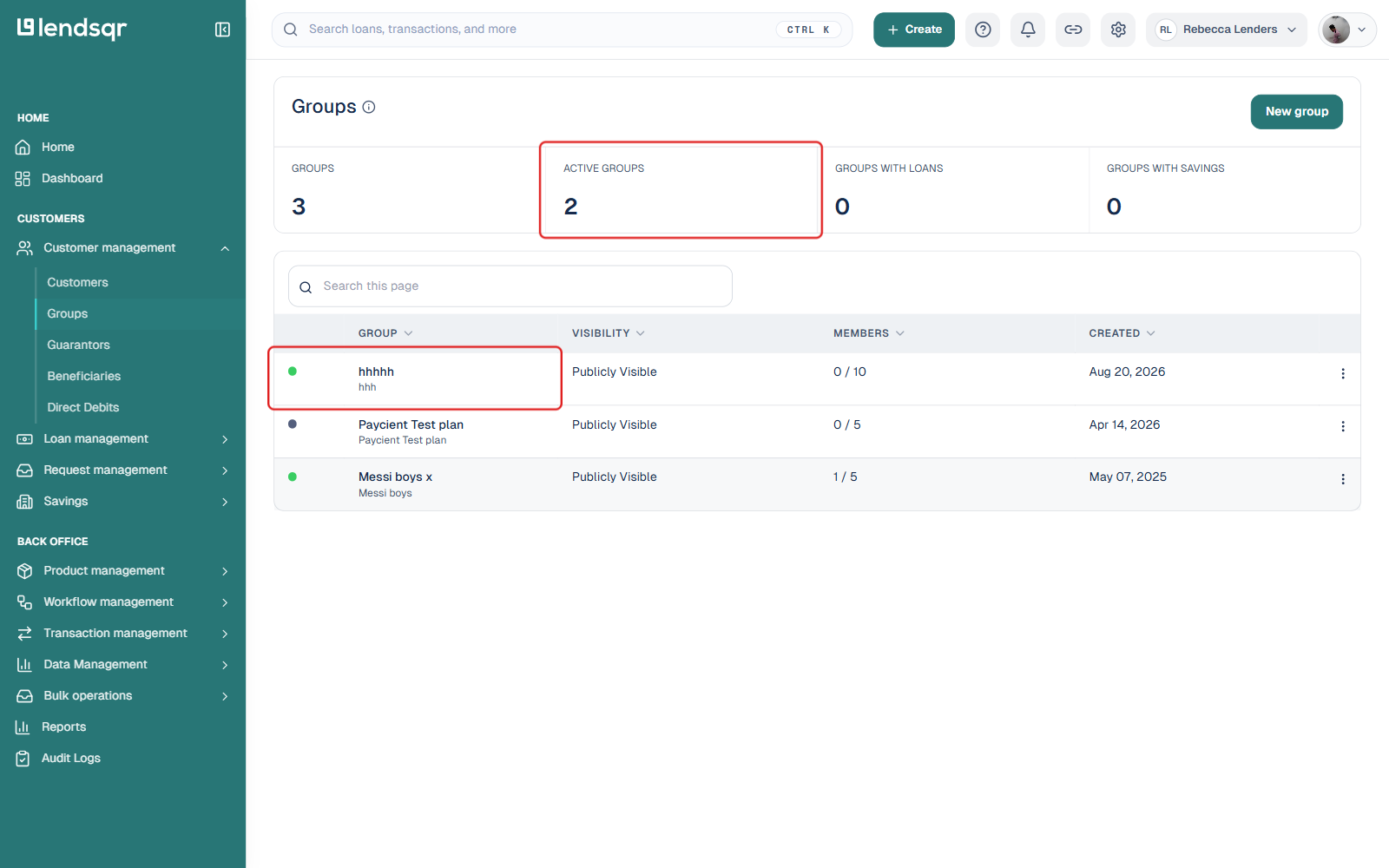
A confirmation dialog will appear asking you to verify that you want to activate this group. Click the Activate button to complete the activation process. The system will immediately change the group status from inactive to active.
Once activated, the group becomes fully operational. Members can now join the group (if configured for member enrollment), loan officers can assign customers to the group, and all group-specific features and products become available for use.
Understanding the group dashboard
After activating a group, you will have access to a comprehensive group dashboard that provides detailed information and management capabilities for that group.
Accessing the group dashboard
To access a group’s dashboard, navigate to Customer Management, select Groups, and then click on the specific group you want to view. This will open the group dashboard with several key sections.
Group members section
The members section displays all customers currently enrolled in the group. For each member, you can view comprehensive details including their full name, email address, phone number, and other relevant profile information. This centralized view makes it easy to track group composition and access individual member profiles quickly.
Loan requests within the group
The group dashboard provides visibility into all loan requests submitted by members of the group. This allows you to track lending activity within the group, monitor outstanding applications, and analyze group-level borrowing patterns. You can view the status of each loan request, the amounts requested, and other relevant loan details.
Available loan products
You can see which loan products have been made available to this specific group. This is particularly useful if you have configured certain loan products to be exclusive to particular groups or if you want to offer specialized lending terms to group members. The dashboard clearly shows which products members of this group can access.
Available savings products
Similar to loan products, the dashboard displays any savings products that have been configured for the group. If you offer savings or investment programs tied to group membership, this section shows which products are accessible to members and tracks participation rates.
Beyond basic activation, groups offer sophisticated configuration options that allow you to customize how they function within your lending operations.
Display order settings
The display order attribute controls the sequence in which loans and savings products appear on the group’s dashboard. This can be particularly useful if you want to prioritize certain products or organize them in a way that makes sense for your operational workflow. You can arrange products to highlight the most popular options first or group similar products together for easier navigation.
Brand and messaging customization
You can configure custom branding and messaging specific to each group. This allows you to tailor communications, promotional materials, or product descriptions to resonate with the particular demographics or characteristics of the group. For instance, you might have different messaging for a group of small business owners versus a group of salaried employees.
Maximum loan settings
Within the group configuration, you can set maximum loan limits that apply specifically to members of this group. This allows you to implement group-based lending tiers where certain groups may qualify for higher loan amounts based on collective performance, shared accountability, or other risk factors.
Member profile visibility
You can control the visibility of member profiles within the group. This setting determines what information is visible to your lending team when viewing group members and can help maintain appropriate privacy controls while still providing necessary operational access to member data.
Joining requirements and membership fees
The group attributes section allows you to establish specific requirements that customers must meet before joining the group. These could include minimum credit scores, documentation requirements, or other eligibility criteria.
You can also configure membership fees in this section. These fees can be structured in different ways:
One-time joining fee: A single payment made when a customer first joins the group
Recurring membership fee: Regular payments (monthly, quarterly, or annually) required to maintain group membership
Combined fee structure: Both a joining fee and recurring fees
These fees can help cover administrative costs, create a sense of commitment among members, or fund group-level benefits and services.
Joint liability settings
One of the most powerful features of groups is the ability to enable joint liability. When joint liability is activated for a group, it creates a shared accountability structure where if one member defaults on their loan, the other members of the group become liable for that debt.
In practical terms, this means that if a borrower fails to make their loan repayments, the system can automatically attempt to recover the outstanding amount from other group members. This collective responsibility mechanism serves several purposes:
Risk mitigation: It reduces overall default risk by creating peer pressure and mutual monitoring among group members
Lower interest rates: Because of reduced risk, you may be able to offer more favorable lending terms to groups with joint liability
Social capital: Members have incentive to help each other succeed and stay current on payments
Access to credit: Borrowers who might not qualify individually can access loans through group membership
Joint liability is a common feature in microfinance and community lending programs, where it has proven effective in maintaining high repayment rates.
To maximize the effectiveness of your groups and ensure smooth operations, consider these best practices:
Verify all parameters before activation
Before activating a group, carefully review all configured parameters including membership limits, fees, available products, and liability settings. Once a group is active and has members, changing certain parameters may be more complex or could affect existing members.
Start with clear group purposes
Create groups with specific, well-defined purposes. Whether organized by geography, industry, income level, or lending program, having a clear rationale for each group helps with marketing, member recruitment, and ongoing management.
Monitor group performance
Regularly review your active groups using the group dashboard. Track metrics like membership growth, loan performance, default rates, and overall financial health. This data can inform decisions about group settings, fee structures, and whether to create similar groups.
Communicate clearly with potential members
If your groups have joining fees or joint liability arrangements, ensure these are clearly communicated to potential members before they join. Transparency about obligations and benefits helps set appropriate expectations and reduces conflicts later.
Use groups strategically
Do not create groups just for the sake of having them. Each group should serve a strategic purpose in your lending operations, whether that is risk management, market segmentation, specialized product offerings, or operational efficiency.
Conclusion
Activating groups on the Lendsqr admin console is a straightforward process that unlocks powerful capabilities for organizing and managing your lending operations. By understanding how to create groups, configure their parameters, activate them for operational use, and leverage advanced features like joint liability, you can build more efficient and effective lending programs.
The group dashboard provides comprehensive visibility into membership, lending activity, and product availability, giving you the tools needed to monitor and optimize group performance over time. Whether you are running microfinance programs, community lending initiatives, or specialized lending products for particular customer segments, groups offer the organizational framework and accountability mechanisms to support your goals.
Remember that the groups feature is designed for back office use on the admin console, providing your team with the operational controls needed to manage collective lending effectively while maintaining the flexibility to adapt group settings as your programs evolve.