Access your Back Office at your fingertips.
Download the app now on Google Play Store.
Scan the QR code
You can also scan QR code with your phone to download the app.
Lendsqr admin console
On this page
On signing in to Lendsqr admin console, you are immediately taken to the homepage which outlines some key points to walk you through everything you need to start lending.
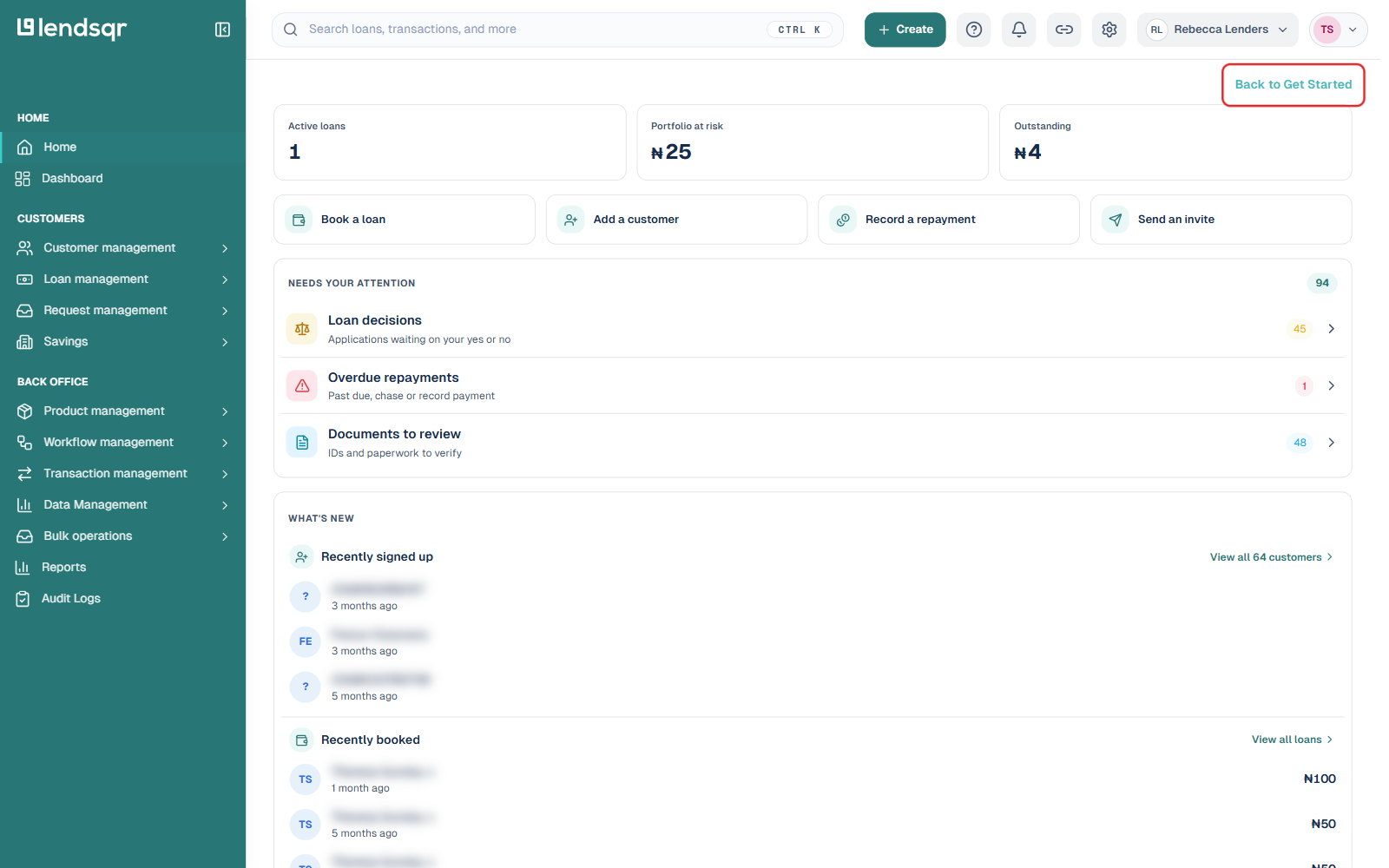
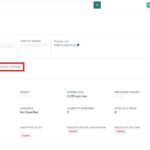
The main dashboard provides a quick view of your organization’s important metrics such as active loans, portfolio at risk, and outstanding balances, quick actions for common tasks, items that need your attention, and recent signups and loan activity.
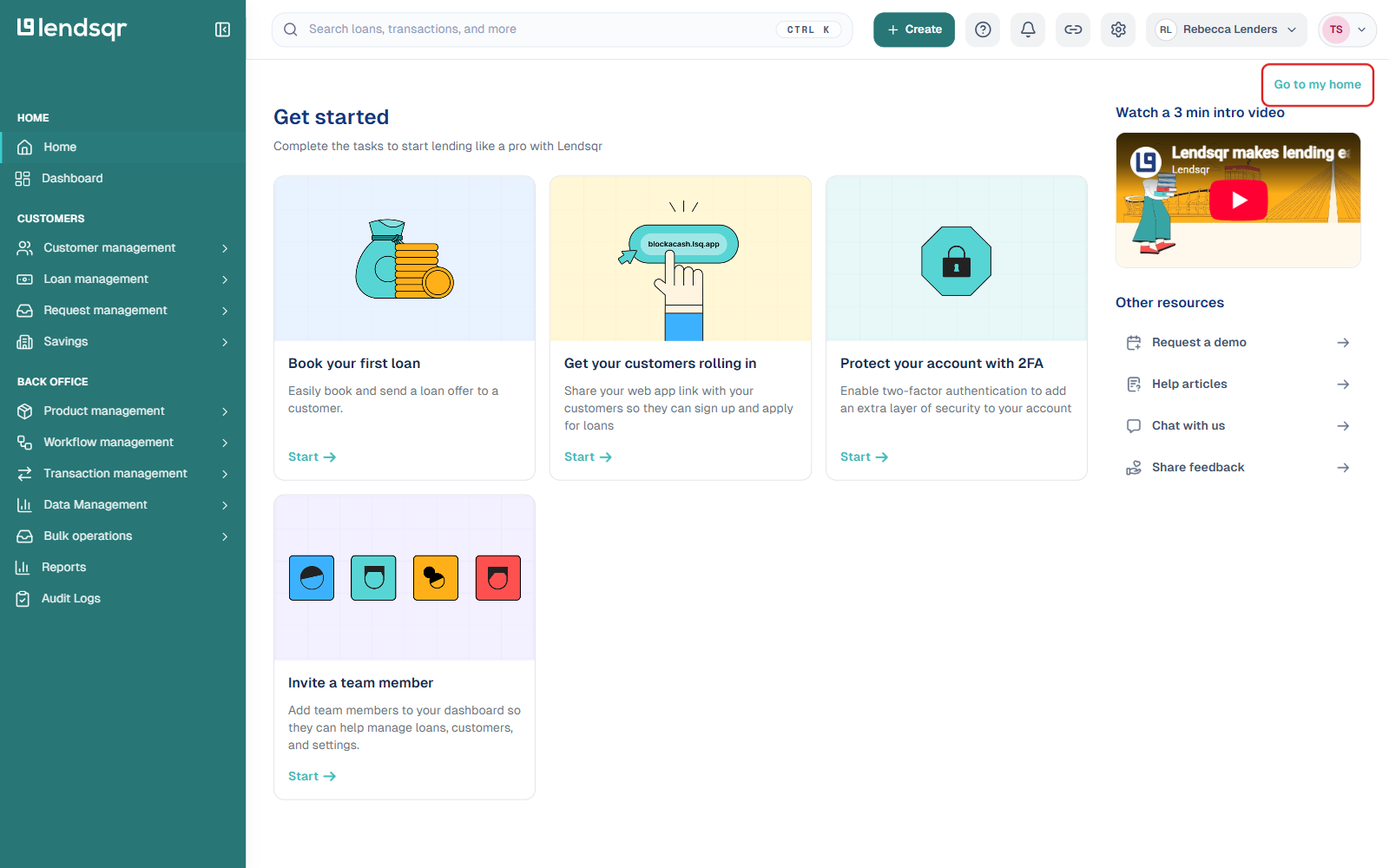
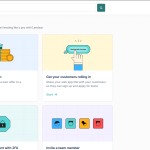
A Back to Get Started link sits in the top-right corner of the main dashboard. Selecting it switches you to the Get Started view, a checklist of onboarding tasks such as booking your first loan, sharing your web app link with customers, enabling two-factor authentication, and inviting a team member. From there, a Go to my home button in the same top-right position switches you straight back to the main dashboard, so you can move between the two views at any time.
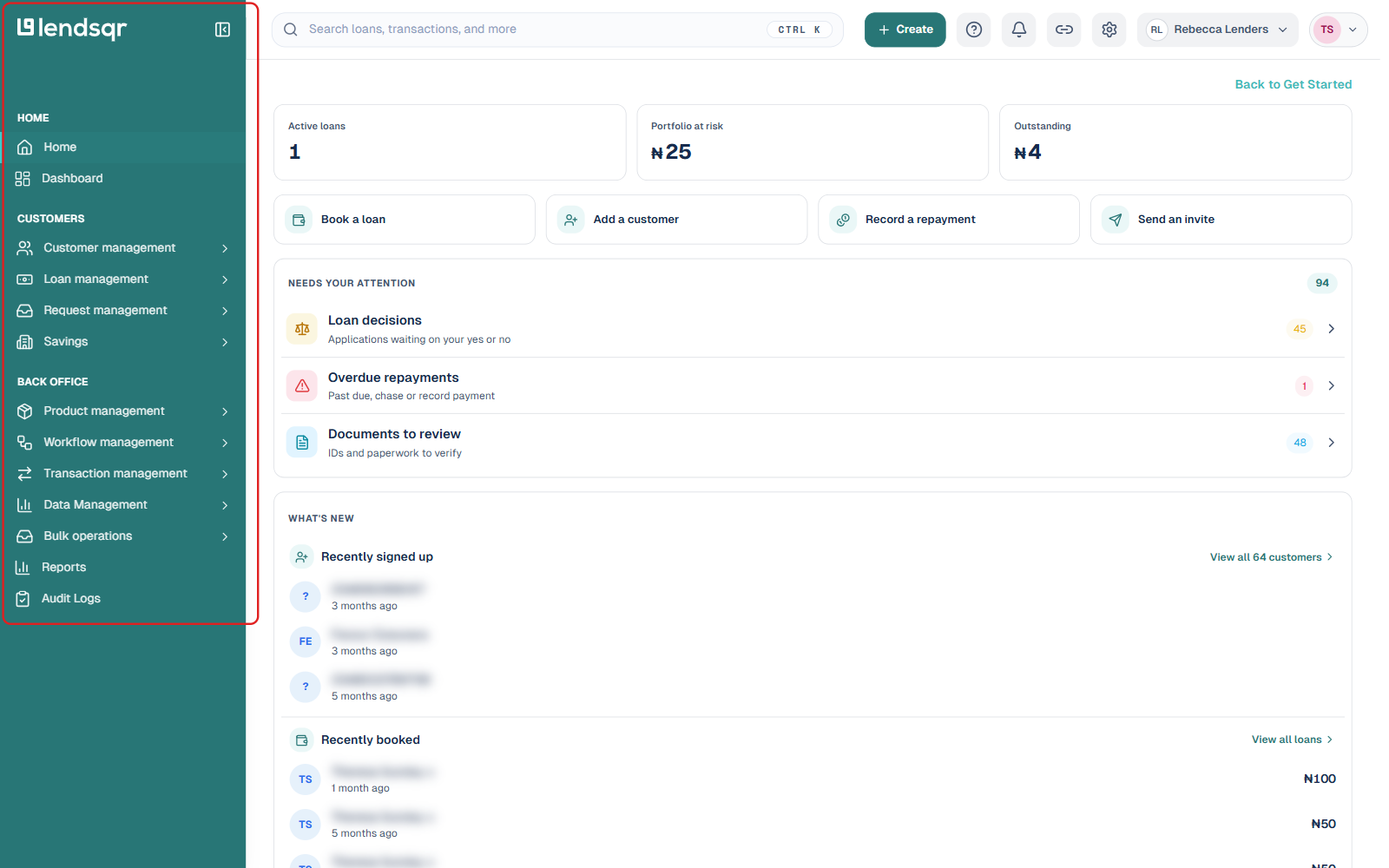
The side navigation pane allows you to easily access all the key sections of the Lendsqr admin console. This navigation pane is divided into two sections. These sections are Customers and Back Office.