Access your Back Office at your fingertips.
Download the app now on Google Play Store.
Scan the QR code
You can also scan QR code with your phone to download the app.
Copying specific admin users and roles on notification events
Updated
On this page
Notification events on your lending platform have traditionally been delivered only to their intended recipients, whether that was a customer, the admin who performed an action, or another designated user. While this ensured notifications reached the right audience, it sometimes left other stakeholders unaware of important activities happening across your lending operations. With this enhancement, you can now copy specific admin users and admin roles on any notification event, so relevant team members automatically stay informed even when they are not the primary recipient.
Understanding the copy recipients feature
Previously, if a customer received a loan disbursement notification, only that customer would be aware the transaction had occurred. Admins who needed visibility into that activity would have to check logs or rely on manual updates. This created gaps in oversight, especially in larger teams where multiple roles need situational awareness.
The copy recipients feature closes that gap. When configured, designated admins or entire role groups receive a copy of the notification at the same time it is delivered to the primary recipient. This is particularly valuable for:
Compliance officers who need to monitor customer communications
Branch managers who want visibility into their team’s activity
Operations leads who need to track high-volume events across the platform
It is important to note that this feature is only available on notification events that have an active email delivery channel. Events where email is marked as unavailable cannot be configured for copied recipients.
Navigating to notification configuration
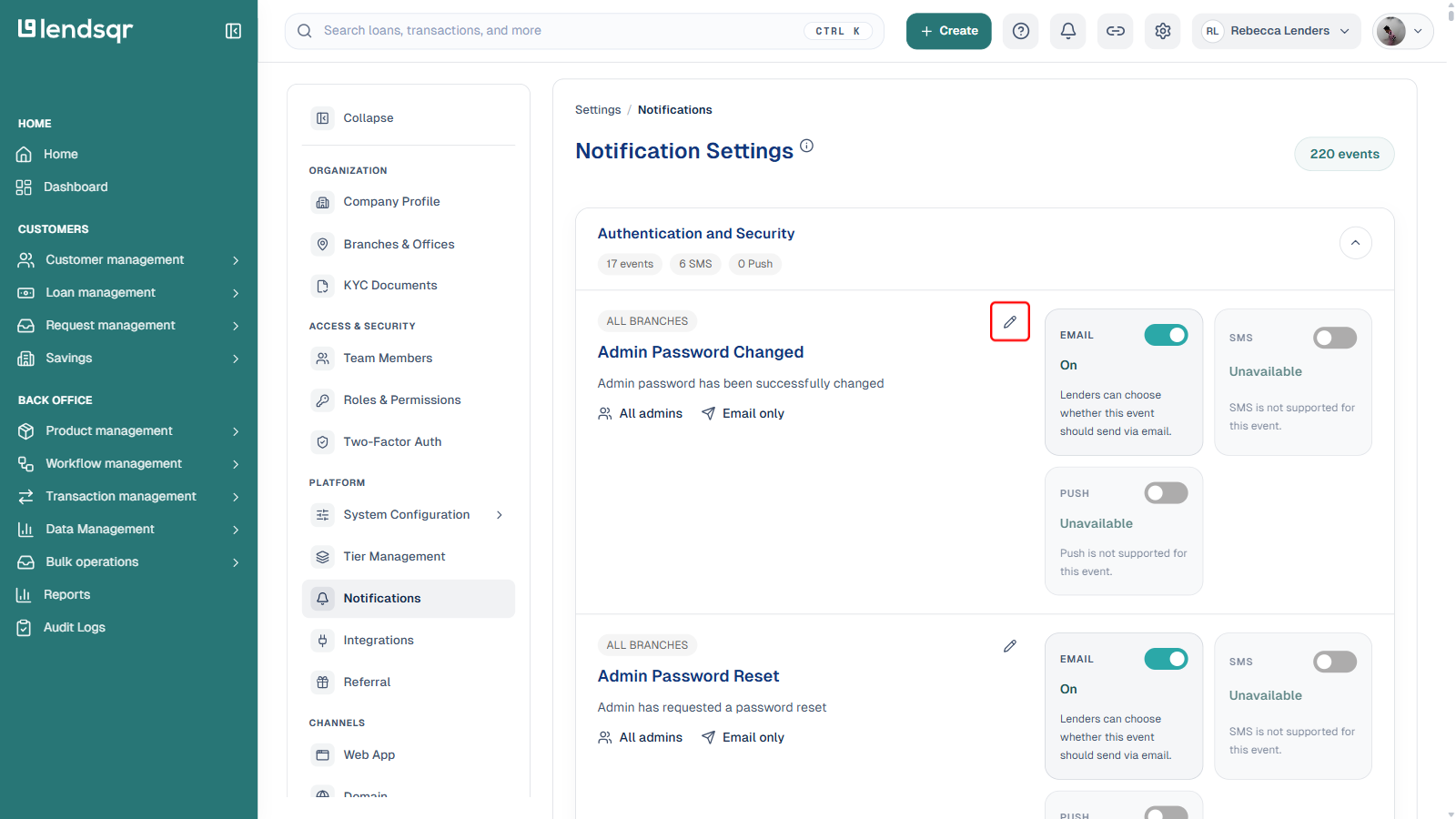
To begin, go to your notification settings and locate the event you want to configure. Notification events are grouped by category, such as Authentication and Security, Loan Events, or Repayment Activity. Each event row displays the current delivery channel status for Email, SMS, and Push. Only events showing Email as active (toggled on) support recipient configuration.
To open the configuration panel:
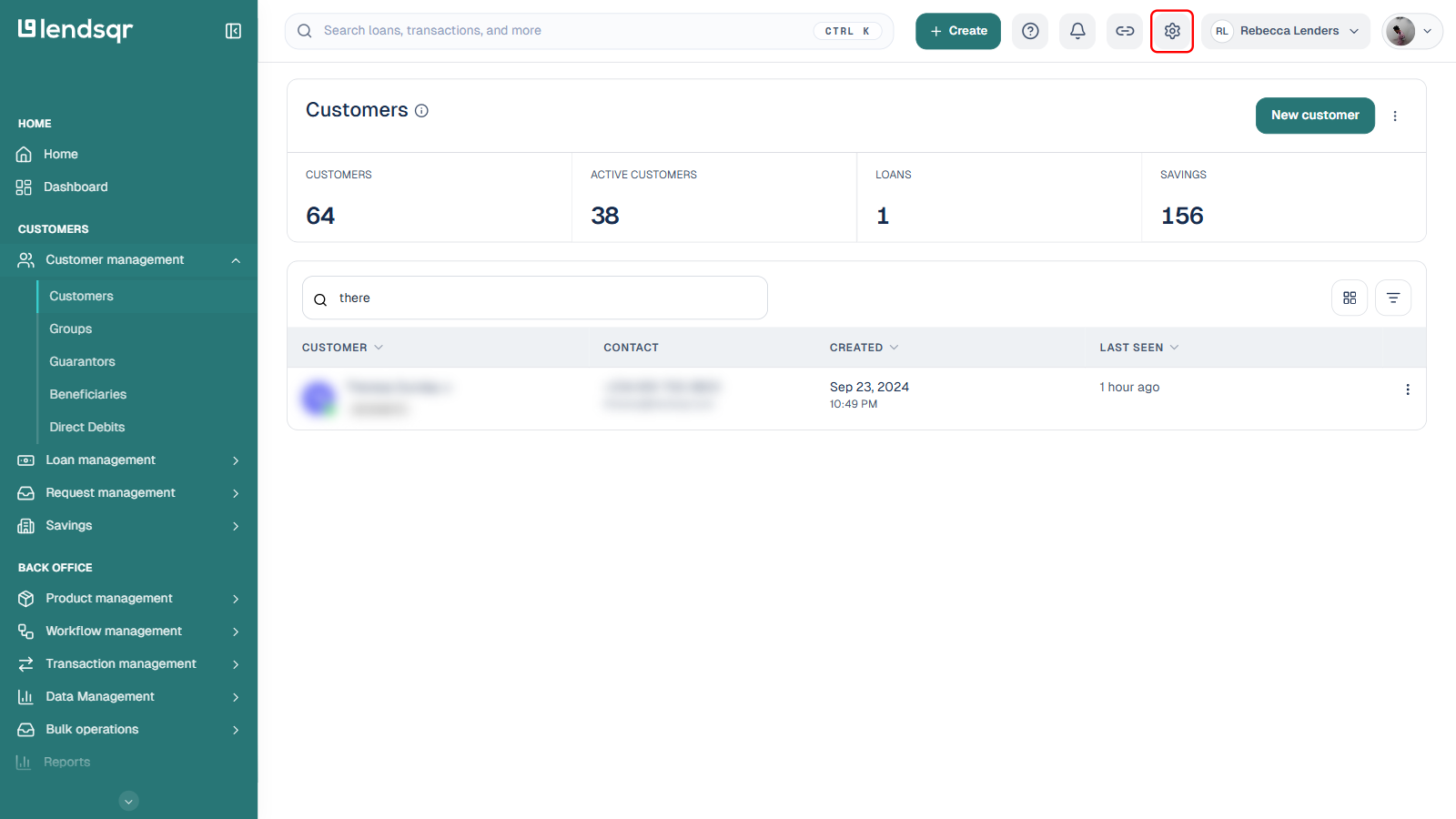
Go to Settings (gear icon) > Notifications and locate the notification event you want to update.
Clicking the gear icon opens Settings. Select Notifications from the sidebar to see every notification event grouped by category, with a summary of how many events, SMS-enabled events, and Push-enabled events each category contains.
Click the pencil (edit) icon in the top-right corner of that event’s card.
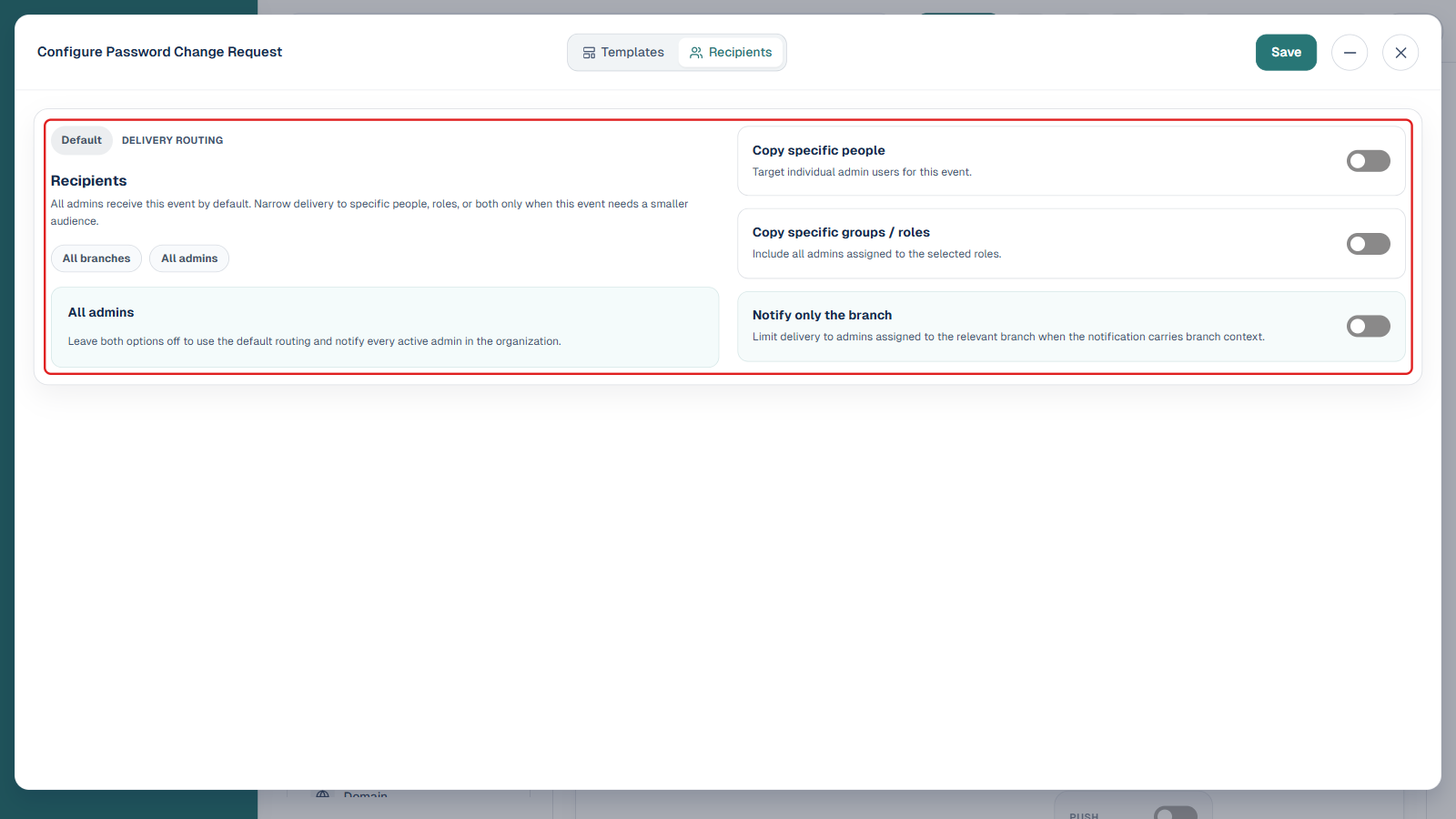
In the panel that opens, select the Recipients tab.
Default configuration
When you first open the Recipients tab for any event, it opens in the Default state. This means:
Delivery routing is set to All branches and All admins
All three copy options (Copy specific people, Copy specific groups / roles, and Notify only the branch) are toggled off
Every active admin in the organisation receives the notification using standard routing
To leave an event in default routing, simply ensure both Copy specific people and Copy specific groups / roles remain off. No further action is needed.
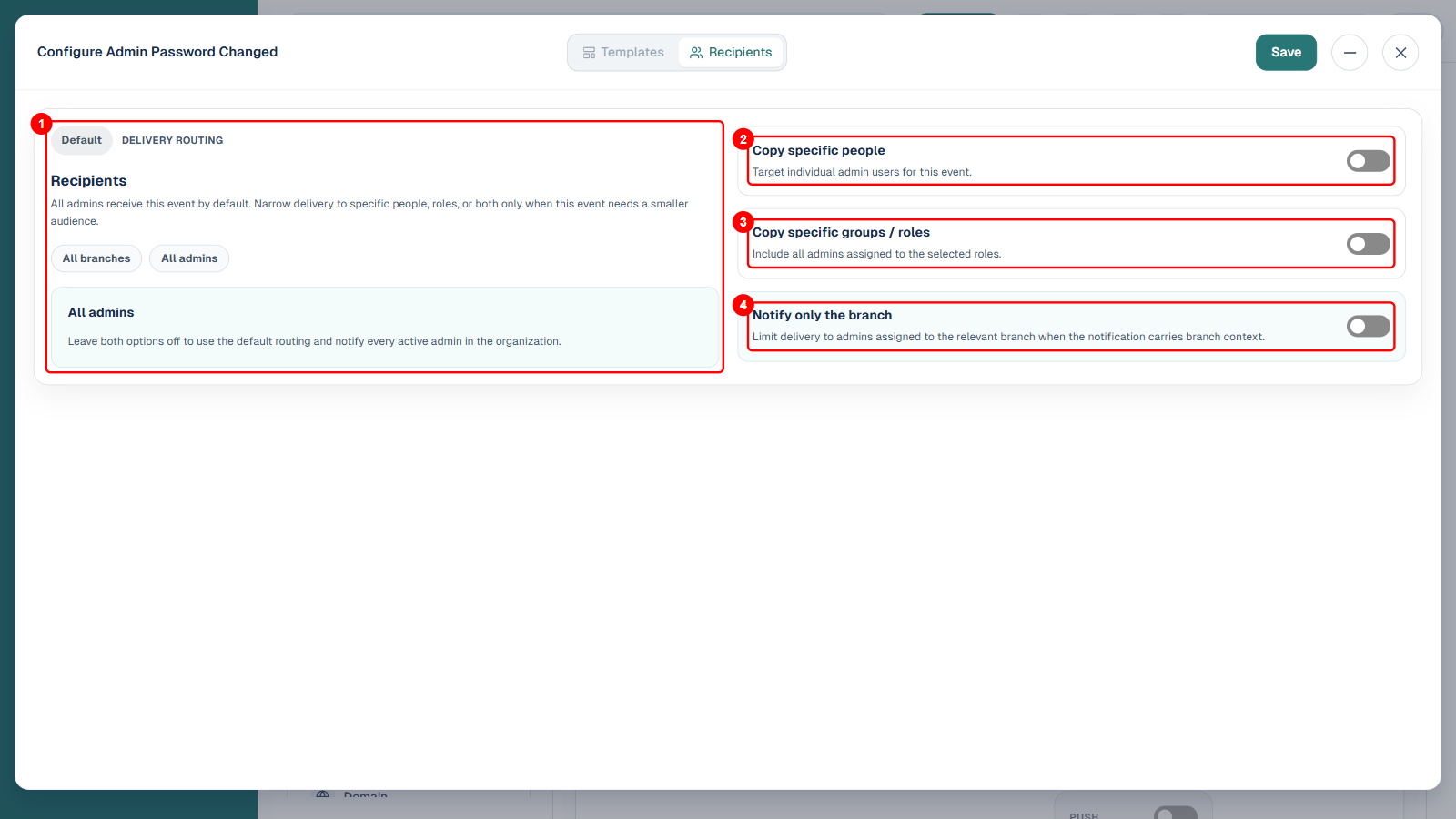
Here is a closer look at what each part of the Recipients tab controls:
1. Delivery routing, shows the current routing scope (All branches, All admins) and, below it, the plain-language explanation of what happens if you leave every toggle off: every active admin in the organisation receives the event.
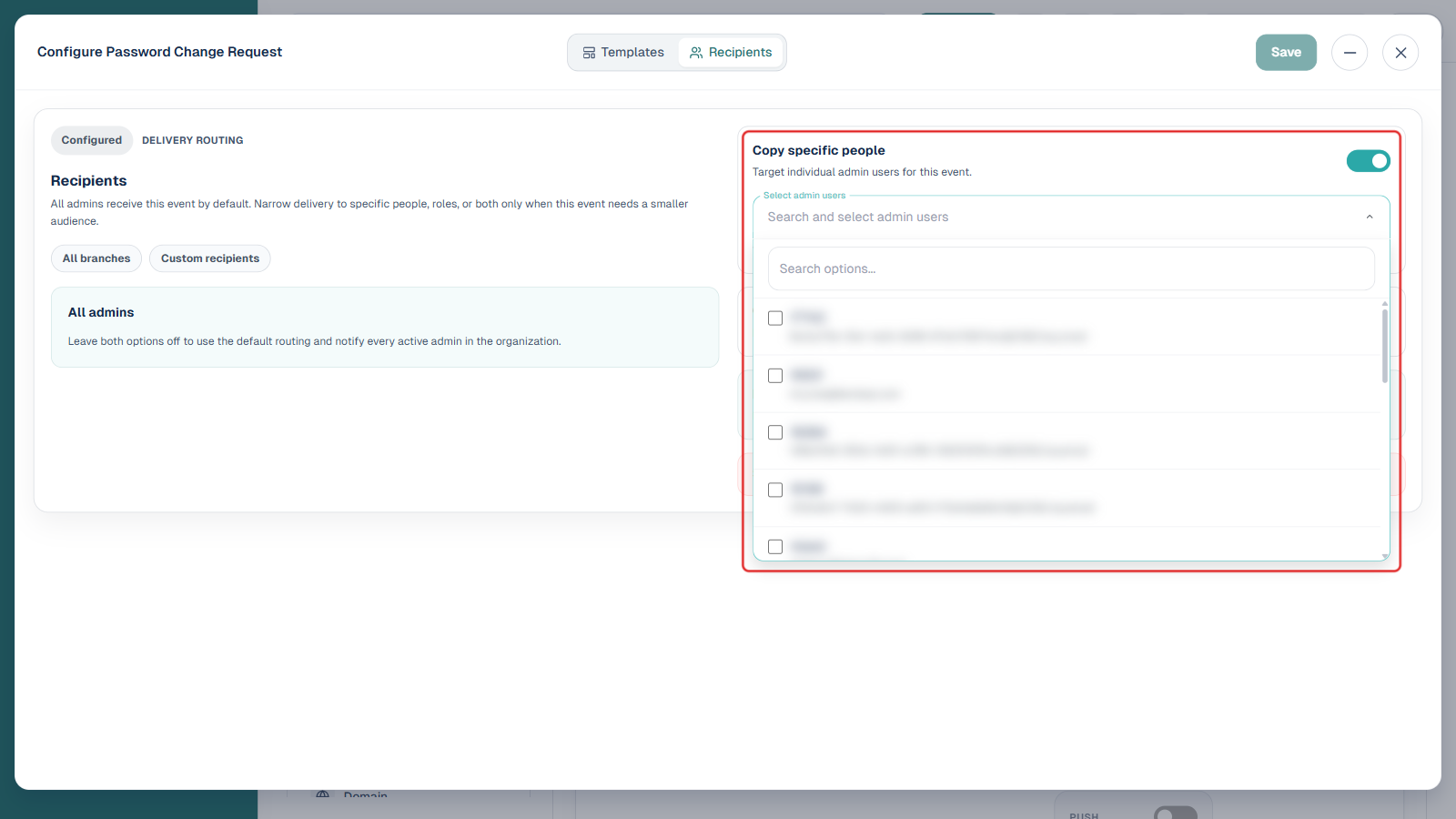
2. Copy specific people, when turned on, reveals a searchable, checkbox list of individual admin users to add as copy recipients for this event.
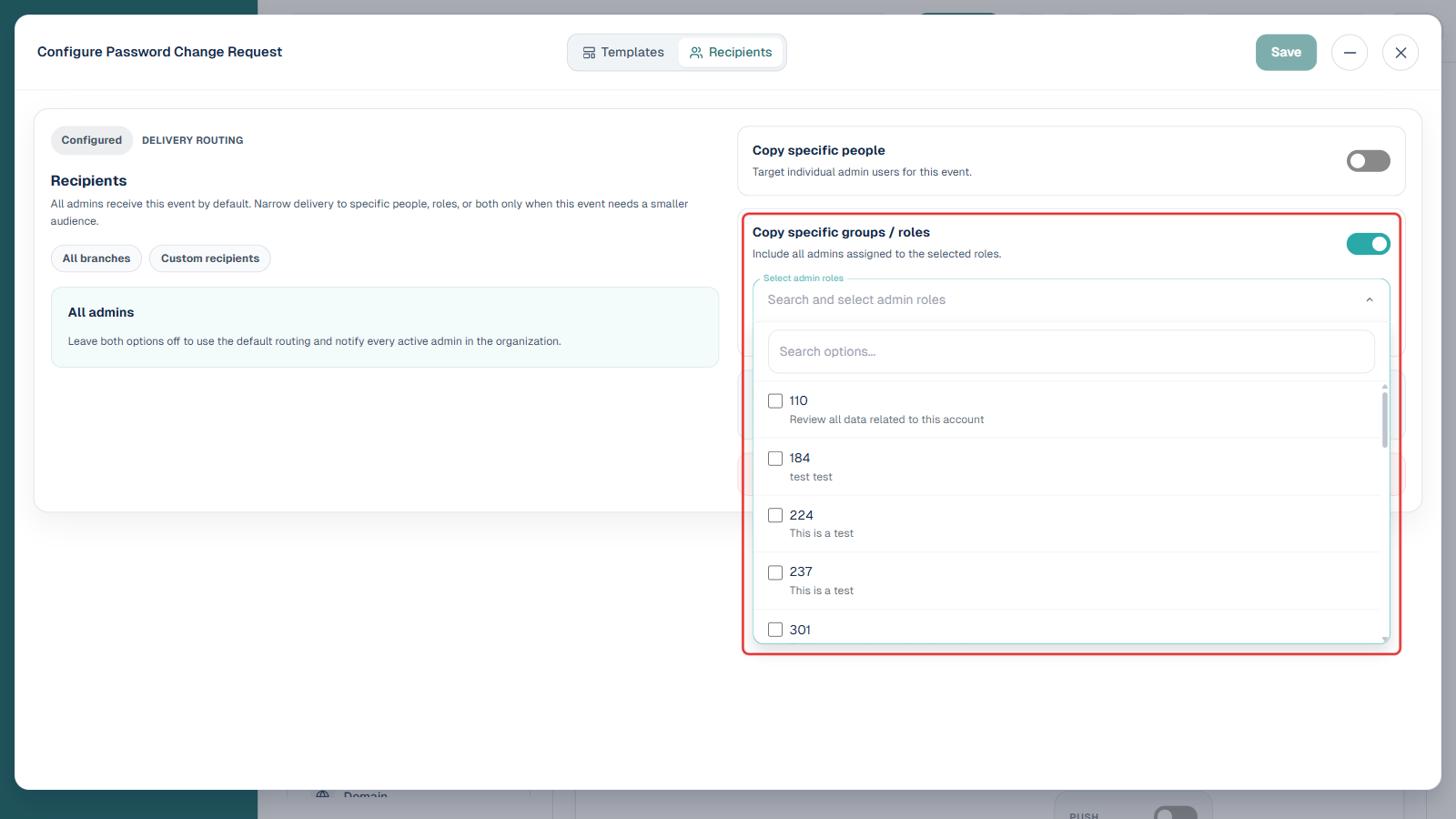
3. Copy specific groups / roles, when turned on, reveals a searchable, checkbox list of admin roles; every admin currently assigned to a selected role is copied.
4. Notify only the branch, when turned on, restricts delivery of the copy to admins assigned to the branch the notification’s event context belongs to, rather than every admin across the organisation.
Setting up custom recipients
Copying specific admin users
To target individual admins for a notification event:
On the Recipients tab, toggle on Copy specific people.
Click inside the Select admin users dropdown that appears.
Type a name or email address to search and filter the list.
Select the checkbox next to each admin you want to include.
Click Save changes to apply.
Keep in mind:
You can add multiple users from the search list
If you enable Copy specific people but do not select at least one user, a validation error will appear: “Select at least one admin user before saving”
You must either add a user or turn the toggle off before saving
Copying specific groups or roles
To notify an entire team rather than individuals:
On the Recipients tab, toggle on Copy specific groups / roles.
Select the role(s) you want to include from the list that appears.
Click Save changes to apply.
Using roles instead of individuals has a key advantage: when new admins are assigned to a role, they are automatically included in future notifications without requiring you to update the configuration manually. You can also combine both options, selecting individual users alongside one or more role groups, to ensure comprehensive coverage for a given event.
Limiting delivery by branch
For organisations operating across multiple branches, you can restrict copied notifications to admins who are relevant to the branch where the event occurred:
Toggle on Notify only the branch in the Recipients panel.
Save your changes.
When this is enabled, only admins assigned to the branch carrying the notification context will receive the copy. This prevents admins at unrelated branches from receiving notifications that do not apply to their operations and keeps communication targeted.
Best practices for recipient configuration
Keeping your recipient lists well-maintained ensures the feature delivers real value without creating noise. Consider the following:
Avoid copying admins on every event indiscriminately, as this can lead to notification fatigue and cause important alerts to be overlooked
For high-sensitivity events such as password changes or device authorisations, copy a security or compliance role rather than individuals, so coverage is maintained as team membership changes
For branch-level activity, use Notify only the branch to keep communications relevant to the right team
Review your recipient configurations periodically, especially after team restructures or role changes, to ensure the right people continue to receive the right information
Remember that recipient settings are configured per event, so a change to one notification does not affect any other, giving you precise control across your entire notification framework