Access your Back Office at your fingertips.
Download the app now on Google Play Store.
Scan the QR code
You can also scan QR code with your phone to download the app.
How to edit an approval workflow
Updated
On this page
No lender uses the same lending operations forever. A loan officer gets promoted, a new compliance policy comes in, or you realize your current approval chain is creating a bottleneck that is slowing down loan processing. In all these cases, the fix is the same: you need to edit your approval workflow.
This guide walks you through how to edit an existing approval workflow on Lendsqr. It also covers what each part of the workflow means in practice, and what to think about before making changes, so you do not create unintended gaps in your operations.
What is an approval workflow, and why does it need updating?
An approval workflow is a configured sequence of checks that a loan request, disbursement, or other financial action must pass through before it is executed. On Lendsqr, workflows define who needs to review and sign off on a request, and in what order.
When your team first set up the workflow, it reflected how your team and risk policy were structured at that time. But lending organizations evolve. The following situations are common triggers for editing a workflow.
Staff changes: When a team member who served as a designated approver changes roles, any workflows that reference them need to be updated. If an admin deactivates their account but the workflow still points to them, approvals may stall needlessly.
Policy updates: Your organization may introduce a new credit policy that requires an additional sign-off step for high-value loans. Or a regulator may require your team to route disbursements above a certain amount through a second review. You need to reflect these changes in your workflow configuration before you can enforce them.
Fixing bottlenecks: If you are noticing that loans are sitting in a pending approval state for too long, the issue may be structural. Perhaps your workflow requires too many approval levels for low-risk loans. Or the approver assigned to a step is frequently unavailable. Editing the workflow lets you streamline the path for applications that do not need heavy scrutiny.
Correcting configuration errors: A workflow may have been set up with the wrong approver, incorrect conditions, or with an error. Editing lets you fix these without needing to recreate the workflow from scratch.
What happens to ongoing loan applications when you edit a workflow?
This is one of the most important things you need to understand before making changes. Editing a workflow on Lendsqr affects how future applications are processed. Applications that are already in the approval queue when you make a change will generally continue through the process using the rules that your team had in place when they entered the queue.
However, it is good practice to time workflow edits carefully. Making changes during a period of high application volume can create confusion about which rules apply to which requests. If possible, coordinate with your operations team before editing a workflow that your team is actively using, especially if you are removing an approval step or changing the approver assigned to a stage.
Steps on how to edit an approval workflow
Log in to the admin console. Open your web browser and log into the Lendsqr admin console with your credentials.
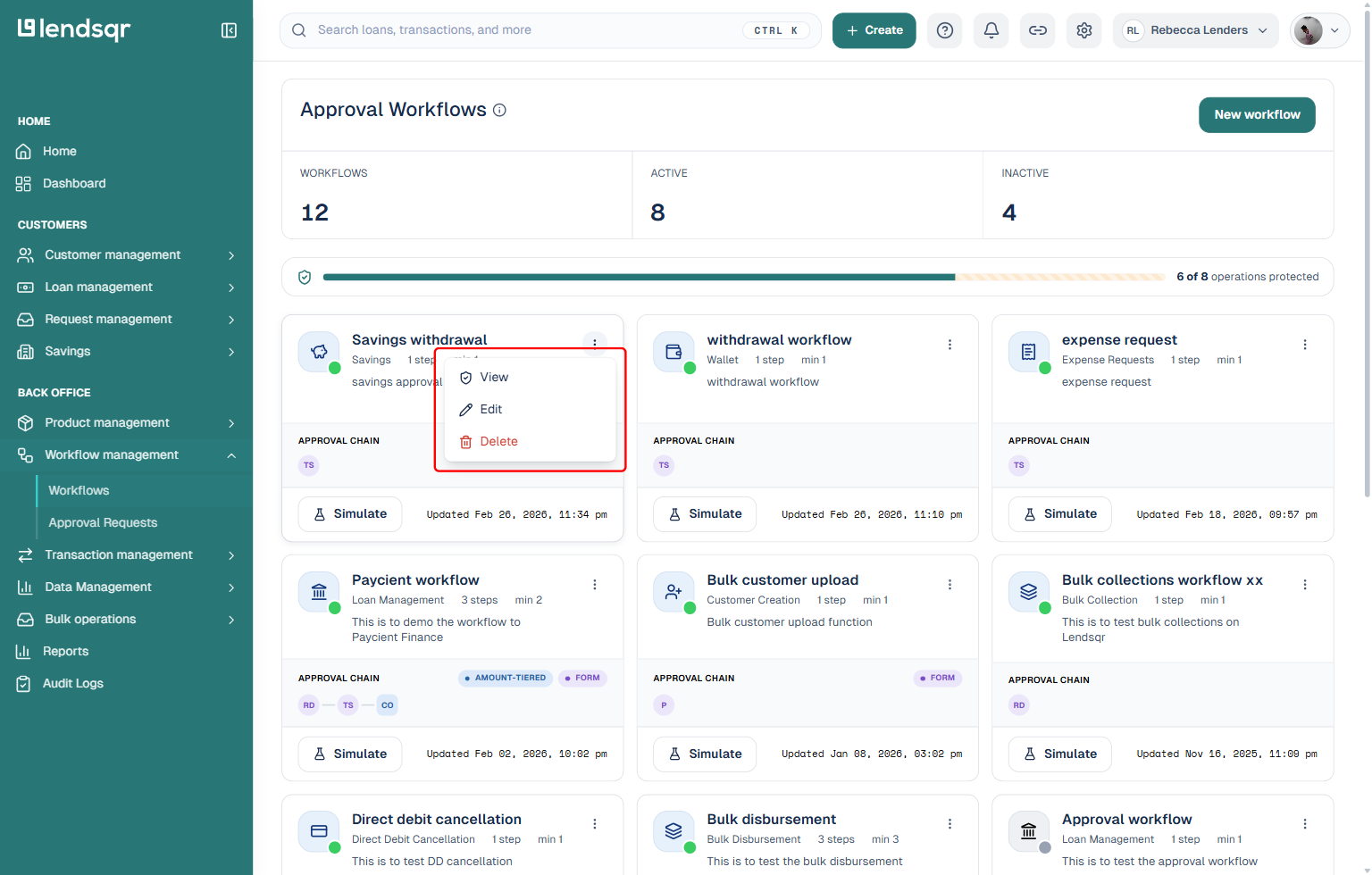
In the left-hand menu, expand Workflow management under “BACK OFFICE” and select “Workflows“. This takes you to the Approval Workflows page, which lists every workflow that has been created.
Locate the workflow you wish to edit. Click the three-dot “Workflow actions” menu on its card and select “View“. Alternatively, you can select “Edit” directly from this menu to skip straight to step 5.
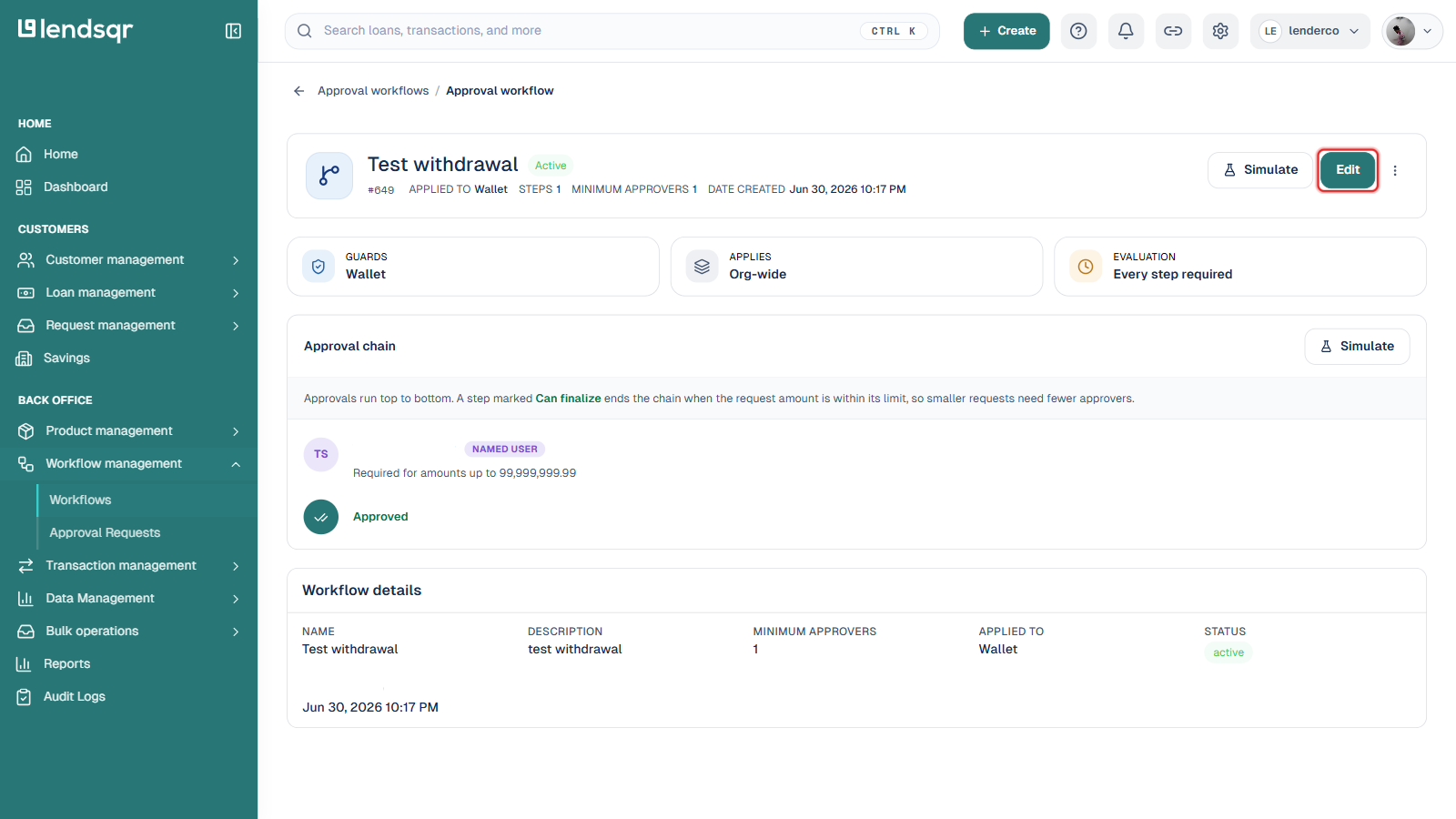
On the workflow’s detail page, click the “Edit” button at the top-right corner, next to Simulate.
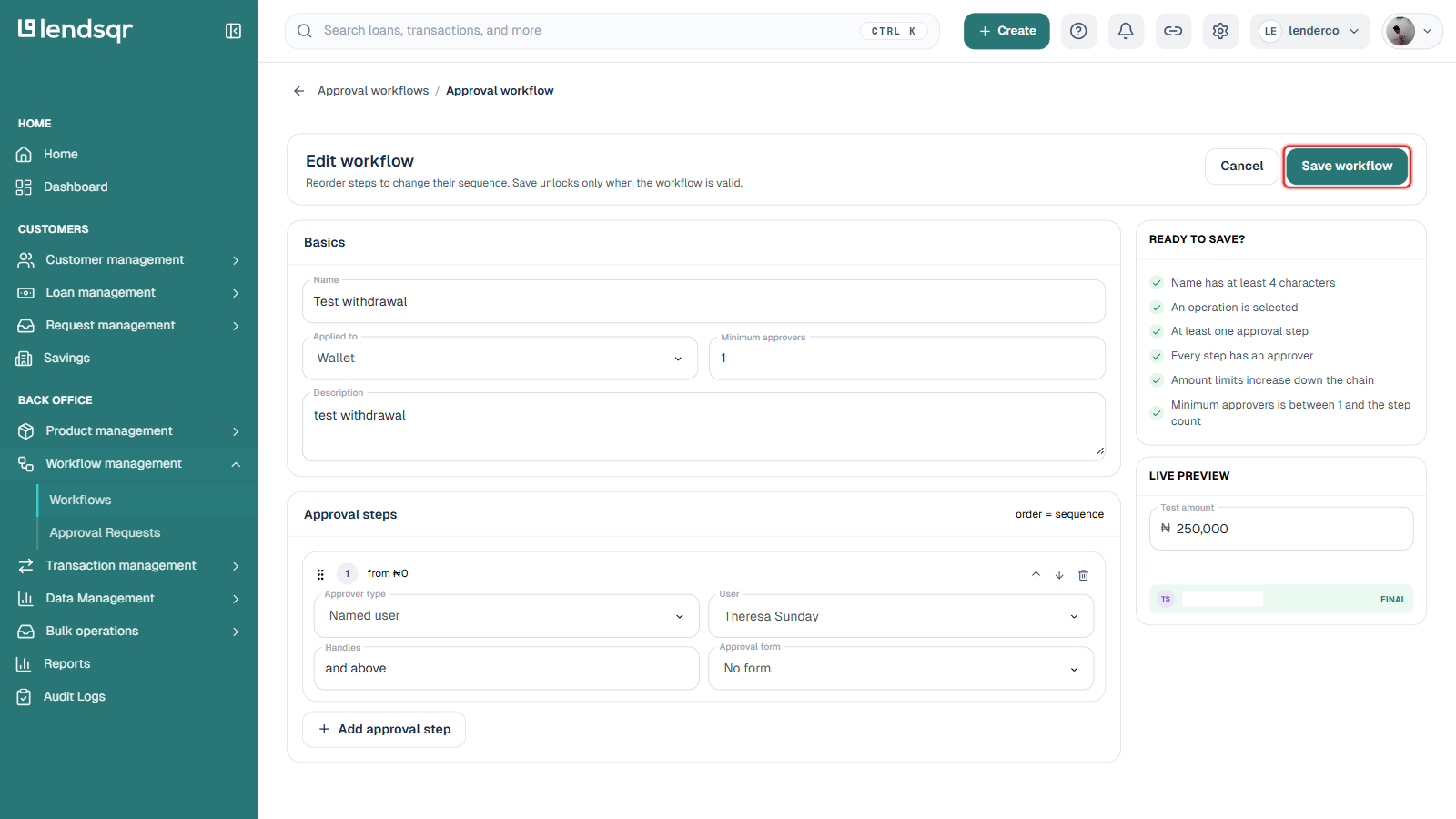
Clicking Edit opens the Edit workflow page, where you can update the workflow’s name, description, minimum approvers, and approval steps. This is the same set of fields covered in How to Create an Approval Workflow. A “Ready to save?” checklist on the right confirms your changes are valid, and a “Live preview” panel lets you test how a given amount would be routed under the updated configuration before you save.
After you are done editing, click the “Save workflow” button at the top-right. This button only becomes clickable once every item in the “Ready to save?” checklist is satisfied.
How does editing your workflows affect loan operations?
Changing an approval workflow is not just an admin task. It has direct consequences for how your team processes loans and how quickly borrowers receive decisions.
Adding an approval stage to a product that previously had a short approval chain will increase the time it takes for a loan to move from application to disbursement. For loan products marketed on speed, such as emergency loans or payroll advances, this can affect borrower satisfaction if the change is not communicated internally and reflected in any turnaround time commitments.
Removing an approver and not replacing them could also create a gap. If a stage has no active approver, requests will sit without moving. Before removing an approver, confirm that either a replacement has been assigned or the stage itself is no longer needed.
Changing conditions that determine which requests enter a workflow can also have unintended effects. For example, if you lower the loan amount threshold that triggers a two-stage approval from 500,000 to 200,000, more applications will now go through the longer review process. This could increase your team’s workload significantly if the volume of sub-500,000 loans is high.