Access your Back Office at your fingertips.
Download the app now on Google Play Store.
Scan the QR code
You can also scan QR code with your phone to download the app.
How to create a customer group on the admin console
Updated
On this page
Overview
The Groups feature on the Lendsqr admin console allows lenders to organize customers into collective structures for group savings or group loan guarantees. Rather than managing every user as a standalone individual, groups give lenders a way to reflect the real-world financial arrangements their customers belong to, such as cooperatives, savings circles, or peer guarantee clusters.
When to use groups instead of individual accounts: If a set of customers share a financial obligation or savings goal, managing them as a group gives you a single point of coordination. You can apply shared configurations, track collective progress, and use the group as the basis for savings or loan guarantee workflows. Individual accounts remain intact; the group is a layer on top that connects them for a specific purpose.
have the appropriate admin permissions to create and view customer groups. If the Groups option is not visible in your console, contact your super admin to confirm your role has the required access.
understand the purpose of the group you want to create, such as group savings or group loan guarantees
have the basic details needed for setup, including the group name, description, and member limits
Steps to create a group
To create a group on the admin console, follow these steps:
1. Navigate to Groups
Go to Customer Management in the side navigation and click Groups.
2. Click “New group”
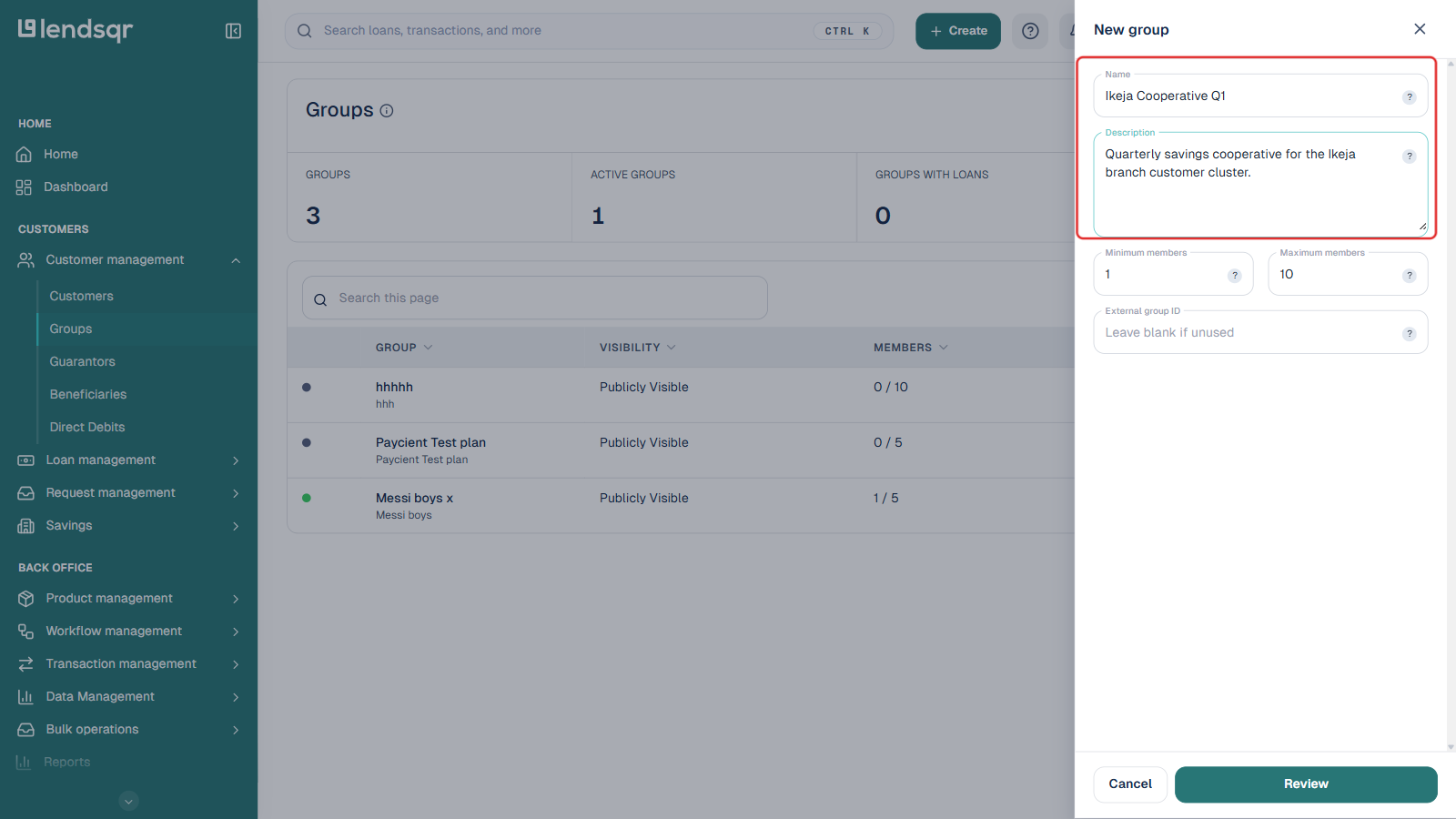
3. Fill in the group details
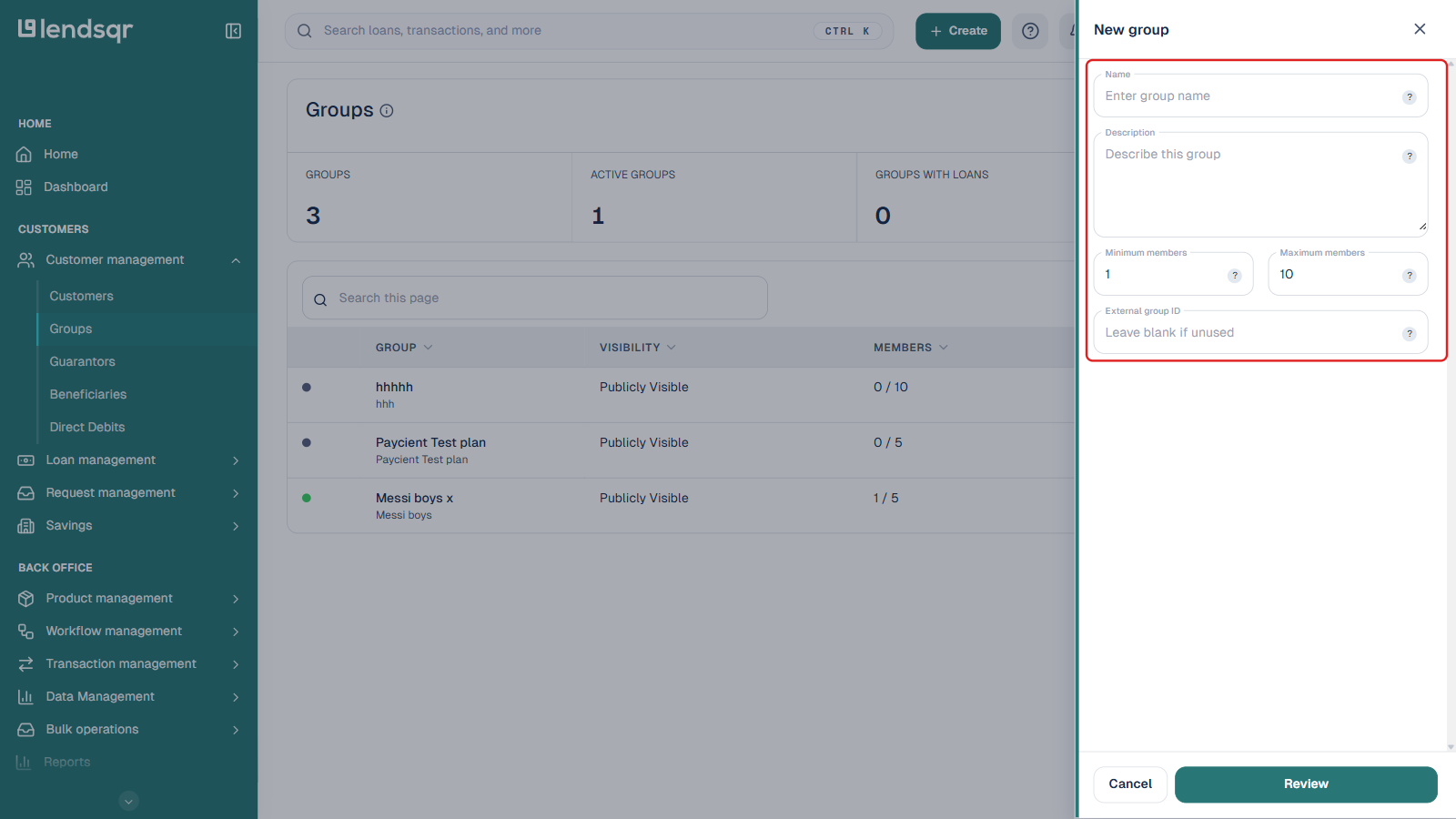
Enter the following information in the creation panel:
Field
Description
Name
The name of the group. Use something descriptive that identifies the group’s purpose or membership (e.g., “Ikeja Cooperative Q1” or “SME Guarantor Pool”).
Description
A brief summary of the group’s purpose. This is visible to admins in the console and helps distinguish this group from others with similar names.
Minimum members
The least number of members required in the group. Defaults to 1.
Maximum members
The highest number of members allowed in the group. Once this limit is reached, no additional members can be added. Set this based on your product rules or operational capacity. Defaults to 10.
External group ID
Optional. Leave this blank unless you’re linking the group to a record in an external system.
Validation note: Both minimum and maximum member values must be whole numbers greater than zero. The maximum must be equal to or greater than the minimum. If either condition is not met, the form will return an error and the group will not be created.
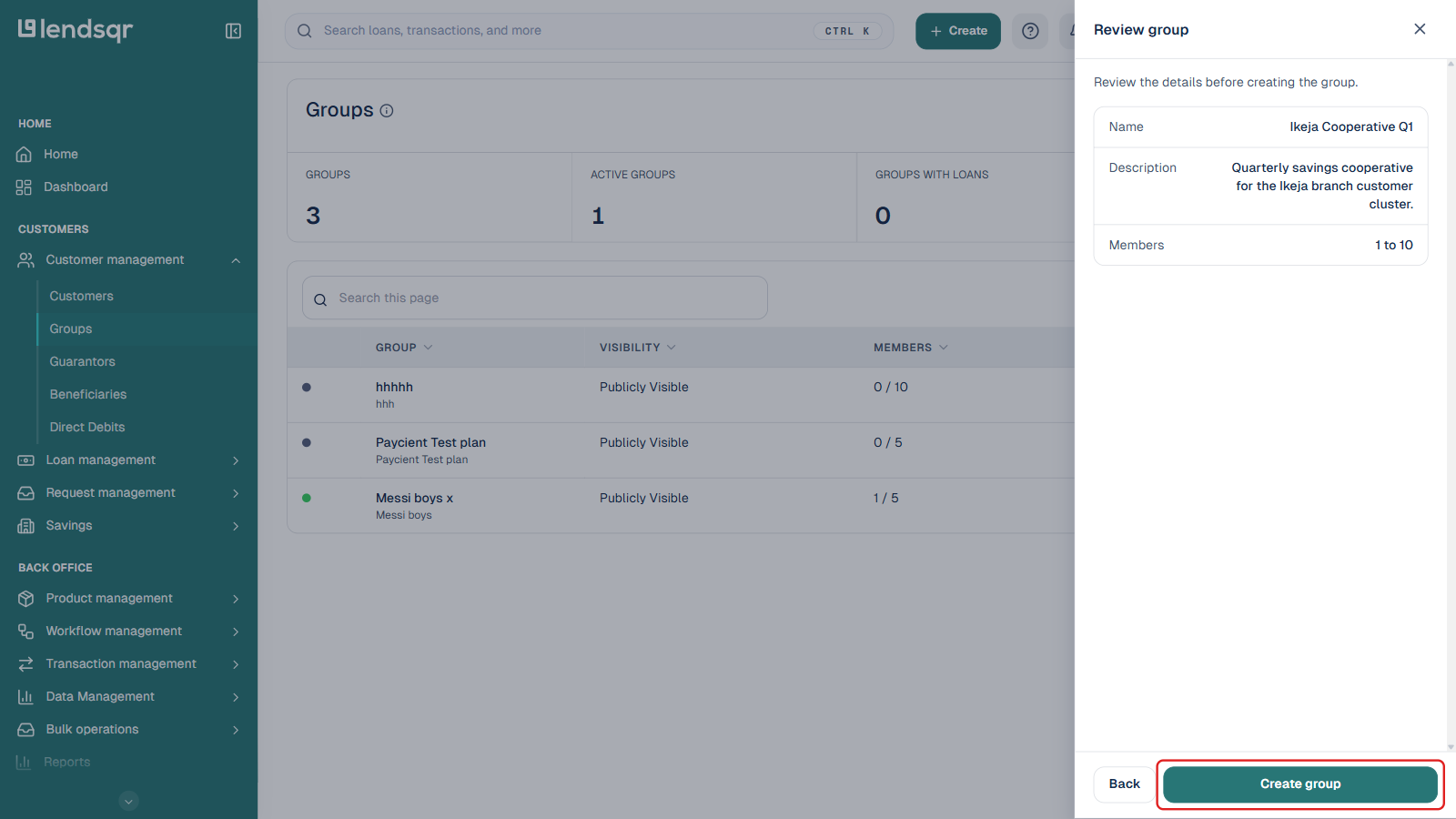
4. Review the group
Click Review to proceed to the review screen.
5. Confirm the group
Review the details you entered on the confirmation screen. If everything looks correct, click Create group to complete the creation.
What happens after creating a group
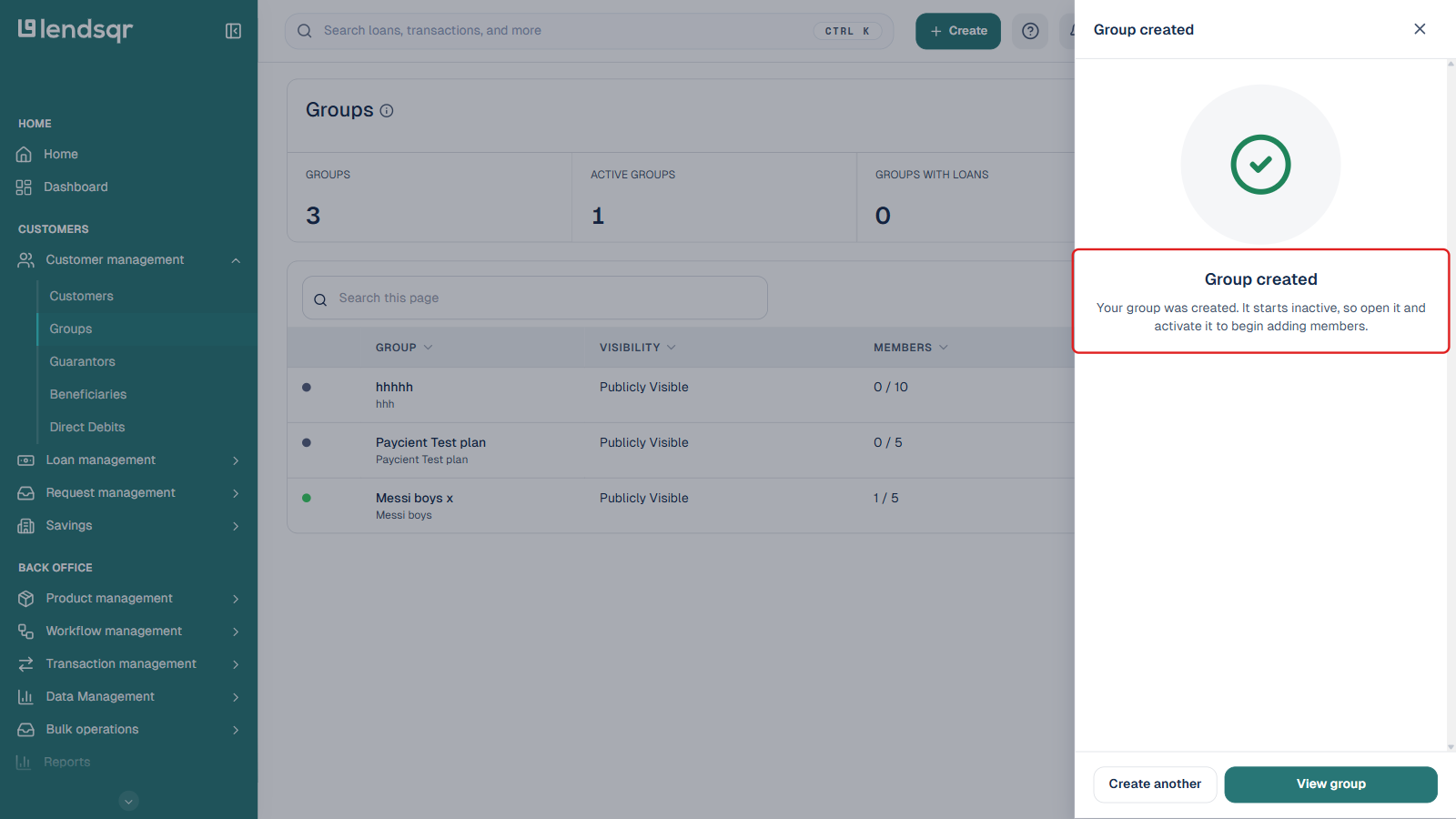
Once created, the group appears in the Groups section of the admin console. At this point, the group exists as a structure but has no members yet. The next steps depend on your workflow:
Adding members. You can begin adding customers to the group from the group’s detail page. Members must already exist as customers in your Lendsqr workspace before they can be added to a group.
Configuring group-specific settings. Depending on your product setup, you may need to add a custom checklist or additional configurations to the group before it can be used in a savings or loan guarantee flow. See Adding a custom checklist to a group for details.
Using the group in savings or loan guarantee processes. Once members are added and configurations are in place, the group can be referenced in the relevant product workflows. For group savings, the group defines who participates in the collective savings arrangement. For group loan guarantees, the group members act as mutual guarantors for each other’s loan applications.
Example use cases
A cooperative society where members contribute to a shared savings pool and take turns accessing funds.
A cluster of small business owners who guarantee each other’s loans, reducing individual credit risk for the lender.
A savings circle (ajo or esusu) that needs to be tracked and managed formally within the lending platform