Access your Back Office at your fingertips.
Download the app now on Google Play Store.
Scan the QR code
You can also scan QR code with your phone to download the app.
How to use data lookup for customer data verification
Updated
On this page
The Data Lookup feature gives lenders a centralized way to directly verify a customer’s information without relying on a separate third-party tool. You pick a check, provide the required input like a BVN or account number, and the system runs the check, charges your account the check’s cost, and shows you the result.
Two categories of lookups
Lookups are grouped into two categories, General and Credit Bureau. Which one you pick determines the list of specific lookup types you choose from next.
General
The General category covers identity and contact verification:
The Credit Bureau category covers credit reports from Nigeria’s three credit bureaus, CRC, CreditRegistry, and First Central. Rather than one generic lookup per bureau, each bureau offers several distinct report types, priced and listed separately:
First Central: First Central Credit Bureau, First Central Detailed Credit Report, First Central Snap Check, First Central Consumer Basic Trace Report, First Central Consumer Basic Credit Report, First Central Consumer Mini Report, First Central XScore Consumer Prime Report, First Central iScore Report
Each report type shows its own short description and cost when selected, a summary-style report costs less than a full detailed report from the same bureau, so it’s worth picking the specific type that matches what you actually need.
How to run a lookup
Log in to the admin console and click Data Lookup under Request management. This opens the Data Lookup module, showing a history of past lookups on your account.
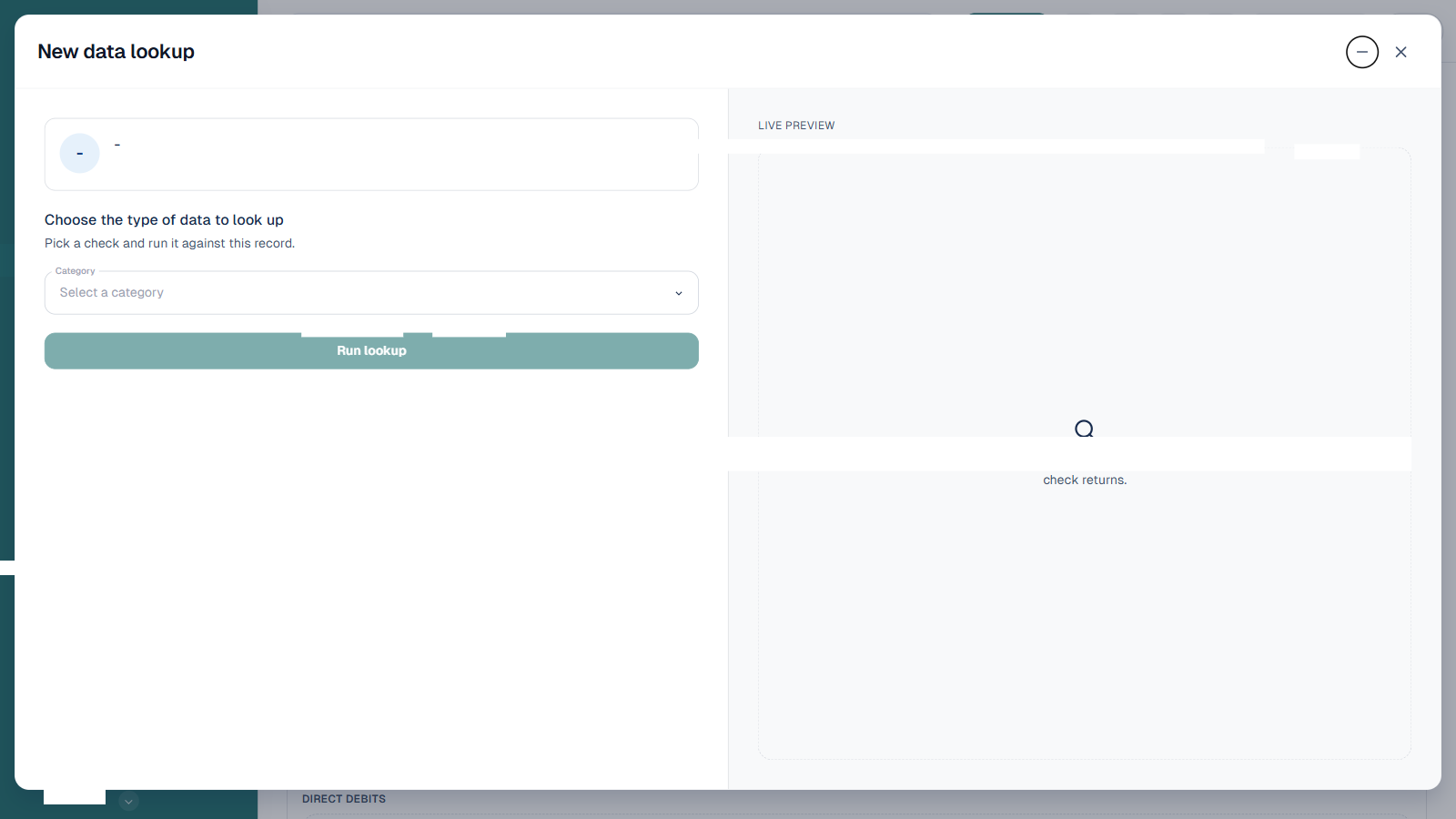
Click New data lookup. Pick a Category (General or Credit Bureau), then use the Data lookup type dropdown that appears to pick the specific check you want to run.
Selecting a type shows its description, cost, and the input field it needs, usually just a BVN for credit bureau reports. For example, First Central’s Detailed Credit Report is described as an “XScore consumer detailed credit report from First Central”:
Fill in the required field and click Run lookup. The check runs against the value you provided, charges your account the listed cost, and the result opens in the lookup record once it completes. The completed lookup is added to the history list on the Data Lookup landing page, along with the masked data subject, cost, and timestamp.
Running a lookup from a customer, loan request, or elsewhere
You don’t always need to start from the Data Lookup module itself. Several other screens let you run a lookup directly against the record you’re already looking at, pre-filling the customer so you don’t have to search for them again.
From a customer profile
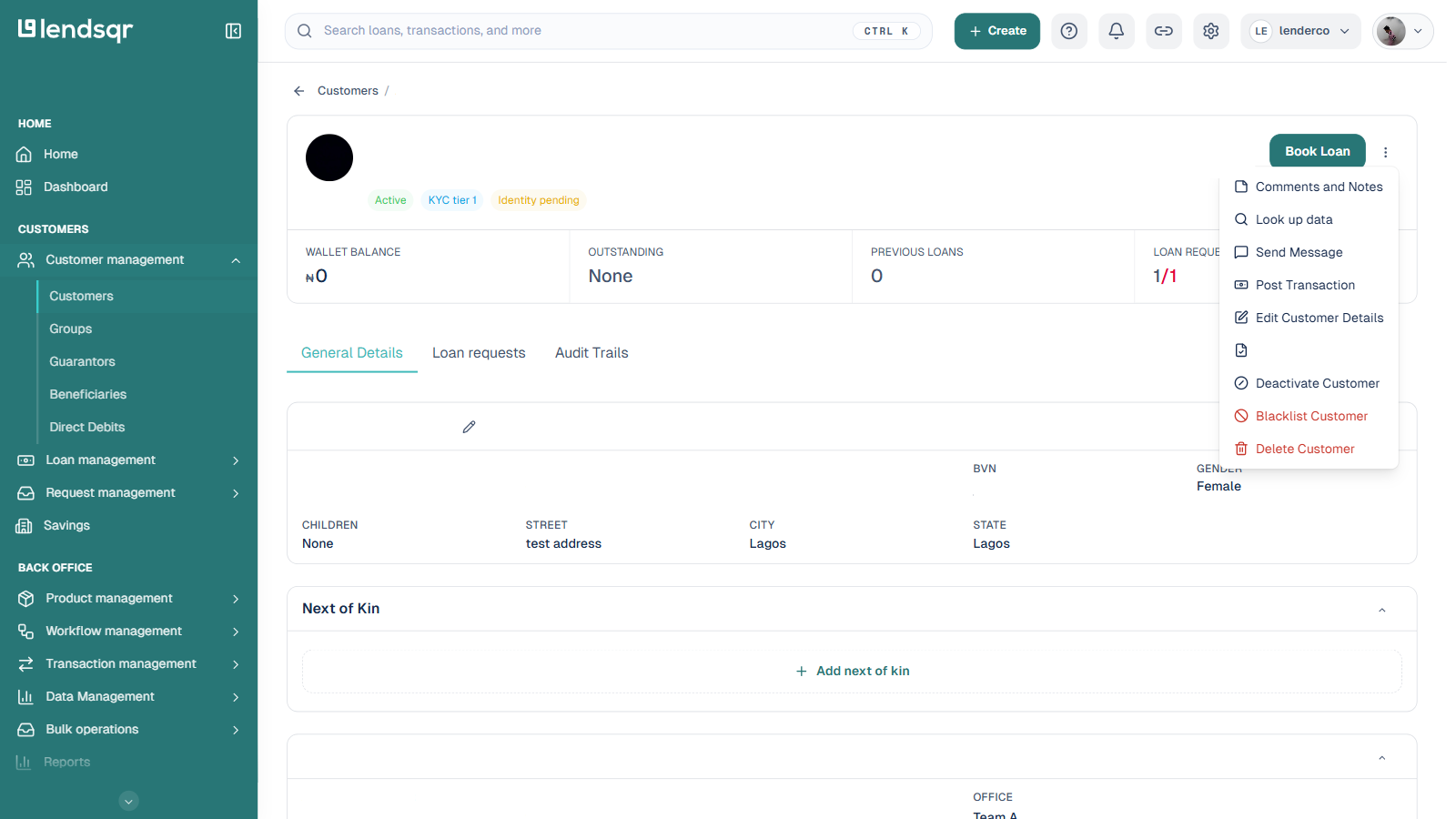
Open a customer’s profile, click the More actions button (the vertical dots next to Book Loan), and select Look up data.
This opens the same New data lookup form, already showing the customer’s name and ID at the top so you know which record you’re running the check against. Pick a category and lookup type and run it the same way as above.
From a loan request
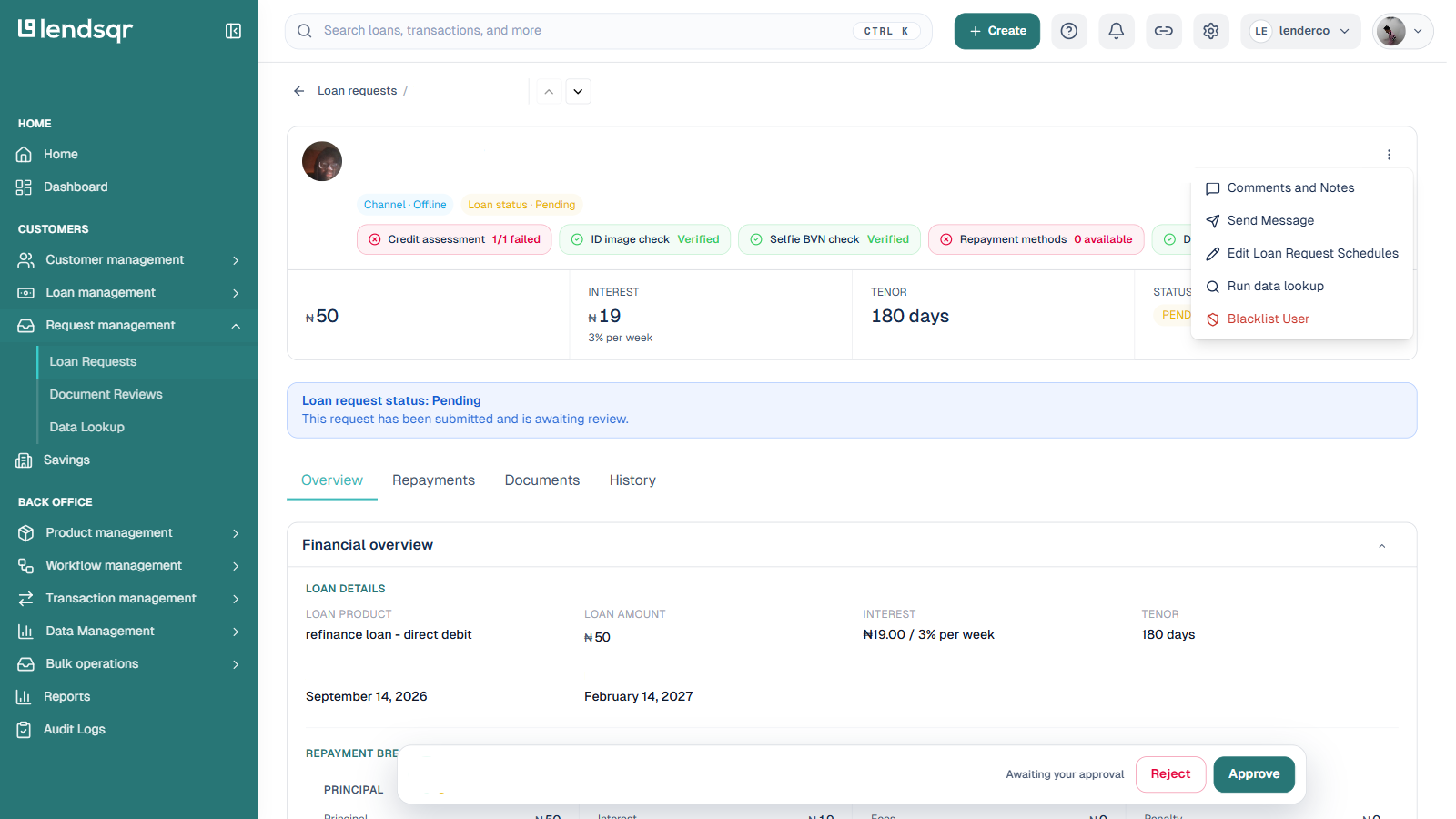
Open a loan request under Request management > Loan Requests, click More actions, and select Run data lookup. This opens the same lookup form pre-filled for that request’s borrower.