Access your Back Office at your fingertips.
Download the app now on Google Play Store.
Scan the QR code
You can also scan QR code with your phone to download the app.
How to view and edit penalty calculations on your loans
Updated
On this page
Understanding penalty calculations in loan management
Penalty calculations help you manage loans more effectively by encouraging borrowers to repay on time and follow the agreed terms. Lenders usually apply these penalties when borrowers miss payments or delay repayment.
On Lendsqr, a penalty is simply a fee with its Fee type set to “Penal,” configured from within a loan product’s edit form. This article explains the fields that make up a penalty fee and how to view and edit one on an existing loan product.
The role of penalties in effective loan management
Penalties create financial incentives for timely repayment and help compensate lenders for the administrative costs and delayed interest that come with late payments. They also establish clear expectations that protect the integrity of your loan agreements.
Penalties must be balanced carefully. Excessive penalties can push struggling borrowers deeper into financial distress and damage your reputation, so the goal is to encourage compliance without becoming predatory.
Definition of terms in a penalty fee
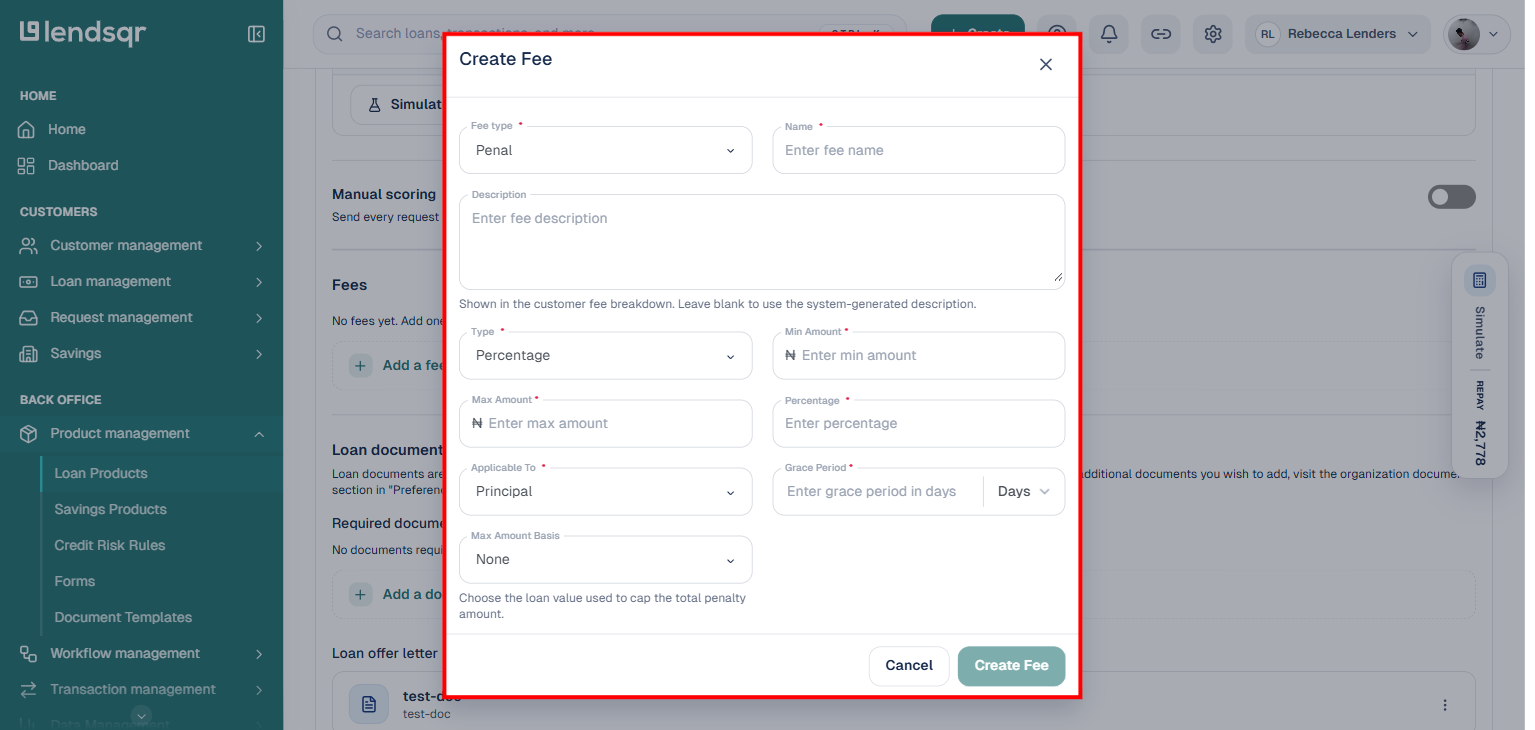
A penalty fee has the same field set as any other fee on Lendsqr, since it is a fee with Fee type “Penal.” Understanding these fields lets you configure a penalty that matches your business strategy.
Name and Description
The Name identifies the penalty internally and in reporting, for example “Late Payment Fee.” The Description is optional and is shown in the customer’s fee breakdown; leave it blank and Lendsqr generates a plain-language sentence automatically from the other fields, such as “5% of the outstanding balance, once a repayment is 7+ days overdue, capped at ₦100,000.00.”
Type, Min Amount, Max Amount, and Percentage
Type determines how the penalty is calculated: Fixed (a flat amount), Percentage (a proportion of the applicable amount), or Hybrid (a fixed amount plus a percentage). Percentage and Hybrid penalties require a Percentage value plus Min Amount and Max Amount, which floor and cap the calculated charge.
Applicable To
This determines what value the penalty is calculated against, such as the loan’s Principal.
Grace Period
The number of days after the due date before the penalty starts applying. A grace period of a few days acknowledges that short delays sometimes happen for legitimate reasons like bank processing times.
Max Amount Basis
This caps the penalty relative to a value on the loan: None (no additional cap beyond Max Amount), Principal (the original loan amount), or Outstanding Principal (what is currently owed, which decreases as the borrower repays).
Note that a penalty fee has no separate “Frequency” setting. It is assessed according to its Grace Period and the fee’s own calculation rules, not on a recurring daily, weekly, or monthly schedule you configure separately.
How to find the Fees section from the products page
Both adding a new penalty and editing an existing one start from the same place: the loan product’s edit page, Fees section. Here is how to get there.
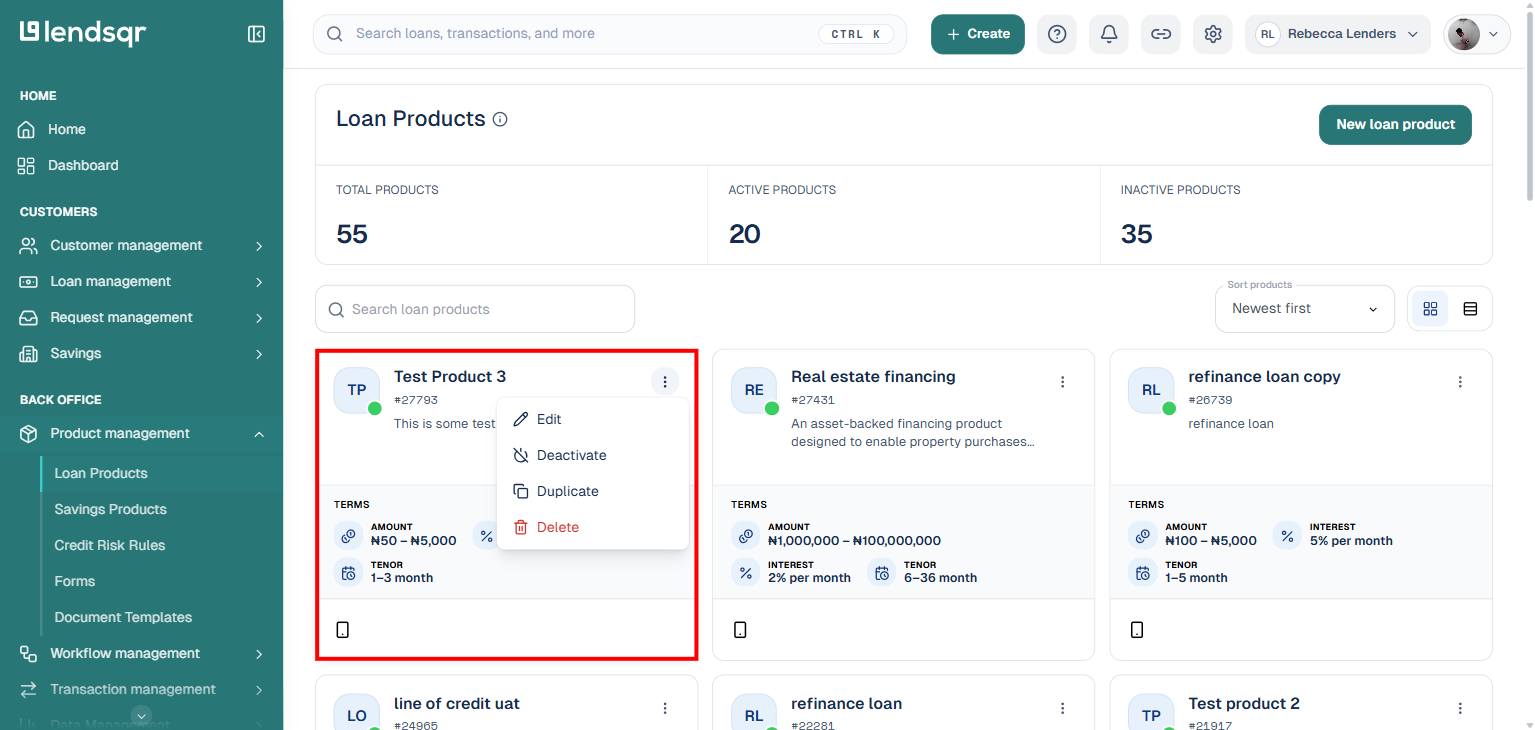
In the left panel, open “Product management” and select “Loan Products“. Find the product you want to configure and click its Product actions button (the three dots on the product card).
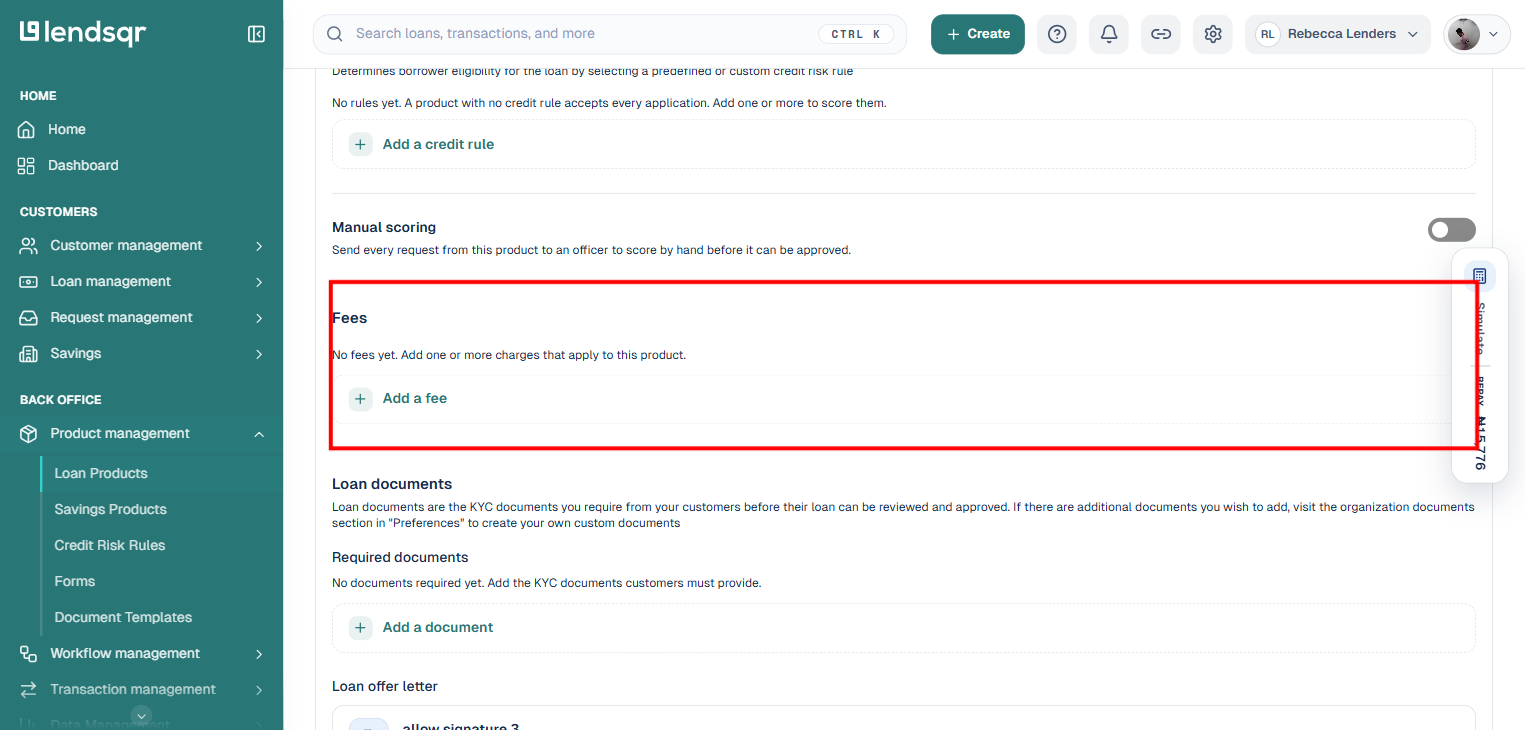
Click “Edit” from the menu, then scroll down to the “Fees” section on the product’s edit page.
How to add a penalty fee
If the product does not yet have a penalty fee, the Fees section shows “No fees yet” with a + button.
Click the + button. This opens a searchable list of fees already configured across your organization, since fees are shared and reusable across products rather than created fresh for each one. To attach an existing penalty fee, search for it and select it. To set up a new one, click Create a new fee, then set Fee type to Penal and fill in the fields described above (Type, Percentage or amount, Applicable To, Grace Period, Max Amount Basis). Click “Create Fee” to save it and attach it to the product.
How to view and edit an existing penalty fee
If the product already has a penalty fee attached, it appears as a card in the Fees section, showing its type, auto-generated summary, and key values (Percentage, Min/Max, Applicable to, Grace period, Max basis).
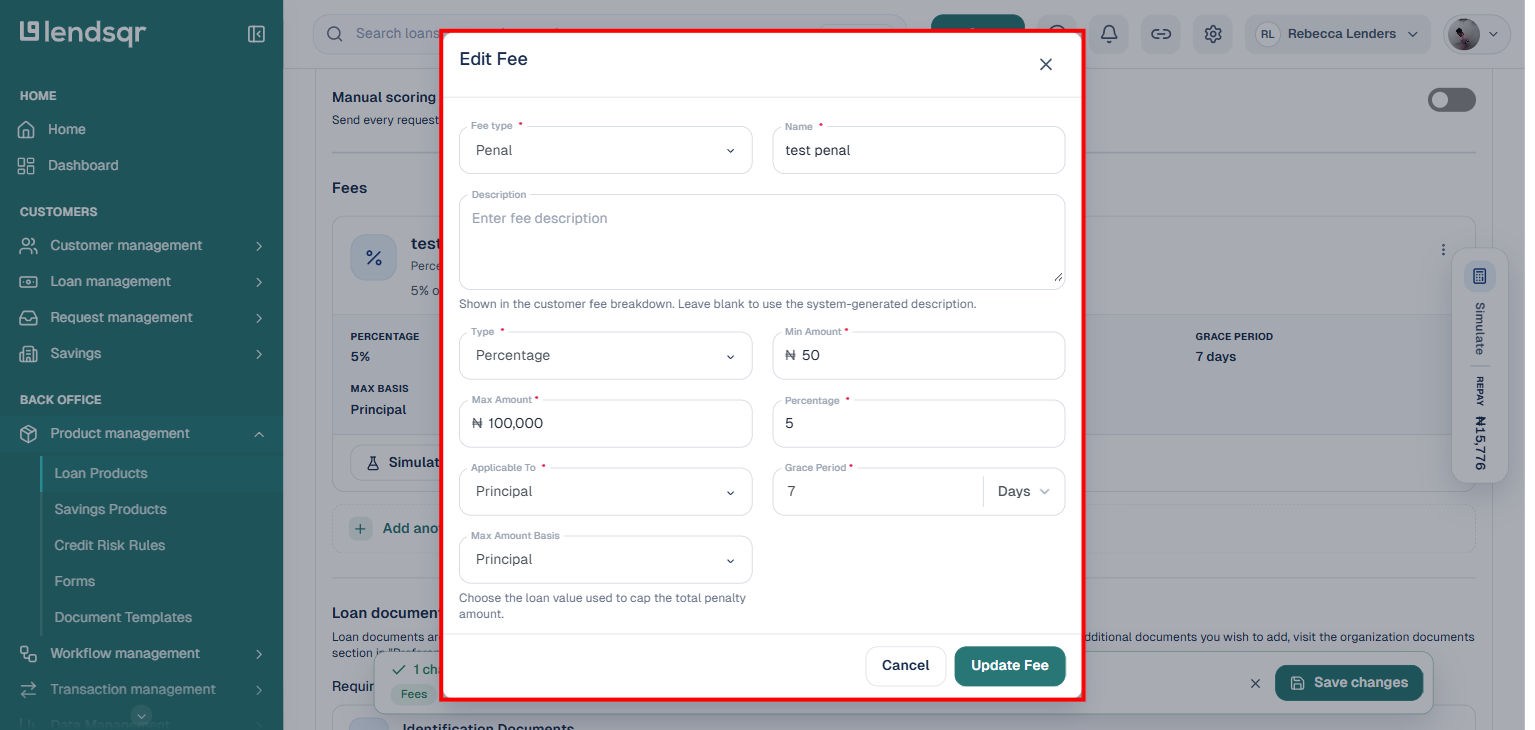
Click “Fee actions” on the penalty’s card, then choose “Edit” (View, Simulate, and Remove are also available from this menu).
Update any of the penalty’s fields, then click “Update Fee” to save.
Either way, save the product to apply the change. To see the penalty’s practical effect on a real borrower, open the specific loan under “Loan management” and review its Loan Details, which shows any penalties charged.
Best practices for penalty management
Always communicate penalty terms clearly to borrowers before they take out loans, so charges are never a surprise. Set penalties at levels that motivate compliance without being predatory, and monitor penalty revenue and incidence regularly, since high penalty revenue often indicates underlying problems with underwriting or borrower education rather than a healthy portfolio.
Keep detailed records of penalty changes for audits and disputes, and review your penalty structures periodically based on performance data. If borrowers frequently request waivers for a specific penalty, it may be poorly designed or poorly communicated.
Penalty calculations are a critical tool in your loan management strategy. When configured thoughtfully, they promote repayment discipline and compensate for collection costs. When misused, they can damage borrower relationships and expose you to regulatory risk.