Access your Back Office at your fingertips.
Download the app now on Google Play Store.
Scan the QR code
You can also scan QR code with your phone to download the app.
How to easily find information in tables using filters on the admin console
Updated
On this page
Imagine an admin at a busy lending company receives a call from a borrower asking about the status of their loan. The Loans table has hundreds of entries spread across multiple pages. Without a way to search or filter, finding that one borrower’s record would mean scrolling through page after page, wasting time and keeping the borrower waiting.
The Lendsqr admin console solves this with three tools designed to help you find exactly what you need, exactly when you need it: a table search bar, table filters, and a global search bar. This guide explains how each tool works, when to use it, and how to get the most out of it during your daily operations.
Overview
On the Lendsqr admin console, several tables including the Customers table, Loans table, and Loan Requests table, support pagination, which means their records span multiple pages. To make navigating these tables faster and more efficient, three search and filter tools are available:
A search bar above every table, for quickly finding records as you type
Filters on tables that support pagination, for refining results by specific criteria
A global search bar accessible from any page on the admin console, for searching across the entire platform
Each tool serves a slightly different purpose. Understanding when to use each one will make your day-to-day operations significantly faster.
How to search for details on tables
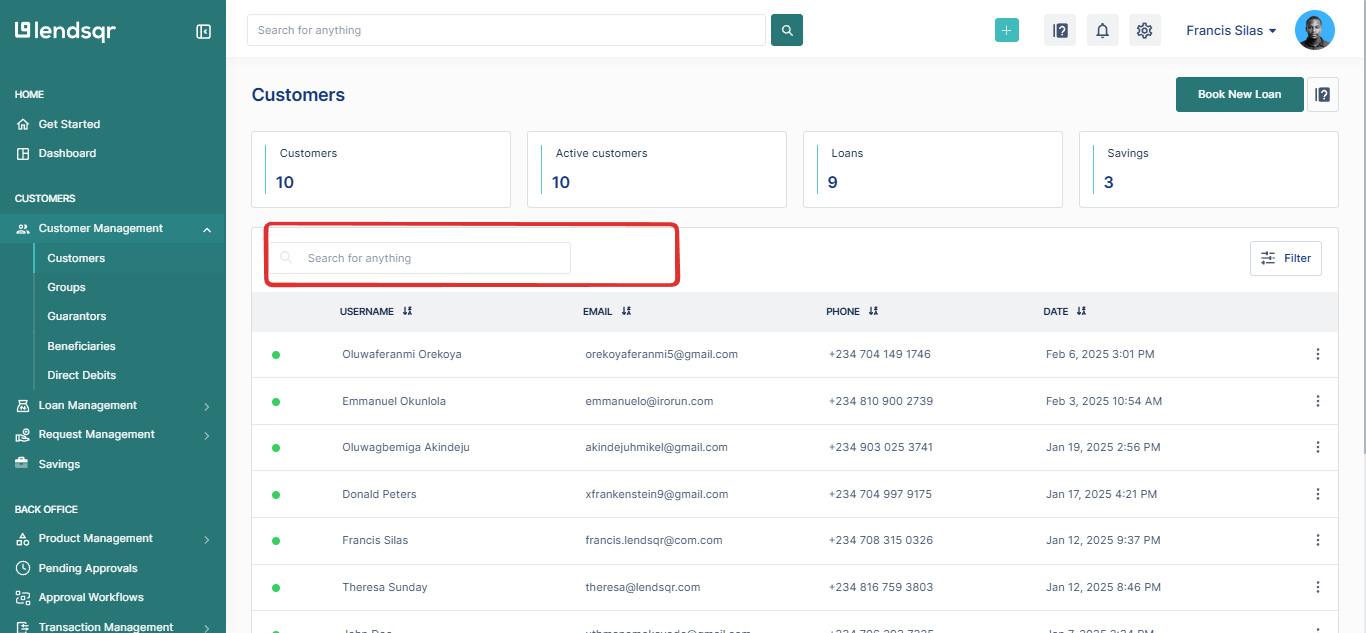
The search bar is the quickest way to find a specific record within a table you are already viewing. A live search bar is available above every table on the admin console, allowing you to quickly filter and find relevant data as you type. Simply enter the information you’re looking for, and the table will automatically update to display matching results.
Search Bar
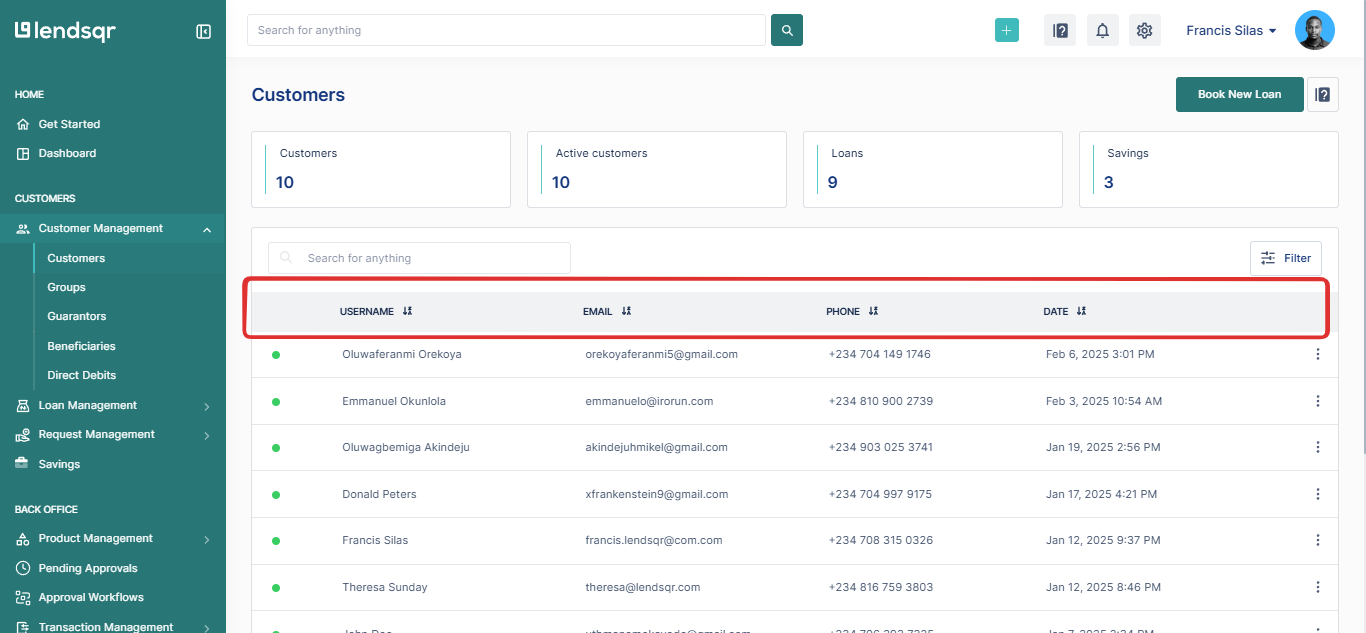
Note: Searches are limited to the available table columns. For example, if a table includes Username, Email, and Phone Number as headers, you can only search using values from these fields to retrieve the relevant data.
Table Headers
How to use filters on the admin console
While the search bar is ideal for finding a specific record quickly, filters are better suited for refining a large dataset by one or more criteria at the same time. Filters are available on all tables that support pagination and allow you to narrow down results by fields such as status, date range, or specific identifiers.
Filter options by table
Customers table
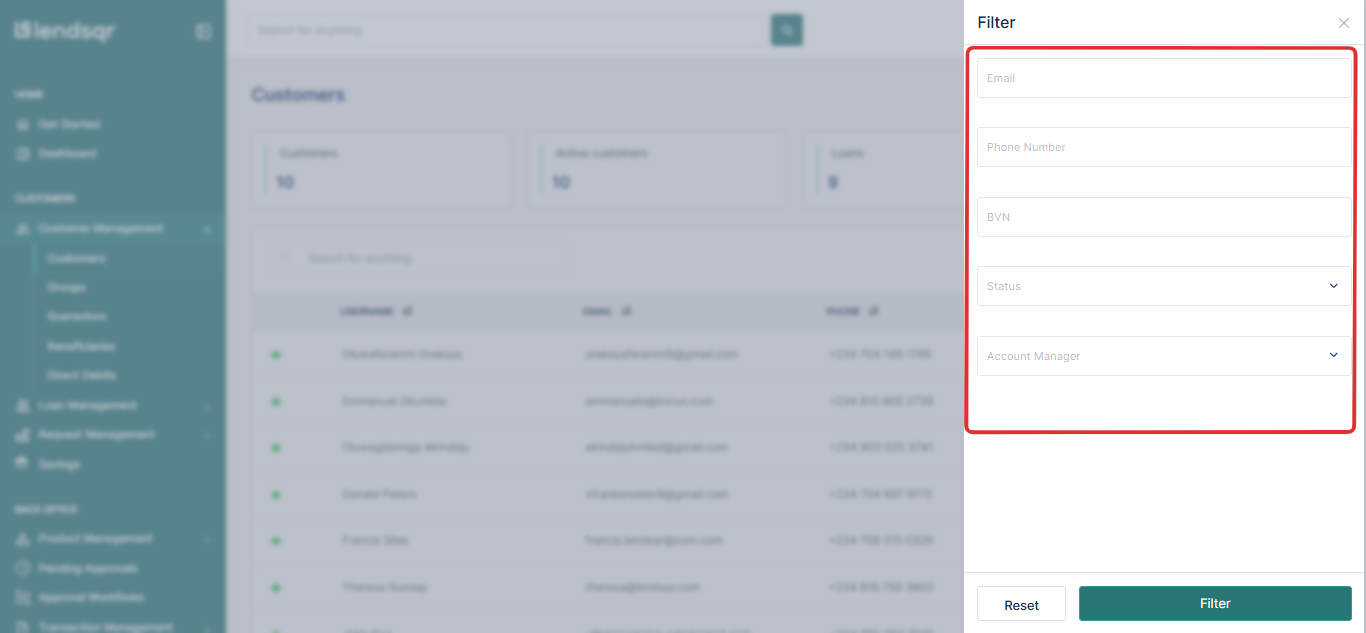
Admins can filter customers using:
Email address
Phone number
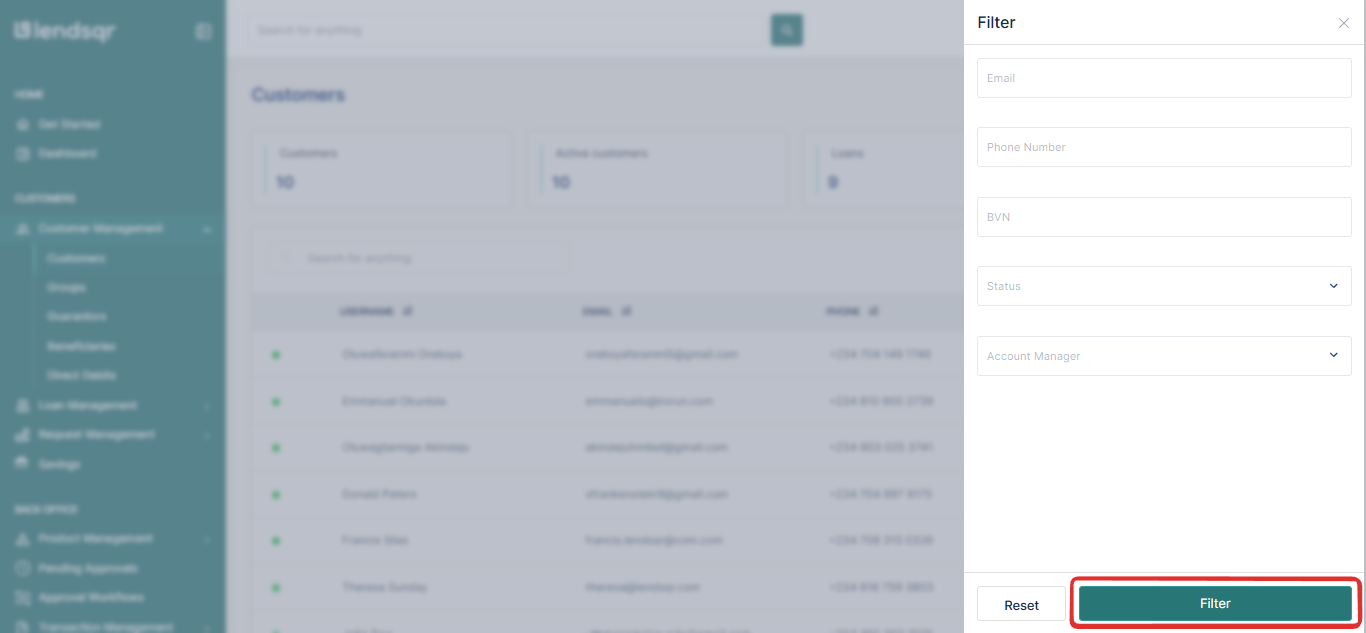
BVN (Bank Verification Number, a unique identifier used in Nigeria; lenders in other markets may see a different national ID field in its place)
Loan status (running, pending, past due, and others)
Step-by-step guide to using filters
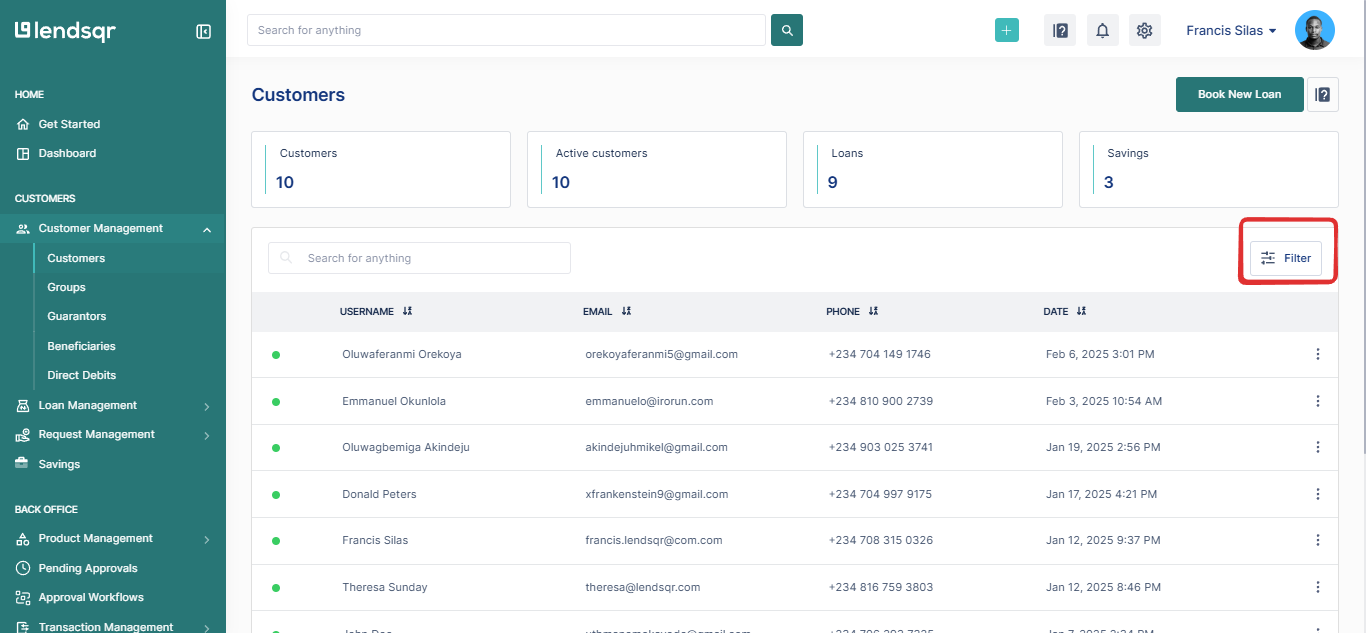
Click on the filter icon above the table.
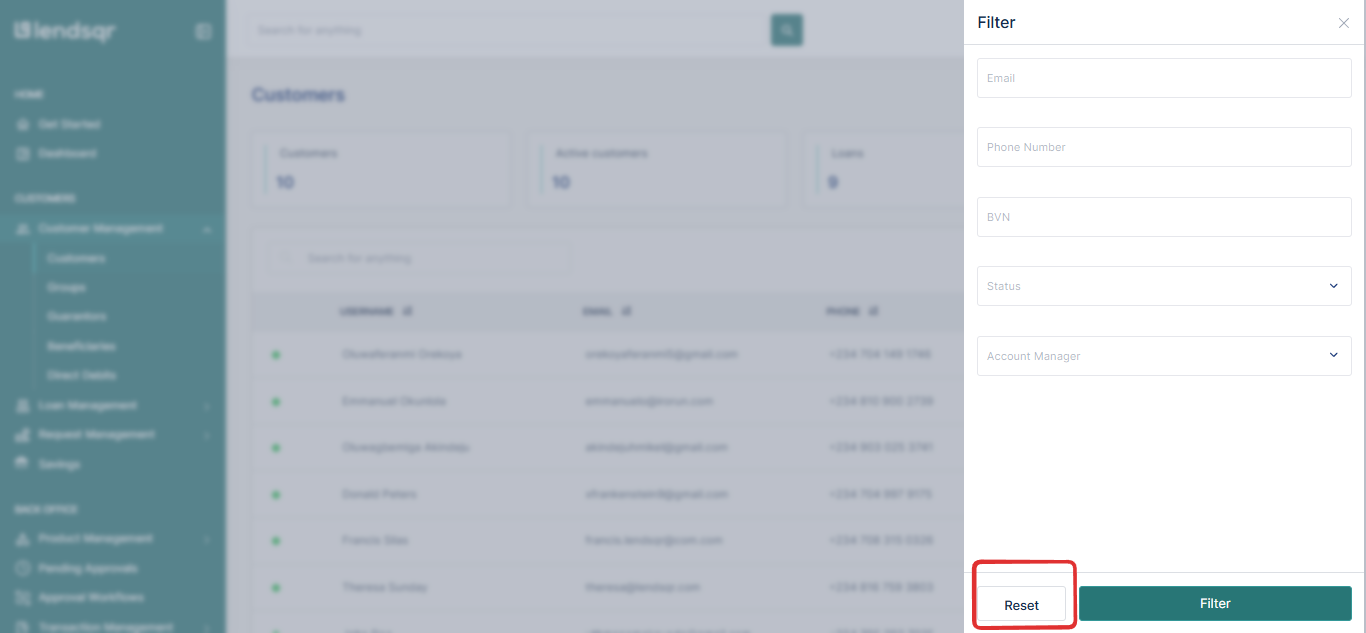
A side modal appears for entering filter criteria.
After inputting relevant details, click on the Filter button for the table to display matching records.
Use the reset option to clear or modify filters.
Tips for using filters effectively:
You can apply multiple filter criteria at the same time to narrow results further. For example, filtering the Loans table by both “Past due” status and a specific loan tenor will show only overdue loans within that tenure period.
Always use the reset option when you are done to avoid accidentally leaving a filter applied and missing records in future sessions.
If a filter returns no results, check that the criteria you entered match the format stored in the system. For example, phone numbers should be entered in the same format used during registration.
How to use the global search bar
The global search bar is accessible from any page on the Lendsqr admin console, making it the most flexible of the three search tools. As the name suggests, it allows you to search for information across the admin console without needing to navigate to a specific table first.
Global Search Bar
Roles and permissions
Any admin with access to the Lendsqr admin console can use the search bar and global search bar. Filter access is also available to all admins by default. However, the data visible in search and filter results will depend on your role and the permissions assigned to it. For example, an admin whose role is restricted to viewing loan requests may not see customer profile data in their search results even if it matches their query.