Access your Back Office at your fingertips.
Download the app now on Google Play Store.
Scan the QR code
You can also scan QR code with your phone to download the app.
Attaching Forms to Customer Documents
Updated
On this page
Overview
The Document Compliance feature allows you to collect additional information from customers when they upload required documents. Instead of simply requesting a file, you can attach a form to each document requirement to capture relevant details and validate the information before it reaches your team for review.
This helps improve the quality of document submissions, reduces back and forth with customers, and ensures reviewers receive more complete and accurate information.
For example, if you’re requesting a means of identification, you can ask the customer to provide the ID number, expiry date, issuing authority, or any other information relevant to your verification process. You can also configure validation rules to ensure the submitted information meets your requirements before the document is accepted.
Benefits
Using forms with document uploads helps you:
Collect additional information about uploaded documents.
Validate document details before they are reviewed.
Reduce incomplete or inaccurate submissions.
Minimize manual follow-up with customers.
Improve compliance during customer onboarding and loan applications.
Speed up document review and approval.
Before you begin
Before attaching a form to a document, ensure that:
The form you want to use has already been created in the Forms Management module.
How to attach a form to a KYC document
Step 1: Log in to the Admin Console
Sign in to your Lendsqr Admin Console with an account that has permission to manage documents.
Step 2: Navigate to KYC Documents Settings
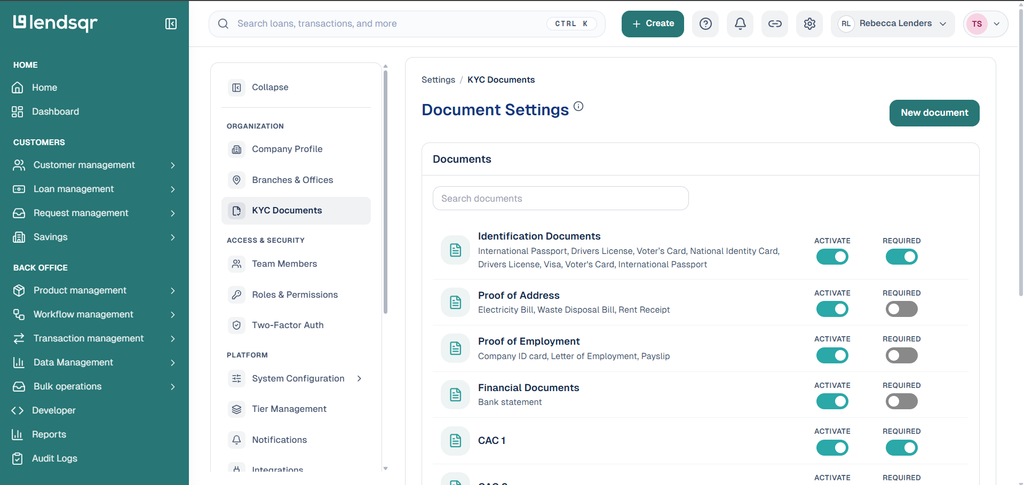
From the top navigation menu, click on the Settings icon to navigate to Preferences.
Click on the System Settings tab and click on KYC Documents Settings
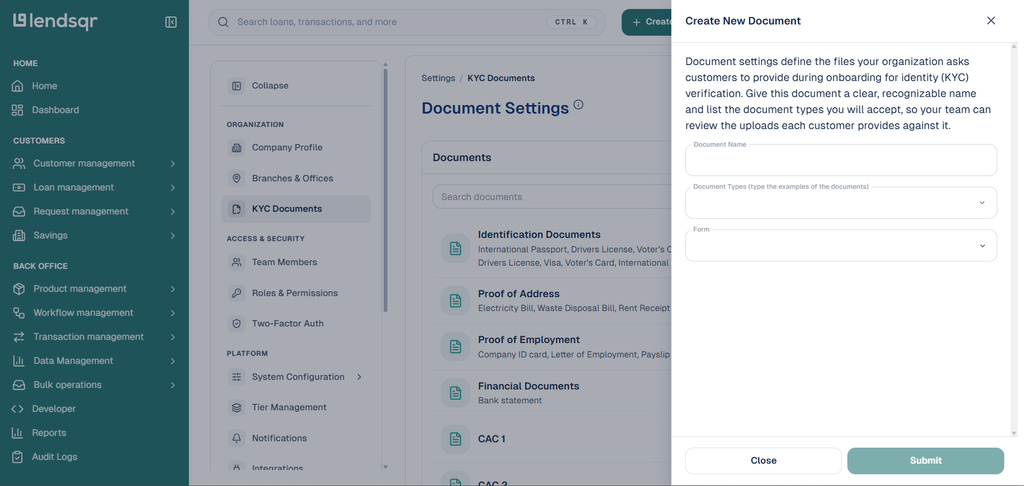
Step 3: Create or Edit a new KYC document and select an existing form
You can either:
Create a new document requirement, or
Edit an existing document.
elect the form you want customers to complete when uploading the document.
Only forms that have already been created in the Forms Management module will be available for selection.
Step 4: Save Your Changes
Save the document configuration.
The next time a customer uploads that document, they will be required to complete the attached form before the submission is accepted.
Customer Experience
When customers are prompted to upload a document, they will also see the associated form.
They must complete the required fields and pass any configured validations before submitting the document. Once submitted, both the document and the captured information are made available to your review team.
Best Practices
Only request information that is necessary to verify the document.
Use validation rules to improve data quality and reduce manual checks.
Keep forms concise to avoid increasing application abandonment.
Review your document requirements periodically to ensure they remain aligned with your compliance and operational needs.