Access your Back Office at your fingertips.
Download the app now on Google Play Store.
Scan the QR code
You can also scan QR code with your phone to download the app.
How to manage audit trails
Updated
On this page
Introduction
In the world of digital lending, accountability is everything. Every action taken within your lending platform, from approving a loan application to modifying a borrower’s repayment schedule, leaves a footprint. Audit trails are the system that captures, stores, and presents those footprints in a clear and structured way.
An audit trail is a chronological record of activities and actions performed by users within your Lendsqr admin console. Login attempts, loan decisions, and status updates are recorded with timestamps and a plain-language description of what happened, giving you a picture of what was done and when.
For lenders operating on Lendsqr, audit trails are not just a convenience. They are a cornerstone of responsible platform management.
Why audit trails matter for lenders
1. Regulatory compliance
Financial institutions and lending platforms are subject to an increasingly stringent regulatory framework that requires transparency and accountability. Regulators often require evidence that your platform operates within defined controls, that access to sensitive borrower data is monitored, and that any anomalies are detectable. Audit trails give you that evidence. When a compliance audit or regulatory review occurs, you can pull up documented records of user activity rather than scrambling to reconstruct what happened.
2. Fraud detection and prevention
Fraudulent activity within a lending platform rarely announces itself. It often hides in the details: an unusual pattern of loan approvals, repeated access to borrower records outside business hours, or unauthorized modifications to repayment terms. Audit trails make these patterns visible. By reviewing the logs of your team members, you can detect suspicious behavior early, investigate anomalies, and take action before significant damage is done.
3. Dispute resolution
Borrowers occasionally dispute decisions made on their accounts, such as a declined loan, a penalty applied, or a repayment record that does not match their expectations. When these disputes arise, audit trails give you the documentary evidence needed to resolve them quickly and fairly. You can see exactly what action was taken and at what point in time.
How to view a user’s audit trail on Lendsqr
On the side navigation, go to Customer management under Customers, then select Customers. See Locating users’ profile page for a full walkthrough if this is your first time finding a specific customer.
Click on the customer whose activity you want to review, to open their profile.
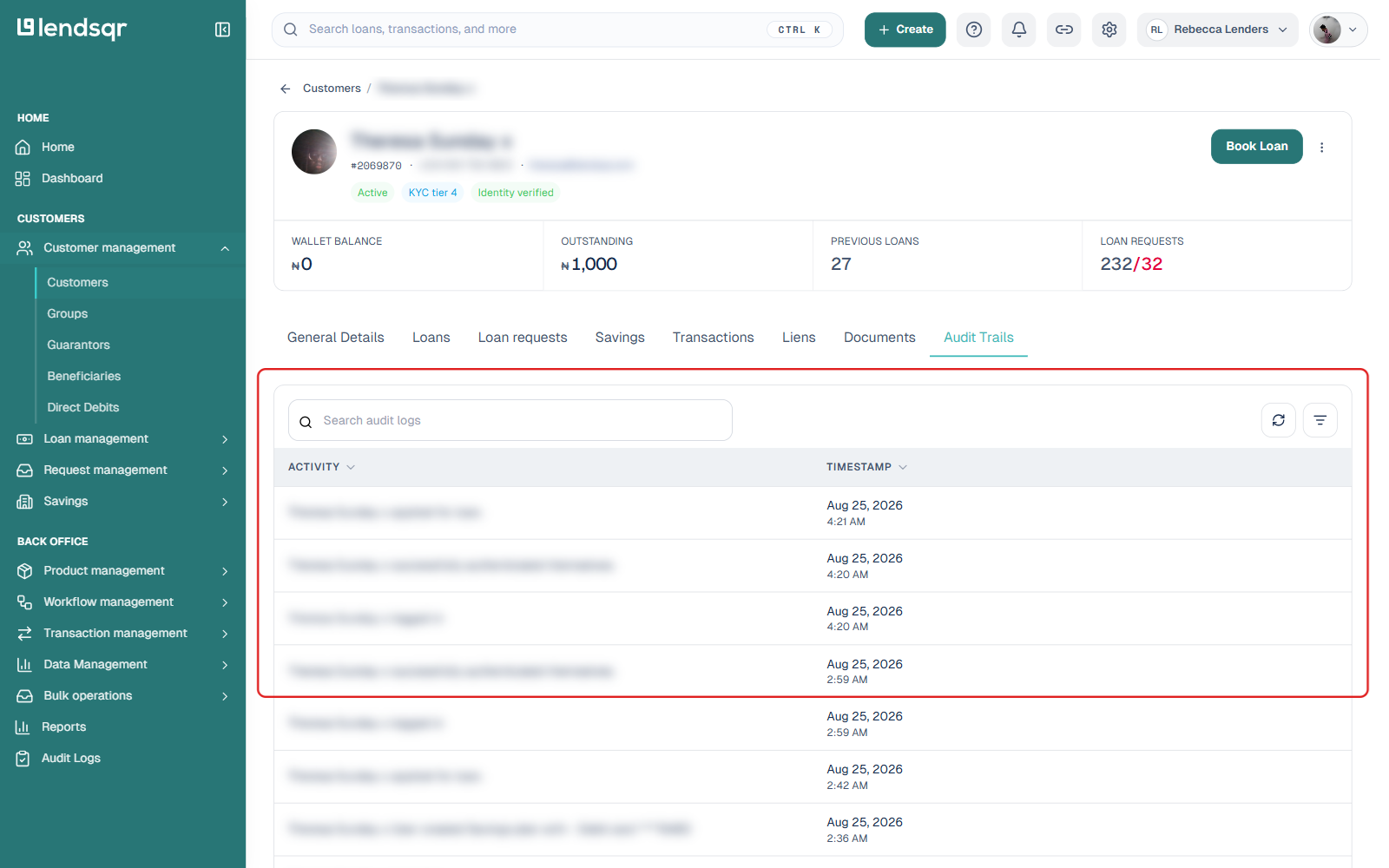
Click the Audit Trails tab.
This opens a table of the user’s logged activity, with two columns: Activity, a plain-language description of the action (for example, “logged in” or a specific loan reference being approved), and Timestamp, the date and time it happened. A search box lets you search across log entries, and results are paginated, showing a running count such as “Showing 1 to 50 out of 134”.
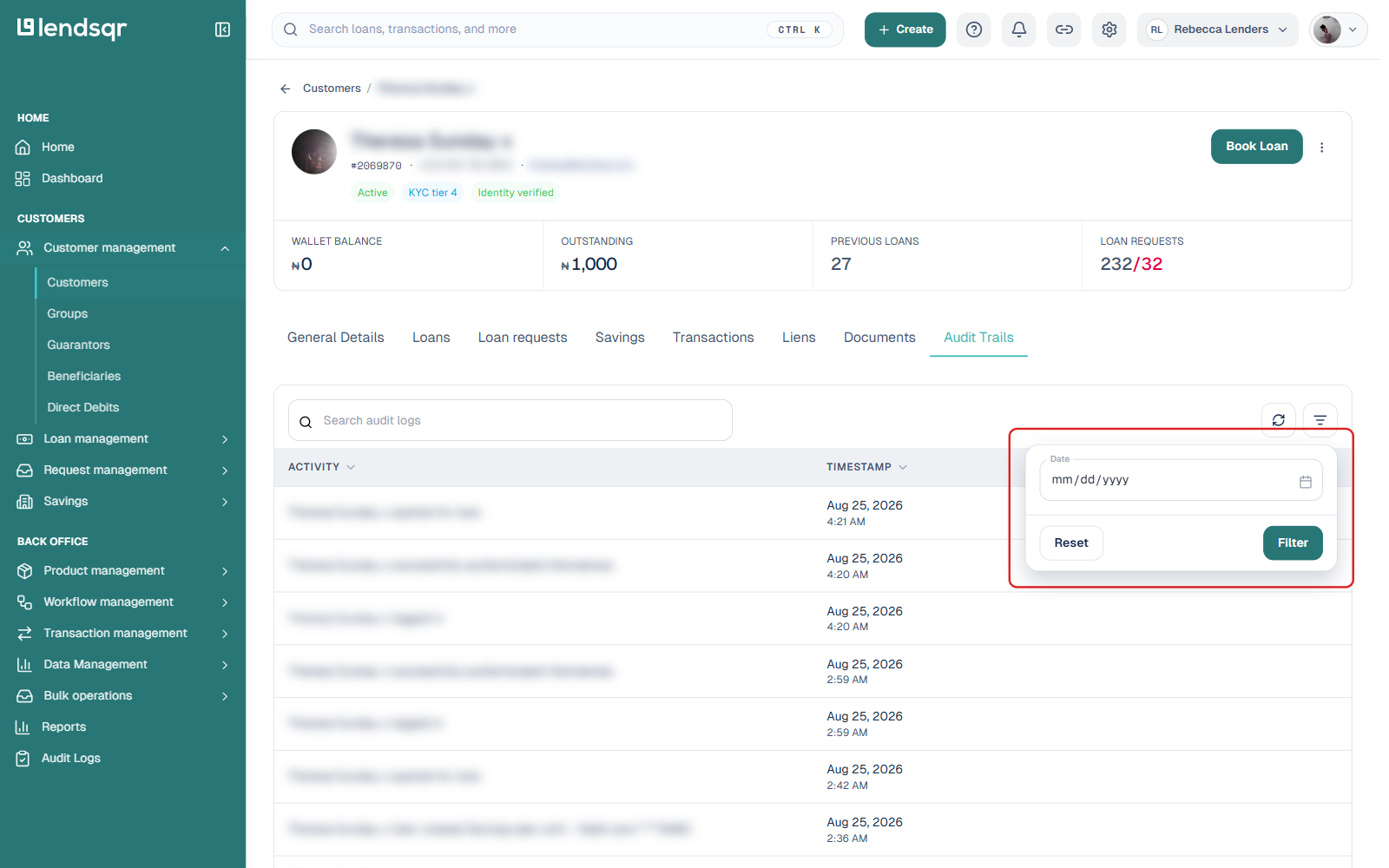
To narrow the list, click the filter icon next to the search box. The filter is a single Date field, letting you jump to entries from a specific day rather than scrolling through the full history.
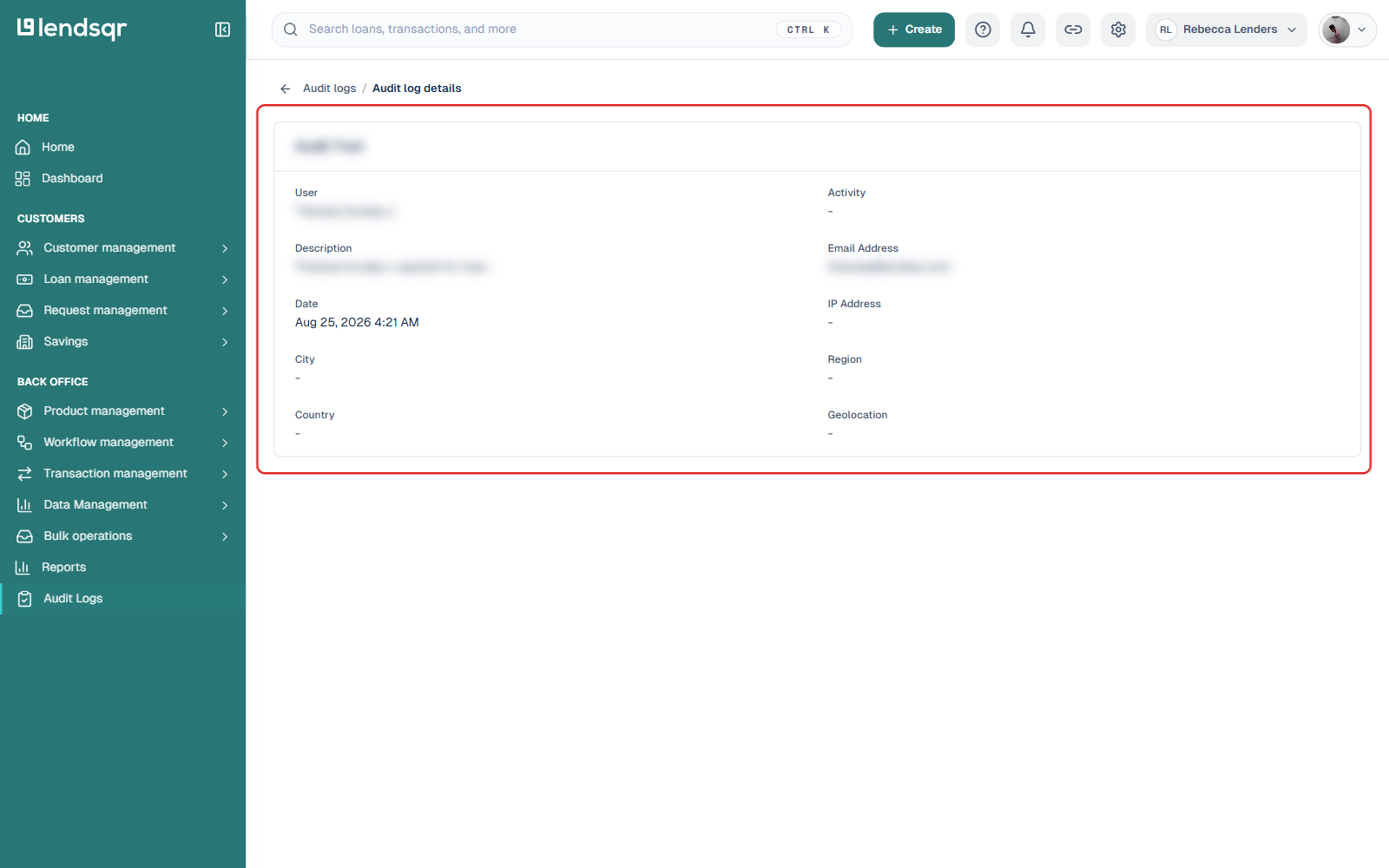
Clicking any row opens a full detail page for that log entry, with a User, Activity, Description, Email Address, Date, IP Address, City, Region, Country, and Geolocation. IP address and location fields only populate when that data was captured for the event; many entries show a dash where that information was not recorded.
Best practices for using audit trails
To get the most out of Lendsqr’s audit trail feature, consider the following best practices:
Review logs regularly. Do not wait until something goes wrong to check audit trails. Schedule periodic reviews, whether weekly or monthly, to stay ahead of any developing issues.
Set a clear policy for log review. Define which roles within your organization are responsible for monitoring audit trails and establish what thresholds or patterns should trigger escalation or investigation.
Act on anomalies promptly. If a review surfaces unusual activity, such as repeated failed login attempts or an unusually high volume of actions in a short time, investigate it without delay. The sooner you respond to a potential issue, the less damage it can do.
Use the date filter strategically. When investigating an incident, filter to the day the incident is believed to have occurred, then open individual entries for the IP address and location context. This will significantly speed up your investigation.
Cross-reference with other records. Audit trail data is most powerful when combined with other information, including borrower records, loan status history, and communication logs, to build a complete picture of any event under review.
Audit trails are one of the most important tools available to lenders on the Lendsqr platform. By keeping a complete, accessible record of every user action within your admin console, they empower you to run a transparent, accountable, and well-governed lending operation, able to withstand scrutiny, respond to incidents swiftly, and continuously improve its internal processes.