Access your Back Office at your fingertips.
Download the app now on Google Play Store.
Scan the QR code
You can also scan QR code with your phone to download the app.
Viewing a user’s approved document
Updated
On this page
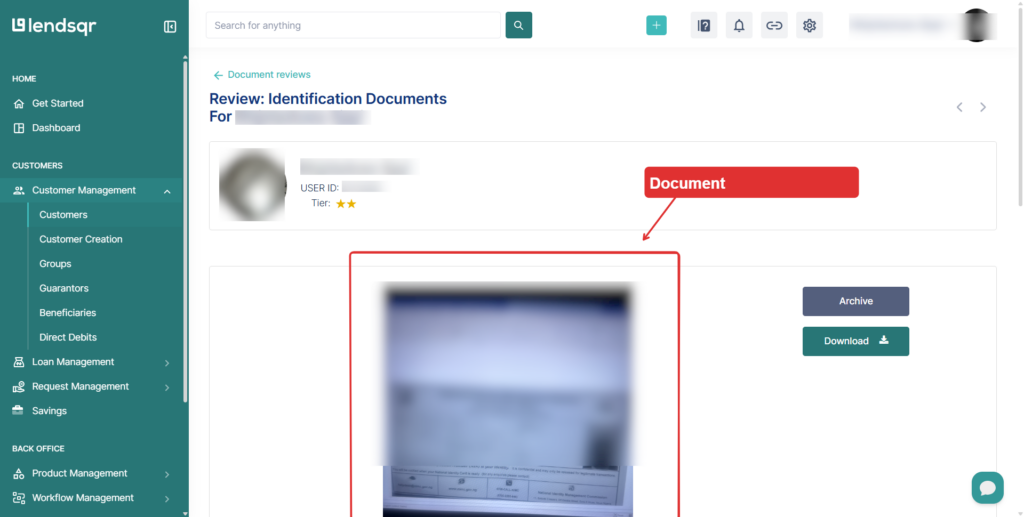
A credit officer reviewing a loan application needs to confirm that a borrower’s government-issued ID was submitted and approved before the application can move forward. Rather than contacting the borrower again or checking a separate system, the officer opens the borrower’s profile on the Lendsqr admin console, navigates to the Documents tab, and views the approved document in seconds.
Quick access to a borrower’s approved documents is a routine part of KYC management on Lendsqr. Whether you are verifying identity before a loan decision, conducting a compliance review, or responding to a support query, the Documents tab on a user’s profile gives you direct access to any document the borrower has submitted and had approved. This article explains what an approved document is in the context of Lendsqr’s KYC process, what you see when you open one, and how to navigate to it from a user’s profile.
What is an approved document?
Approval is a verification status indicating a document is valid and matches the borrower’s profile. It happens in two ways:
Automated: Third-party integrations instantly verify data against government databases.
Manual: A lender admin reviews the file in the console and manually clicks “Approve” if it meets the criteria.
Approval typically occurs during the KYC and Underwriting stage. This usually happens:
Before onboarding: To verify the user’s identity before they access the platform.
During a loan application: Most common documents are reviewed while the loan is “Pending“.
The Documents Tab is always visible once a user profile exists. It acts as a central ledger showing the full history of a borrower’s submissions:
Not uploaded: Required items that are still missing from the borrower.
Pending: Uploaded but awaiting review.
Approved: Successfully verified.
Declined: Rejected (e.g., due to blurriness or expiration).
Document verification is a core part of KYC, the process lenders use to confirm a borrower’s identity before issuing credit. By reviewing approved documents directly from the admin console, lenders can complete identity checks without leaving the platform or relying on manual file exchanges. The document types that can appear in this tab depend on how your organisation has configured its KYC requirements. Common document types include:
Government-issued photo ID (national ID card, passport, driver’s licence)
Proof of address (electricity bill, waste disposal Bill, Rent Receipt)
Proof of employment (company ID card, letter of employment, payslip)
Financial documents (bank statement)
Why lenders use the approved document view
Lenders access approved documents at several points in the lending cycle. Here are two common scenarios:
Compliance audit: A lender conducting a periodic compliance review needs to confirm that all active borrowers have valid, approved ID documents on file. The team filters by borrower, opens each profile, and checks the Documents tab to verify that the required documents are present and approved.
Dispute resolution: A borrower contacts customer support claiming their account was incorrectly flagged. The support agent opens the borrower’s profile, reviews the approved document to confirm the identity on file matches the borrower’s claim, and uses this to resolve the dispute.
How to view a user’s approved document
Follow these steps to access a borrower’s approved document from the Lendsqr admin console. You will need the appropriate permissions to view customer documents.
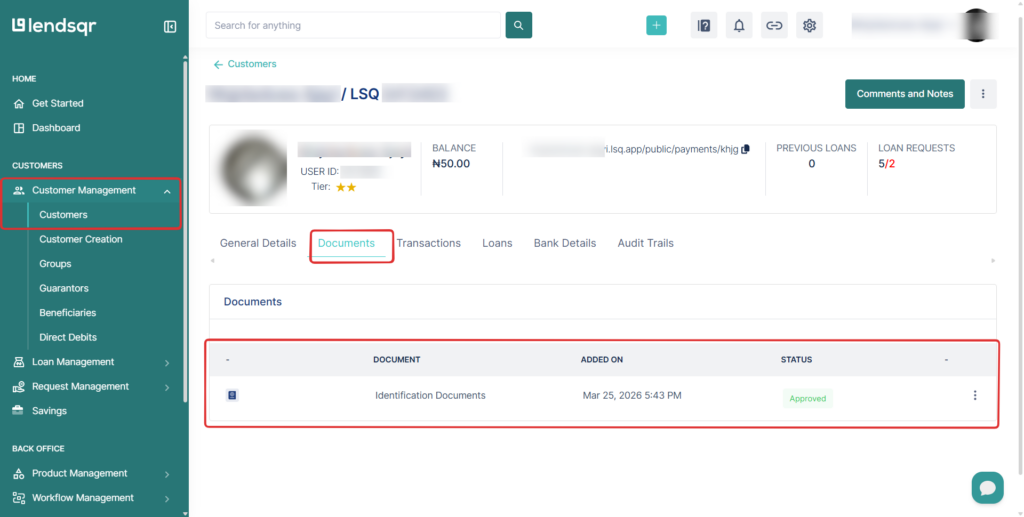
Navigate to the Customers section under “Customer Management” from the left panel.
Search for or locate the user whose documents you want to review.
Click on the user’s name to open their profile page.
Click on the “Documents” tab on the borrower’s profile.
Click on a document row to open and view the approved document.
Permissions required
The Documents tab is visible to all team members with access to customer profiles. To view document content, a team member needs the “View documents” permission enabled on their role. If you cannot see the Documents tab or cannot open a document row, contact your admin to check your role settings.
Viewing an approved document is one step in a broader KYC workflow on the Lendsqr admin console. Before a document appears as approved in this view, it will typically have been submitted by the borrower through your lending app and reviewed through the document approval process. To learn how documents are reviewed and approved or declined in the first place, see: Approving or declining a customer’s document. For an overview of how KYC is structured on Lendsqr, see: Introduction to KYC.