Access your Back Office at your fingertips.
Download the app now on Google Play Store.
Scan the QR code
You can also scan QR code with your phone to download the app.
How can I export my data?
Updated
On this page
Your lending operations generate a wealth of data every day : new user signups, loan applications, disbursements, repayments, failed transactions, and more. Having access to this data in a format you can work with outside the admin console is essential for reconciliation, regulatory reporting, stakeholder updates, and identifying operational issues before they escalate.
The Lendsqr admin console gives you access to a comprehensive library of reports covering every aspect of your lending business. Each report can be exported in CSV, Excel, or JSON format, making it easy to open in a spreadsheet, load into a data tool, or share with your finance, compliance, or operations team.
This guide walks you through every report available on the platform, how to filter and export them, and the most common troubleshooting scenarios.
Why exporting reports matters
A real-world example: a lender notices that their disbursement success rate has dropped over the past week. To investigate, they navigate to the Disbursement Transactions report, filter by a specific date range, and export the data as an Excel file. They open it and filter the status column to show only failed transactions, then share the file with their operations team.
Within an hour, the team identifies that a specific bank’s API has been experiencing intermittent downtime, causing disbursement failures for borrowers with accounts at that bank. The lender contacts Lendsqr support with the transaction references and the issue is escalated for resolution.
Without the ability to export and analyse this data quickly, identifying the root cause could have taken days instead of hours. For a deeper look at how data powers smarter lending decisions, read how we use Metabase to power our internal reporting.
Before you start
Roles and permissions Not every admin can access or export reports. A team member must be assigned a role that includes the Reports permission, which authorises them to view and download reports on the admin console.
Step-by-step: how to export a report
Log in to your Lendsqr admin console using your work email address and password.
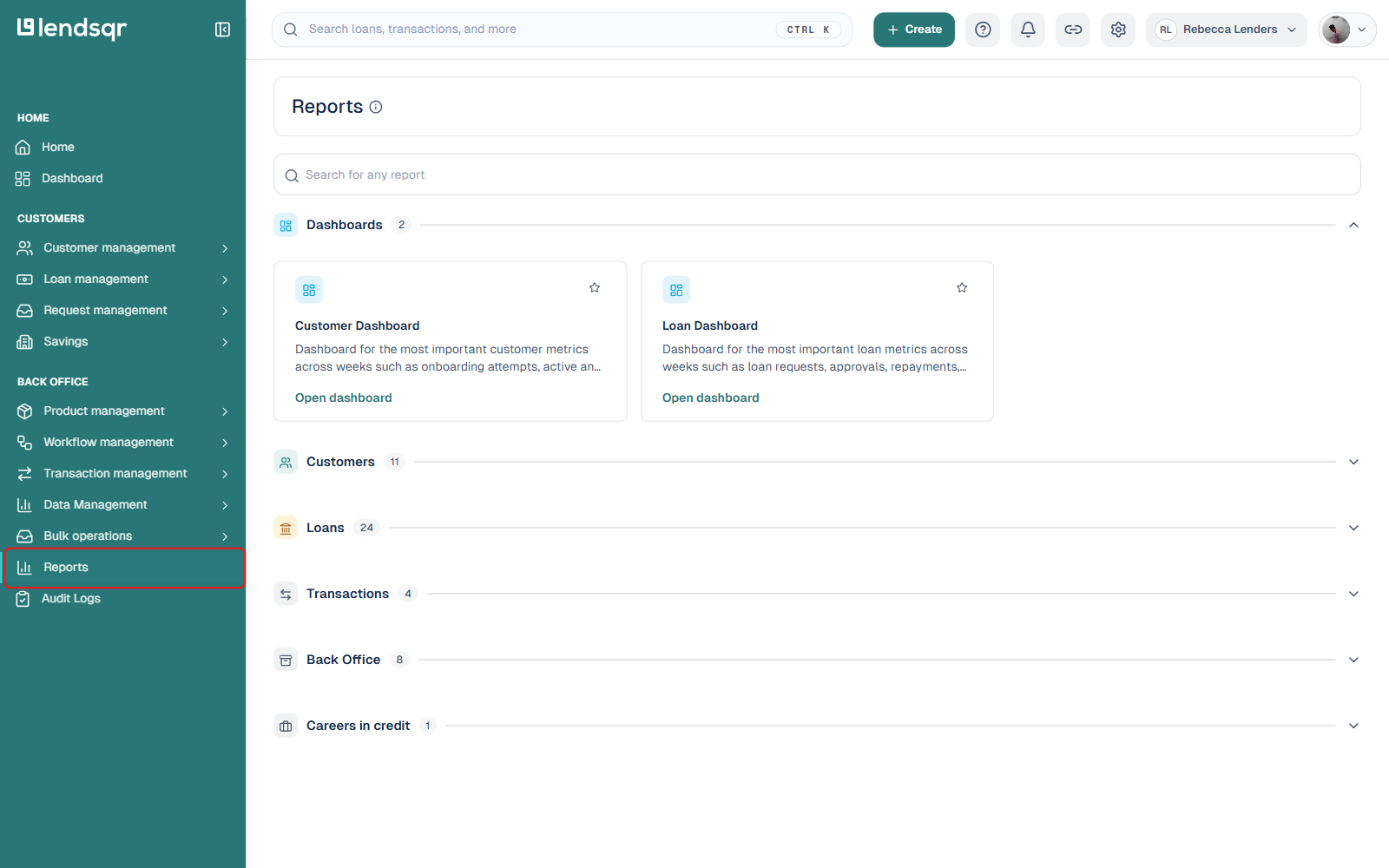
On the left navigation pane, locate Back Office and select “Reports”. This will open the Reports section, where all available reports are listed by category.
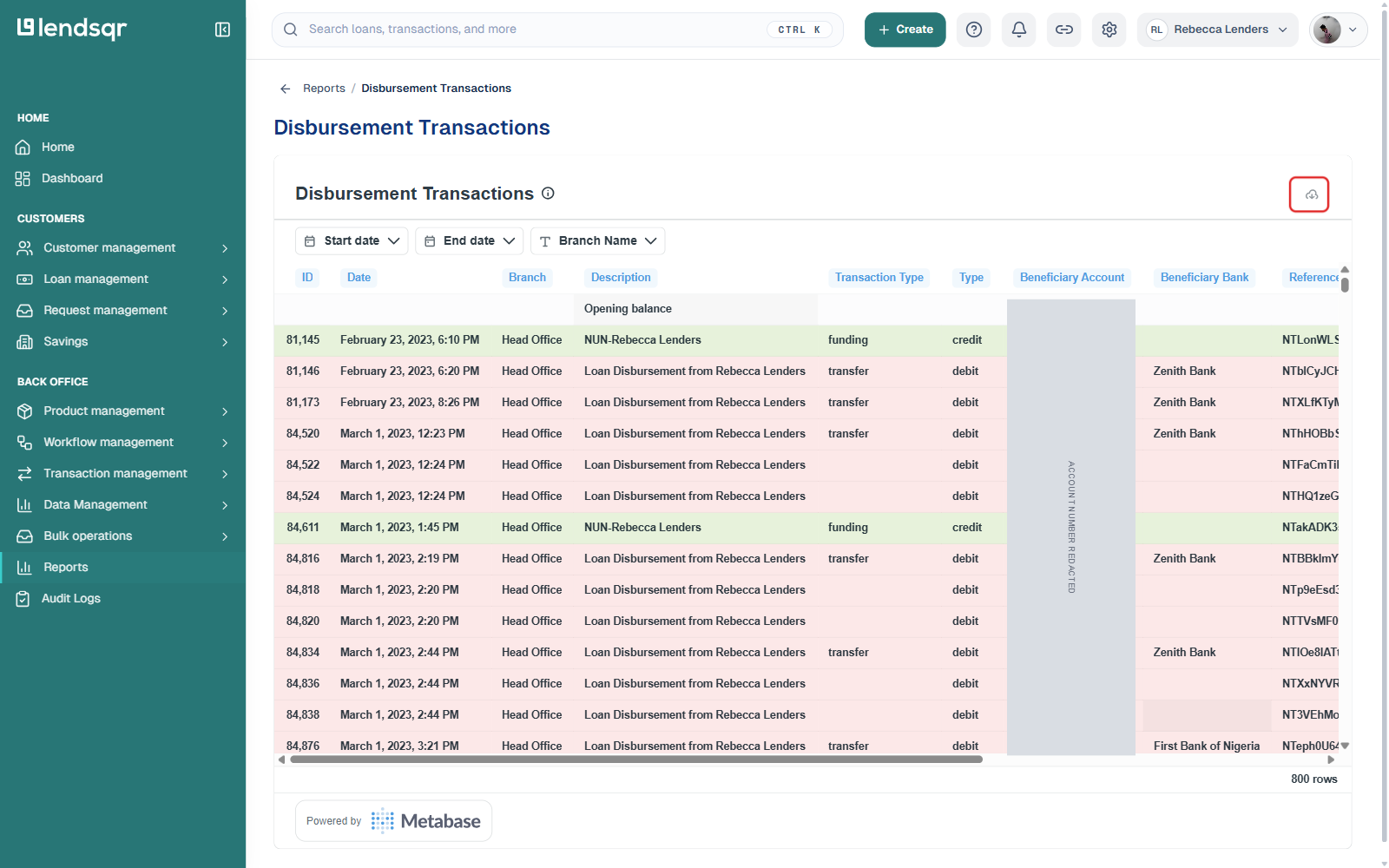
Click on the report you want to view. The report will load and display the data in a table.
Apply any filters you need before exporting. Depending on the report, available filters may include start date, end date, email address, phone number, loan status, and days past due. Enter your filter criteria and click the filter button to narrow the results.
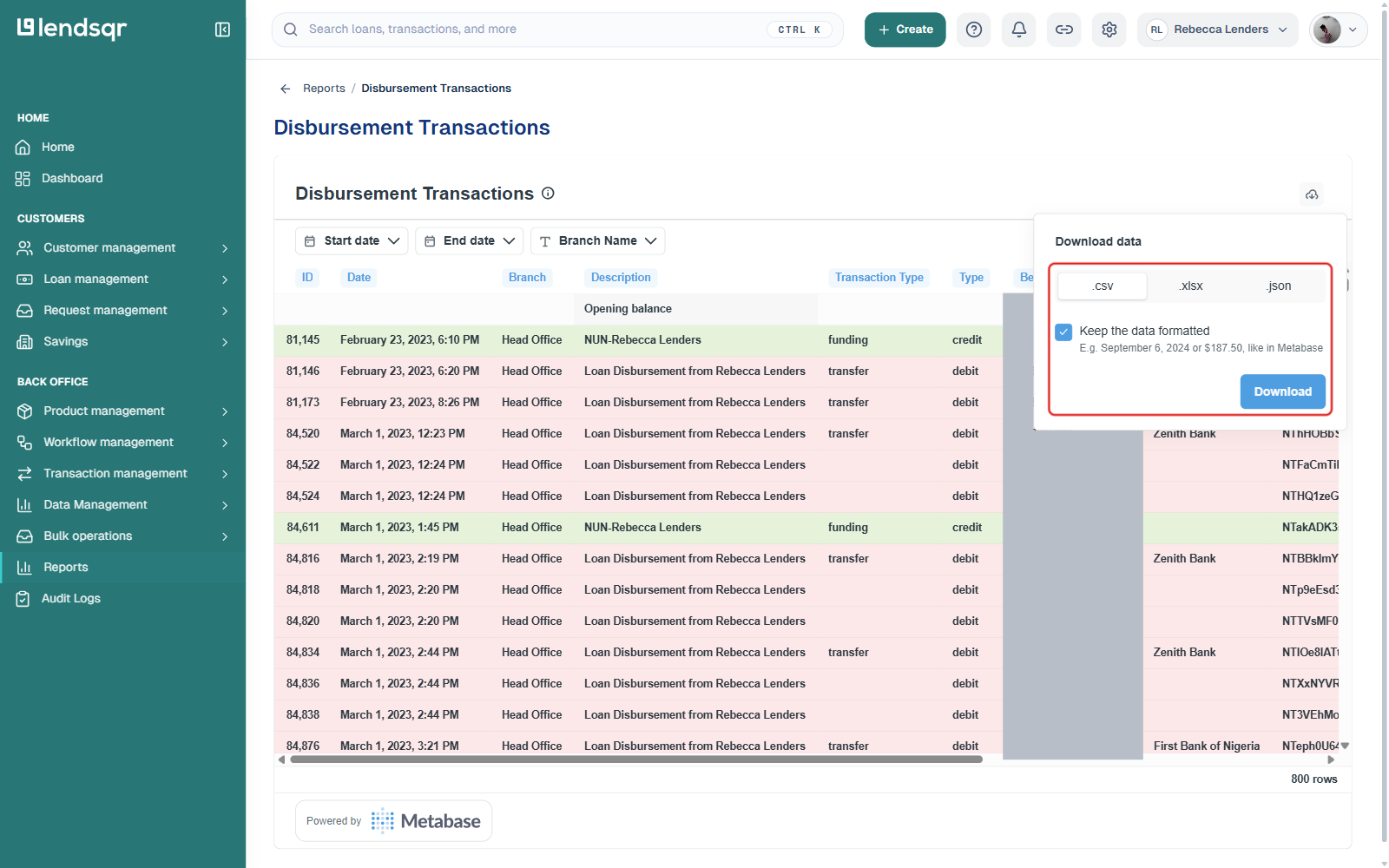
Once the data is filtered to your requirements, locate the export option at the bottom right of the report table. Click the down arrow to open the format selection menu.
Select your preferred export format from the following options:
CSV (.csv) — best for loading data into other tools, databases, or custom scripts
Excel (.xlsx) — best for analysis and sharing with team members who work in spreadsheets
JSON (.json) — best for developers or technical teams who need to process the data programmatically
The file will download to your device automatically. Open it in your preferred tool to begin working with the data.
Full list of available reports
User and customer reports
Customer dashboard Displays key weekly metrics including onboarding attempts, active and inactive users, and recent logins. Use this report for a high-level view of your user base activity each week.
Users Contains data for all users on your platform, including name, email address, phone number, status, and onboarding channel. Use this for a full export of your customer base.
New users Lists recently signed-up users. Useful for customer outreach campaigns and tracking the effectiveness of acquisition channels.
Unactivated customers Shows users who have started the onboarding process but have not yet completed it. Use this report to identify drop-offs and follow up with users who may need assistance completing registration.
Activated users and loan requests Lists users who have successfully completed the onboarding process. Use this to track conversion from registration to active borrower.
User onboarding attempts Tracks users who started onboarding but dropped off before completing identity verification. Useful for identifying friction points in your onboarding flow.
User documents Contains all KYC and identity documents submitted by users. Use this report for compliance audits and document verification tracking.
Blacklisted or deactivated users Tracks users who have been blocked due to fraud, policy violations, or other business reasons. Use this report for portfolio risk management and compliance reporting.
Loan reports
Loans Provides insights and data on all booked loans across your portfolio, including loan amounts, statuses, and borrower details.
Loan requests Contains data on all loan applications submitted on your platform, including both approved and declined requests.
Past due loans Tracks loans that have passed their repayment due date. Filterable by email, phone number, date, and number of days past due. Use this report for collections management and follow-up.
Disbursed loans Shows data for all loans that have been successfully funded to borrowers. Filterable by start and end date. Use this for disbursement reconciliation.
Declined loans Details loans rejected by the lender, including reasons such as suspected fraud or poor identity documentation. Use this to review your rejection patterns and calibrate your credit risk rule.
Failed loan requests Provides insights into loan requests that failed due to system or process errors rather than eligibility issues. Use this to identify operational failures and escalate unresolved cases to support.
Abandoned loan requests Lists customers who received a loan offer but did not proceed to accept it. Use this to identify and re-engage borrowers who dropped off at the offer stage.
Loan request analysis Breaks down loan requests and declines by application stage, helping you identify exactly where in the funnel users are dropping off. Use this for product and process improvement.
Loan capital, interest, and expenses A daily analysis of the principal, interest, and expenses incurred for loan processing. Use this for financial reporting and portfolio performance tracking.
Transaction and operational reports
Transactions A comprehensive log of all financial transactions on your platform. Use this for full transaction reconciliation and investigation of payment issues.
Settlement summary and settlement transactions Provides high-level summaries and granular details of the funds settled to you as a lender for specific days. Use this to reconcile settlement amounts with your disbursement account.
Disbursement and collections Tracks daily loan disbursements, fees collected, and loan repayments. Use this for a daily view of cash flow across your portfolio.
Disbursement transactions A detailed log of all outgoing disbursement transactions. Use this to investigate specific failed or delayed disbursements.
Direct debit mandates Shows all direct debit mandates successfully set up by customers. Use this to confirm mandate activation and monitor the coverage of automated repayment collection across your borrower base.
Liens on customer wallets Helps you view and manage customers who have pending liens on their wallets. Use this to identify and resolve lien-related issues proactively. For more on how liens work, see how lien works on Lendsqr.
Prepayment service transactions and individual prepayments Tracks the charges deducted from your service account for activities such as user onboarding, credit bureau checks, and SMS fees. Use this to monitor and reconcile your service account spend.
Referral Tracks data on users who joined your platform via referral codes or links. Use this to measure the performance of your referral programme.
Practical export examples
Example 1 — Investigating a failed disbursementNavigate to Back Office, select Reports, and open the Disbursement Transactions report. Filter by the date range when the failure occurred and export as Excel. Open the file and filter the status column to show only failed transactions. Use the transaction reference numbers to investigate with your payment provider or Lendsqr support.
Example 2 — Monthly collections reporting At the end of each month, open the Disbursement and Collections report, set the start and end date to cover the full month, and export as CSV. Share the file with your finance team for monthly portfolio reconciliation.
Troubleshooting
The Reports tab is not visible on the navigation pane This is most likely a permissions issue. Confirm that your role includes the Reports permission by navigating to Settings and selecting “Roles and Permissions”. Contact your system administrator to update your access if needed.
The report is loading but showing no data Check that your filters are not too restrictive. Try removing or widening the date range and other filter criteria to confirm that data exists for the period you are querying. If the report consistently shows no data despite active platform activity, contact [email protected].
The exported file is empty or incomplete Confirm that the report returned data before exporting — if the table on screen is empty, the exported file will also be empty. If the table shows data but the exported file is incomplete, try a different export format. If the issue persists, contact [email protected] with details of the report and filters you used.
The download is not starting Check that your browser is not blocking the download. Allow downloads from the admin console in your browser settings and try again. If the issue continues, try a different browser.
The exported file is in an unreadable format Ensure you are opening the file in a compatible application. CSV files open in Excel, Google Sheets, or any text editor. XLSX files require Excel or Google Sheets. JSON files require a text editor or a developer tool. If the file content looks corrupted, try re-exporting in a different format.