Access your Back Office at your fingertips.
Download the app now on Google Play Store.
Scan the QR code
You can also scan QR code with your phone to download the app.
How to delete a user on the Lendsqr admin console
Updated
On this page
Introduction
A borrower calls to request that you remove their account. A duplicate profile is cluttering your customer list. A fraudulent user needs to come off the platform immediately. Whatever the situation, you need a fast and reliable way to act without leaving loose ends.
On the Lendsqr admin console, deleting a user permanently revokes their access to both the web and mobile apps. Once the process is complete, that user can no longer log in or interact with the platform in any way. The deletion is immediate and irreversible.
This guide explains who can delete users, what conditions block deletion, and how to complete the process step by step.
Who can delete a user on Lendsqr?
Only users with the Super Admin role can delete borrower accounts on the Lendsqr admin console. This is not a restriction you can work around. If you do not have Super Admin access and need to delete a user, escalate the request to a Super Admin in your organization with a clear explanation of why the deletion is needed.
This restriction exists because user deletion is one of the most consequential actions on the platform. It is permanent, it cannot be undone, and it affects a real person’s access to financial services. Keeping this action limited to Super Admins ensures that only the right people can carry it out.
Before you delete a user
Not every user is eligible for deletion. Lendsqr automatically blocks the deletion of any user who currently has any of the following:
A running loan
A past-due loan
Funds remaining in their wallet
These blocks exist to protect the integrity of your loan portfolio. Deleting a user with an active loan removes their record from the platform but does not cancel the loan obligation. Resolving these conditions first ensures your books stay accurate and your recovery process stays intact.
Before attempting to delete any user, check their profile for active loans and wallet balances. Settle or close any open obligations first, then return to complete the deletion.
How to delete a user
You need a Super Admin role to delete users on the admin console.
On the side navigation, go to Customer management under Customers, then select Customers.
Search for the user using their phone number, email address, or BVN, then click on their row to open their profile.
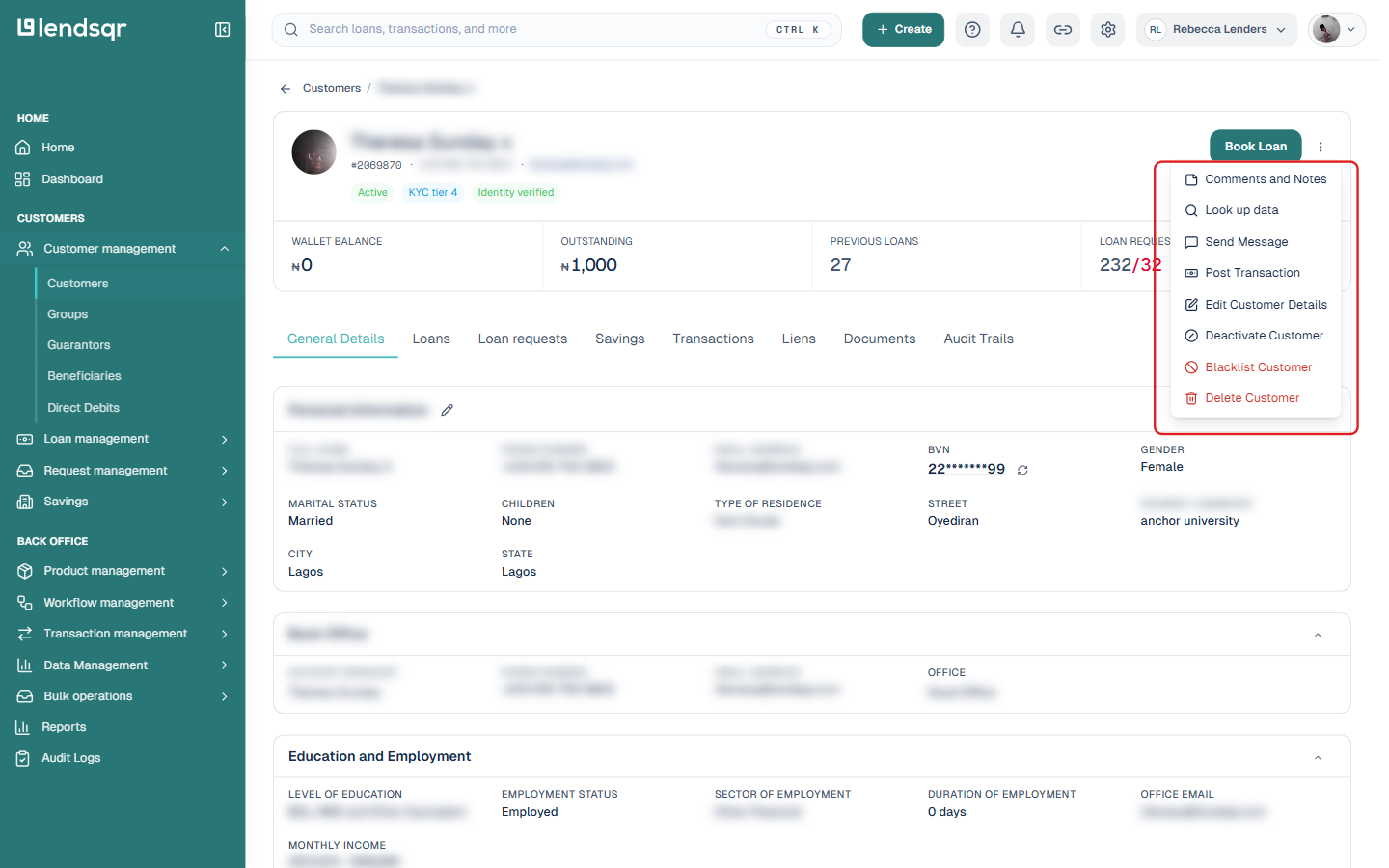
Click the three-dot More actions button near the top of the profile.
Select Delete Customer from the menu. This sits alongside other account actions such as Comments and Notes, Edit Customer Details, and Blacklist Customer.
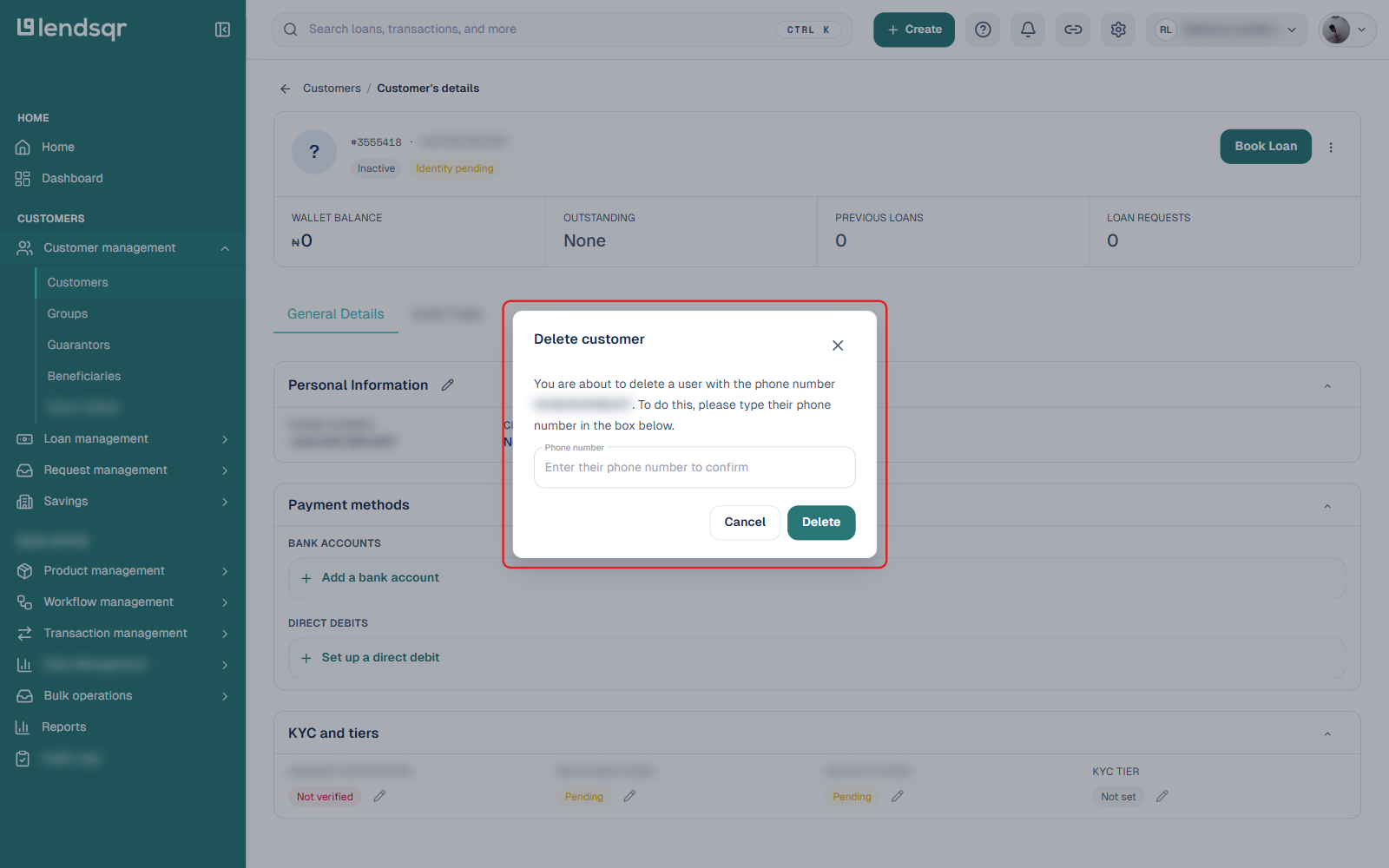
A “Delete customer” dialog opens, warning you which phone number you are about to delete and asking you to type that phone number into a confirmation field. Type it in, then click Delete.
If you are not certain you are deleting the correct profile, click Cancel instead. The Delete button does not check whether the loan/wallet conditions above are met until you submit, so if the customer is not eligible, you will see an error message instead of the deletion completing.
How Lendsqr protects your data during deletion
Borrower data is sensitive. Lenders handling personal and financial information have an obligation to manage it responsibly, and deletion is one of the most significant data management actions a lender can take.
Lendsqr builds several layers of protection into this process. The Super Admin restriction limits who can act. The eligibility checks prevent deletion of users with active financial obligations. And the phone number confirmation step requires the admin to type out the exact number of the user being removed, reducing the chance of deleting the wrong profile by mistake.
Together, these safeguards make accidental or unauthorized deletions significantly harder to carry out. For lenders who want to understand more about staying compliant with local regulations around borrower data, see: How to stay compliant with local lending regulations.
What happens after deletion
Once you confirm the deletion, the user loses all access to your platform. They cannot log in to the web app or mobile app.
Deletion actions are logged against the admin who carried them out, so your team can review who deleted which user and when, the same way other account actions are recorded on a customer’s Audit Trails.
The user’s profile disappears from your customer list. They no longer appear in search results, borrower lists, or reports going forward.
When to delete a user
Deletion is appropriate in a limited set of situations. Use it when a borrower formally requests account removal, when a profile was created in error or is a duplicate, when a fraudulent account needs to be removed from the platform, or when your data retention policy requires the removal of inactive accounts after a defined period.
Do not use deletion as a way to manage problem borrowers who have outstanding loans. For users with active or past due loans, the right path is to work through your collections and recovery process first. Deleting a user with outstanding obligations does not resolve those obligations, and Lendsqr will block the deletion until those obligations are cleared regardless.
Troubleshooting
The “Delete Customer” option is not appearing in the More actions menu. Confirm that you have a Super Admin role. If your role appears correct but the option is still missing, contact Lendsqr support.
The deletion is being blocked even though I checked for active loans. Check for wallet funds in addition to active loans. A user with funds remaining in their wallet cannot be deleted even if they have no active loans. Withdraw or transfer the wallet balance before attempting deletion again.
The user is still appearing in my customer list after deletion. Refresh the page. If the user is still showing after a full page refresh, contact Lendsqr support with the user’s details.
I deleted the wrong user by mistake. Contact Lendsqr support immediately. User deletion is permanent and cannot be reversed through the admin console. Act as quickly as possible to report the error.
Frequently asked questions
Can I recover a deleted user’s account? No. Deletion is permanent. Once you confirm the deletion, the account cannot be restored. Always confirm you are deleting the correct profile before proceeding.
Can I delete a user who has an outstanding wallet balance? No. Lendsqr blocks deletion for users with funds in their wallet. Resolve the wallet balance first, then attempt the deletion.
Does the user receive a notification when their account is deleted? No. Lendsqr does not send an automatic notification to the user when their account is deleted. If the deletion is in response to a user request, notify them directly through your support channel once the process is complete.
Can I delete multiple users at once? No. The standard deletion flow handles one user at a time. For bulk data management needs, contact Lendsqr support for guidance.
What happens to the user’s loan history after deletion? Because Lendsqr blocks deletion for users with active or past due loans, this situation should not arise under normal circumstances. If you have concerns about retaining specific records, review your data retention policy before proceeding with any deletion.