How to create a new mandate schedule for direct debit repayments

Managing loan repayments effectively sometimes requires flexibility, especially when repayment circumstances change unexpectedly. A borrower may request an extension after missing a repayment date, or your operations team may need to introduce an additional repayment date to align with a revised agreement. In situations like these, creating a new mandate schedule allows you to update repayment timelines without creating an entirely new mandate.

Direct debit mandates are designed to support dynamic repayment management. Once a borrower has signed a mandate, you can add supplementary repayment schedules within that existing authorization. This makes it easier to collect payments on newly agreed dates while maintaining continuity in your repayment operations.

This guide explains how to create a new mandate schedule within an already established direct debit mandate, including the permissions required, common use cases, best practices, and troubleshooting considerations.

What is a mandate schedule?

A mandate schedule defines the repayment dates and payment instructions associated with a direct debit mandate. It determines when a borrower’s account should be debited and how repayments are structured over time.

When a borrower signs a direct debit mandate, the mandate typically contains an existing repayment schedule. However, there are situations where lenders may need to introduce additional repayment dates after the mandate has already been activated.

Instead of creating an entirely new mandate, administrators can simply add a new schedule to the existing mandate. This ensures repayment continuity while minimizing administrative overhead.

Also read: You can now activate your direct debit mandates in 1 minute

Why you may need to create a new mandate schedule

Creating a new mandate schedule is especially useful when repayment arrangements need to change after a loan has already been disbursed or repayment collection has started.

Some common situations include:

  • A borrower requests an extension after missing a repayment date
  • A repayment date needs to be moved because of salary payment delays
  • Additional repayments need to be collected after a restructuring agreement
  • A partial repayment arrangement has been approved
  • An operations team needs to introduce a one-time debit collection
  • A payment recovery process requires adjusted repayment dates

This flexibility allows lenders to respond quickly to real repayment situations without interrupting existing loan servicing workflows.

Relevant permissions

Before creating a new mandate schedule, ensure that you have the appropriate permissions within your lender admin console.

Typically, users may require:

  • Access to the Loan Management module
  • Permission to manage direct debit mandates
  • Authorization to create or edit repayment schedules
  • Super admin access for organization-wide mandate modifications in some setups

If you are unable to access the Direct Debits section or create schedules, contact your organization administrator for the appropriate role permissions.

Before you begin

Before creating a new mandate schedule, confirm the following:

  • The borrower already has an active direct debit mandate
  • The mandate has been properly signed and authorized
  • The repayment adjustment has been approved internally
  • The borrower has been informed about the new repayment arrangement
  • The repayment dates and amounts have been verified

Taking these steps helps reduce failed collections and ensures repayment changes are properly documented.

Step-by-step guide on creating a mandate schedule

Follow the steps below to create a new repayment schedule for an existing direct debit mandate.

Step 1: Log in to your lender admin console

Start by logging in to your lender admin console using your authorized credentials.

Ensure that your account has sufficient access rights to manage direct debit mandates and repayment schedules.

After logging in successfully, you will be redirected to your dashboard.

Step 2: Navigate to direct debits

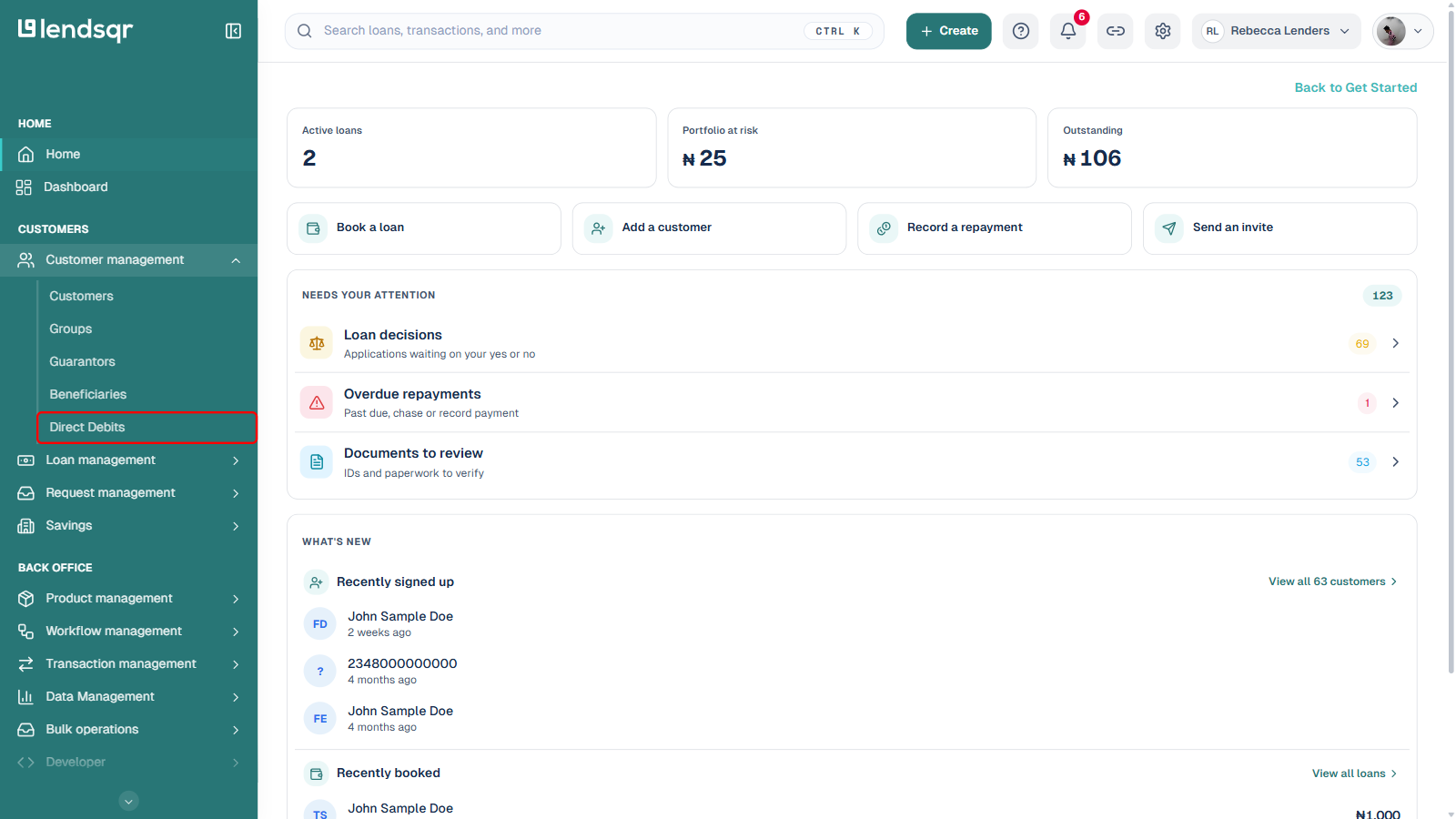
On the side navigation menu, locate the Customer Management section.

Under this grouping, click Direct Debits to open the direct debit management page.

This section displays all mandates that have been created within your organization, including their current statuses and repayment schedules.

Step 3: Select an existing mandate

Locate the already created mandate that you want to add a new repayment schedule to.

You can use available filters or the search functionality to find the borrower or mandate more quickly.

Once you identify the correct mandate:

  • Open the mandate details page
  • Review the existing repayment schedule
  • Confirm that the mandate is still active and eligible for additional schedules

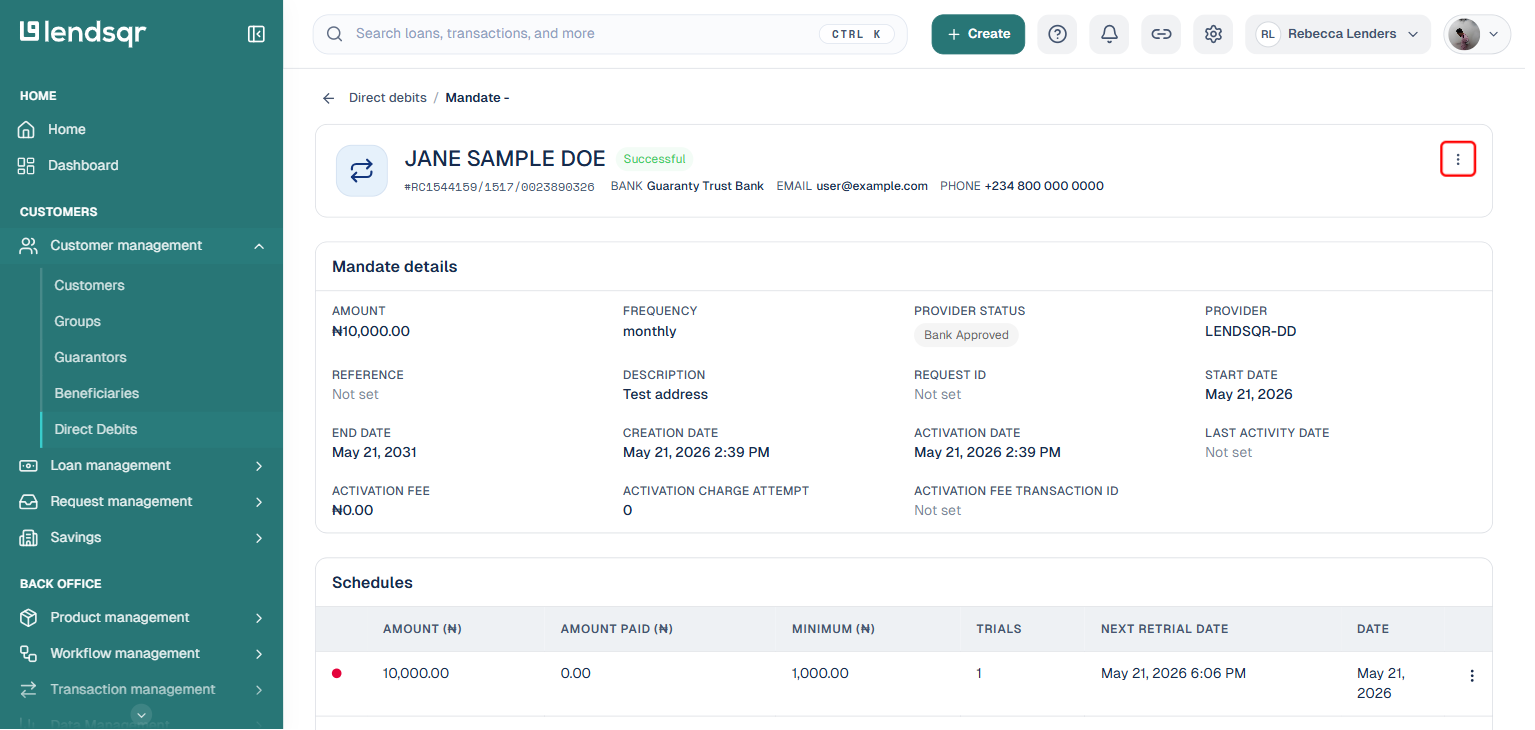
After confirming the mandate details, click the New Schedule button.

This action opens the schedule creation form.

Displayed mandate details with an option to create a new mandate

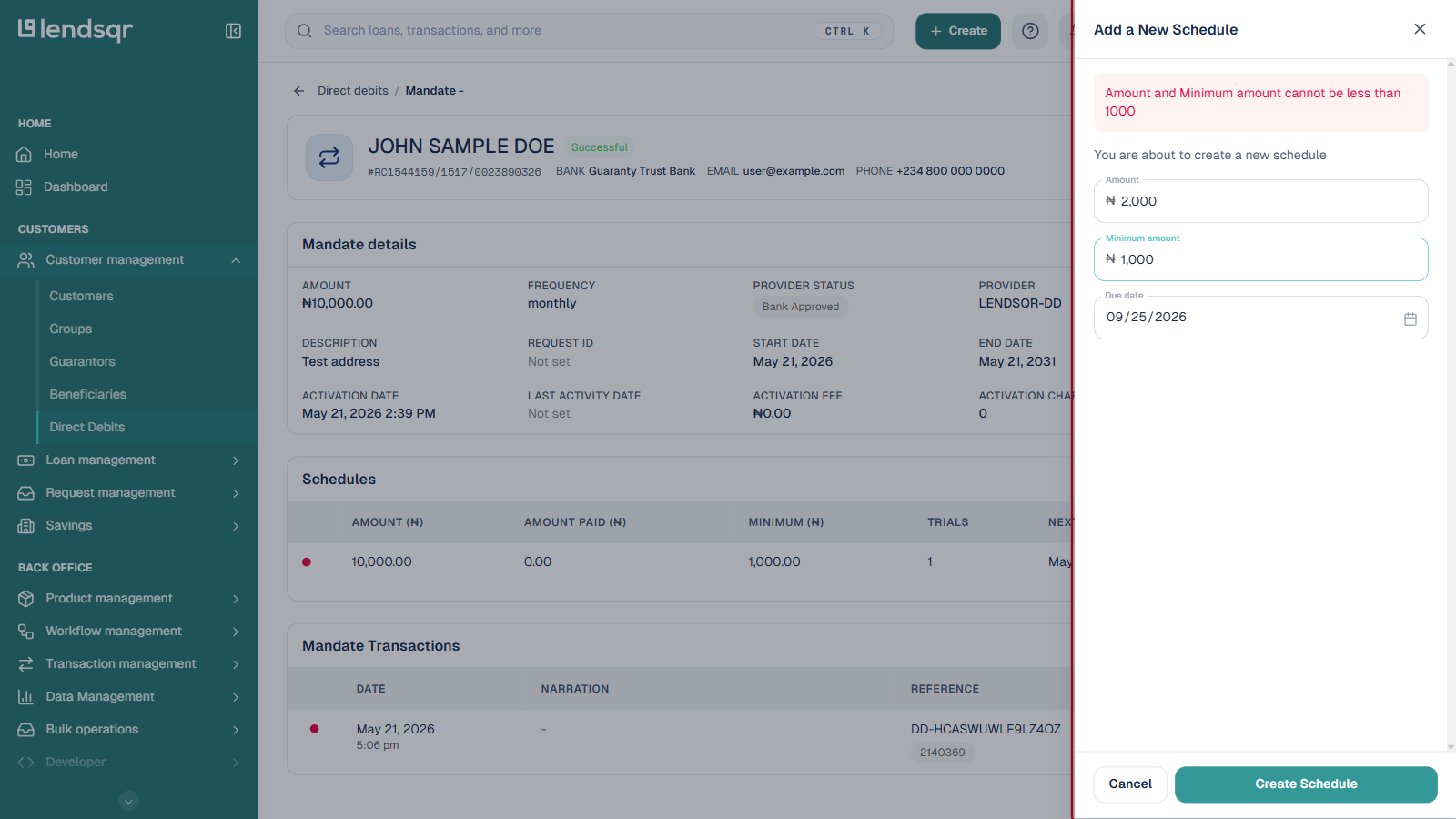
Step 4: Fill in the schedule details

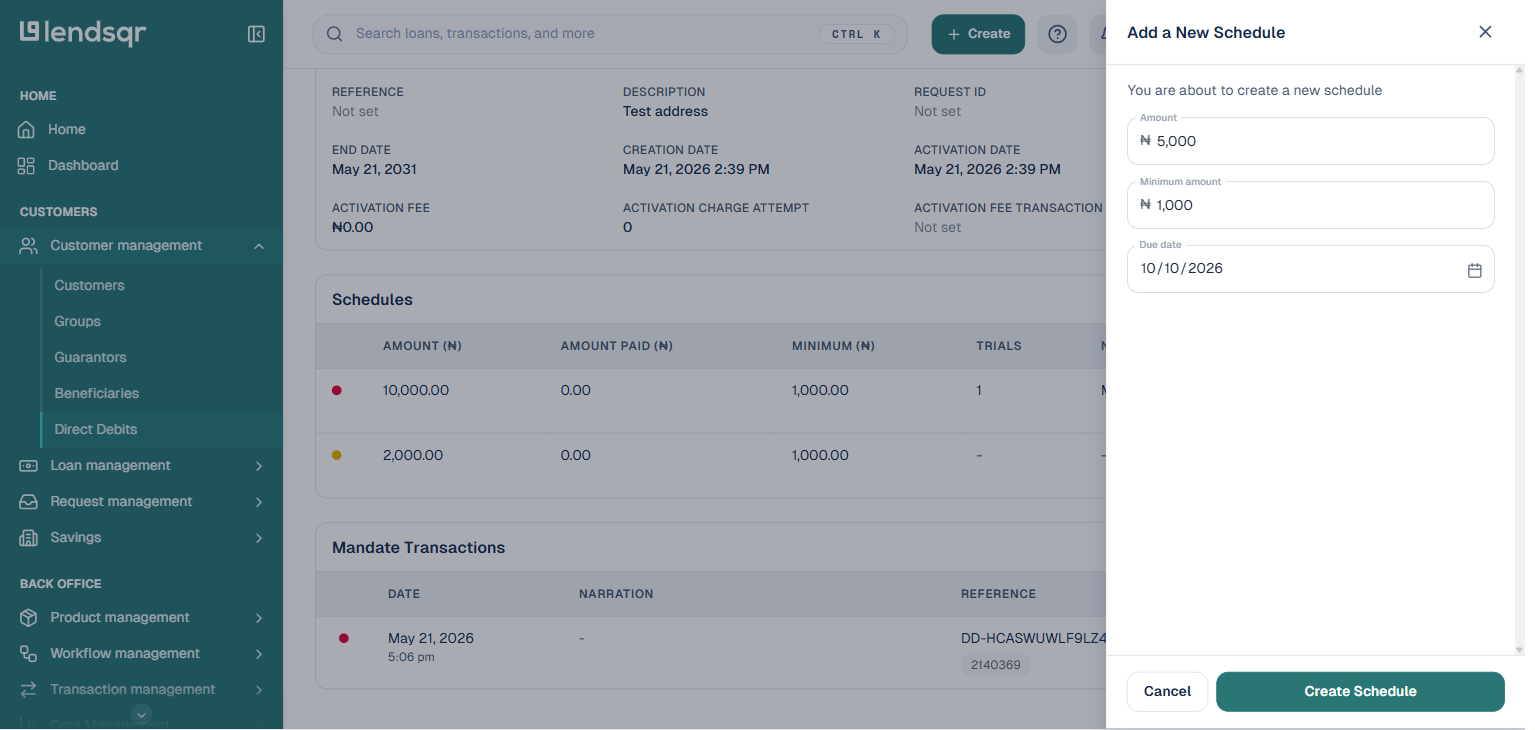
On the new schedule form, provide the required repayment information.

Depending on your organization’s configuration, this may include:

  • Repayment amount
  • Repayment date
  • Collection frequency
  • Description or repayment note
  • Reference information
  • Additional collection instructions

Carefully review all entered information before proceeding.

Incorrect repayment dates or amounts may lead to failed collections or borrower disputes.

Modal to fill out a new schedule

Step 5: Submit the schedule

After entering the required information, click the Submit button.

The system will process the request and validate the repayment schedule against the existing mandate.

If the submission is successful, the new repayment schedule will be attached to the existing direct debit mandate.

Step 6: Confirm successful schedule creation

Once the schedule has been successfully created:

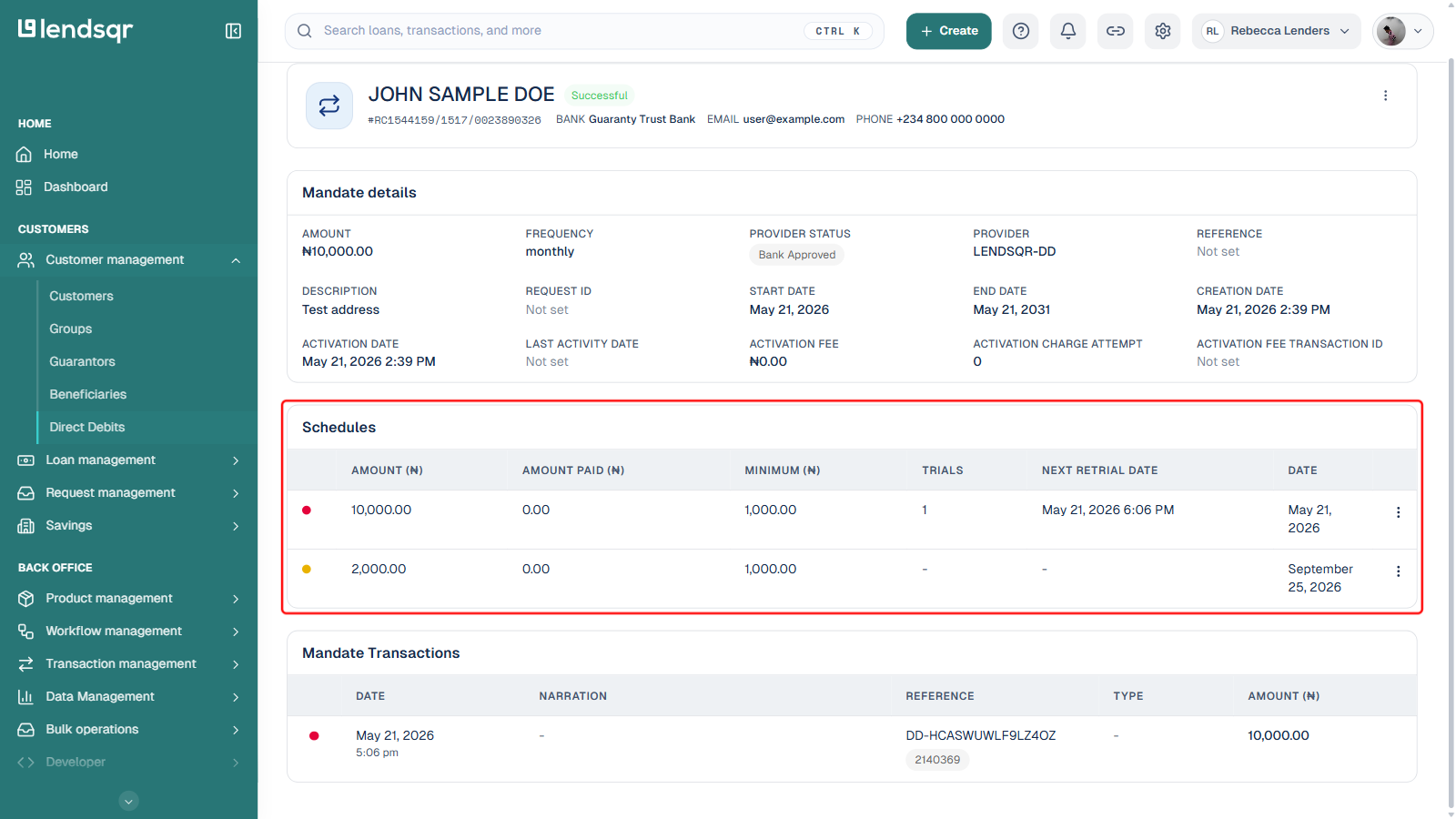
  • The new repayment schedule will appear within the mandate details
  • The repayment timeline will reflect the newly added debit date
  • Your operations team can monitor upcoming collections from the mandate page

It is recommended that you review the newly added schedule immediately after submission to ensure all details were saved correctly.

Successful addition of a new schedule

What happens after a new schedule is created?

After a new schedule is successfully added, the direct debit system will attempt collection based on the newly specified repayment date and amount.

The repayment process will continue under the existing mandate authorization, which means the borrower does not need to sign a new mandate in most cases.

Your organization can then:

  • Track upcoming debit attempts
  • Monitor repayment success rates
  • Manage failed collections if they occur
  • Update repayment records accordingly

Depending on your workflow configuration, borrowers may also receive notifications regarding updated repayment schedules.

Use cases for mandate schedules

Adding repayment schedules to existing mandates can support a wide range of lending operations.

Loan restructuring

When a borrower experiences temporary financial difficulty, your collections or recovery team may restructure repayments into smaller or later installments.

Instead of issuing a completely new mandate, a new repayment schedule can simply be added.

Salary payment adjustments

Some borrowers may receive salaries later than expected in a particular month. In this case, repayment dates can be adjusted to align with their updated salary cycle.

Recovery collections

Collections teams may need to introduce additional debit dates after failed repayment attempts.

New schedules help formalize these recovery arrangements.

One-time repayment collections

A borrower may agree to make a one-time settlement payment outside their original repayment plan.

Administrators can create a dedicated repayment schedule specifically for that collection.

Temporary payment extensions

Borrowers facing short-term cash flow issues may request an extension. Adding a new repayment schedule allows lenders to support the borrower while maintaining repayment tracking.

Best practices for creating mandate schedules

Following best practices can help improve repayment success rates and reduce operational issues.

Confirm borrower communication

Always ensure the borrower is aware of any newly scheduled repayment date.

Unexpected debit attempts may lead to disputes or insufficient balance situations.

Verify repayment amounts carefully

Double-check repayment amounts before submission to avoid overcharging or under-collecting repayments.

Avoid overlapping schedules

Ensure newly added schedules do not conflict with existing repayment dates under the same mandate.

Overlapping schedules may create confusion or collection failures.

Review the mandate’s validity

Confirm that the mandate remains active before adding a new schedule.

Expired or revoked mandates may reject additional repayment instructions.

Document repayment changes internally

Maintain proper internal records explaining why a new repayment schedule was created.

This is especially important for collections, restructuring, and compliance audits.

Common issues and troubleshooting

Unable to access the New Schedule button

This usually indicates insufficient permissions. Ensure your account has the required direct debit management access.

Schedule submission fails

Check that:

  • All required fields have been completed
  • The repayment date is valid
  • The mandate is still active
  • The repayment amount falls within acceptable limits

Newly created schedule does not appear

Refresh the mandate details page and confirm the submission was successful. If the issue persists, contact your internal administrator or support team.

Debit collection fails after schedule creation

A repayment schedule only creates the debit instruction. Actual collection success depends on factors such as:

  • Sufficient borrower account balance
  • Valid bank account details
  • Active mandate authorization
  • Successful processing by the payment provider

Frequently asked questions

Can I add multiple schedules to a single mandate?

Yes. Existing mandates can support additional repayment schedules depending on your organizational configuration and mandate limits.

Do borrowers need to sign a new mandate for additional schedules?

In most cases, no. Additional schedules are typically added within the scope of the already signed mandate authorization.

Can I edit a schedule after submission?

This depends on your organization’s configuration and permissions. Some setups may allow schedule modification, while others may require creating a new schedule.

What happens if the repayment fails?

If a repayment attempt fails, your collections or operations team can review the failure reason and determine the next recovery action.

Can I create schedules for inactive mandates?

No. The mandate must remain active and valid before additional repayment schedules can be added.

Was this page helpful?