Access your Back Office at your fingertips.
Download the app now on Google Play Store.
Scan the QR code
You can also scan QR code with your phone to download the app.
How the team member referral system works
Updated
On this page
The referral system helps you track which team member brought in a customer and automatically assigns ownership without manual steps. Every account manager or team member gets a unique referral code. Once a customer signs up with that code, the system links them to the right person and branch.
How referral codes are generated
A referral code is automatically created when a new team member or account manager is added to your organization.
Existing team members already have referral codes assigned to them, so there’s nothing extra to set up.
Where to find referral codes
There are two places to view referral codes, depending on what you need.
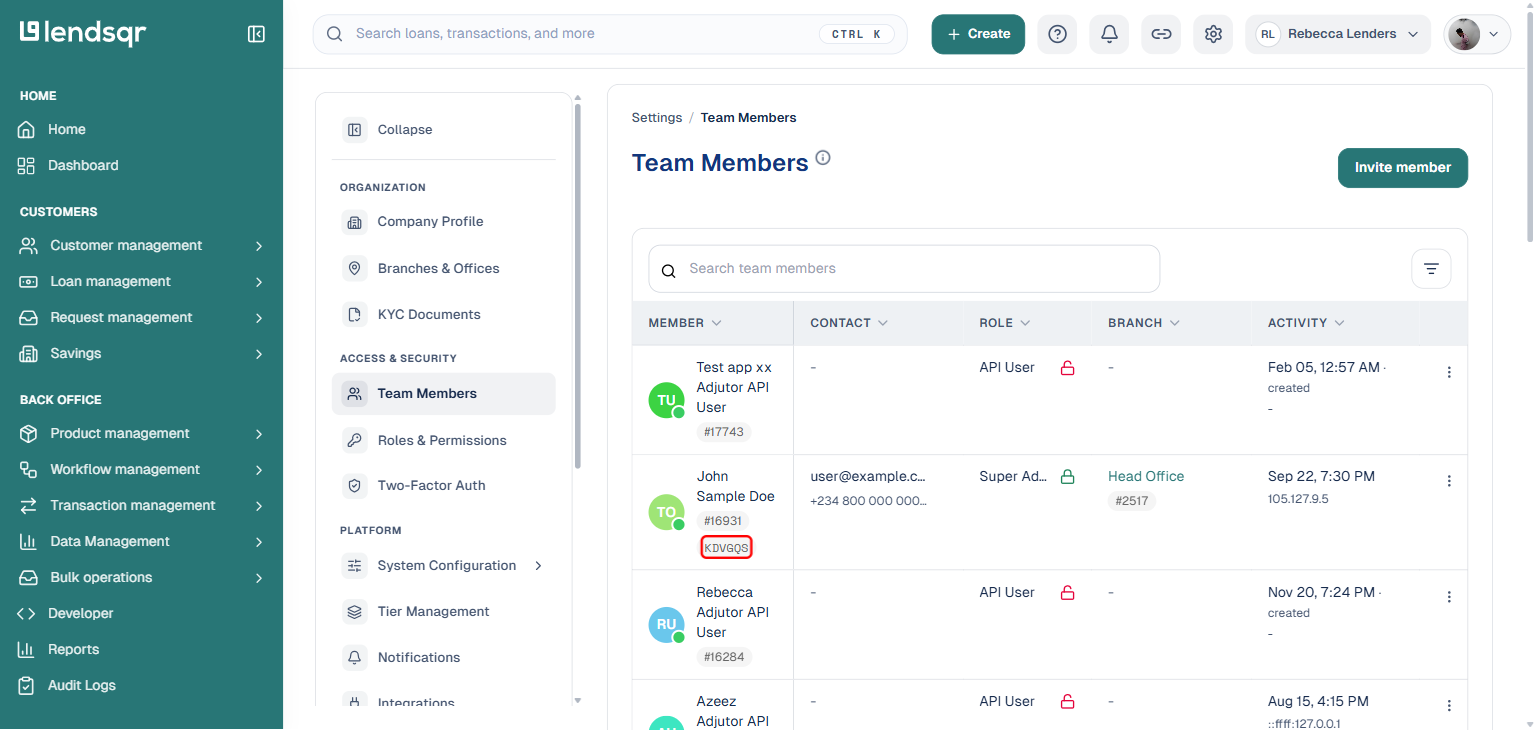
1. Team Members page (for admins and team leads) This view shows all team members, with each row’s referral code displayed as a short code next to their ID badge.
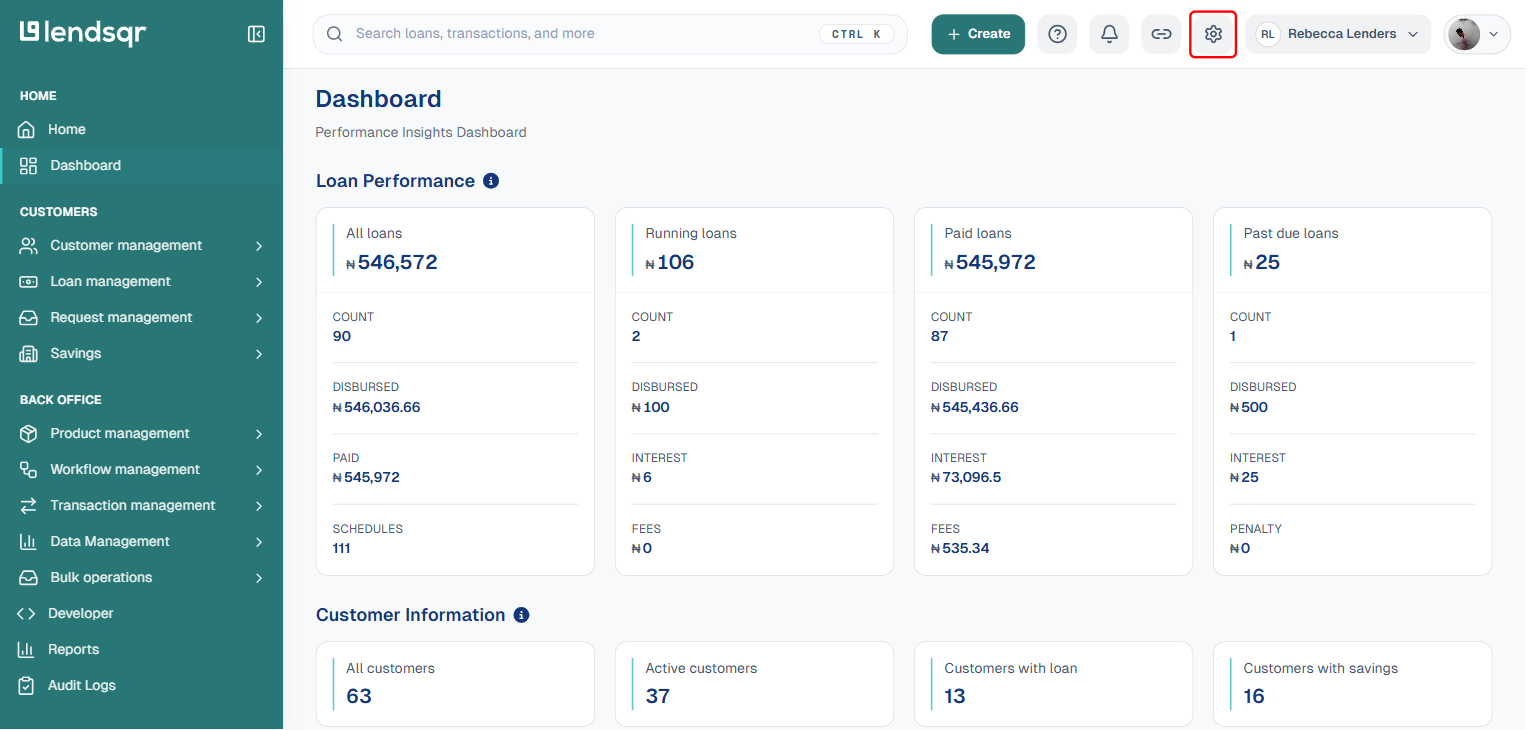
Click on the Settings (Gear) icon on the top navigation pane
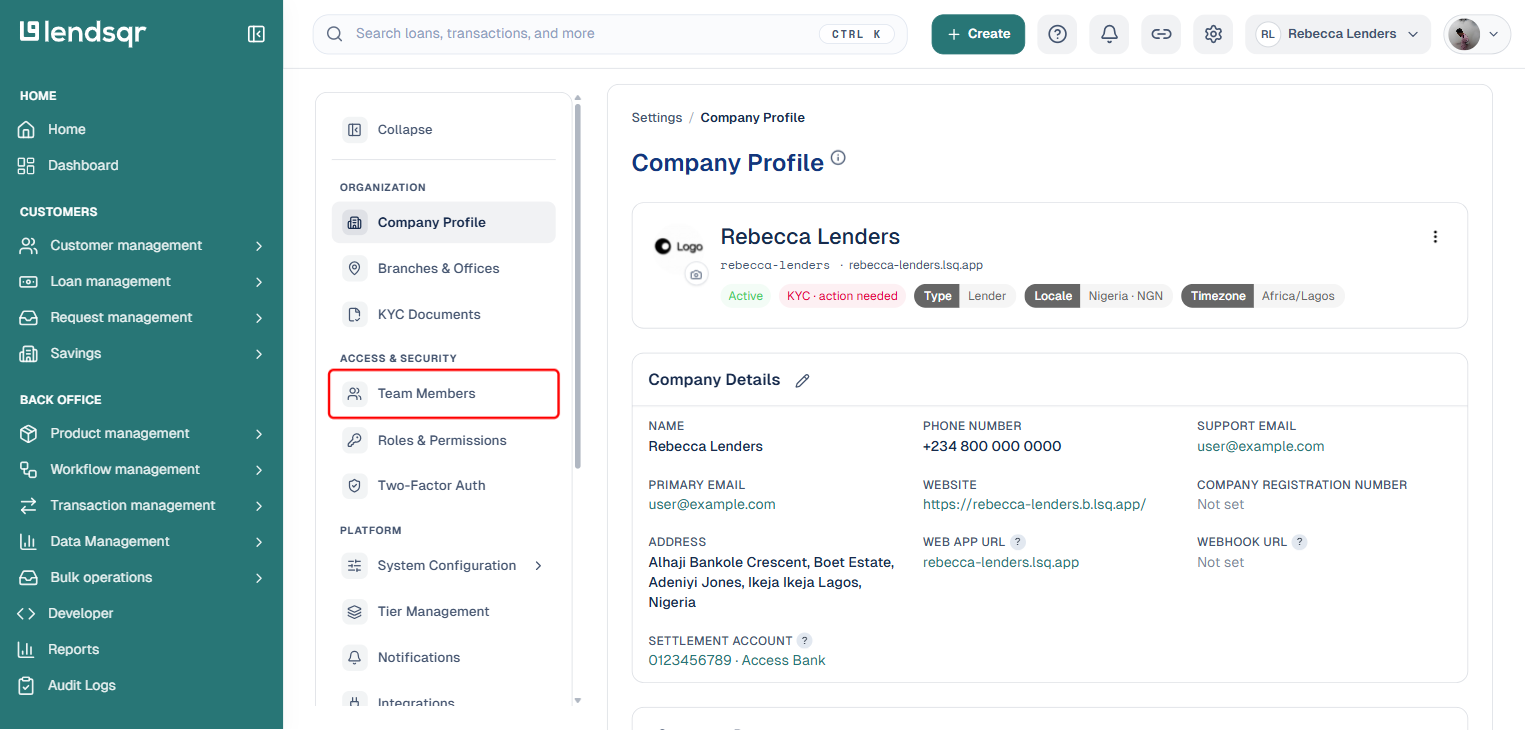
Under Access & Security, click Team Members
The resulting page shows the list of team members, each with an ID badge and a referral code badge beside it
This is useful if you want to check or share codes across the entire team.
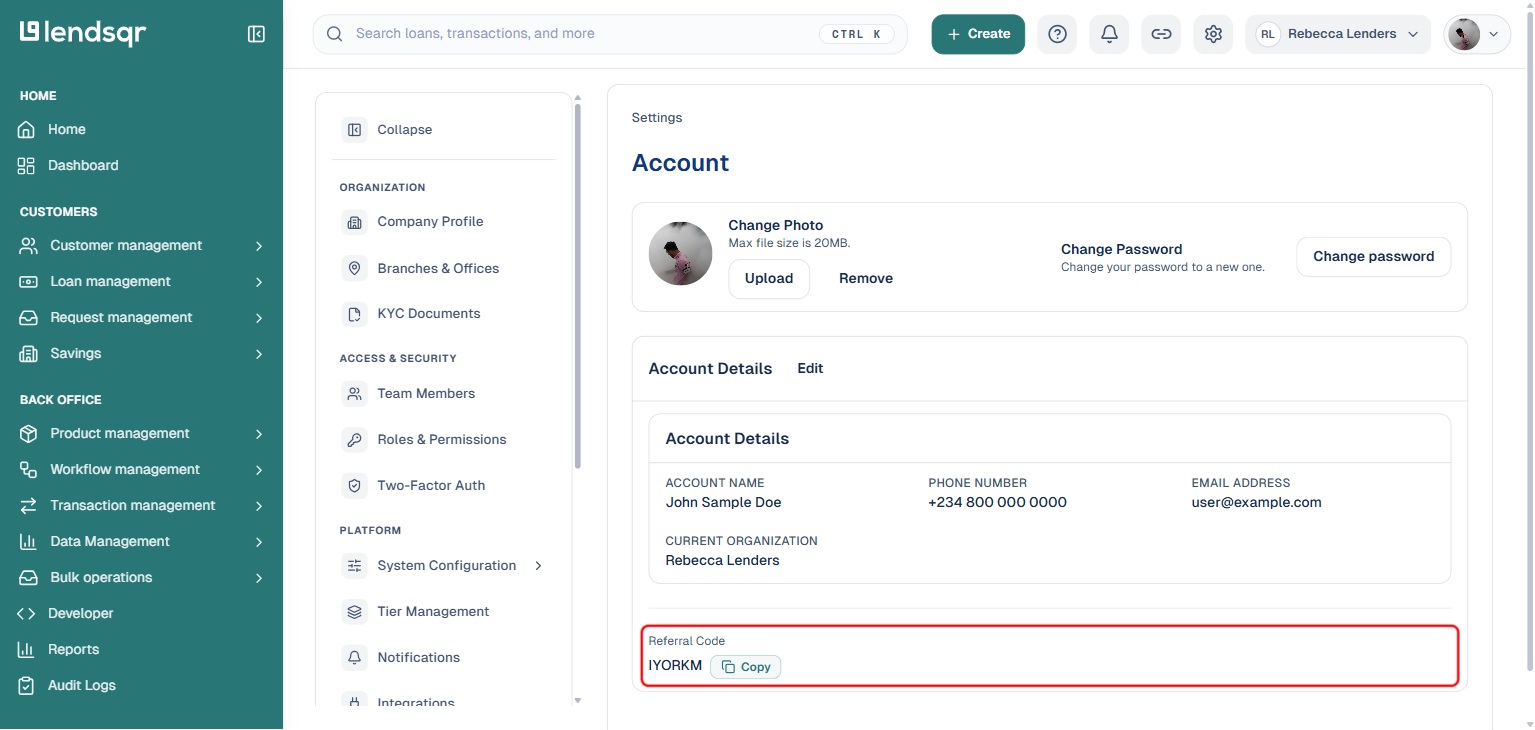
2. My Account page (for individual team members) This view is better if a team member wants to quickly find their own code.
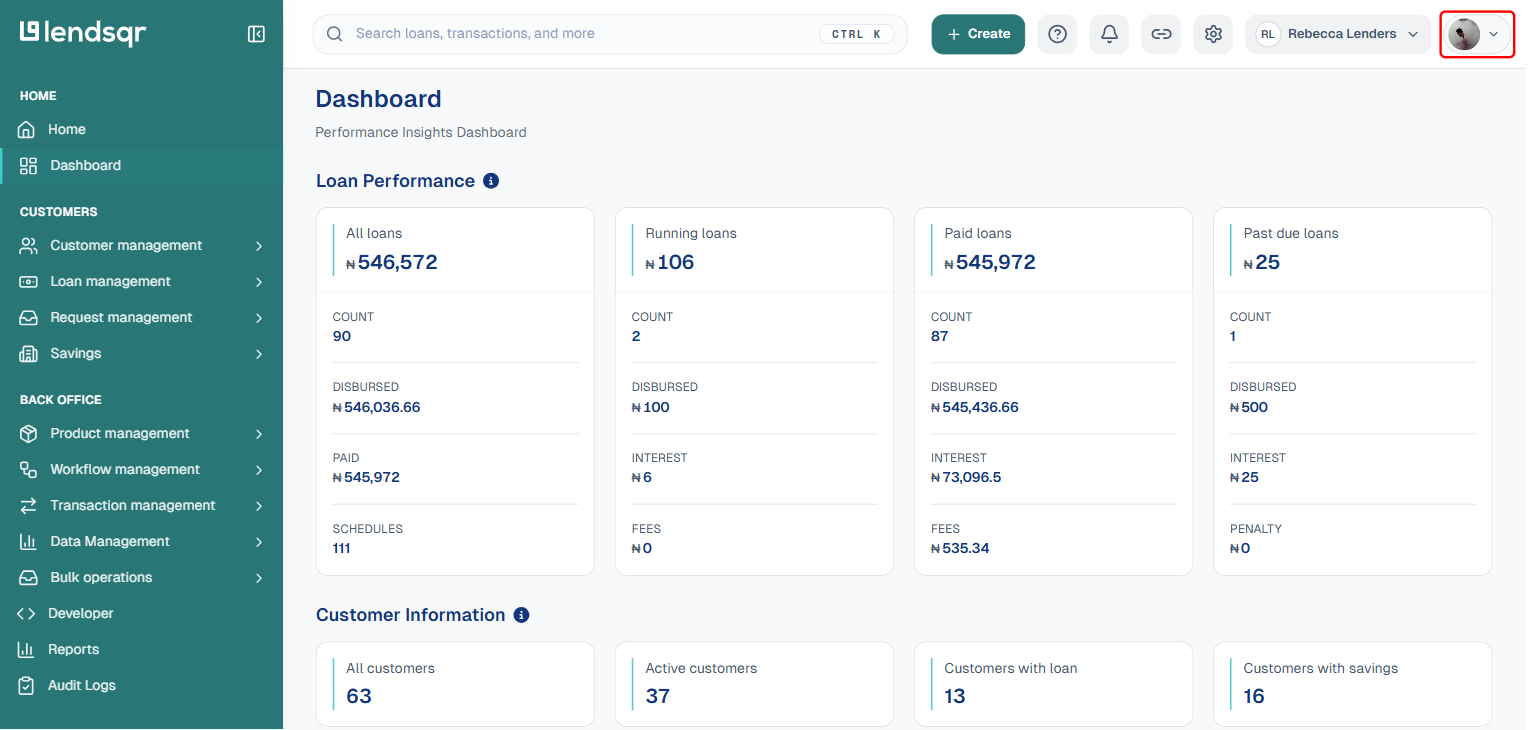
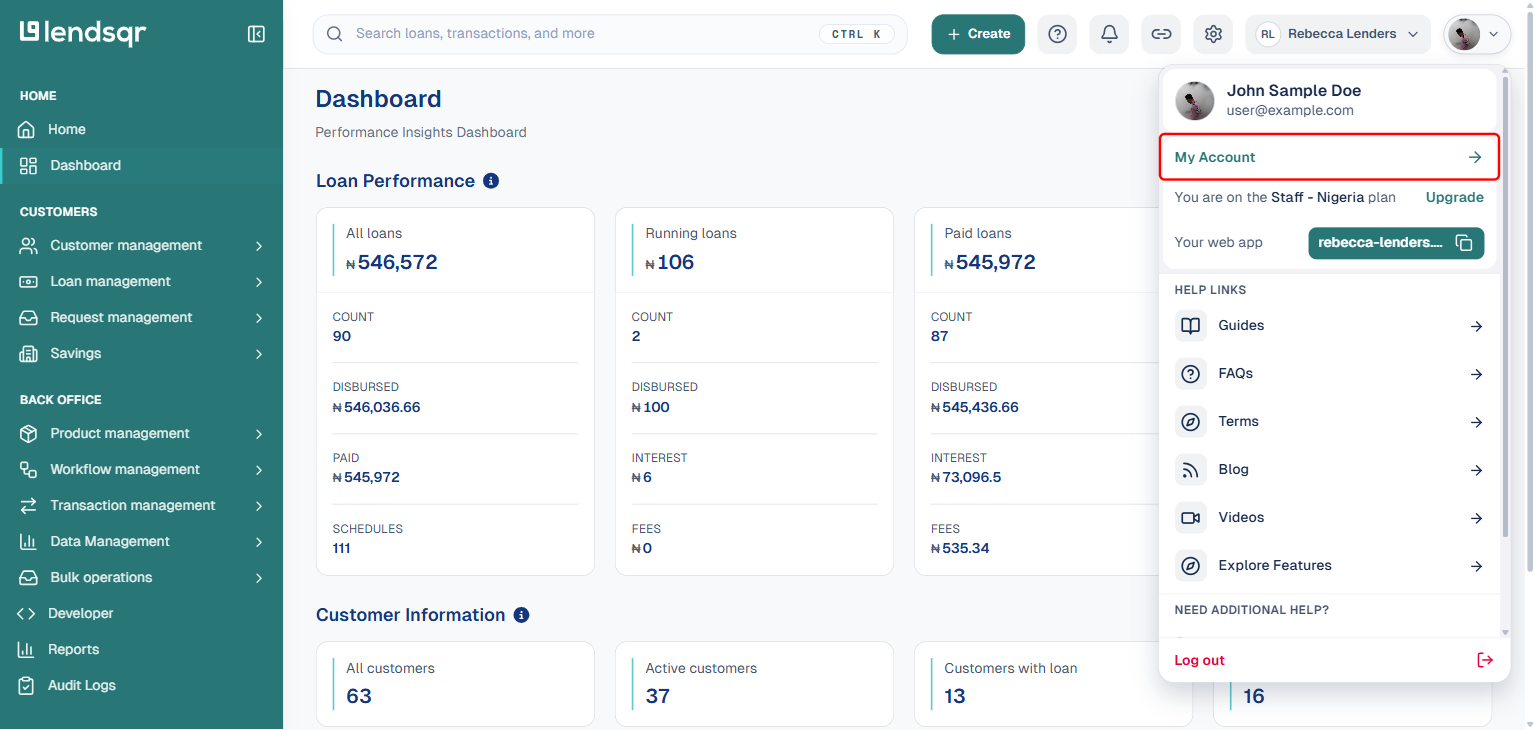
Click on your profile picture at the top right of the navigation pane
Click on My Account
Scroll to the Referral Code field, with an option to copy it
Use this when you only need your personal code instead of the full team list.
How customers use the referral code
The customer enters the referral code while signing up on the web app. No extra steps after that.
Once onboarding is complete, the system does two things:
Assigns the referring team member as the customer’s account manager
Links the customer to the same branch or office
No manual reassignment needed.
Example
A field officer meets a new customer and shares their referral code. The customer signs up later that day using the web app and enters the code during registration. Once they complete onboarding, the system automatically assigns that field officer as their account manager and maps the customer to the correct branch.
How to confirm assignment
To verify that the referral worked:
Go to Customer management > Customers
Search for the customer
Open their profile and check the “Back Office” section
You’ll see the assigned account manager, phone number, email, and office already filled in.
Why this matters
Without this, teams often rely on manual updates after onboarding, which leads to mix-ups. With referral codes, ownership is clear from the start and easier to track across your pipeline.