Access your Back Office at your fingertips.
Download the app now on Google Play Store.
Scan the QR code
You can also scan QR code with your phone to download the app.
How to update your web app domain
Updated
On this page
A domain is the address that people use to access a particular website on the internet. Your web app domain is the address users use to access your platform and apply for loans you offer online.
Lendsqr creates a default web app for you immediately after you sign up on the admin console. It comprises your company short name and the Lendsqr domain; for example, shortname.lsq.app. A domain name gives your web app an identity and makes it easy for users to find. For instance, instead of sending loan applicants to companyname.lsq.app, a custom domain like apply.yourcompany.com looks more professional and builds trust with borrowers. This is especially important if you’re running a branded product or migrating an existing loan application portal to Lendsqr.
Changing your web app domain name
On the Lendsqr admin console, you can change your web app domain from the default domain created for you by Lendsqr to a custom domain that better represents your business.
You must register the name with a domain registrar and then point it to the IP address of the web server hosting your web app.
Note: The domain adjustments are not feasible for accounts on the Free Plan. They are exclusively available to lenders on the Starter plan and above.
Should you use a subdomain or apex domain?
Before getting started, it helps to decide which type of domain you want to use:
Use an apex domain (e.g., yourcompany.com) if your loan application portal is your entire website. This would imply that you don’t have/need a separate marketing site or homepage.
Use a subdomain (e.g., apply.yourcompany.com or loans.yourcompany.com) if your main website already exists and you only want loan applications running on a separate path. This is the most common setup for lenders.
Steps to change your web app domain
To change your web app domain, kindly follow the steps below:
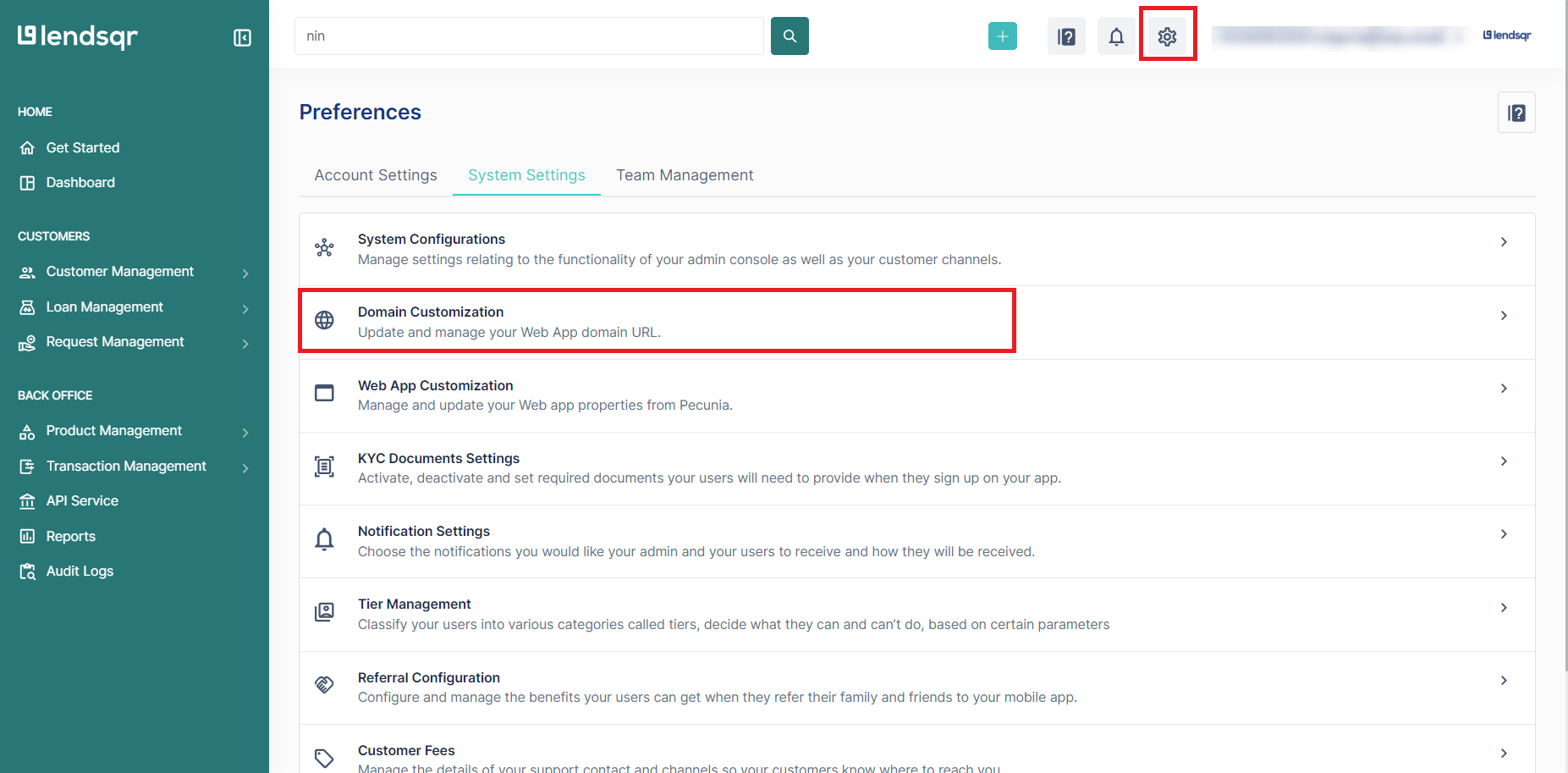
1. Navigate to Domain Customization
On the Lendsqr admin console, navigate to “Preferences” and select “Domain customization”
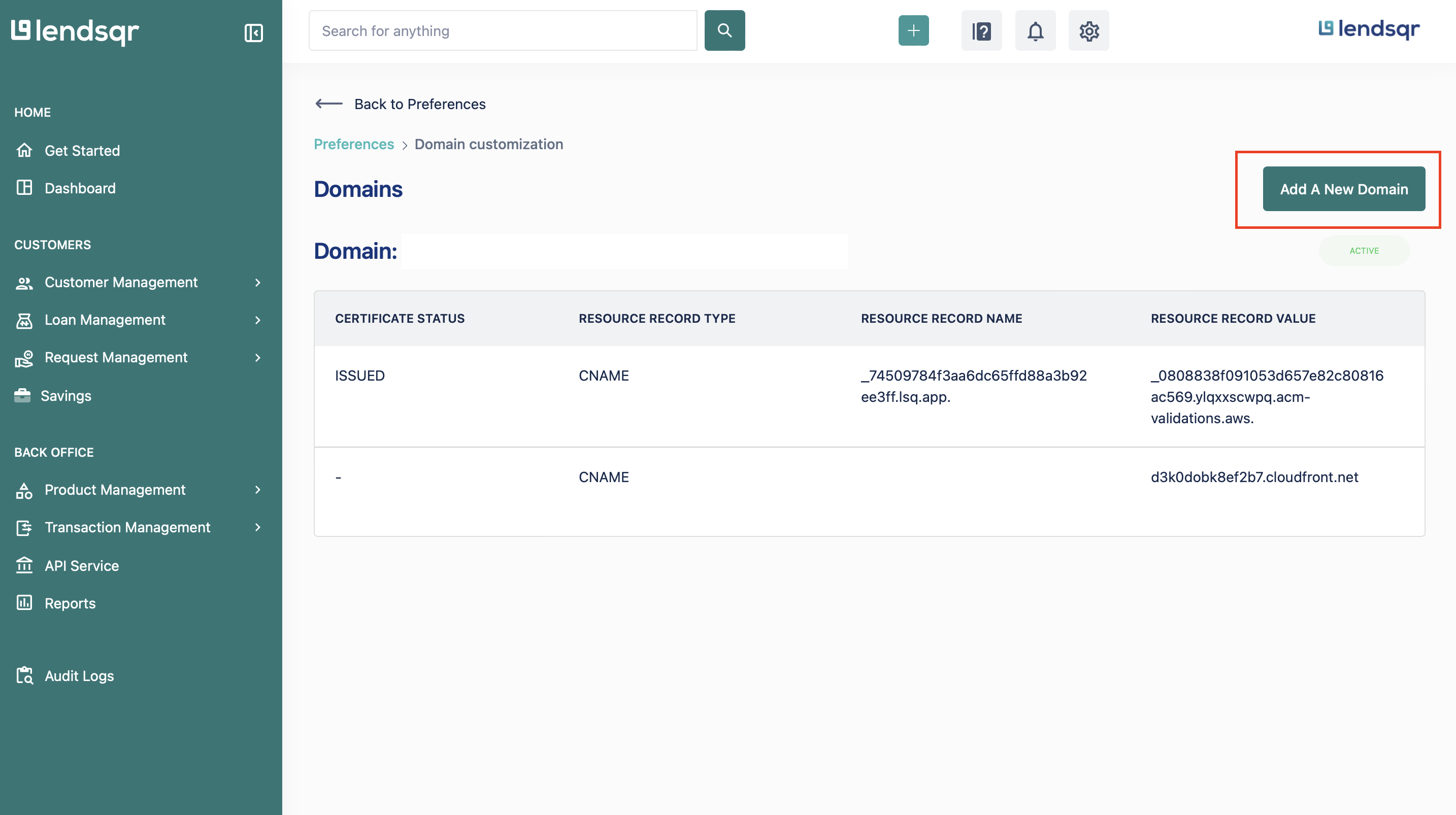
2. Add a new domain
Click on the “Add a new domain” button.
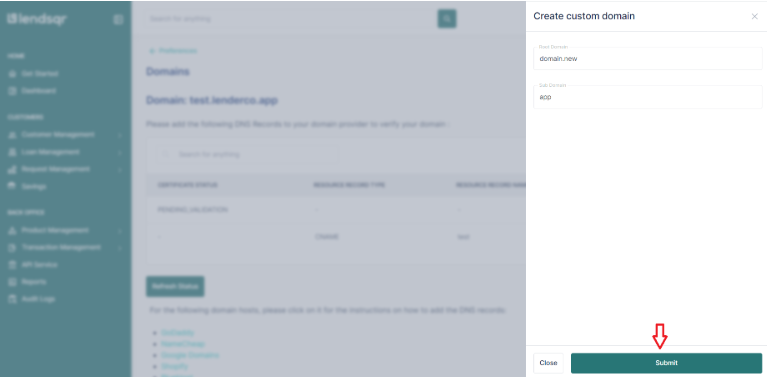
3. Enter your domain name
Input your domain name and click on “Add domain”.
Ensure you input your company’s main domain, such as yourcompany.com, kayode.app, or example.com, without including www.
If you wish to use a subdomain, type it in the subdomain field (e.g., app).
After clicking “Submit,” your web app domain will be app.lender.com if a subdomain was provided. If no subdomain is specified, your web app will be accessible at the apex domain (e.g., yourcompany.com) and Lendsqr will also automatically configure the www version (www.yourcompany.com).
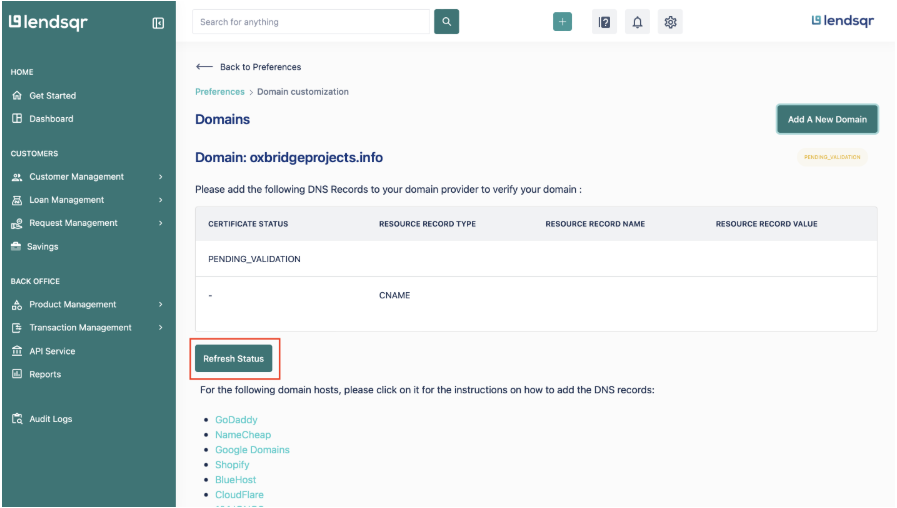
4. Refresh status and view domain details
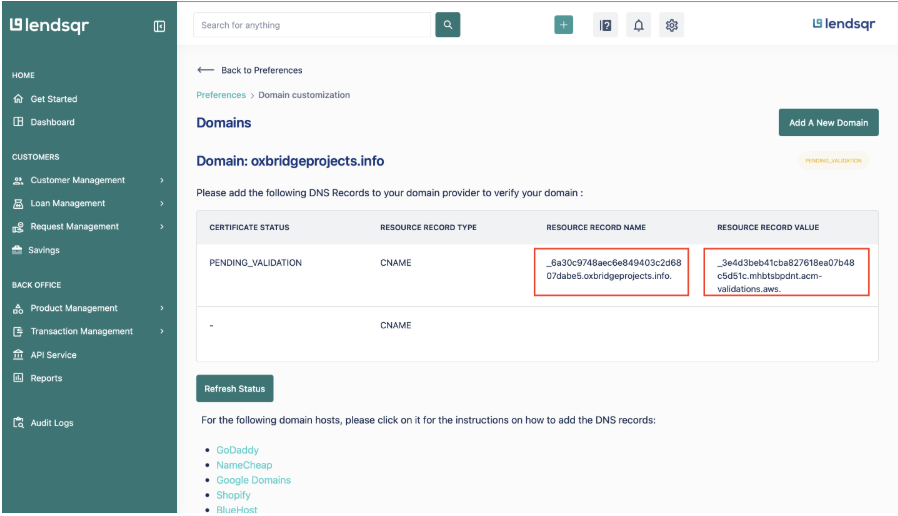
Click on the “Refresh status” button to view the details of the domain you have just added. You will also be able to view a guide on how to add the DNS record for different domain hosts.
5. Copy the resource record and add it to your DNS provider
When you can view the details of the domain on the admin console, copy the “Resource record” and the “Resource record value” and paste it in your website DNS provider.
Understanding your DNS record
When adding this record, you’ll be using a CNAME record; not an A record. A CNAME points your subdomain to another domain name, while an A record points directly to an IP address. Lendsqr’s setup requires a CNAME.
Here’s what your DNS record should look like:
Field
Value
Type
CNAME
Name
app(your subdomain)
Target
yourcompany.com(your apex domain)
TTL
3600 (or “Auto”)
Note: The table aboveis only applicable when you wish to use a subdomain.
6. Refresh status and link the domain
After you set this up with your DNS provider, click the “Refresh Status” button on the admin console to update the domain details.
Next click on the “Link domain” button and the “Resource record value” on the newly added domain will be updated on the admin console. You can now copy the “Resource record” and the “Resource record value” of the sub domain (i.e app) and add another DNS record for the same domain.
7. Domain goes live
Once this has been done successfully, your domain will be updated to an active status and ready for use. The previous domain you had (yourcompany.lsq.app) will also be deactivated. Lendsqr automatically provisions an SSL/TLS certificate for your custom domain, so your web app will be served over HTTPS without any additional configuration on your part.
DNS propagation
DNS changes do not take effect instantly. After updating your DNS records, changes can take anywhere from a few minutes to 48 hours to propagate globally, depending on your DNS provider. If your domain doesn’t show as active immediately after clicking “Refresh Status”, wait up to 24 hours before troubleshooting.
Troubleshooting
If you run into issues after completing the steps above, here are a few things to check:
Domain still shows “Pending” after 48 hours: Double-check that the CNAME record name and target were entered exactly as shown on the admin console, with no trailing spaces or extra characters.
www subdomain not resolving: Ensure you added a DNS record specifically for www if you’re not using a custom subdomain.
Domain activated but site isn’t loading: Clear your browser cache or try opening the link in an incognito window. DNS changes sometimes cache locally even after they’ve fully propagated.
Unsure which DNS record type to use: Always use CNAME when pointing a subdomain to Lendsqr. If your DNS provider doesn’t support CNAME at the apex level, contact Lendsqr support for guidance.