Access your Back Office at your fingertips.
Download the app now on Google Play Store.
Scan the QR code
You can also scan QR code with your phone to download the app.
Customer profile navigation on the admin console
Updated
On this page
The customer profile page brings together everything recorded for a customer, personal details, documents, savings, transactions, loans, and activity history, so you can quickly move to the section that matches what you need to review.
Overview
Rather than presenting everything in one long page, the profile is organized into tabs. Two tabs, General Details and Audit Trails, always appear. The rest only show up when that customer actually has data in that category, so the exact set of tabs you see varies from one customer to the next. A brand-new customer with no loans, savings, or uploaded documents yet will show a shorter tab list than an established customer with years of activity.
When you open a customer’s profile, you land on the General Details tab by default.
Information shown at the top of the profile
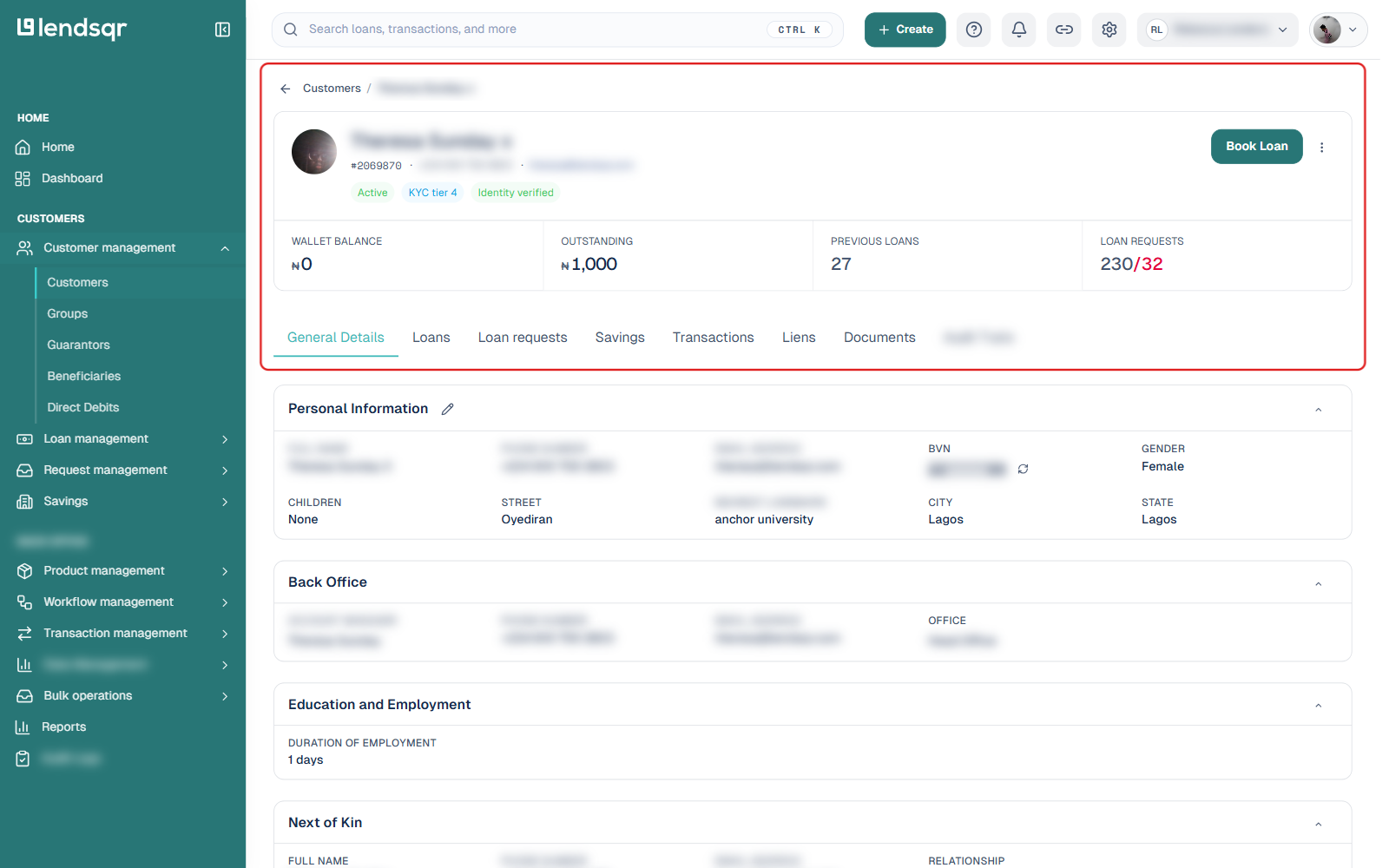
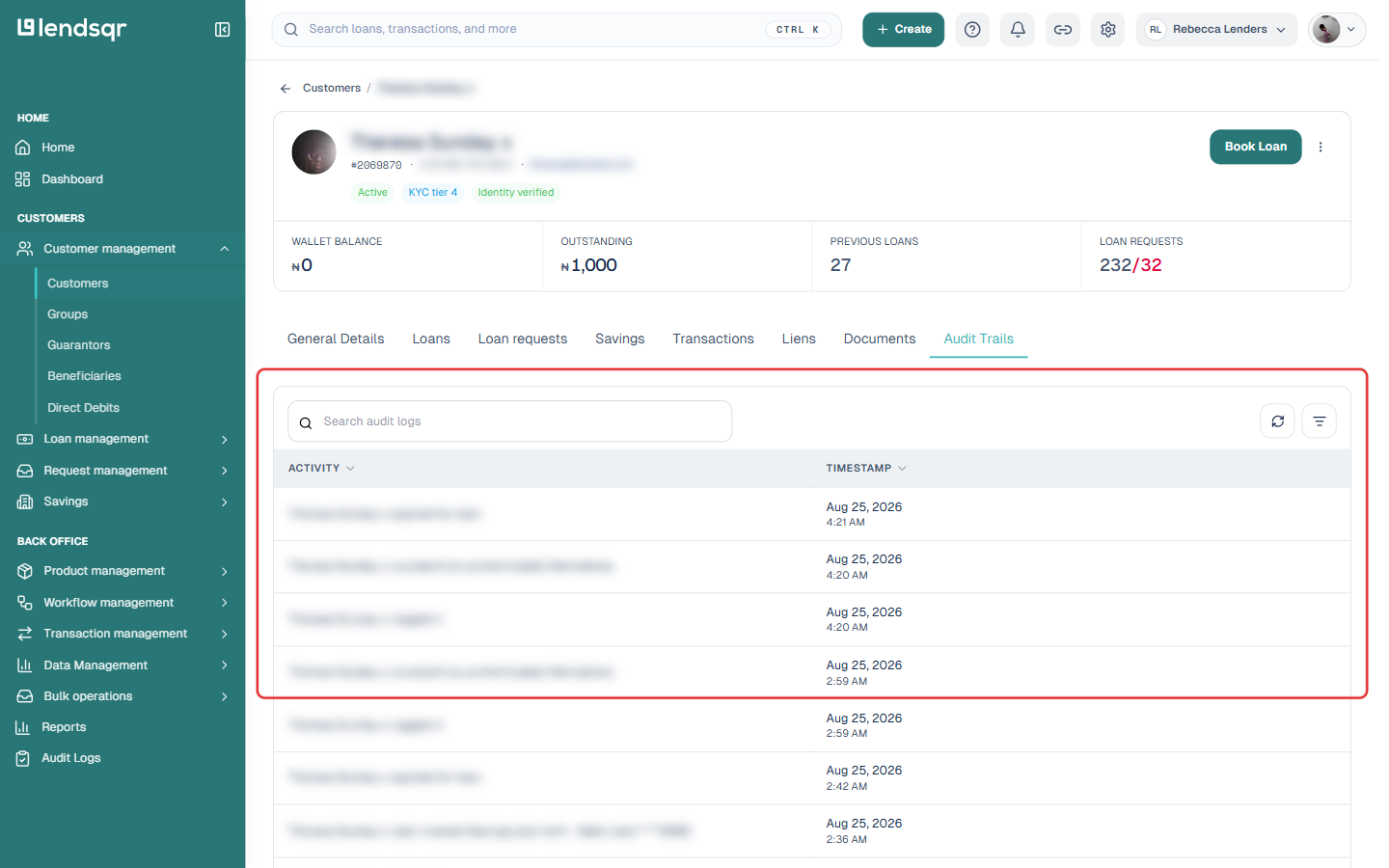
At the top of the profile, above the tabs, you get a quick summary of the customer: their name, customer ID, phone number, email, status (active or inactive), KYC tier, and identity verification state. Below that is a row of key numbers, wallet balance, outstanding amount, previous loans, and loan requests, which stays visible no matter which tab you switch to. A Book Loan button sits in the top-right for booking a loan directly from the profile.
General Details
This is the default tab and the best place to start when you want a broad understanding of the customer. It’s organized into collapsible sections rather than a single flat list, and which sections appear again depends on what’s on file for that customer:
Personal Information, covering full name, phone number, email, gender, children, and address (street, nearest landmark, city, state)
Back Office, showing the assigned account manager and office
Education and Employment
Next of Kin
Guarantors
Payment methods, listing linked bank accounts, virtual accounts, cards, and direct debit mandates. This is where a customer’s banking details live. There is no separate “Bank Details” tab.
KYC and tiers, showing address verification, selfie ID check, and KYC tier, each with an option to edit the status
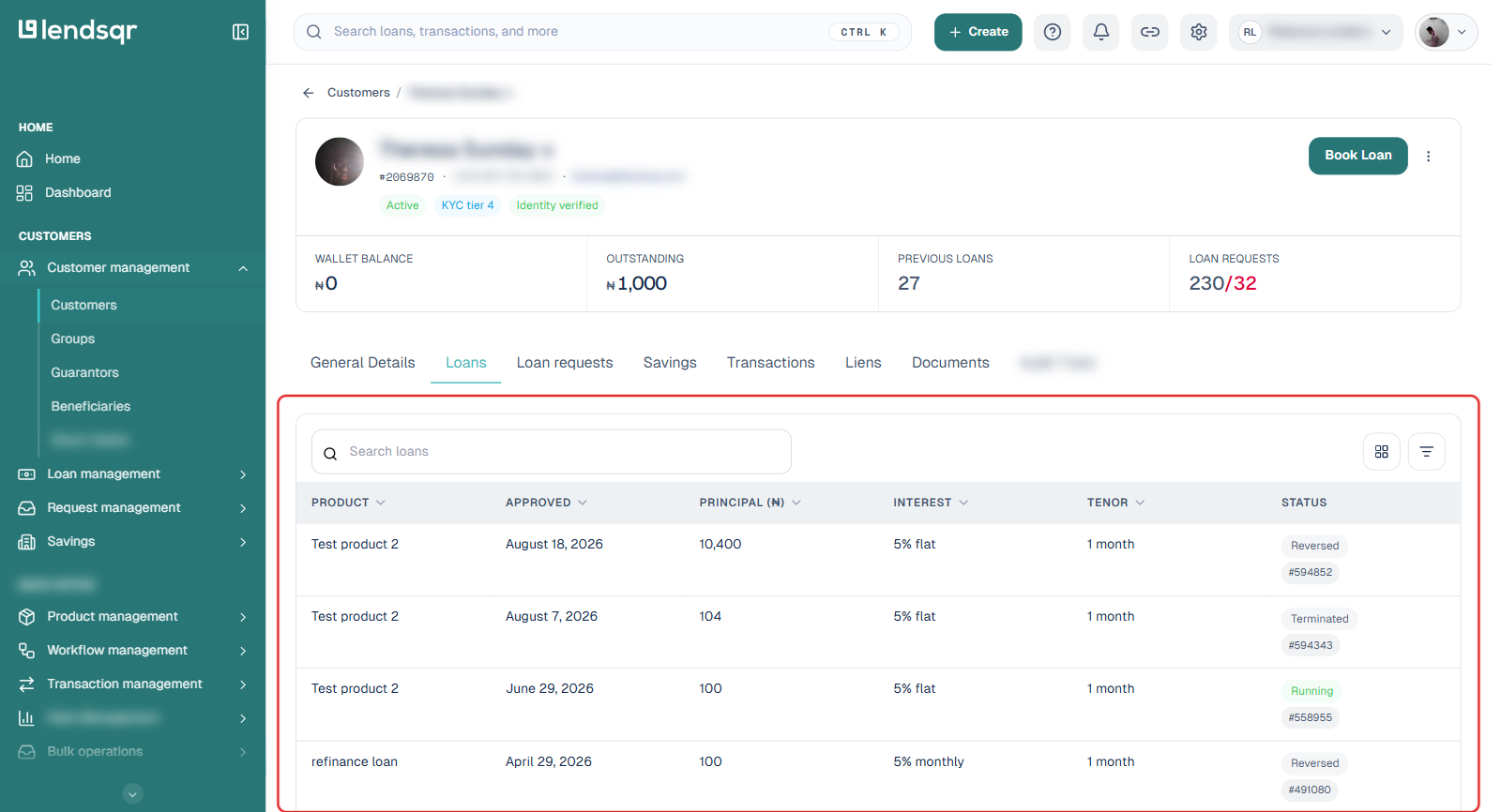
Loans
Shows the customer’s loan history: product, amount approved, principal, interest, tenor, and status (such as Running, Settled, Reversed, or Terminated), each with a reference number. Only appears if the customer has at least one loan.
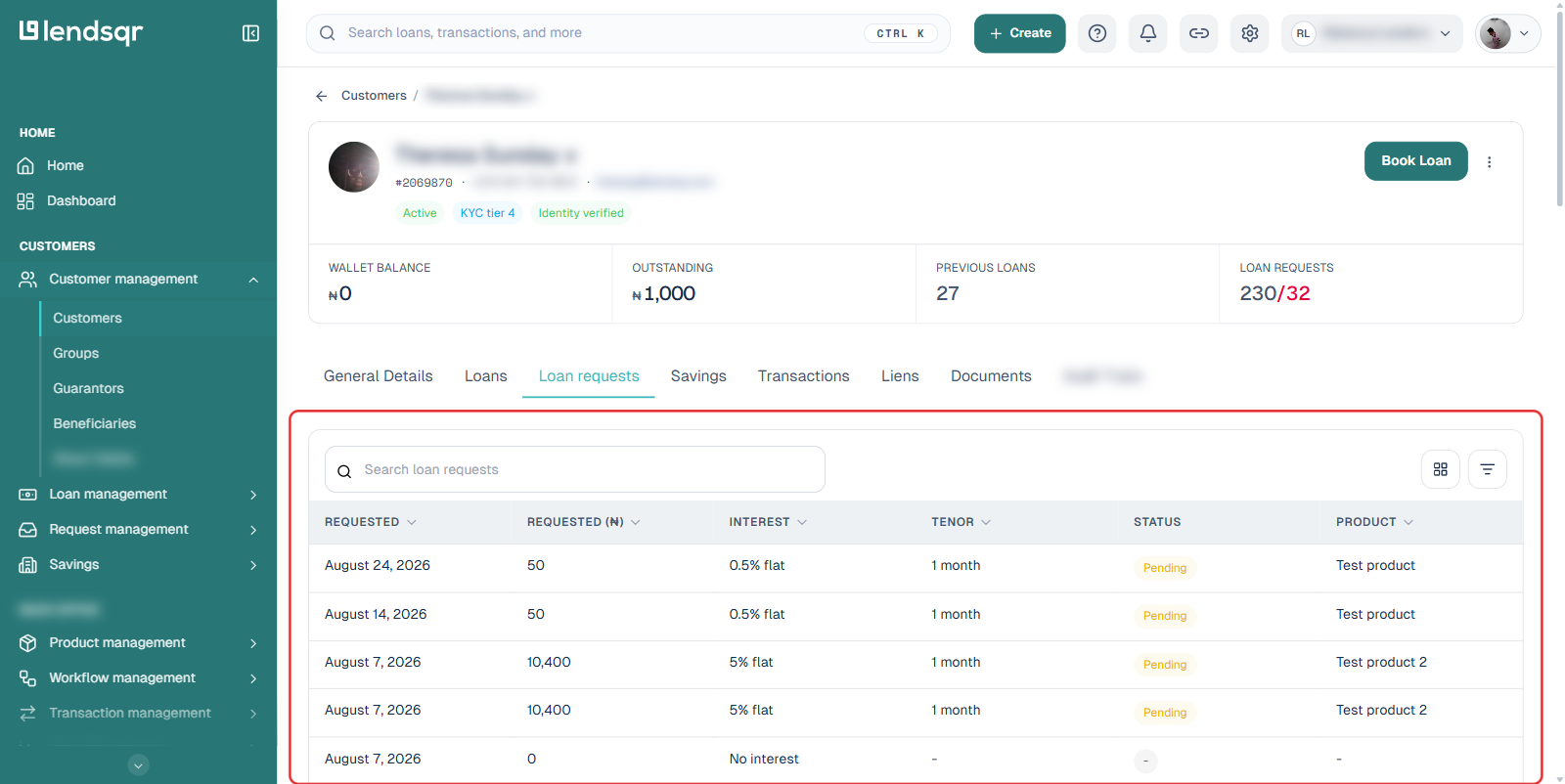
Loan requests
Separate from the Loans tab, this shows loan applications the customer has submitted, including ones still pending a decision. Only appears if the customer has submitted at least one loan request.
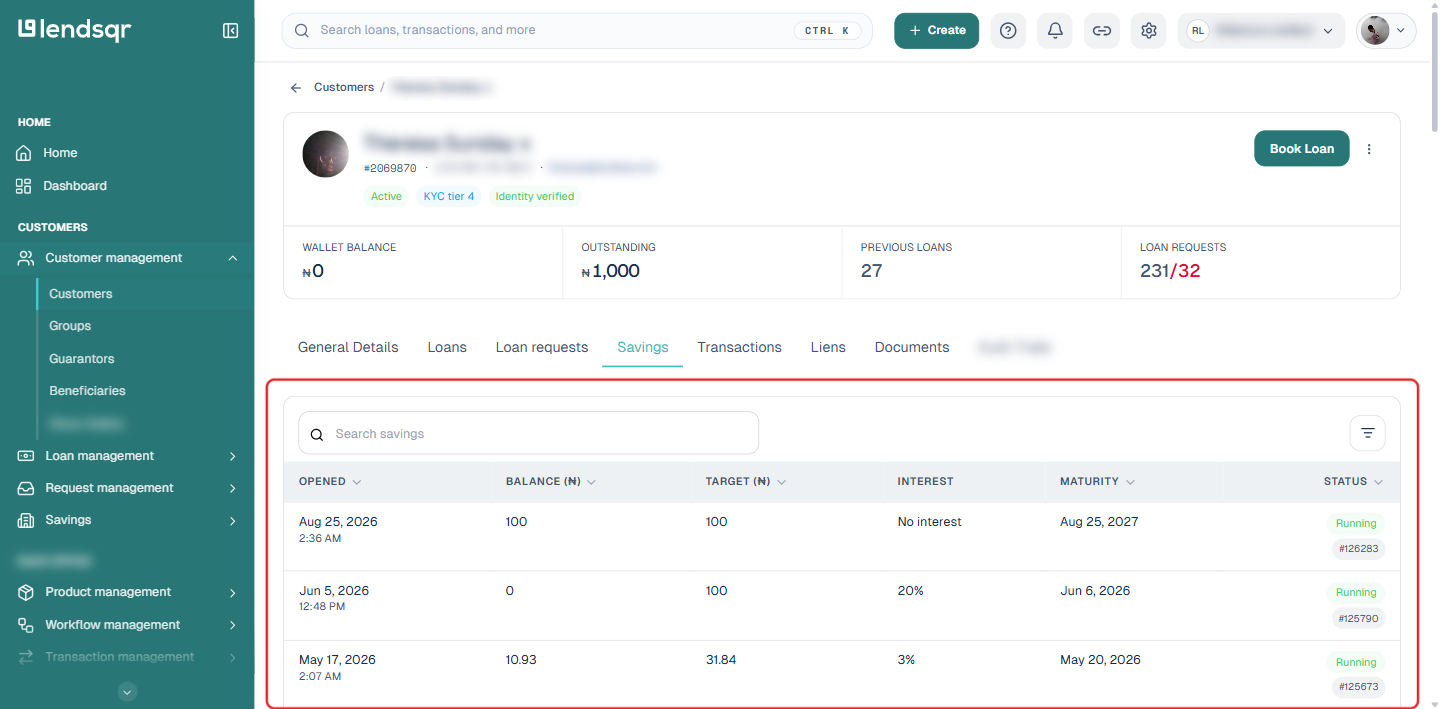
Savings
Shows the customer’s savings plans: when each was opened, current balance, target, interest rate, maturity date, and status. Only appears if the customer has at least one savings plan.
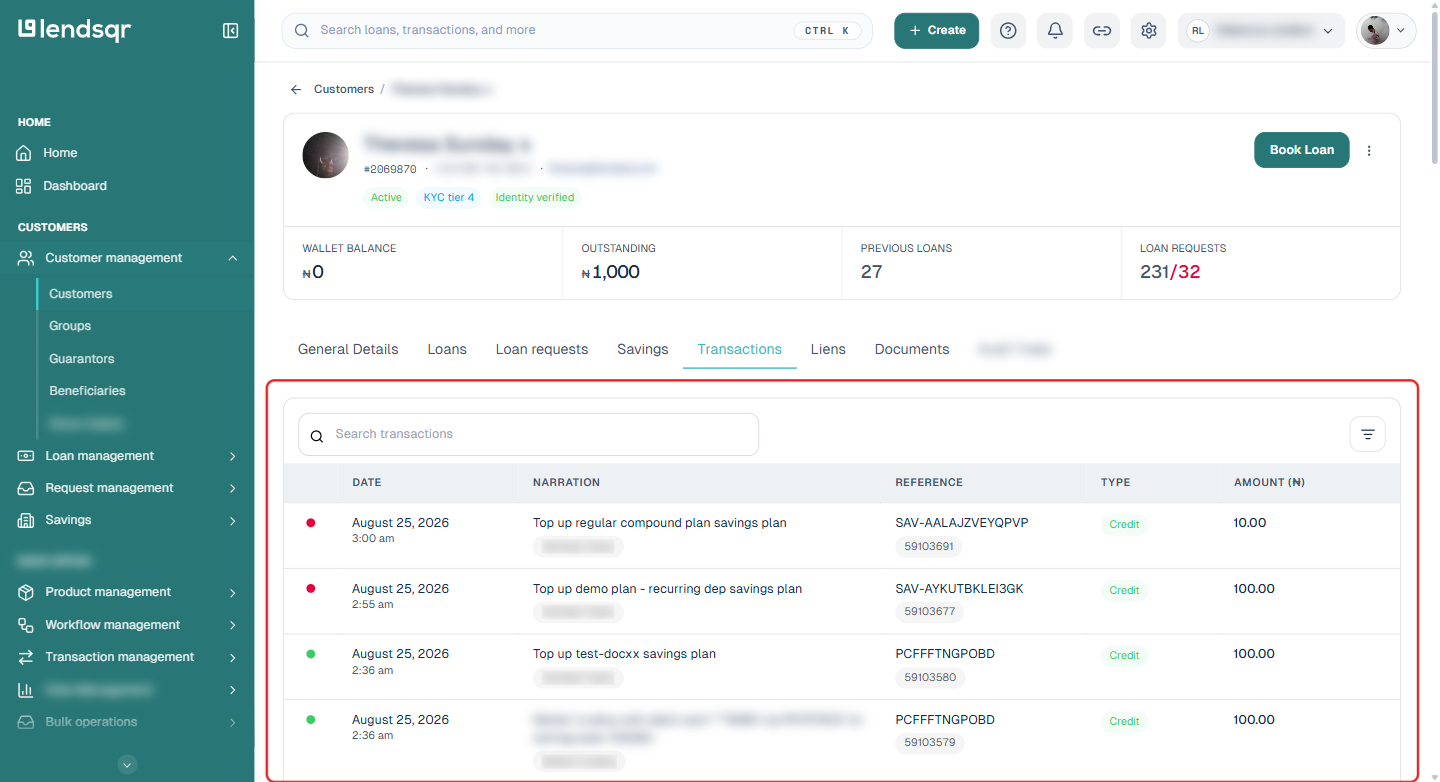
Transactions
Shows money movement tied to the customer, such as funding, transfers, withdrawals, repayments, and disbursements. Only appears if the customer has at least one transaction on record.
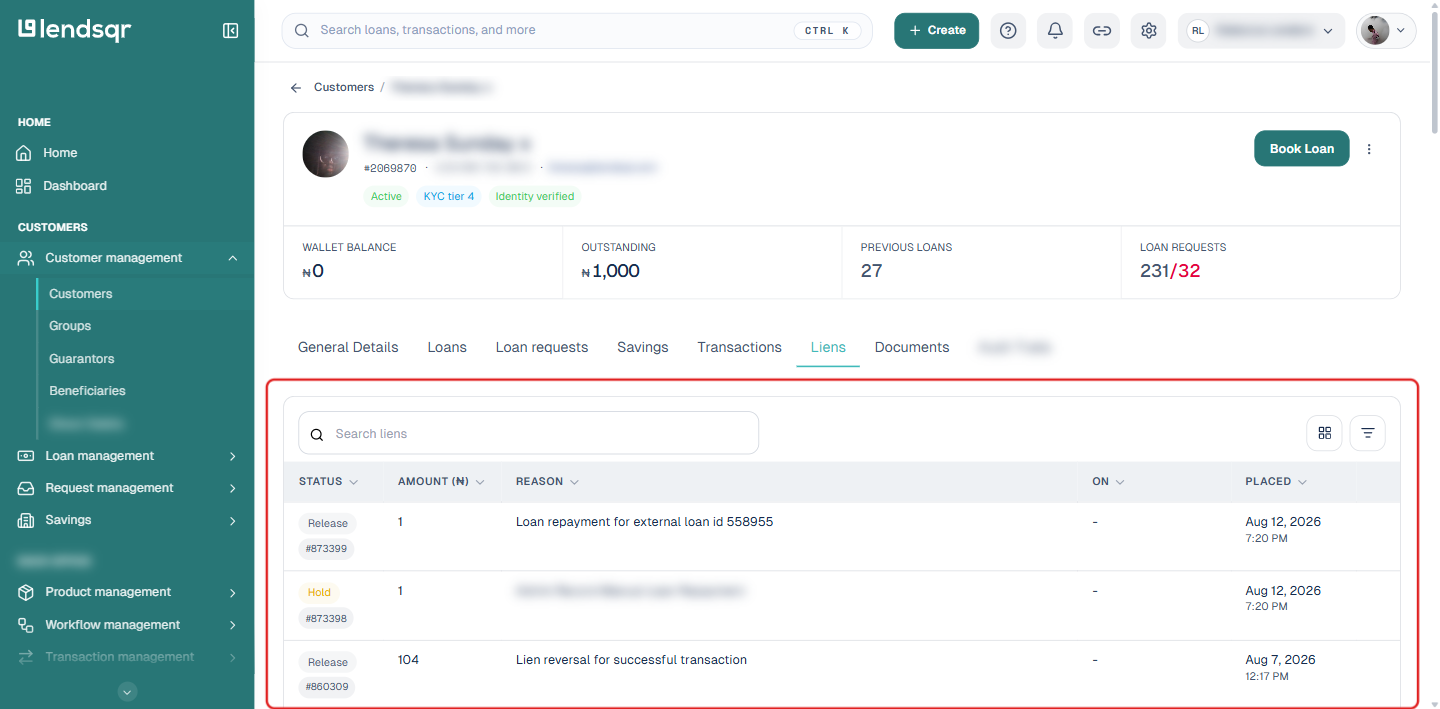
Liens
Shows lien holds placed on the customer’s funds and their reversals, for example a hold tied to a pending transaction and its release once that transaction settles. Only appears if the customer has at least one lien record.
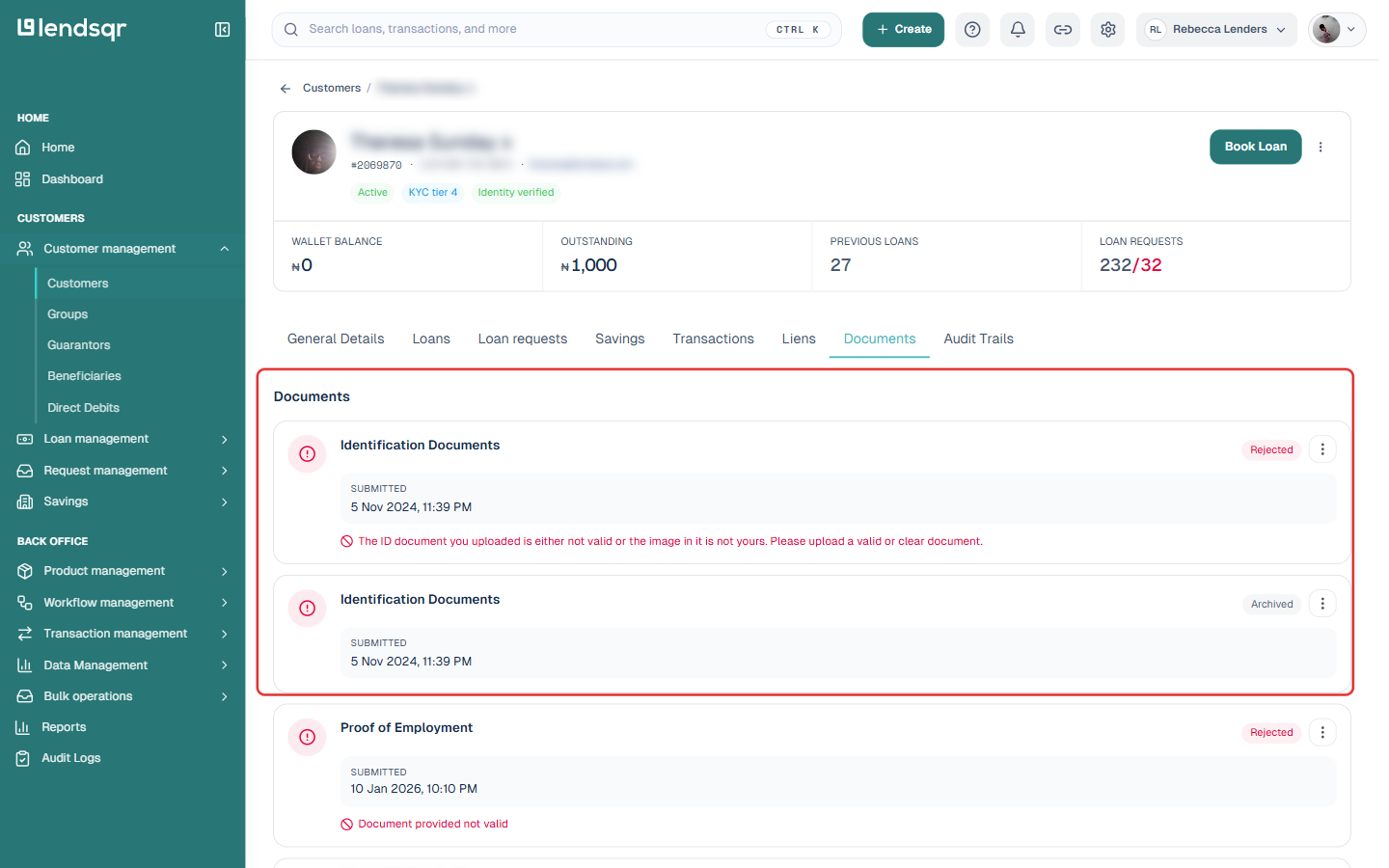
Documents
Shows records the customer has uploaded or submitted, such as identification documents, proof of employment, financial documents, and business registration documents, along with each one’s review status (for example Rejected or Archived) and the reason where one was given. Only appears if the customer has submitted at least one document.
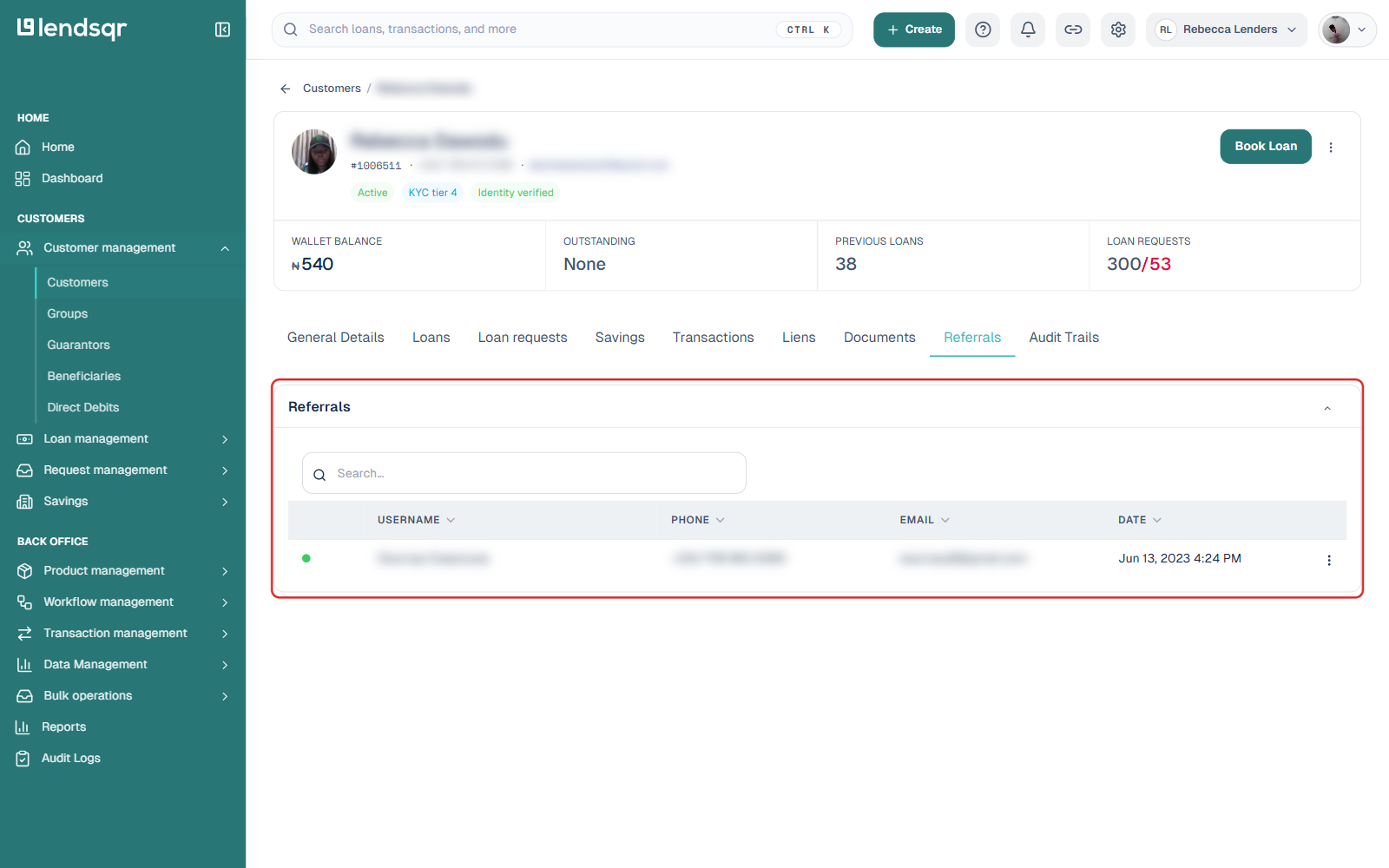
Referrals
Shows a table of everyone this customer has referred, with the referred person’s username, phone, email, and the date of the referral. Only appears if the customer has referred at least one other user.
Audit Trails
Shows a running activity log for the account: logins, authentication attempts, loan approvals, and other system-recorded events, each with a timestamp. This tab always appears, even for a customer with no other activity yet.
Example navigation paths
Reviewing a customer during onboarding
Start in General Details to confirm the customer’s profile and verification status, then open Documents to review submitted records, then check Payment methods (inside General Details) for linked accounts.
Reviewing a customer before a loan decision
Start in General Details for overall context, check Transactions and Savings to understand account activity, then open Loans and Loan requests to review borrowing history and the current request.