Access your Back Office at your fingertips.
Download the app now on Google Play Store.
Scan the QR code
You can also scan QR code with your phone to download the app.
How to enable liveliness checks during customer onboarding
Updated
On this page
Introduction
Identity fraud remains one of the biggest challenges in digital lending.
As more lending operations move online, fraudsters continue to develop sophisticated ways to bypass onboarding checks using stolen identities, manipulated documents, fake selfies, or impersonation techniques. For lenders, this can result in fraudulent loan disbursements, increased defaults, compliance risks, and financial losses.
This is why strong identity verification processes are essential.
One of the most effective ways to improve onboarding security is through liveliness checks.
Liveliness checks help confirm that a borrower is physically present during onboarding and not using a static image, manipulated recording, or stolen identity. By requiring users to complete guided facial movements during verification, lenders can strengthen customer authentication and reduce fraud risks significantly.
At Lendsqr, liveliness checks can be enabled directly from your security settings, allowing lenders to introduce an additional layer of verification during onboarding.
Once activated, new customers will be required to complete the verification process using a predefined sequence of facial actions. Existing customers who have not completed the check may also be prompted to verify themselves.
In this guide, you will learn how liveliness checks work, why they matter for lenders, how to enable them, how to configure the verification sequence, and where to review customer verification videos.
What is a liveliness check?
A liveliness check is an identity verification process that confirms a customer is physically present during onboarding.
Unlike traditional photo verification, which may rely on static images, liveliness verification requires borrowers to complete real-time actions using their device camera.
These actions may include movements such as:
Looking left
Looking right
Smiling
The goal is to confirm that:
The borrower is a real person
The person is physically present
The identity verification is not being spoofed
Static photos or fake recordings are not being used
This makes it harder for fraudsters to manipulate onboarding systems using stolen credentials or edited media.
For lenders, this creates stronger confidence in customer verification and reduces the likelihood of fraudulent borrower accounts.
Why liveliness checks matter for lenders
Digital lending often involves remote onboarding, meaning lenders may never physically meet their borrowers.
While this improves convenience and scalability, it can also increase fraud exposure if proper verification measures are not in place.
Without liveliness checks, lenders may face risks such as:
Identity theft
Synthetic identity fraud
Fake borrower accounts
Account impersonation
Increased default risks
Regulatory concerns
For example, a fraudster may attempt to onboard using another person’s information, stolen identity documents, or manipulated selfies.
A liveliness check helps reduce this risk by requiring real-time human interaction during verification.
For lenders operating high-volume onboarding systems, this added layer of protection can significantly improve portfolio quality and reduce bad loans tied to fraudulent accounts.
When liveliness checks are enabled, borrowers are prompted to complete a verification sequence during onboarding.
Instead of simply uploading a profile image, customers must perform actions requested by the system.
Depending on your configured settings, this may include actions such as:
Looking left
Looking right
Smiling
The system records the verification process and uses it as part of customer identity validation.
Lenders can customize the order in which these actions occur, allowing flexibility in how the verification experience is structured.
For example, a lender may decide to require users to:
Look left
Smile
Look right
Or any other preferred sequence.
Once completed successfully, the onboarding process continues.
Relevant permissions
Before enabling liveliness checks, ensure you have the required access level.
Typically, users may require:
Access to system settings
Permission to modify system configurations
Security settings access
Admin or super admin privileges
If you are unable to access these settings, contact your organization administrator.
How to enable liveliness checks
Follow the steps below to activate liveliness checks in your Lendsqr admin console.
Step 1: Open Security settings
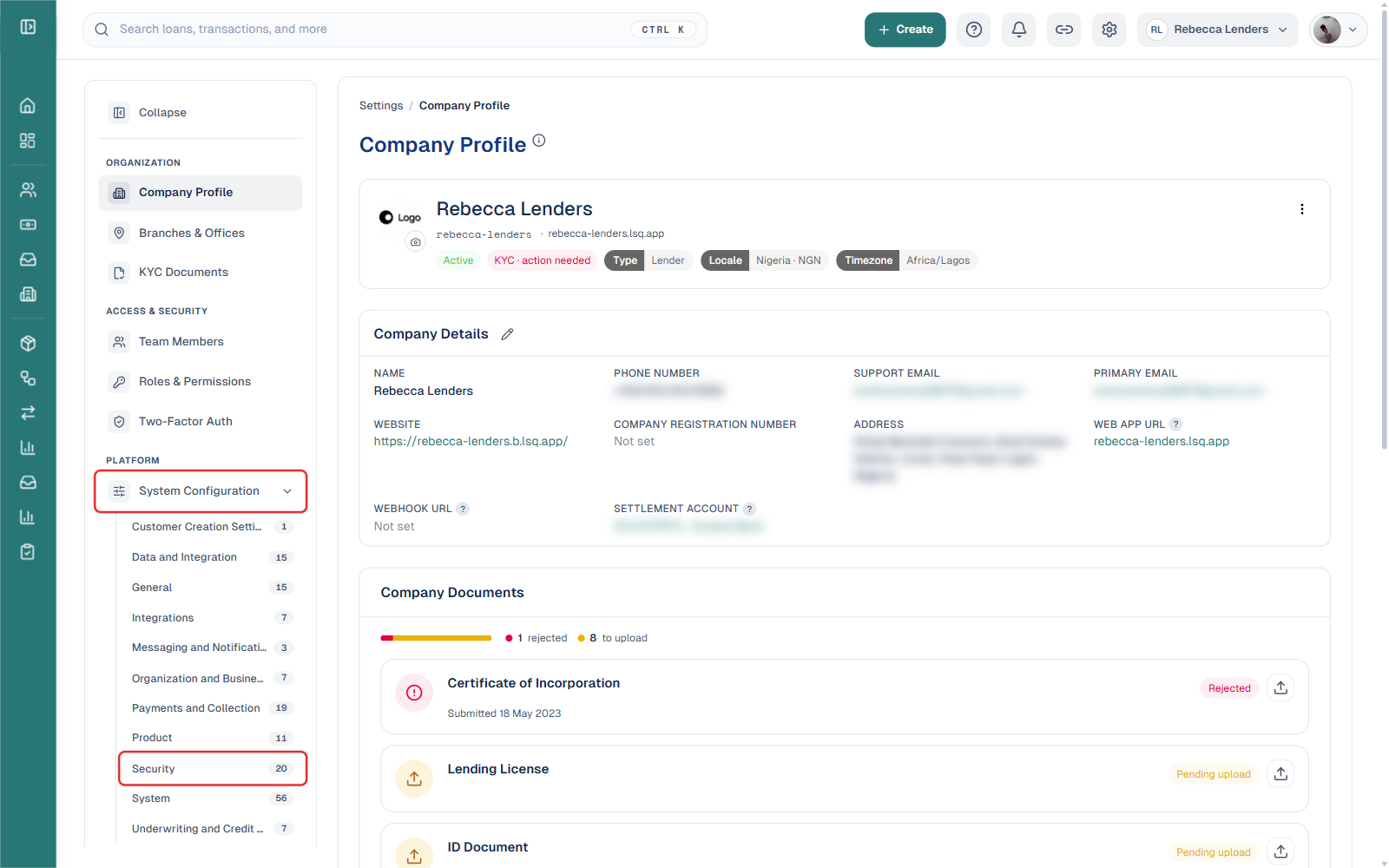
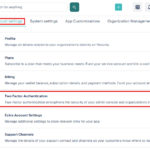
Log in to your Lendsqr admin console. Click the Settings icon (top right), then click System Configuration under the PLATFORM section, and select Security from the list of configuration categories.
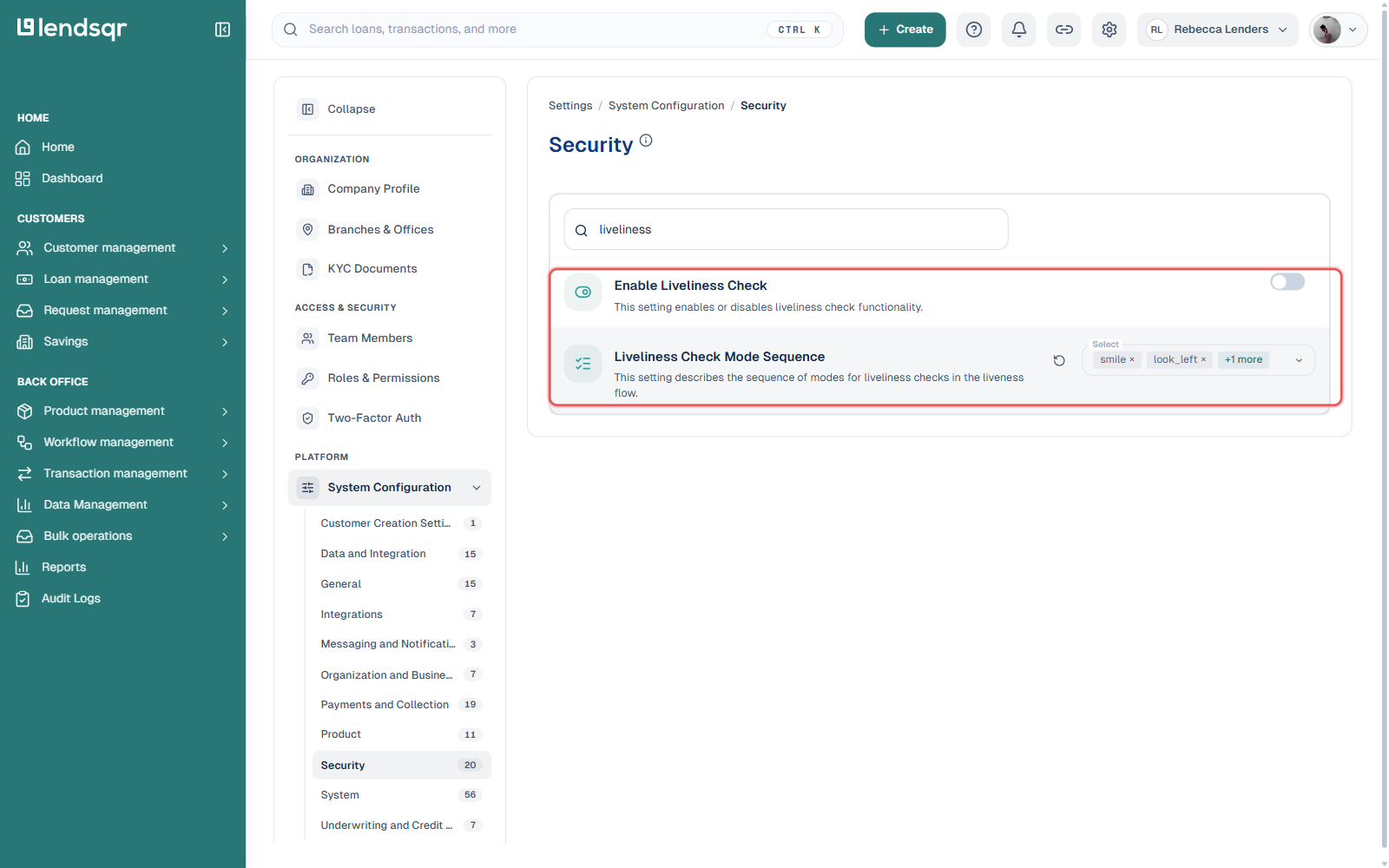
Step 2: Turn on Enable Liveliness Check
Use the search box on the Security page to find Enable Liveliness Check (or scroll to it directly). Flip its toggle on. There’s no separate Edit screen, True/False radio, or Confirm/Finish sequence here — the toggle itself is the setting, and it takes effect as soon as you switch it.
How to configure the liveliness check sequence
Right next to Enable Liveliness Check, the Liveliness Check Mode Sequence setting controls which actions are included in the verification flow.
Step 1: Open the mode sequence selector
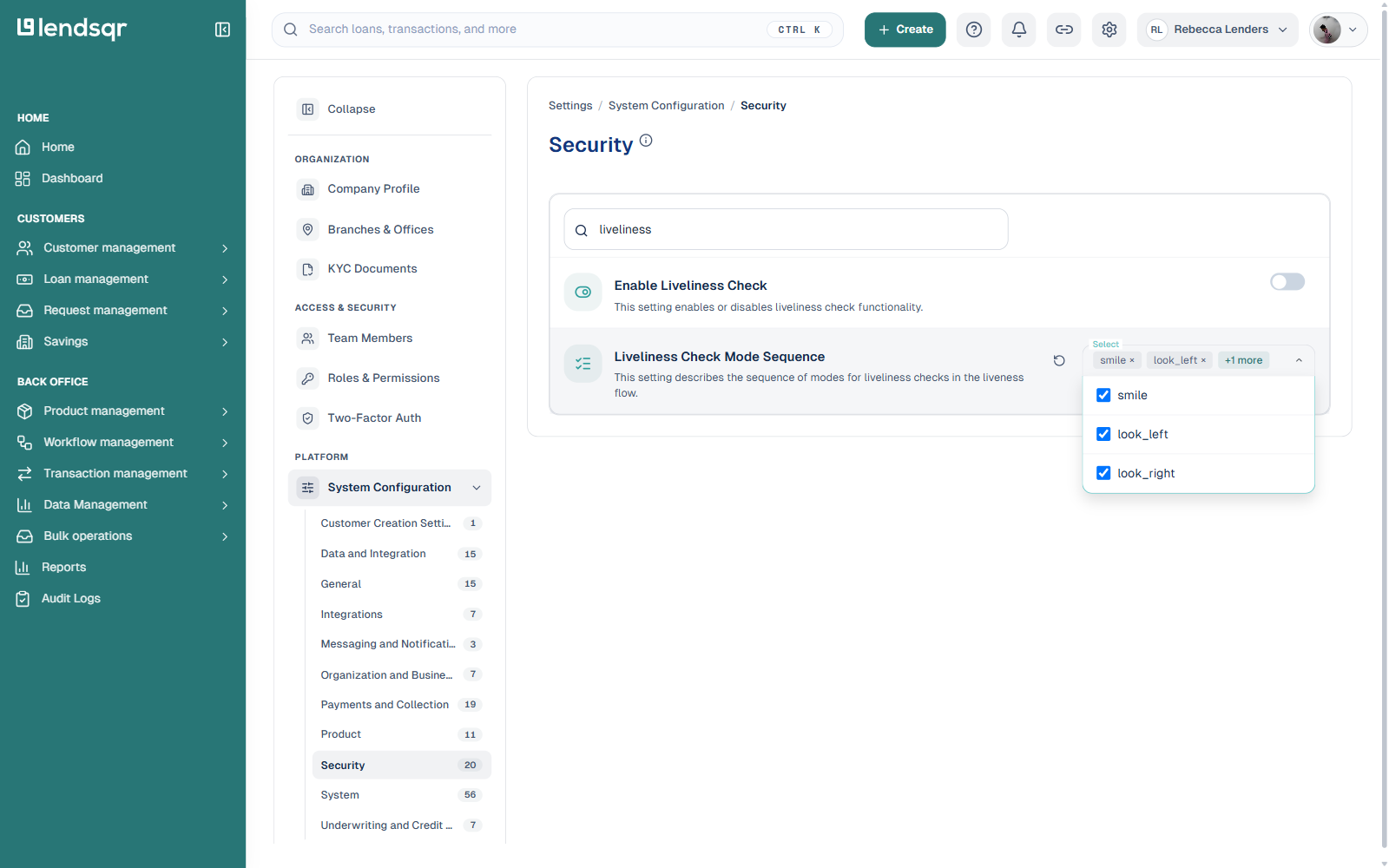
Click the Select field on Liveliness Check Mode Sequence. A checklist opens with the available actions: smile, look_left, and look_right.
Step 2: Choose which actions to include
Check or uncheck actions to control which ones borrowers are asked to perform. All three are typically checked by default. Selected actions appear as removable tags (for example, “smile ×”, “look_left ×”) next to the Select field.
Close the dropdown once you’re done; the selection is saved automatically, the same way the toggle above is.
What happens after enabling liveliness checks?
Once activated, the system automatically applies liveliness verification during onboarding.
New customers
All newly registered borrowers will be required to complete the liveliness check process before onboarding can be completed.
The verification sequence shown will follow the order you configured.
Existing customers
Customers who signed up before liveliness checks were enabled but have not completed verification may be prompted by the system to complete it.
This helps improve security across your borrower base over time.
How to review liveliness check videos and statuses
Lenders may occasionally need to review completed verification records.
This can be useful for:
Fraud investigations
Compliance reviews
Customer verification concerns
Manual account reviews
To view liveliness verification details:
Step 1: Navigate to the customer page
Open the Customer Page inside the admin console. Search for the borrower whose verification you want to review.
Step 2: Review customer verification records
Locate the customer profile and review:
Liveliness check status
Recorded verification videos
Identity verification details
This visibility helps lenders investigate suspicious onboarding activity when necessary.