Access your Back Office at your fingertips.
Download the app now on Google Play Store.
Scan the QR code
You can also scan QR code with your phone to download the app.
How to edit a savings product
Updated
On this page
A savings product that made sense when you launched it may not perform the same way three months later. You might notice that customers aren’t funding it regularly, that the minimum deposit feels too high for your target audience, or that the interest rate no longer reflects your cost of funds.
Consider this scenario: you launch a savings product called Monthly Flex for young professionals saving for travel. After a few weeks, you notice that users are signing up but not making regular deposits. After speaking to a few customers, you realize the minimum deposit is too high. Rather than creating an entirely new product and migrating users, you can edit the existing one directly from the Lendsqr admin console, update the minimum deposit, rename the product to something more relatable, and have the changes take effect immediately.
This guide explains how to do that, what each part of the edit form controls, and what you should know about how edits affect users already enrolled in the product.
What is a savings product on Lendsqr?
A savings product on Lendsqr is a configurable offering that lets your customers save money through your lending platform. As a lender, you define the rules: the minimum and maximum amounts, how interest is calculated, how long money stays locked in, the funding method, and whether customers can withdraw before a target date.
Savings products are a useful tool for lenders who want to build customer relationships outside of loan cycles, encourage customers to build a savings habit (which in turn signals creditworthiness), and generate float from pooled customer deposits where applicable and licensed. Over time, market conditions change, customer feedback comes in, and business priorities shift, which is why being able to edit a savings product quickly and cleanly is an important admin capability.
When to edit a product versus creating a new one
Editing an existing savings product is appropriate when:
You want to adjust parameters like the minimum deposit, interest rate, or product name
The change applies to the same customer segment and the product structure stays the same
You do not want to disrupt the experience of customers already enrolled
You should consider creating a new product instead when:
The change is so significant it amounts to a fundamentally different offering
You want to run both versions simultaneously for different customer segments
You need to preserve historical data on the old product configuration
What you can edit on a savings product
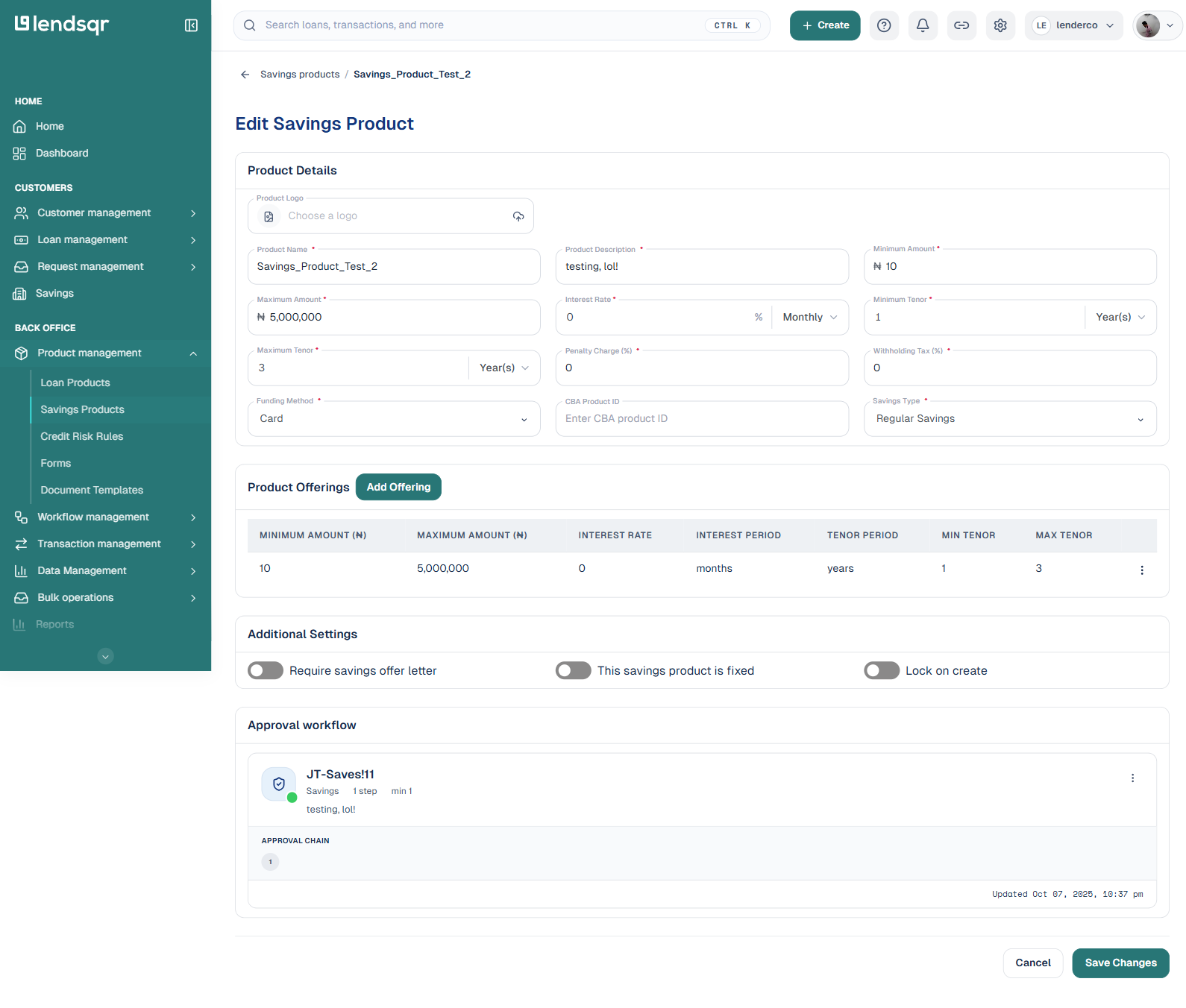
The edit form is the same form used to create the product, pre-filled with the current values. You can change any of the following:
Product logo: the image shown against the product on the customer app
Product name and product description
Minimum amount and maximum amount
Interest rate and its period
Minimum tenor and maximum tenor
Penalty charge and withholding tax
Funding method and savings type
Product offerings: add, edit, or remove the offerings under the product
Additional settings: the require savings offer letter, fixed product, and lock on create toggles, and the approval workflow
The product status (active or inactive) is not changed from this form. To change it, use the status control on the product detail page, described in How to activate or deactivate a savings product.
How to edit a savings product on the Lendsqr admin console
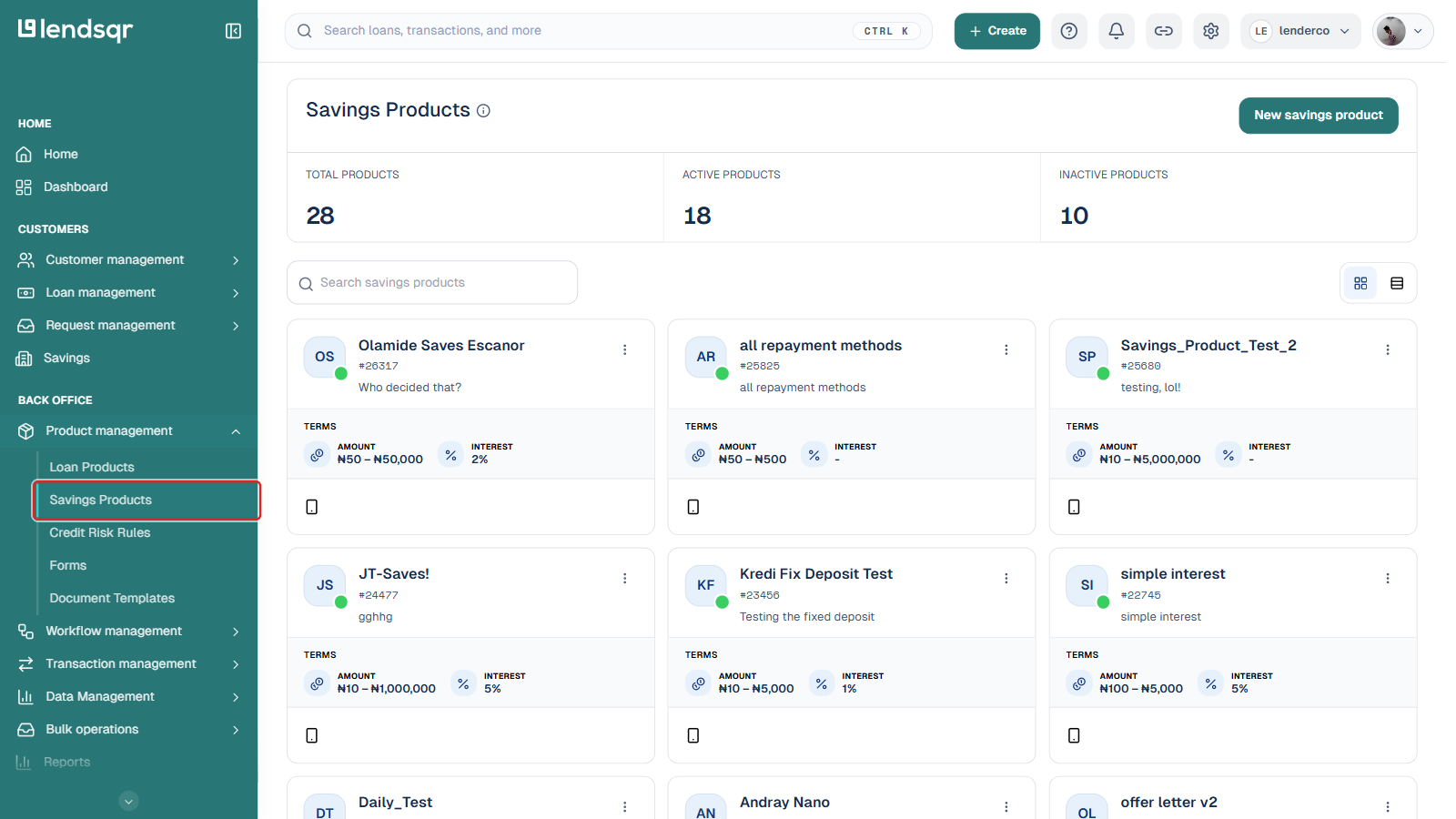
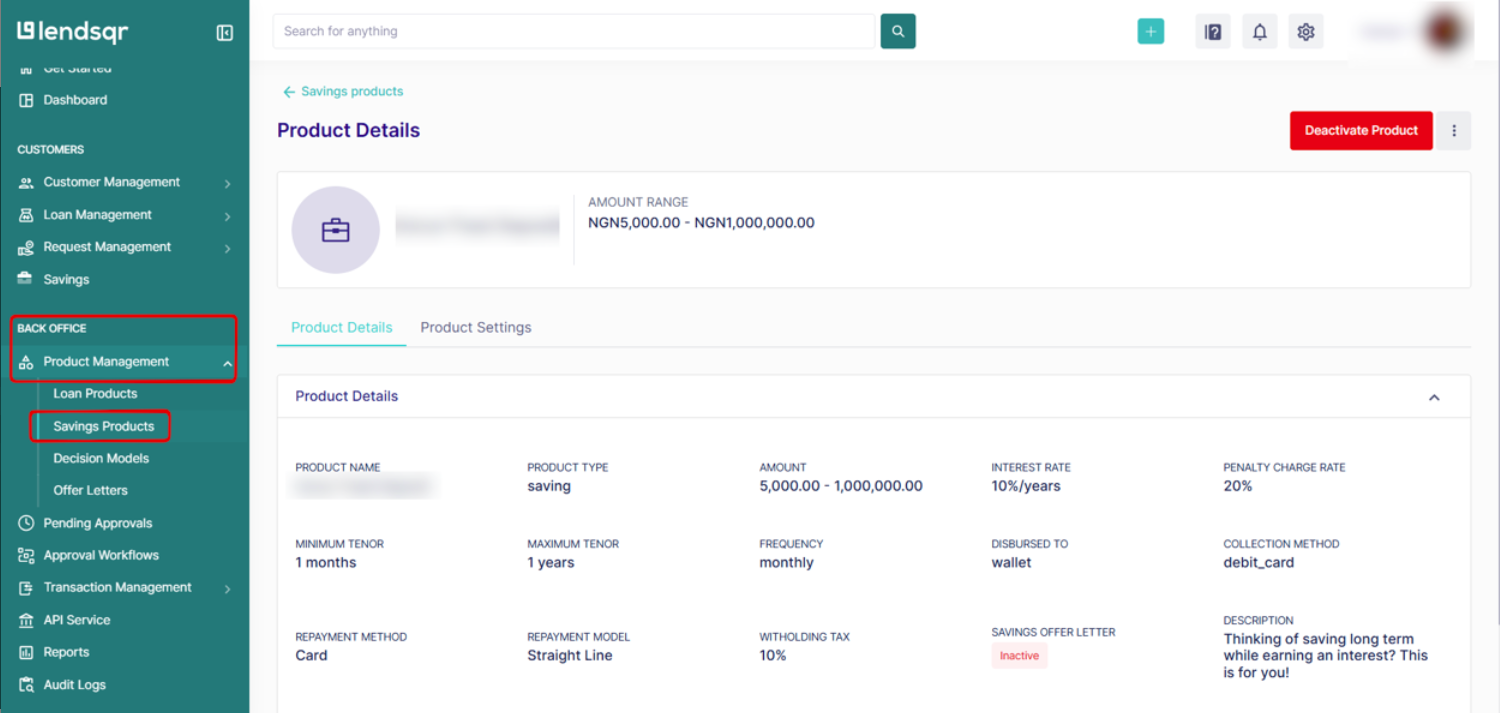
In the left navigation, under Back Office, expand Product management and select Savings Products.
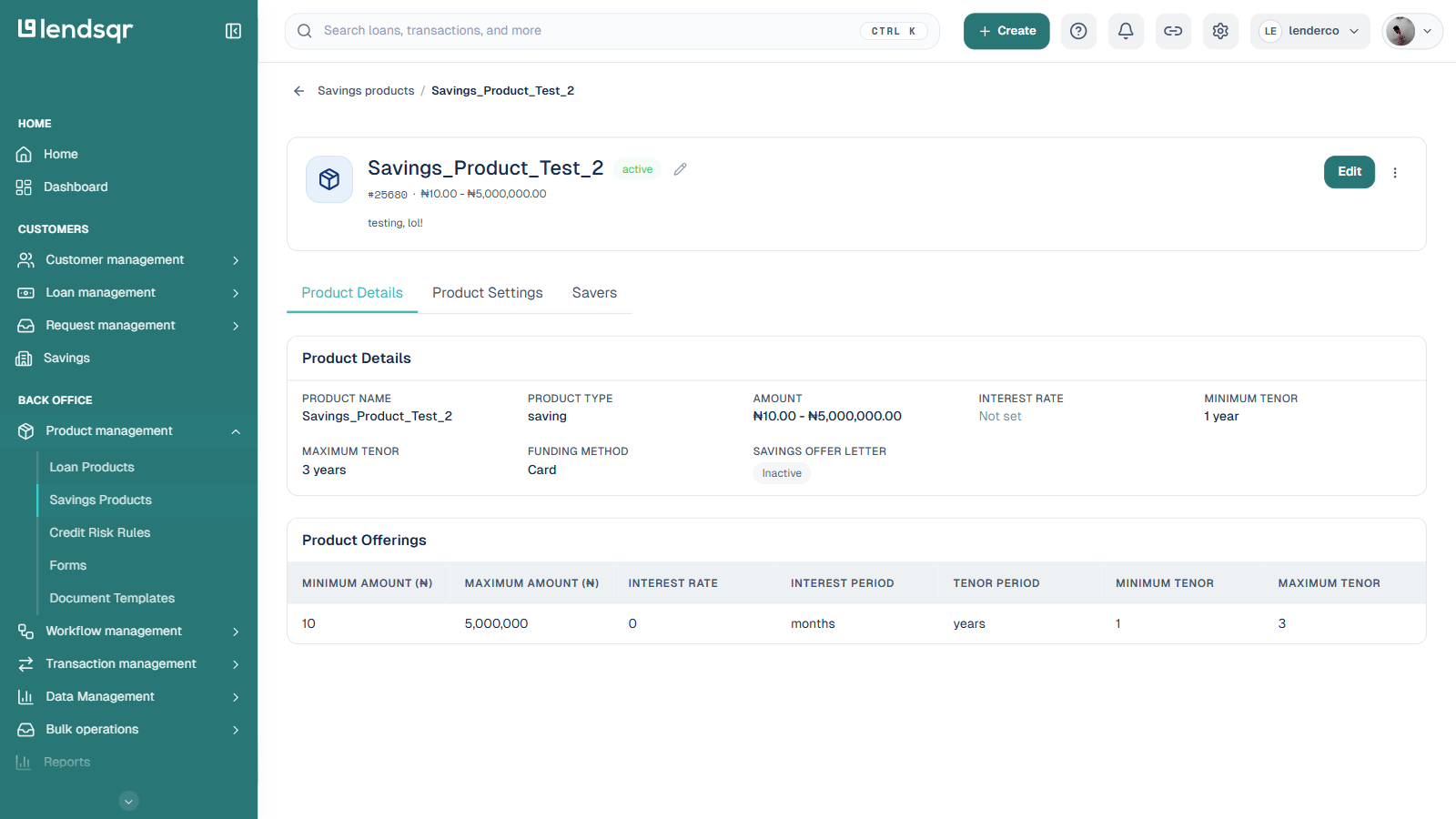
On the savings products page, click the product you want to edit. This opens the product detail page.
On the detail page, click the Edit button at the top right.
The Edit Savings Product form opens, pre-filled with the current values. Update the fields you want to change.
When you are done, click Save Changes at the bottom of the form.
Your savings product is now updated. The changes are reflected in your customer app.
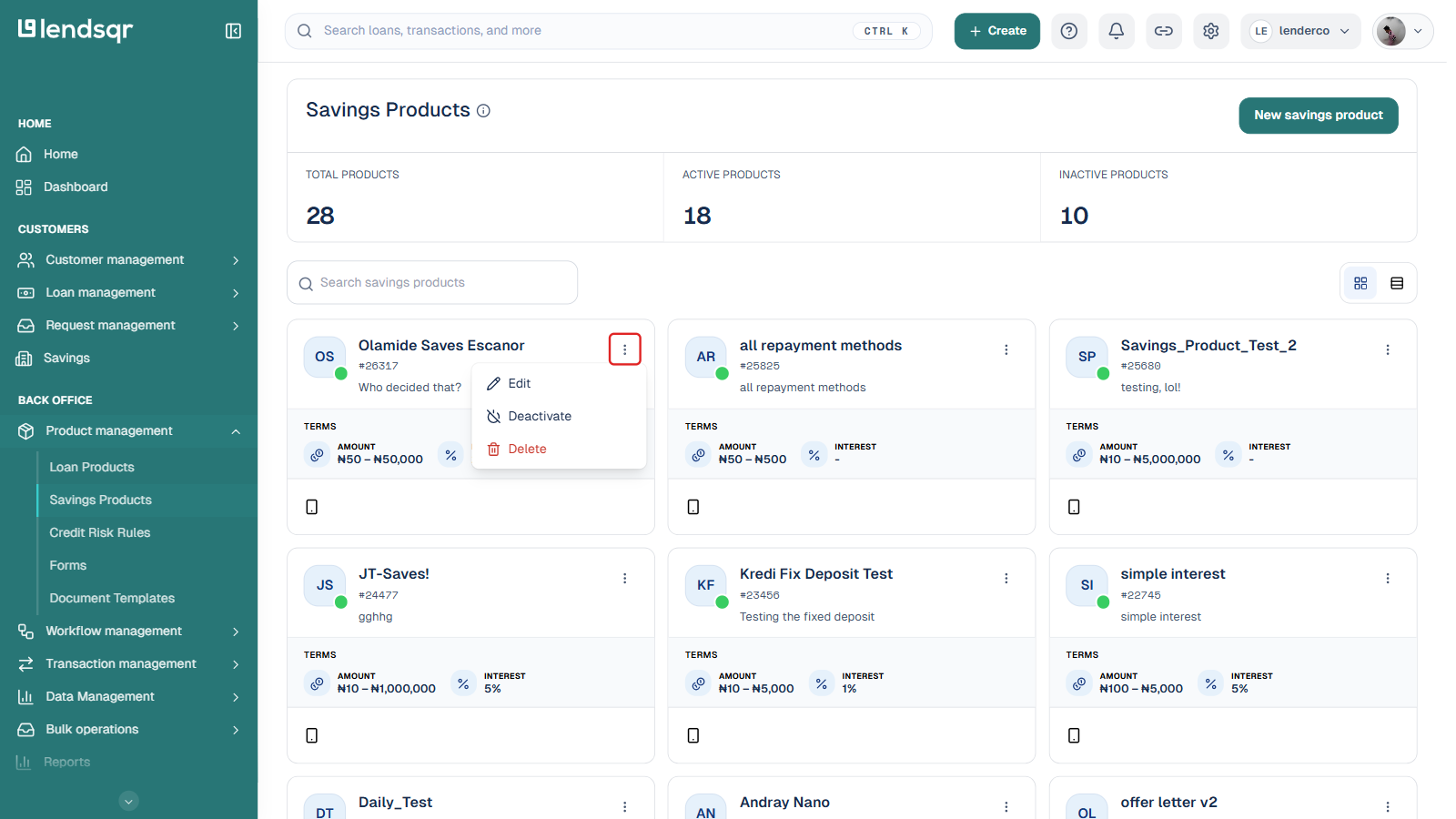
A faster path from the product list
You do not have to open a product’s detail page first. On the Savings Products list, click the ⋮ (more options) icon on the product’s card and select Edit directly. This takes you straight to the same Edit Savings Product form described above, skipping the detail page. The same menu also has Deactivate (or Activate) and Delete for that product.
Can I edit a savings product that already has active customers enrolled?
Yes, you can edit a savings product even if customers are already enrolled. However, some changes, such as interest rate adjustments, may only apply to new enrollments.
What is the difference between editing and deactivating a savings product?
Editing a savings product updates its configuration while keeping it live and available to customers. Deactivating a savings product removes it from your customer app so no new customers can enroll, while existing plans continue to run under the previous terms. Use deactivation when you want to phase out a product, and editing when you want to improve or adjust one that is still active. See also: How to activate or deactivate a savings product