Access your Back Office at your fingertips.
Download the app now on Google Play Store.
Scan the QR code
You can also scan QR code with your phone to download the app.
How to edit an existing loan product
Updated
On this page
Overview
Loan products sit at the heart of every lending operation on Lendsqr. They define the rules your borrowers must meet, the fees they pay, the interest they accrue, and the schedule on which they repay. As your business grows and market conditions shift, those rules will need to change. You may discover that an interest rate is no longer competitive, that a repayment tenor no longer matches your borrowers’ cash-flow cycles, or that a regulatory update requires you to revise certain parameters.
Lendsqr makes this straightforward. Instead of deleting and recreating a product from scratch and potentially losing its history or breaking active loan references, you can edit an existing loan product directly from the Admin Console. The edit flow mirrors the original product creation flow, so if you have created a loan product before, the interface will feel immediately familiar.
This guide walks you through every step of the process, explains what each section of the edit screen contains, outlines the common reasons you might need to make changes, and flags important considerations around how edits affect existing loans versus new ones.
What is a loan product on Lendsqr?
A loan product is a configurable lending template that you set up once and reuse across many borrower applications. It captures all the parameters of a specific type of loan you offer: the minimum and maximum loan amounts, the applicable interest rate, repayment frequency, tenor, processing fees, and any eligibility conditions tied to your credit risk rule.
When a borrower applies for a loan through your platform, they apply against one of your loan products. The product’s configuration determines what the system will offer them, how it will score their application, and how it will structure their repayment schedule. Because loan products govern so much of the borrower experience, keeping them accurate and up to date is essential to running a healthy lending operation.
When should you edit a loan product?
Editing an existing loan product makes sense in a range of practical situations. Below are the most common scenarios that prompt lenders to revisit and update a product:
Interest rate adjustments. You want to lower or raise the interest rate to respond to competitor pricing, macroeconomic changes, or portfolio performance data.
Tenor changes. Your borrowers are struggling to meet a 30-day repayment cycle and you want to extend the loan tenor to 60 or 90 days to reduce default rates.
Policy or compliance updates. A regulator or internal credit policy team has updated scoring thresholds, required KYC tiers, or borrower eligibility criteria.
Fee revisions. You want to introduce a new processing fee, remove a redundant charge, or restructure how late repayment penalties are calculated.
Promotional or seasonal changes. You are running a limited-time offer and need to temporarily adjust the product’s interest rate or maximum loan amount to support that campaign.
Correcting configuration errors. You set up a product and later noticed that the disbursement method, repayment frequency, or loan amount ceiling was entered incorrectly.
Expanding or restricting the target audience. You want to widen the product to a new customer segment or narrow it to a specific group based on recent portfolio insights.
Example Use Case
Imagine you launched a product called QuickCash 30 with a 30-day tenor and an interest rate of 5% per month. After three months of performance data, your risk team observes that many borrowers are defaulting in the final week before repayment because their salary arrives a few days after the due date. The recommendation is to extend the tenor to 45 days and reduce the interest rate slightly to 4.5% to improve repayment rates and reduce churn.
Rather than archiving QuickCash 30 and building a brand new product, you simply open the existing product in the Admin Console, update the tenor and interest rate fields, and save. Within seconds, all new applications submitted against that product will reflect the updated terms. Borrowers who already received loans under the previous configuration continue on their original schedule.
Before you begin: what you need
Before you start editing a loan product, confirm the following:
Admin access. You must have an administrator or product manager role on the Lendsqr admin console. Team members with read-only roles cannot make changes to loan products.
An existing loan product. You must have at least one loan product already created in your account. If you have not created any yet, refer to the guide on configuring a new loan product first.
Clarity on the changes you want to make. Have the new values ready before you start. For example, if you are revising an interest rate, confirm the exact percentage with your risk or finance team.
Step-by-step: how to edit a loan product on Lendsqr
Follow the steps below carefully. Each step builds on the previous one, so work through them in order.
Step 1: Log in to the Lendsqr admin console
Open your browser and navigate to app.lendsqr.com. Enter your administrator credentials and complete any two-factor authentication prompt if you have 2FA enabled on your account. Once you log in successfully, the admin console dashboard loads and displays your lending overview.
Step 2: Navigate to product management
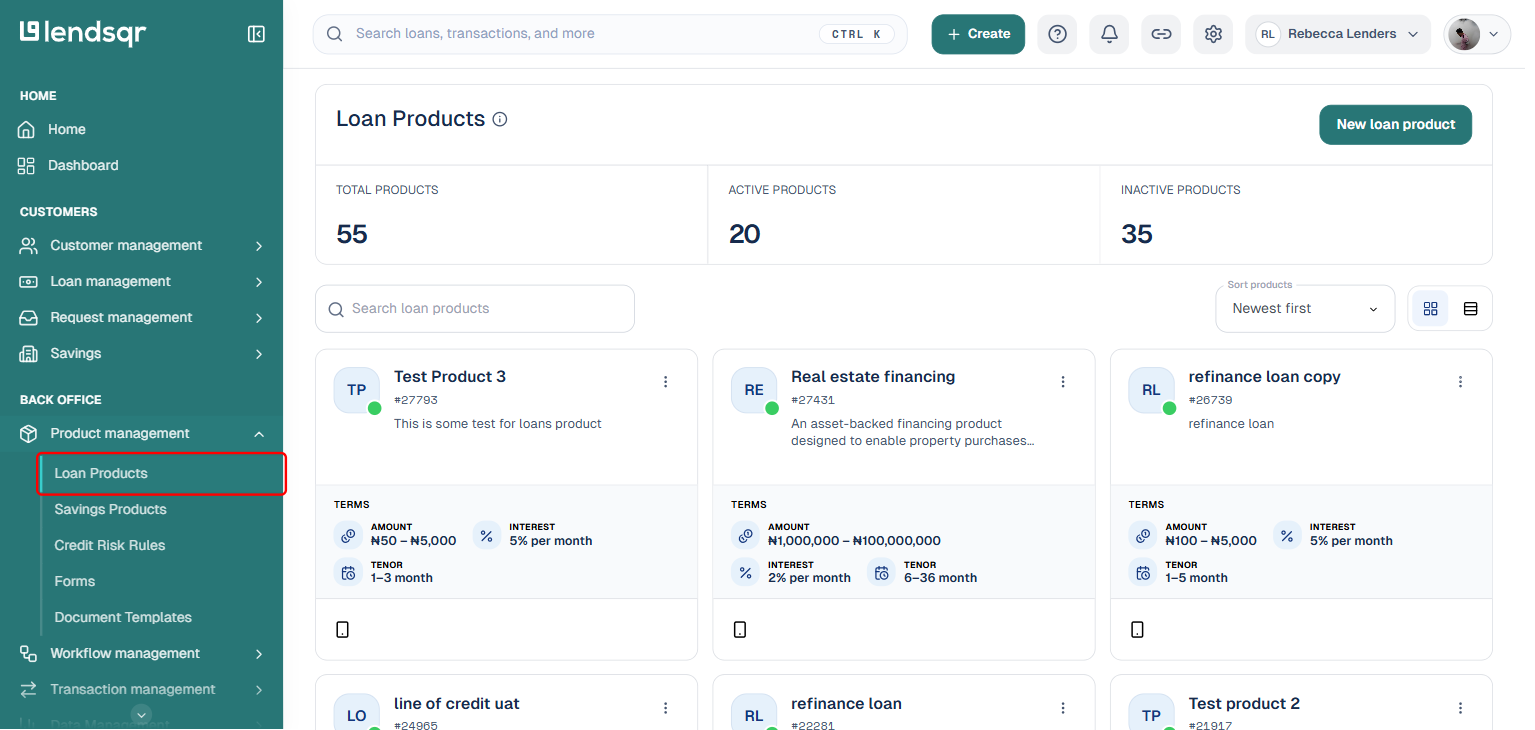
On the left-hand navigation panel, locate and click the “Product Management” tab. This tab sits within the Back Office section of the navigation. Clicking it expands a sub-menu beneath it.
From the expanded sub-menu, click on “Loan Products”. This takes you to the loan products listing page, which displays all the loan products you have configured for your organisation. Products appear in a table with columns showing the product name, status (active or inactive), interest type, and other key attributes.
Step 3: Locate the loan product you want to edit
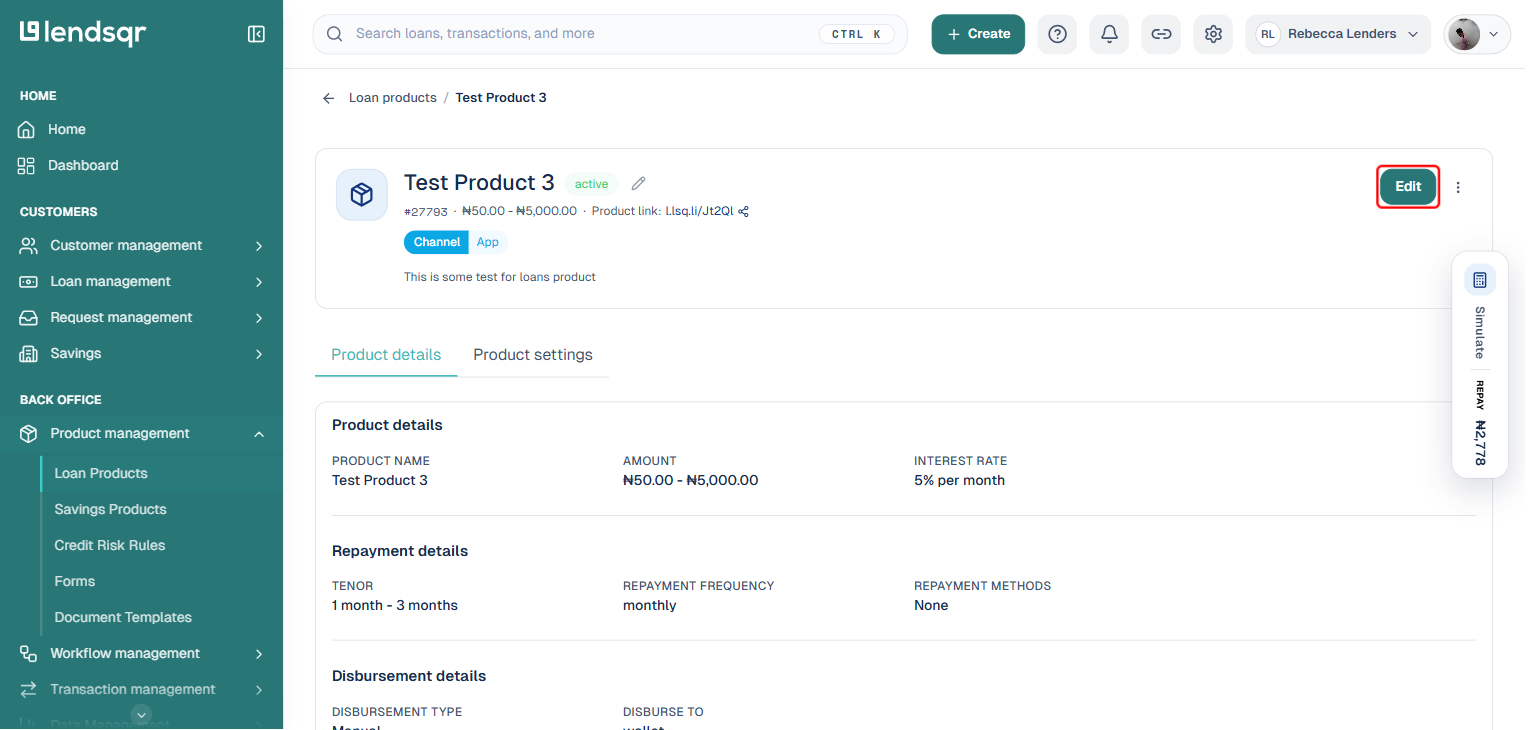
Scan the list of products on the screen and find the one you want to update. If you have many products, use the search or filter tools at the top of the table to narrow down the results. Once you spot the product, click anywhere on its table row. This action opens the loan product detail page, which displays all the current configuration settings for that product in a structured layout.
Take a moment to review the current settings before you proceed. Confirm that you are viewing the correct product, especially if you have multiple products with similar names.
Step 4: Open the edit screen
On the loan product detail page, look for the “Edit” button in the top-right corner of the page. Click it. The system then loads the product edit screen.
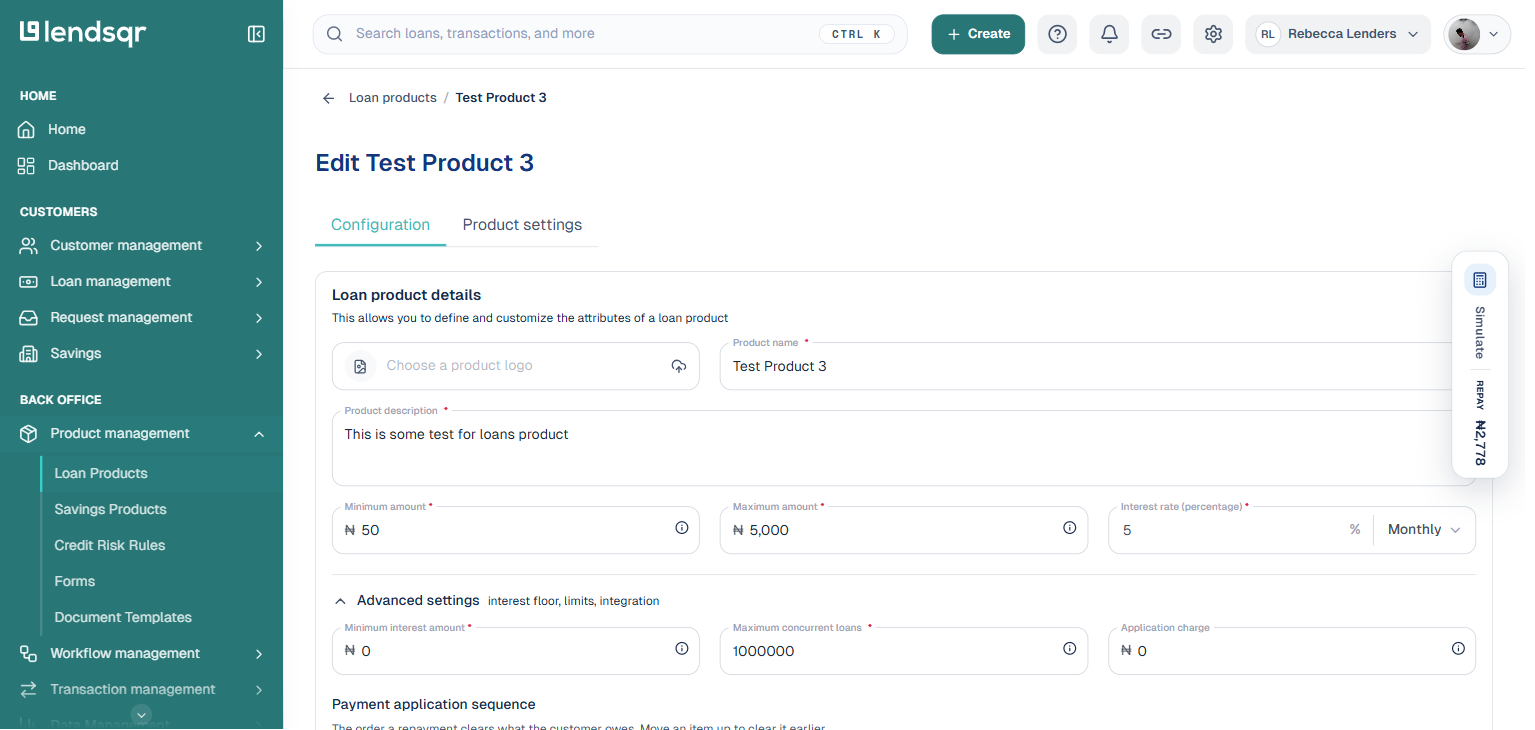
The edit screen is organised into two tabs: Configuration, a single scrollable form covering all the product’s settings grouped under inline sub-headers, and Product settings for toggle-based attributes. This mirrors the steps you would follow when creating a brand new loan product, which means all the fields you configured originally are now pre-populated with their current values. You do not need to fill in the entire form again: simply scroll to or search for the field you want to change.
Step 5: Review and update the relevant configuration sections
The Configuration tab groups all loan product settings under the sub-headers below, in one continuous scrollable form. You can update any of them depending on what you need to change:
Basic information. This section contains the fundamental identity of the product. It includes the product name, a short description, the loan type (for example, personal, business, or salary-based), the currency, and the minimum and maximum loan amounts that borrowers can request. If you are rebranding a product or adjusting its loan ceiling, update the relevant fields here.
Loan terms. This section covers the interest rate, interest type (flat or reducing balance), loan tenor, and repayment frequency (daily, weekly, or monthly). If your primary reason for editing is to adjust the financial structure of the product, you will spend most of your time in this section. Enter the new values precisely as confirmed by your risk or finance team.
Fees and charges. This section lists all fees attached to the product, such as processing fees, insurance premiums, and late repayment penalties. You can add new fees, remove existing ones, or modify the amounts and timing of current charges. Ensure that any fee changes align with the disclosures in your offer letter and comply with applicable lending regulations.
Eligibility and credit risk rule. This section maps the loan product to a specific credit risk rule in your Oraculi setup. The credit risk rule governs how the system scores borrower applications and determines eligibility. If your credit policy team has revised the scoring logic or you want to assign a different model to this product, update the mapping here.
Repayment settings. This section controls how the system collects repayments. It includes options for direct debit, debit card charging, virtual account payments, and repayment method priority. If you want to add or remove a repayment channel, or change the order in which the system attempts collection, make those adjustments here.
Disbursement settings. This section determines how loan funds reach your borrowers once a loan is approved. Options here include disbursement to the borrower’s linked bank account, to a wallet, or to a third-party account. If your disbursement method has changed due to a bank integration update or a new partnership, revise the settings in this section.
Additional settings. This section covers supplementary configurations such as guarantor requirements, equity contribution, KYC tier requirements, grace periods, and custom form questions. These settings give you fine-grained control over the borrower experience and application requirements. Update this section whenever policy changes require you to add or remove a requirement from the application journey.
Step 6: Make your changes
Navigate to the section or sections that contain the fields you need to update. Click directly on any field to edit its value. The form supports standard input interactions: you can type in text fields, select values from dropdowns, toggle switches on or off, and adjust numeric sliders where they appear.
Work methodically through each change. If you need to update multiple sections, complete all your edits before moving to the next step. There is no autosave feature on this screen, so all changes remain unsaved until you explicitly click the save button.
Step 7: Save your changes
Once you have made all the necessary updates, scroll to the bottom of the edit screen or look for the “Save Changes” button. Click it. The system processes your edits and applies them to the loan product. A confirmation message appears on the screen to let you know that the update was successful.
If you decide at any point that you do not want to keep the changes you have made, click the cancel or back button to exit the edit screen without saving. Your original configuration will remain intact.
✅ Note: Changes you make to a loan product take immediate effect for all new loan applications submitted against that product after you save. If a borrower applies for a loan five minutes after you reduce the interest rate from 5% to 4.5%, their application will be processed at 4.5%.
However, loans that the system has already disbursed retain the settings that were in place at the time of disbursement. Changing the product configuration does not retroactively alter the terms, schedule, or fees on active or completed loans. This protects borrowers from unexpected mid-loan changes and preserves the integrity of your portfolio data.
If you need to modify the schedule or terms of a specific active loan (rather than the product template itself), use the separate loan modification feature available on the individual loan record within the admin console.
Editing a loan product on Lendsqr is a straightforward process that gives you direct control over your lending parameters without disrupting active loans. The seven-step process covers logging into the admin console, navigating to product management, locating the product, opening the edit screen via the More menu, reviewing and updating the relevant configuration sections, making your changes, and saving them.
Always remember that saved changes apply immediately to new loan applications. Treat every product edit with the same care and governance rigour you would apply to any change in your credit policy. Keep a log, obtain internal approval where required, and verify your changes after saving.
Frequently asked questions
Can I edit a loan product that already has active loans running against it?
Yes. Lendsqr allows you to edit a product regardless of whether it has active disbursed loans. As noted above, the changes only apply to new applications going forward. Existing active loans are not affected.
Can I undo an edit after saving?
There is no automatic rollback feature for product edits. If you need to revert a change, simply return to the edit screen and manually restore the previous values. This is another reason why keeping a log of your changes is strongly recommended.
Will borrowers see the updated product details on the borrower-facing app?
Yes. The borrower-facing web or mobile app pulls product information dynamically. Once you save changes on the admin console, new applications and any pre-application screens on the borrower app will reflect the updated parameters.
What happens if I deactivate a loan product instead of editing it?
Deactivating a product prevents new borrowers from applying against it. It does not delete the product or affect active loans. If you want to stop new applications while you make major revisions, deactivating the product first is a safe approach. You can reactivate it once your edits are complete.