Access your Back Office at your fingertips.
Download the app now on Google Play Store.
Scan the QR code
You can also scan QR code with your phone to download the app.
Checking for a user’s savings
Updated
On this page
Lenders and platform administrators often need to verify a customer’s savings activity. For example, a customer might contact support to confirm their savings balance, or an operations team may want to review a user’s savings history before approving a financial request.
Imagine a microlender working with a community of small-scale entrepreneurs. When a borrower applies for a loan to expand their inventory, one of the most reliable indicators of their financial discipline isn’t just their credit score, but their savings history. Checking for a user’s savings allows lenders to gain a holistic view of a borrower’s financial health, ensuring that the loan is a step toward growth rather than a burden.
On the Lendsqr platform, savings management is more than just a record-keeping tool; it is a vital component of the risk management ecosystem. By providing lenders with real-time access to user savings balances and transaction histories, Lendsqr empowers organizations to make informed, data-driven credit decisions.
What does checking a user’s savings mean?
Checking a user’s savings means viewing the savings plans and balances associated with a specific customer account. This allows administrators to understand how much a user has saved, the type of savings plan they created, and the transactions associated with that plan. Typical reasons an admin may check a user’s savings include:
Verifying a user’s savings balance
Reviewing savings activity during support requests
Investigating disputed transactions
Monitoring customer engagement with savings products
Where savings information appears in Lendsqr
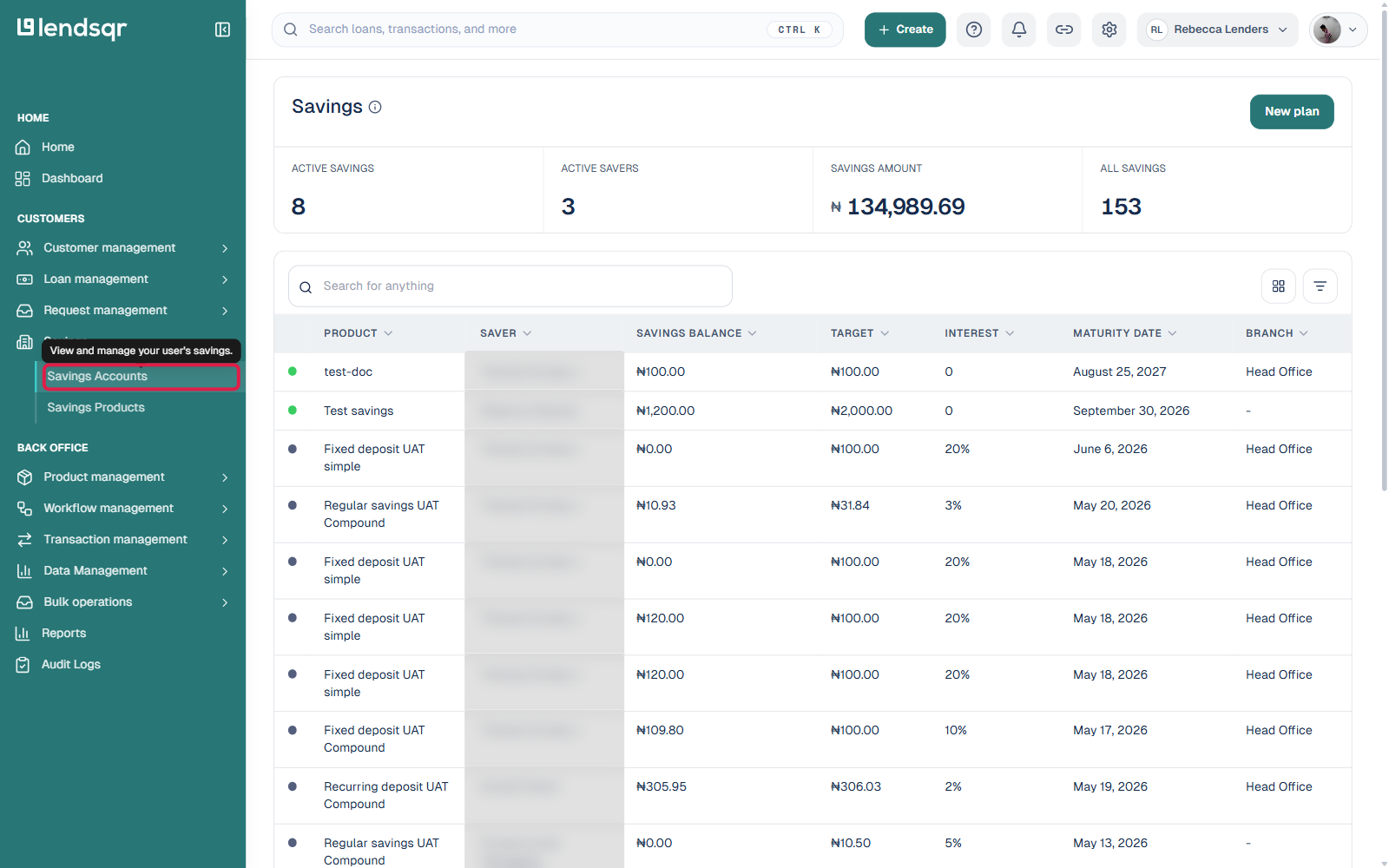
Savings information is available inside the Lendsqr admin console. Administrators can locate this information either from the standalone “Savings” section on the left navigation panel or directly from a customer’s profile. Both methods ultimately lead to the same savings details page, where you can review the user’s savings plans and related transactions.
Method 1: Checking a user’s savings from the Savings page
Follow these steps to locate a user’s savings from the Savings page:
1. Log in to the Lendsqr admin console. 2. Click “Savings” on the left navigation menu (its own top-level section, separate from Customer management), then “Savings Accounts“. 3. On the savings page, click Filter (next to the search bar). 4. Search for the user using details such as phone number, email address, BVN, or user ID. 5. Click the record returned in the results, or click any row directly from the table. 6. The system will redirect you to the savings details page for that user.
Method 2: Checking savings from a user’s profile
You can also check a user’s savings directly from their customer profile. Steps: 1. Navigate to “Customers” under “Customer Management“. 2. Use the Filter option to search for the user. 3. Click the user’s record from the search results. 4. This opens the user’s profile page. 5. If the user has an active or past savings plan, a Savings tab will appear under their profile card. 6. Click the Savings tab. 7. Select the savings plan you want to review. 8. You will be redirected to the same savings details page shown above.
What information can you see in the savings details page?
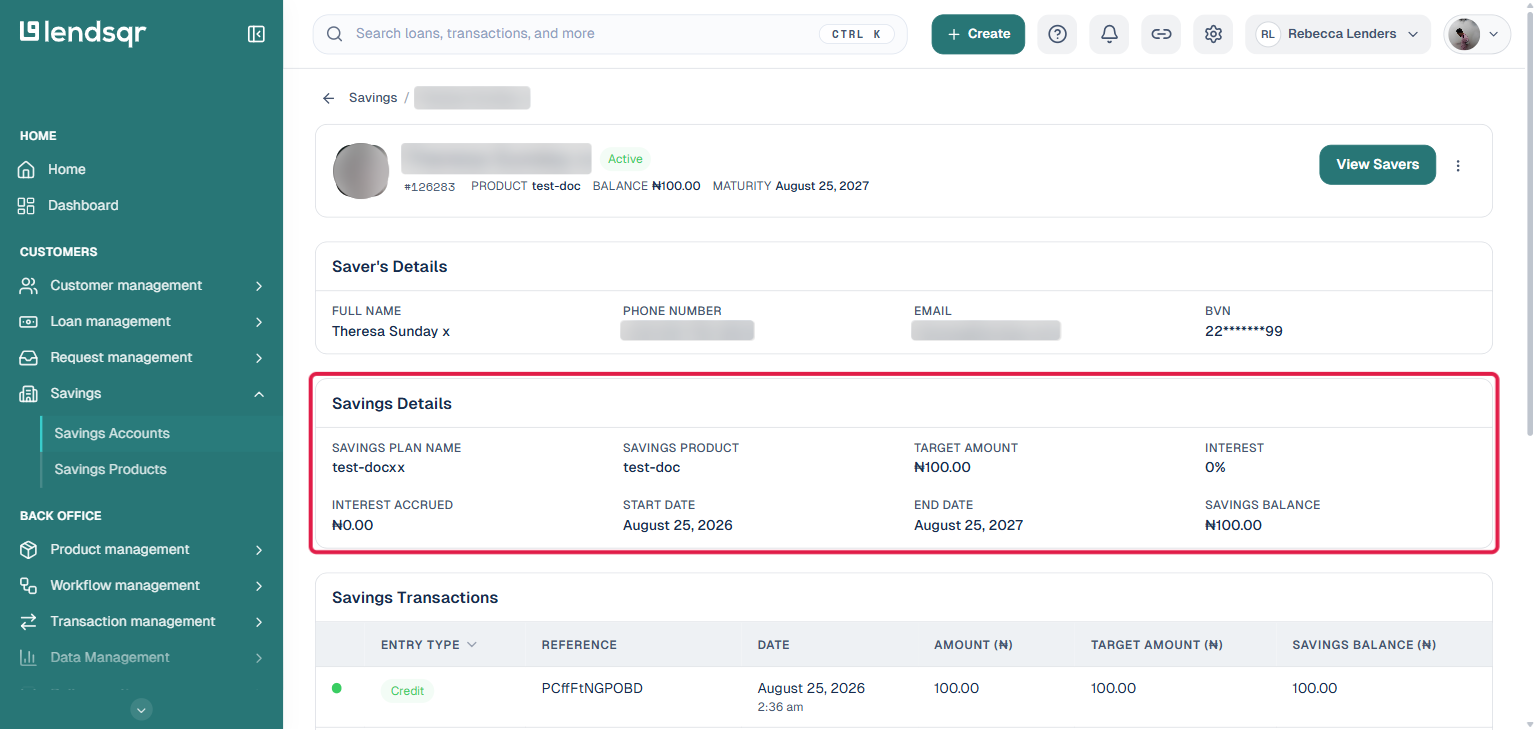
Once you open a savings plan, the admin console displays several useful pieces of information:
Savings plan information: plan type, purpose, target amount, interest rate, and duration.
Savings balance: the total amount saved so far.
Savings transactions: a record of all deposits and activities related to the savings plan. This information helps administrators verify balances, track deposits, and understand how the user interacts with the savings product.
Target amount
Interest
Maturity date
Status of the savings plan
Frequently asked questions
Does every user have a savings tab?
No. The savings tab only appears if the user has created at least one savings plan.
Can admins see savings transactions?
Yes. Once you open a savings plan, you can view the list of transactions associated with that plan.
Can savings be managed from the admin console?
Yes. Depending on permissions, administrators may also create, fund, or manage savings plans from the console.