Access your Back Office at your fingertips.
Download the app now on Google Play Store.
Scan the QR code
You can also scan QR code with your phone to download the app.
How to activate or deactivate savings products in Lendsqr
Updated
On this page
When you create a new savings product in Lendsqr, it starts in a deactivated state by default. This gives you time to review settings, test configurations, and make final adjustments before making it visible to customers.
Activating a savings product makes it available for customers to open plans or make deposits. Deactivating it hides the product from new activity without deleting it.
This guide explains why product status control matters, when to activate or deactivate savings products, and how to change the status step by step in the Lendsqr admin console.
Why product status matters
Controlling the activation status of your savings products helps you:
Safely test and refine new products before launching them to customers
Maintain full control over what savings options are currently available
Quickly respond to business needs, such as pausing underperforming products
Reduce risk by preventing customers from accessing products that are not yet ready
Support compliance during regulatory reviews or policy changes
Proper status management keeps your savings portfolio organized and protects both your business and your customers.
When should you activate or deactivate savings products?
Activate a savings product when:
You have completed all configuration and testing
You are ready to launch a new product to customers
You want to re-enable a previously paused product
Preparing for seasonal campaigns, such as festive target savings
Deactivate a savings product when:
You need to make updates or fix issues
The product is underperforming or no longer aligns with your strategy
You are conducting internal reviews or facing regulatory changes
Retiring an old product while keeping historical data intact
For example, a salary-based savings lender might activate a new emergency savings product just before the end of the month when employees receive salaries. A microfinance institution could temporarily deactivate a high-interest savings product during a regulatory review to avoid new deposits until compliance is confirmed.
How to activate or deactivate a savings product in Lendsqr
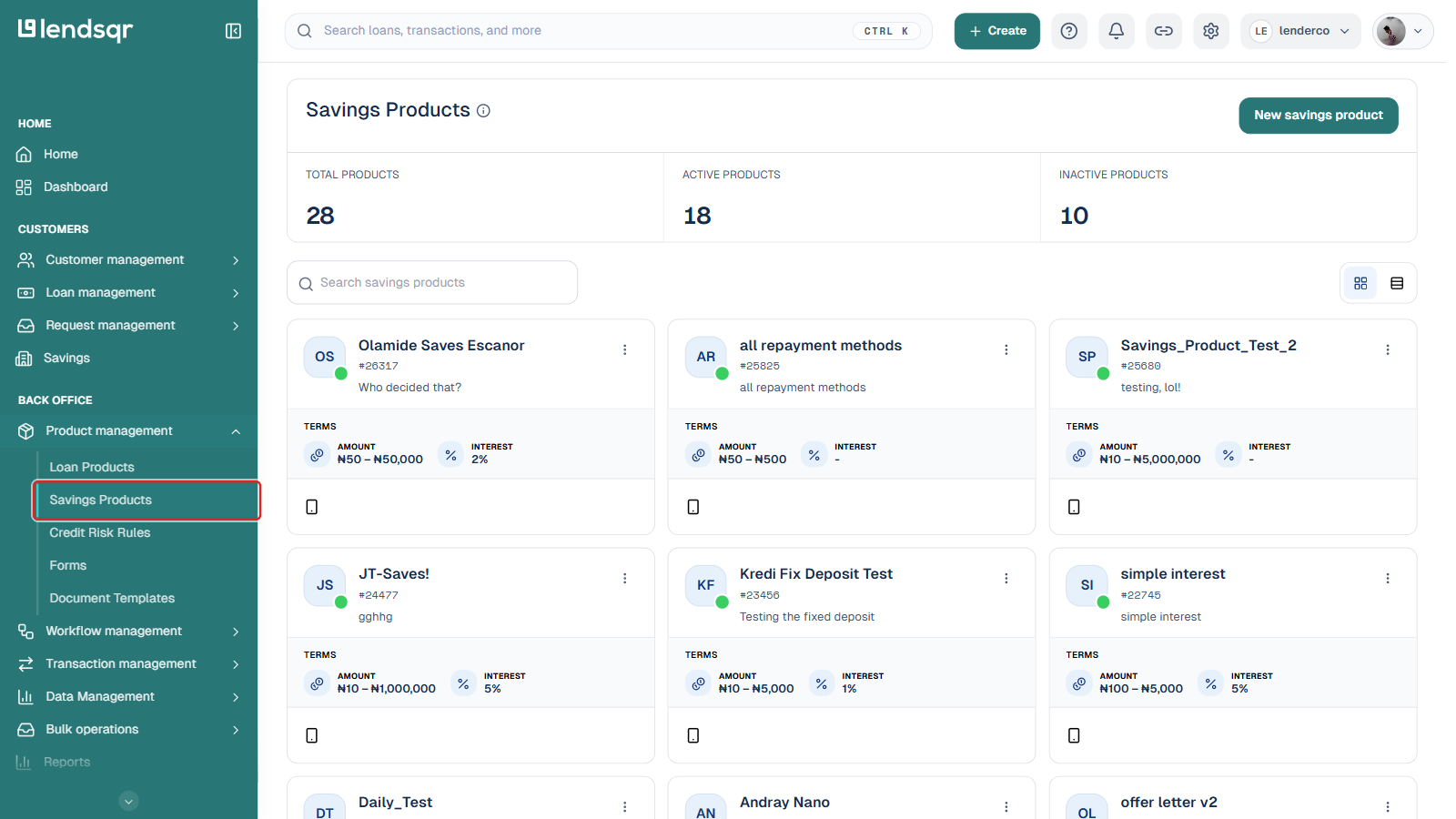
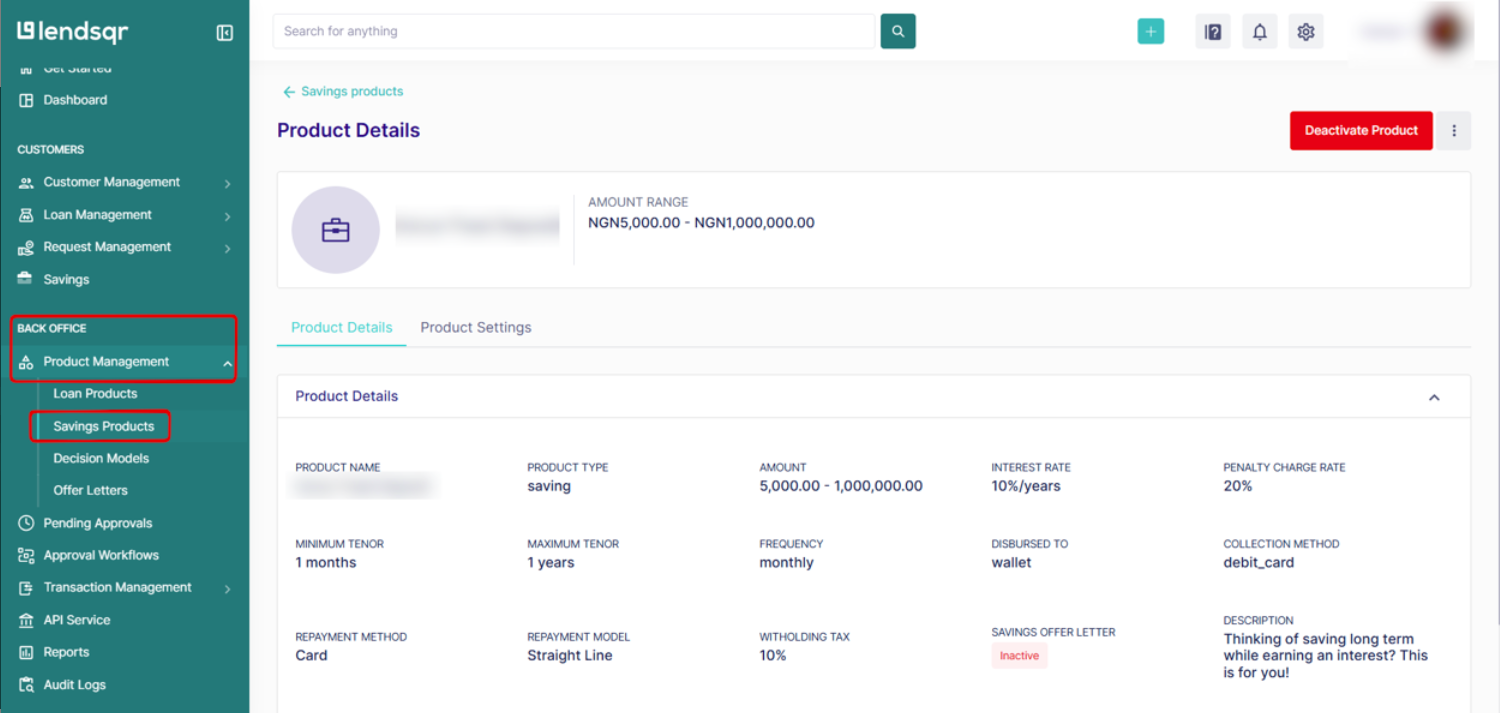
In the left navigation, under Back Office, expand Product management and select Savings Products.
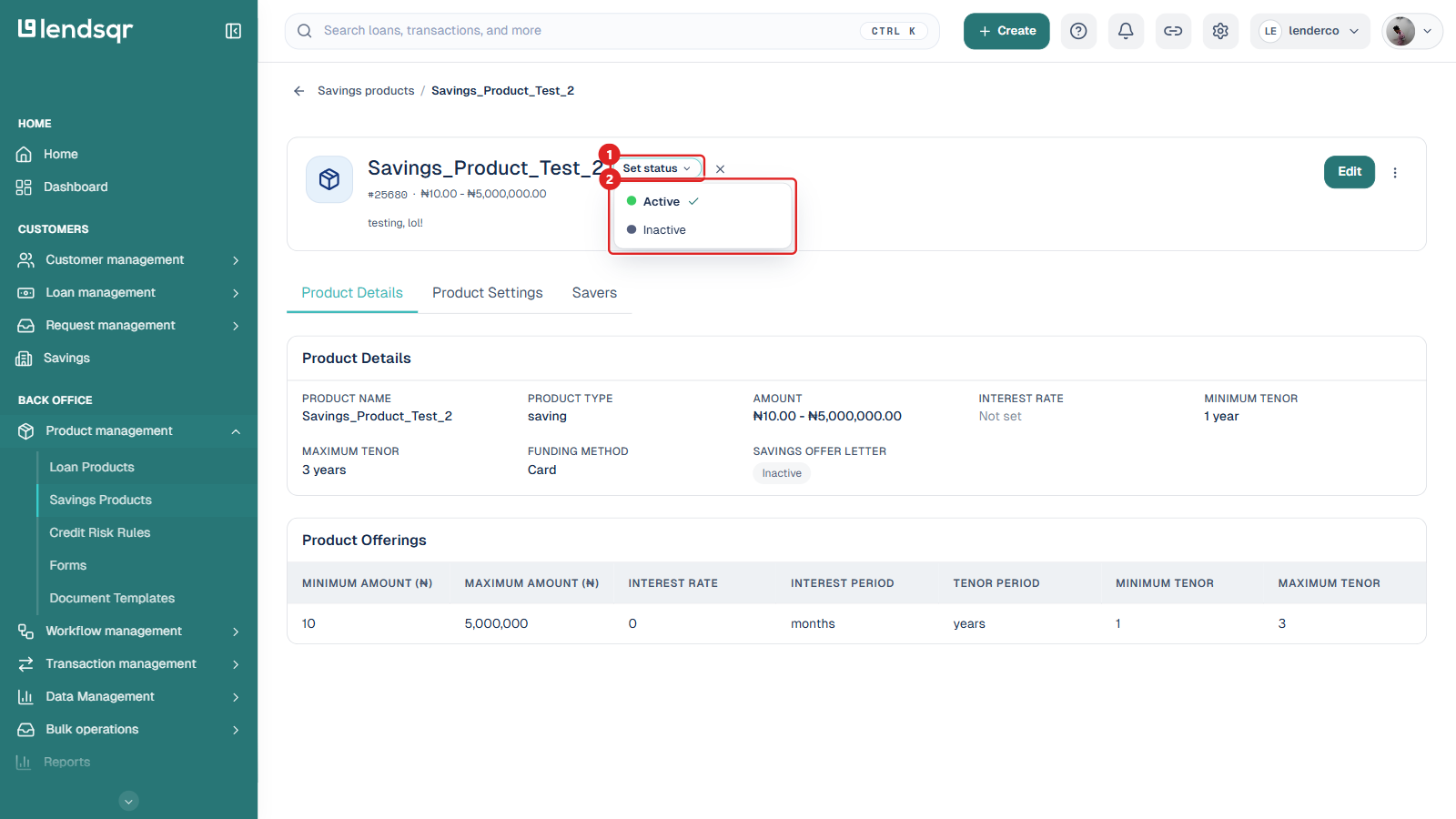
Locate the savings product you want to manage and click it to open its detail page.
Next to the product name at the top of the page, the current status is shown as a chip (for example active or inactive). Click the Edit status control beside it.
A Set status dropdown opens with two options, Active and Inactive. Select the status you want. The current status is marked with a check.
The status change takes effect immediately. The status chip beside the product name updates to reflect the new state.
A faster path from the product list
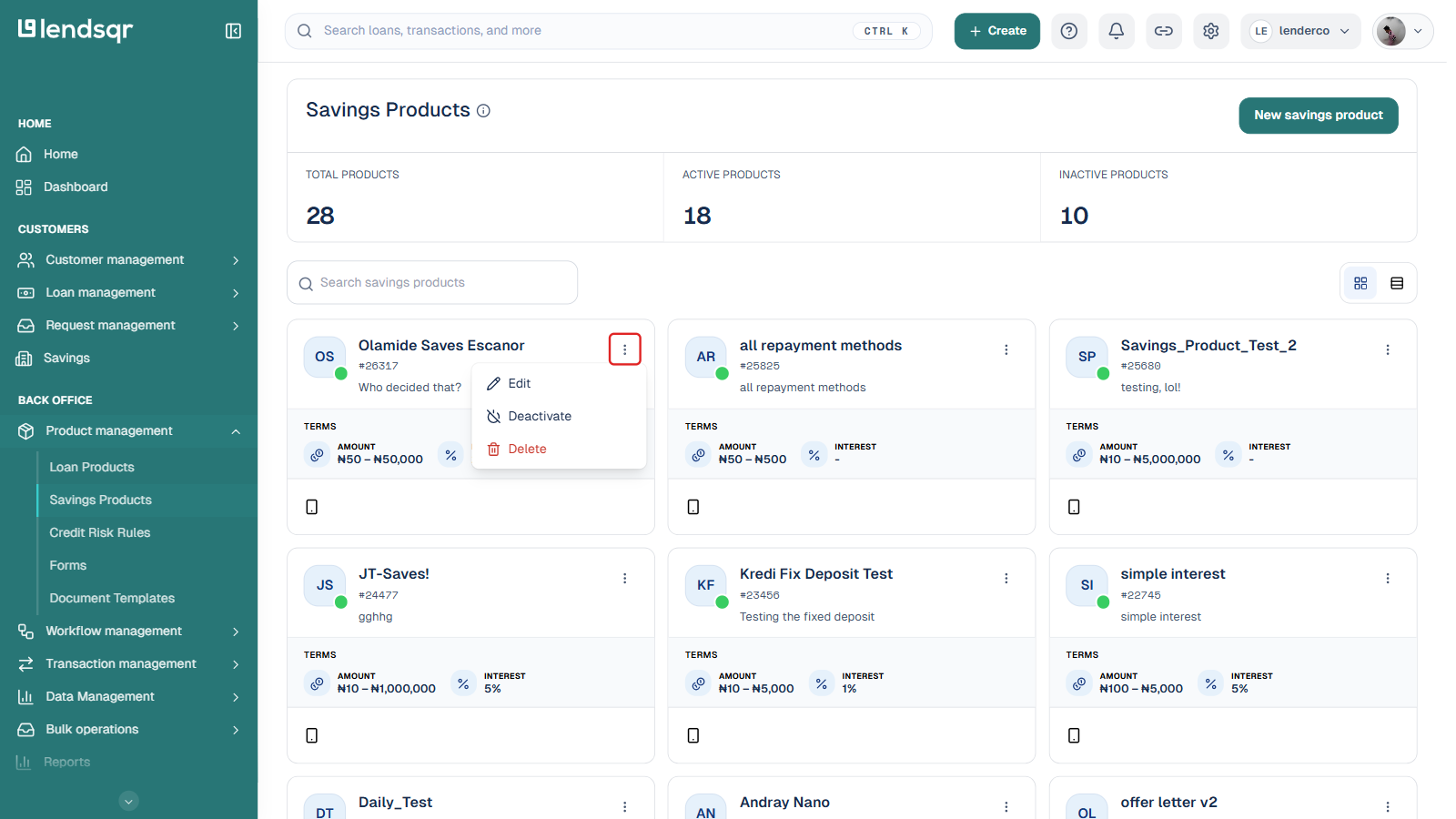
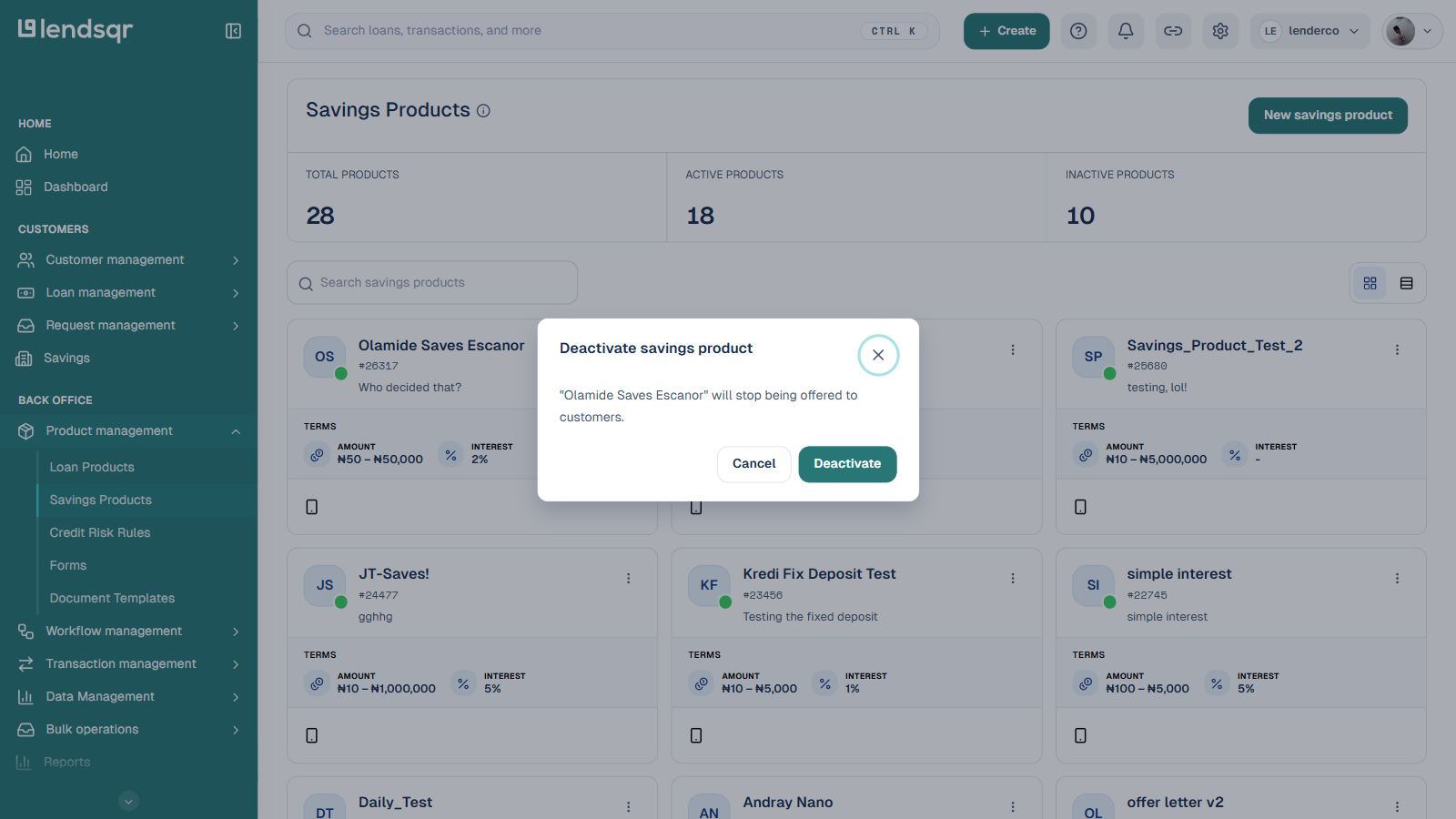
You do not have to open a product’s detail page to change its status. On the Savings Products list, click the ⋮ (more options) icon on any product card to open a menu with Edit, Deactivate (or Activate, on an inactive product), and Delete. Selecting Deactivate or Activate opens a short confirmation dialog and applies the change immediately, without leaving the list.
Tip: Always double-check the product details before activating to ensure the interest rate, tenor range, funding method, and offerings are correct.
What happens after changing the status
When activated: Customers can see the product, open new savings plans, and make deposits.
When deactivated: The product is hidden from new customer actions, but existing savings plans and transaction history remain accessible for reporting and management.
You can reactivate the product at any time without losing any previous data or configuration.
What this enables in your lending and savings operations
With quick activation and deactivation in the Lendsqr admin console, you can confidently launch, test, pause, or retire savings products. This gives you full control over what your customers see while keeping operations simple, flexible, and low-risk.
Many lenders use this to maintain a clean and well-managed savings portfolio as their business grows.
Next steps
Review all your savings products regularly and update their status based on performance and business goals.
Test new products thoroughly in the deactivated state before activating them.
Combine status management with your loan product configuration and borrower web app customization for a consistent customer experience.
Monitor savings activity and usage reports after activation to measure product success.