Access your Back Office at your fingertips.
Download the app now on Google Play Store.
Scan the QR code
You can also scan QR code with your phone to download the app.
How to locate user loan: Lendsqr admin guide
Updated
On this page
During day-to-day lending operations, there are many situations where you need to find a specific borrower’s loan record quickly. A borrower calls your support line asking about their repayment schedule. A collections team member needs to follow up on a past due account. A compliance officer needs to review a loan’s decision data for an audit.
In each of these cases, being able to locate the right loan record fast without scrolling through hundreds of entries is essential. The Lendsqr admin console makes this straightforward through a dedicated Loans section with filtering tools that allow you to search by email, phone number, status, and other parameters.
This guide walks you through the exact navigation path, how to use the available filters, what information you will find when you open a loan record, and how to troubleshoot common issues when a search returns no results.
Understanding the loans section
The Loans section is the central location on the Lendsqr admin console for viewing and managing all of your borrowers’ loan records. It contains active loans, settled loans, past due loans, declined applications, and every other stage of the loan lifecycle in one place.
This is different from the Loan Requests section, which shows applications that are still being processed or awaiting a decision. The Loans section shows loans that have already moved beyond the application stage, including those that are running, past due, settled, declined, or in any other post-application status.
Loan statuses explained
When browsing loan records, each entry will show a status that indicates where the loan is in its lifecycle. Understanding these statuses helps you quickly identify which records need your attention.
Drafts: the borrower is currently in the process of applying for the loan and has not yet submitted it
Pending: the loan application is complete but is awaiting a specific requirement, such as your approval, mandate activation, guarantor acceptance, or an equity contribution
Running: the loan has been approved, disbursed, and is currently active but not yet fully repaid
Past due: the loan has passed its repayment due date and the borrower has not yet paid it back
Settled: the borrower has fully repaid the loan
Declined: the loan request was rejected either by your automated credit risk rule or manually by you
Cancelled: a pending loan request that was cancelled by the borrower before it was approved
Abandoned: the borrower received a loan offer but did not accept it and left the process incomplete
Terminated: the loan has been terminated by the system or the lender
Reversed: the loan disbursement failed and the transaction was reversed
When to use each search parameter
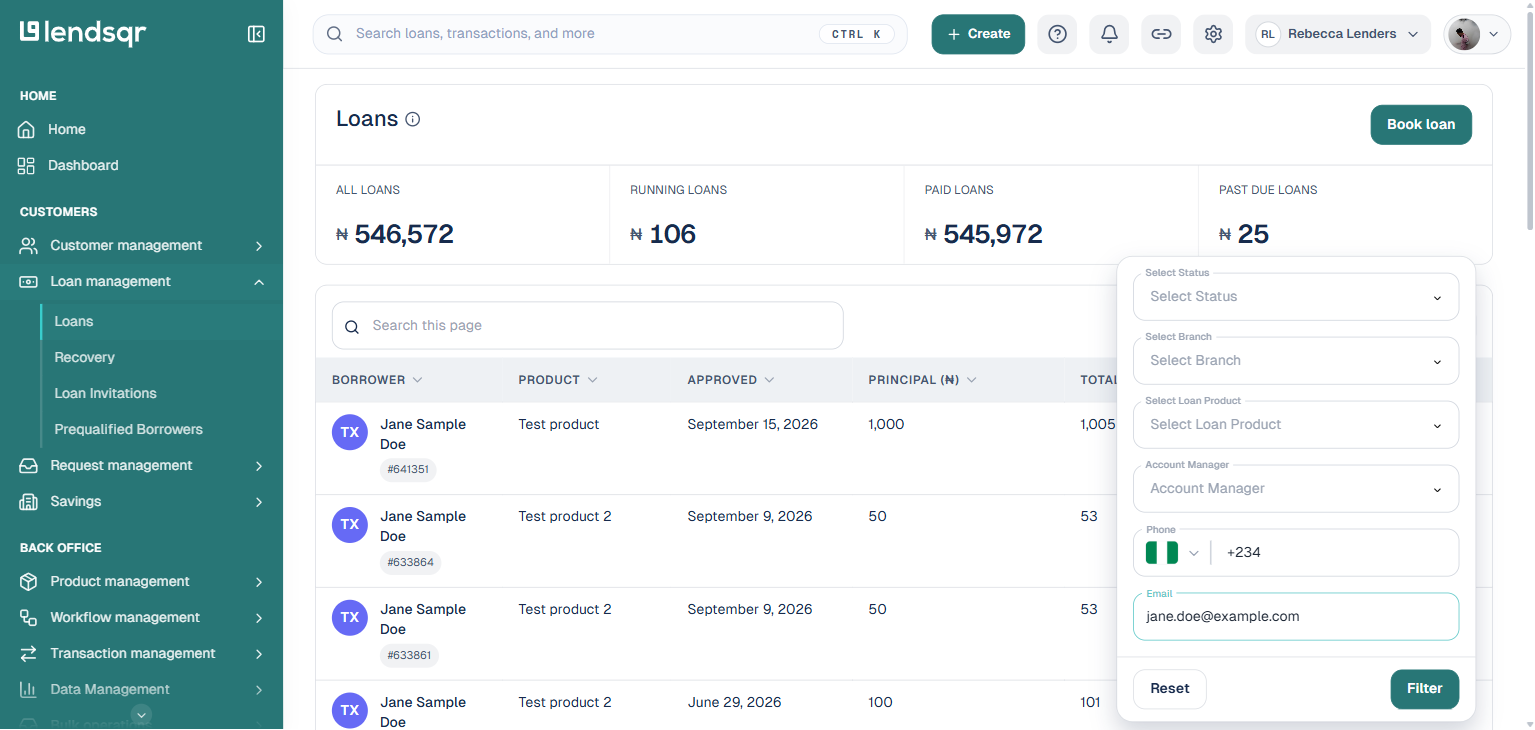
The Loans section lets you filter records by status, branch, loan product, account manager, phone number, and email address. Knowing when to use each parameter will help you find what you need faster.
Email address or phone number Use these filters when you have a specific borrower in mind and know their registered email address or phone number. This is the most direct way to pull up all loans associated with a particular customer, making it ideal for customer service lookups and individual account reviews.
Loan status Use the status filter when you want to view all loans at a particular stage, rather than looking for one specific borrower. For example, filtering by “Past due” gives you a full list of overdue accounts to work through during a collections session. Filtering by “Pending” shows all loans awaiting your action.
Branch, loan product, and account manager Use these filters when you want to narrow results to a specific business unit, a specific product, or the loans a particular team member manages, rather than searching for an individual borrower.
Combining filters You can apply multiple filters simultaneously. For example, filtering by a borrower’s email and the status “Running” will show only that borrower’s currently active loans, which is useful when a customer calls to ask about their current repayment obligations.
Real-world scenarios
Scenario 1: Customer support lookup A borrower calls your support line asking why their loan has not been disbursed. The support agent filters the Loans section by the borrower’s email address and finds a loan with a “Pending” status. Opening the loan record reveals that the loan is awaiting mandate activation. The agent is able to explain the situation to the borrower and advise them on the next step.
Scenario 2: Collections follow-up A collections team member starts their Monday morning by filtering the Loans section by “Past due” status. The results show all overdue accounts across the portfolio. The team member can now work through the list systematically, opening each record to review the borrower’s contact details, repayment schedule, and loan history before making a call.
Scenario 3: Compliance review A compliance officer needs to review the decision data for a specific loan that has been flagged for audit. They filter by the borrower’s email address, open the relevant loan record, and navigate to the Decision Data section to review the individual check results, the offer, and the specific failure reasons recorded at the time of assessment.
Step-by-step: how to locate a user loan record
Follow these detailed steps to efficiently find loan records:
Step 1: Access the loans section First, navigate to the “Loans” tab under the “Loan Management” section in the side navigation bar. This centralized location contains all loan-related functions.
Step 2: Open the filter panel Next, click on the “Filter” button, which opens a panel with the available search fields: Status, Branch, Loan Product, Account Manager, Phone, and Email.
Step 3: Enter search criteria Then, enter the field information relevant to your search. You can search by phone number or email address to find a specific borrower’s loans, or use Status, Branch, Loan Product, or Account Manager to narrow the list without targeting one borrower.
Step 4: Execute search and select loan Finally, click on the “Filter” button at the bottom of the panel to execute your search. This will display all loans matching your criteria. After reviewing the results, select the specific loan that applies to your current task.
What you will find on the loan details page
When you open a specific loan record, the details page gives you a full picture of the loan and the borrower’s profile. The information available includes:
Loan and schedule details The specific loan terms, loan amount, loan purpose, and the full repayment schedule including due dates and amounts.
Decision data The overall eligibility decision, results from each individual check such as Karma, whitelist, and credit bureau checks, the generated offer, and the specific failure reasons if the loan was declined.
Borrower information The borrower’s personal details, education and employment history, and their linked cards and bank accounts.
Document details Uploaded identity documents used for verification, such as selfie, BVN, and ID checks.
Loan history The borrower’s previous loans and previous loan requests, giving you a full picture of their behaviour on your platform.
Benefits of efficient loan location
The ability to quickly find loan information improves customer service response times. Additionally, it enhances administrative efficiency and supports better loan portfolio management. Furthermore, this systematic approach ensures accurate loan tracking. As a result, it facilitates smooth lending operations.
Viewing past due loan records
If you specifically need to review past due loans, the Past Due Loans report in the Reports section offers additional filter parameters beyond what is available on the main Loans page. When viewing the Past Due Loans report, you can filter by:
Email address
Phone number
Date
Number of days the loan is past due
To access this report, navigate to “Reports” in the side navigation bar, search for “Past Due Loans” under the Loans category, then open the report. This gives you a more granular view of overdue accounts and is particularly useful for collections management.
Troubleshooting
The filter returns no results Check the following:
Confirm the email address or phone number is entered correctly and matches exactly what is registered in the system
Check that the loan status filter is not too restrictive. Try removing the status filter and searching by email or phone alone to see if any records exist for that borrower
If the borrower is new, their loan application may still be in the Loan Requests section rather than the Loans section. Navigate to “Request Management” and select “Loan Requests” to check
The loan record is showing but the status is unexpected Review the loan status definitions above to confirm your understanding of what each status means. For example, a loan that appears to be disbursed but shows as “Pending” may still be awaiting mandate activation or a guarantor acceptance.
I cannot find a loan I know exists The Loans section shows loans that have progressed past the application stage. If the loan is still being processed, it will appear in the Loan Requests section rather than the Loans section. Check both sections if you are unable to locate a specific record.
The page is not loading or filtering correctly Try refreshing the page and applying the filter again. If the issue persists, contact [email protected]